IFC8 Interfaces
The following interfaces are available under the IFC8 Interfaces:
- Use any of the following methods to navigate to any of the above IFC8 interfaces:
- From the SU search page, select the IFC interface, such as IFC Post, that you wish to look at and click Go.
or
- Select the OPERA Interfaces menu.
c. Under the OPERA Interfaces tree information, select the IFC8 Interfaces you wish to look at.

IFC POST
Note: If the database connection has not been established, connect to the database by providing the required connection credentials when the database dialog box appears.
- Use any of the following methods to navigate to the IFC Post interface:
- From the SU search page, select the IFC8 interface, such as IFC Post, you wish to look at and click Go.
or
- Select the OPERA Interfaces menu.
- Under the OPERA Interfaces tree information, select the IFC8 Interfaces tree information and then select the IFC POST you wish to run.
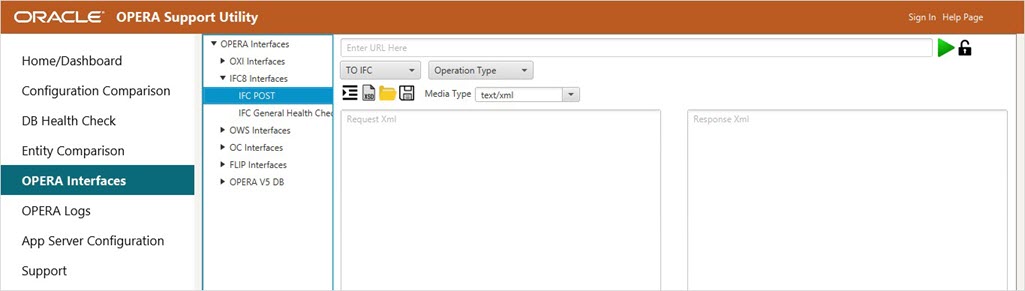
- Select To IFC8WS or To IFCWS from the drop-down list where you want to post your message. Once To IFC8WS or To IFCWS is selected, the URL to post is auto- populated with the machine name you are connected to.
- Select any of the Operation Type from the drop-down list.
- Select the Media Type from the drop-down list.
- Click the Indent and Structure icon in the Request xml text area to check the structure of the XML request message and indentation.
- It validates the details of missing tags and line numbers if the structure (tags) is not correct and displays an XML Structure Validation dialog box.
- It also indents the XML request message.
- Click the XSD Validation icon to check the validation of Request XML Message against XSD (you need to upload XSD files and check for the XSD validation).
- Click the Upload XSD File icon to upload your XSD file against Request XML Message and click Open. Click the XSD Validation icon to validate XML message against XSD.
- Click the Save icon to save your XML Message. This XML will be saved under the OXI IFC tree information.
- Click the Authentication icon to authenticate the posting of the message.
- Enter your Username and Password and click Authorize.
- Click the Run icon. This displays the Response Message, Response Code, and Response Received in Response XML text area.
Once the message is successfully posted, you can see a green checkmark on the top right corner of the screen.
If the message is not posted, you can see a cross mark on the top right corner of the screen.
IFC General Health Check
- Select the OPERA Interfaces menu.
If the database connection has not been established, connect to the database by providing the required connection credentials when the database dialog box appears.
- Under OPERA Interfaces, select IFC8 Interfaces tree information and then select IFC General Health Check you wish to run.
- The IFC8 General Health Check is available under the DB Health Check tab. The 'Do you want to navigate to it?' dialog box appears.
- Click Continue to navigate to the IFC General Health Check under the DB Health Check menu.
- This directs you to the IFC8 tab of the OPERA Interfaces under the DB Health Check. View Active IFC, Active Interfaces Detail, IFC’s Down, IFC Transaction Code with Inactive Mapping, and High Count In IFC Messages Health check reports.


