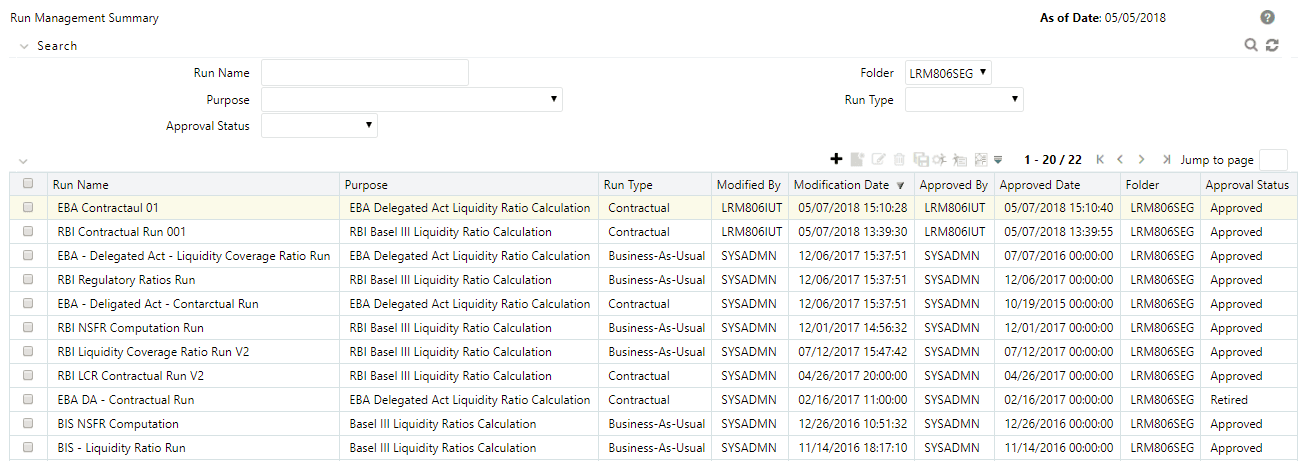
The Run Management screen of the LRS pack allows you to define, approve, and execute Runs. All Runs except stress Runs are defined in the Run Management window of the application. The Run, once saved and approved, is registered in the Run section of the Rules Framework in Oracle Financial Services Analytical Applications Infrastructure.
Topics:
· Understanding Run Management Summary
The Run Definition window has the following sections for defining parameters:
Specify the following details:
· Folder: Select the Folder which is specific to the Run definition.
· Access Type: Choose the access type option, Read/Write, or Read-Only.
Specify the following details:
· Run Name: Specify the Run name.
· Run Description: Enter the Run description.
Specify the Run parameters for each Run definition in this section. It includes:
· Run Type: The Run Type for Deposit insurance Calculations is by default a Contractual Run.
In the OFSAA Home screen select Financial Services Deposit Insurance Calculations for Liquidity Risk Management.
To open the Run Management window, selectDeposit Insurance Calculations Liquidity Risk Management and then select Run Management on the Left-Hand Side (LHS) menu.
Figure 4 Run Management Summary
The Run Management Summary window of the DICLRM application allows you to define, approve, and execute Runs.
Field\Icon |
Description |
|---|---|
Search |
This icon allows you to search the Run definition based on the search criteria specified. Search criteria may include a combination of Run Name, Folder, Approval Status, and Run Type. The Run definitions displayed in the Run Management Summary table are filtered based on the search criteria specified on the clicking this icon. |
Reset
|
This icon allows you to reset the Search section to its default state that is, without any selections. Resetting the Search section displays all the existing Run definitions in the Run Management Summary table. |
Run Name |
This field allows you to search the pre-defined Run based on the Run name. Enter the Run name. |
Folder |
This field allows you to search for the pre-defined Run definitions based on the selected folder. This field displays a list of folders that you have access to as a drop-down list. Selecting a folder from the drop-down list displays only those Run definitions that are defined within the selected folder/segment in the Run Management Summary table. |
Run Type |
The Run Type for Deposit insurance Calculations is by default a Contractual Run. |
Approval Status |
This field allows you to search the pre-defined Run based on approval status. This drop-down list displays the statuses that you have access to, that is, Approved, Draft, In Review, Open, Pending Approval or Retired. Click the drop-down list to select Approved or Rejected status. Selecting a status from the drop-down list displays only those Run definitions that are defined within the selected status in the Run Management Summary table. |
Icon Name |
Icon |
Description |
|---|---|---|
Add |
|
Use this icon to define or add a new Run. |
View |
|
Use this icon to view the selected Run definitions. |
Edit |
|
Use this icon to edit the selected Run definition. Once the definition is approved, it cannot be edited in the case of Run definitions. |
Delete |
|
Use this icon to delete the selected Run definition. |
Copy |
|
Use this icon to copy a definition and resave it as a new definition. |
Run Execution Parameters |
|
Use this icon to specify execution parameters and execute the Run from the Run Execution Parameters screen. Select the check-box against a Run definition and click the Run Execution Parameters icon to view the Run Execution Parameter Specification window. |
Run Execution Summary |
|
This icon displays the Run Execution Summary window. The Run parameters specified as part of the Run Definition window are displayed in an un-editable form in the Run Parameters window. The entire list of executions and their details are displayed for the selected definition on this screen. |
Workflow Summary |
|
The icon displays the approval summary for the definition. |
You can define a new Run in the Run Definition window.
Figure 5 Run Definition - DIC Run
To define a DIC Run, follow these steps:
1. Click the
Add  icon on the Run Management window.
The Run Definition window is displayed where you can define a Run.
2. In the Linked To section, follow these steps:
a. Select the Folder from the drop-down list which is specific to the Run definition. The Run definitions are linked to a segment.
b. Select Access Type. The values are either Read/Write or Read Only.
3. In the Run Definition Details section, follow these steps:
a. Enter the Run Name which is unique across infodoms.
b. Enter the Run Description.
NOTE:
Both the Run Name and Run Description fields allow special characters.
4. In the Run Parameters section, follow these steps:
a. Select the Purpose - Deposit Insurance Calculations.
NOTE:
The value in the Run Type field is Contractual by default for DIC.
Figure 6 Run Definition - DIC Run
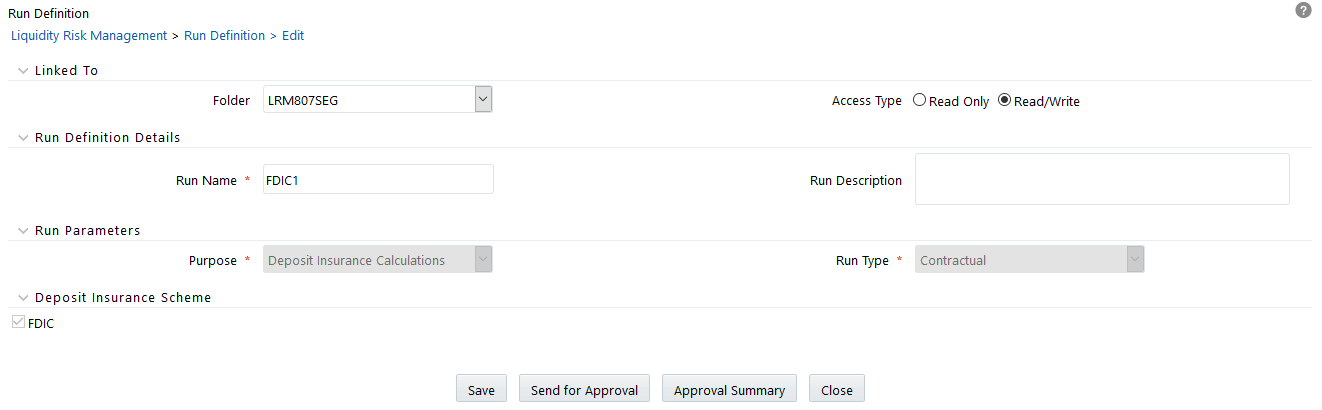
5. Click Save.
6. The Run is saved in the Run Framework of Oracle Financial Services Analytical Applications Infrastructure. A Run is available for execution only after it is approved. Once approved, run parameters cannot be edited.
See the Oracle Financial Services Liquidity Risk Measurement and Management User Guide on the OHC documentation library for details about the following:
· Run Definition Approval Process
· Adding a Custom Task to a Run
· Preparing for Execution
· Run Execution Parameters
NOTE:
Back Dated execution is enabled for the Deposit Insurance Calculation (FDIC) Run Purpose. See the Oracle Financial Services Liquidity Risk Measurement and Management User Guide on the OHC documentation library for details.


