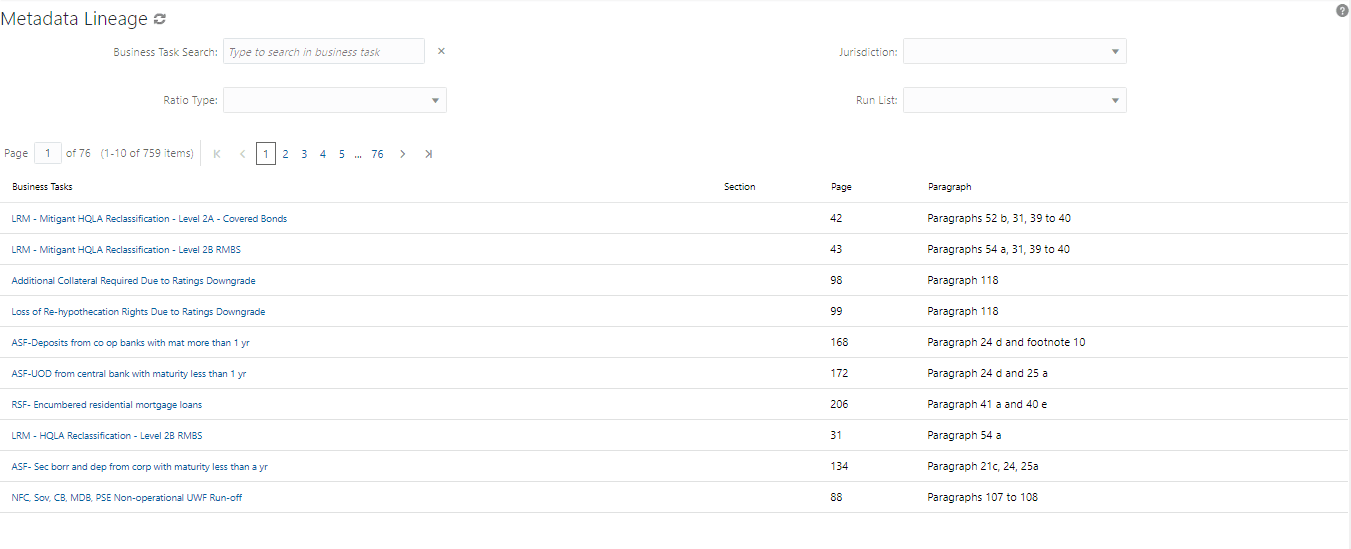
This screen enables you to view the metadata lineage of the business tasks.
Topics:
· Filters
There are four filters available:
· Business Task Search: Enables you to search for Business tasks by name.
· Jurisdiction: Enables you to search for tasks specific to a jurisdiction. For example, if you select EBA, it lists out only the EBA related tasks.
· Ratio Type: Enables you to search based on the type of ratio, such as LCR or DIC.
· Run List: Enables you to search based on the seeded runs.
Additionally, you can use a combination of filters, such as Jurisdiction and Run List. For example, if you select EBA and EBA-Delegated Act-Contractual Run, then EBA related business tasks, specific to EBA-Delegated Act-Contractual Run only, will be displayed.
Figure 68: Metadata Lineage Window
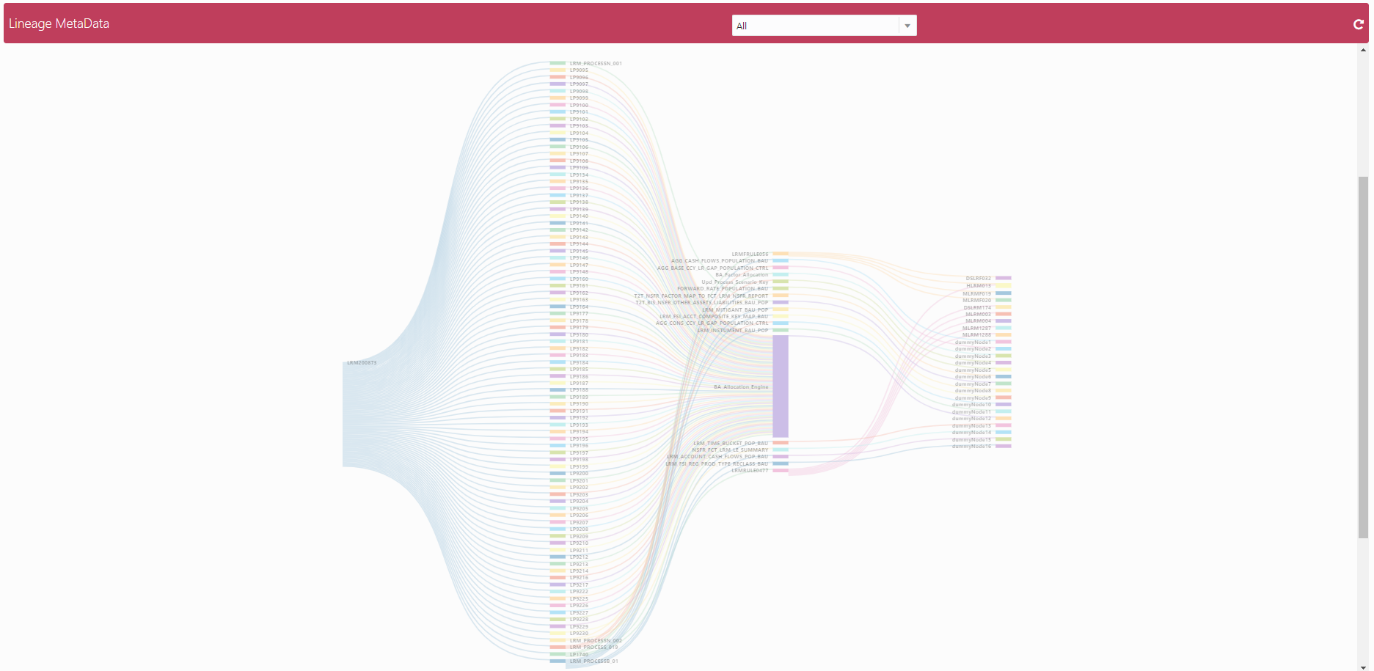
The article references are mentioned for every business task. After the filtered records are displayed, click the task name to view the complete metadata lineage. In the Lineage Metadata window, you can select the level up to which the records must be displayed from the drop-down list:
· Level 2: Displays lineage up to Process level.
· Level 3: Displays lineage up to Task level.
· Level 4: Displays lineage up to Measures level.
· All: Displays lineage in all levels
Figure 69: Lineage Metadata Window
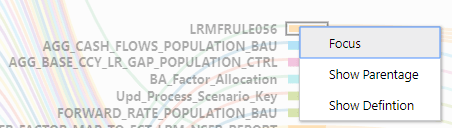
To return to the previous page, click the Reset icon. Select any process, and right-click to view the following details:
· Focus: Displays information about that specific process only.
· Show Parentage: Displays the parent component.
· Show Definition: Displays the definition page for the specific component.
Figure 70: Process Details
·