 button.
The Counterbalancing Strategy module of Oracle Financial Services Liquidity Risk Measurement and Management aids banks in developing contingency funding plans to address the liquidity hotspots observed during stress scenarios of varying magnitudes. A counterbalancing strategy or a contingency funding plan refers to certain measures undertaken by banks to minimize or nullify the gaps identified under the BAU and Stress conditions. The purpose is to identify the large negative and positive liquidity gaps across defined time buckets and apply counterbalancing actions that will reduce the gaps.
A range of counterbalancing strategies, consisting of one or multiple counterbalancing positions covering the fire sale of marketable and fixed assets, creation of new repos, rollover of existing repos and raising fresh deposits or borrowings, can be defined easily to bridge the liquidity gaps observed under different business conditions. This module enables banks to dynamically assess and update their contingency funding plans based on the changing market and business conditions thereby ensuring complete preparedness to combat potential liquidity shocks.
The application gives you the option of applying five different types of counterbalancing positions to generate new cash flows and manage huge negative and positive liquidity gaps. These include the following:
· Sale of Marketable Assets
· Sale of Other Assets
· Rollover of Existing Repo’s
· New Repo’s
· New Funding
The liquidity gaps and other metrics, calculated post counterbalancing, are displayed in the Liquidity Risk dashboard of ALM Analytics for each counterbalancing strategy definition.
NOTE:
Counterbalancing strategies are applied to the liquidity gap results of a specific execution of an existing contractual, business-as-usual, or stress Run.
Topics:
· Counterbalancing Strategy Definition
· Understanding Counterbalancing Strategy Summary
· Defining Counterbalancing Strategies
NOTE:
Every SKU in the Liquidity Risk Solution (LRS) application pack leverages this common user interface.
The Counterbalancing Strategy Definition has the following sections for defining the parameters:
· Details
· Liquidity Gap Report Post Counterbalancing
The following details must be specified for the counterbalancing strategy:
· Counterbalancing Strategy Name: Enter Counterbalancing Strategy Name.
· Description: Enter the description of the counterbalancing strategy.
The following details of a particular execution of the underlying Run to which the counterbalancing strategy is to be applied are selected.
· FIC MIS Date: Select the as of date of the Run to which the counterbalancing strategy is to be applied.
· Run Type: Select the type of Run on which you want to apply the counterbalancing strategy. Options available in the drop-down are Contractual, BAU and Stress.
· Run Selection: Select the Run to which the Counterbalancing Strategy must be executed.
· Run Execution ID: Select the Run execution ID of the selected Run to which a counterbalancing strategy must be executed.
· Currency: Select the reporting currency or local currency as an option. This will be executed on the selected currency type over the selected Run.
· Legal Entity: Select the legal entity to which the counterbalancing strategy must be executed.
NOTE:
Data at the selected LE level only is displayed. This applies to LEs which have child entities as well.
· Baseline Run: Select the baseline Run to which the counterbalancing strategy needs to be executed. When you click the selection button, Run Selection Browser appears which will allow you to select the Run.
· Time Bucket Level Selection: Select the time bucket level selection to which the counterbalancing strategy must be executed.
· Values to be shown in multiples of: Click this drop-down list to select to display the values in multiples of thousands, millions, and billions.
This section displays Liquidity gaps calculated as part of the selected execution and Run selected at the time bucket levels which are in terms of multiples selected as part of the Details section.
It will be at the selected level and value. It will either
be in millions or billions or thousands based on your selection. The Liquidity
Gap report is generated once you click button.
This section allows you to add one or multiple counterbalancing
positions, which together constitute a counterbalancing strategy. When
you click the Add  icon,
the Counterbalancing Strategy Definition window is displayed where you
can specify the counterbalancing positions to be applied.
icon,
the Counterbalancing Strategy Definition window is displayed where you
can specify the counterbalancing positions to be applied.
The Counterbalancing Strategy Definition window supports the following types of counterbalancing positions in the application.
This counterbalancing position type allows you to sell a marketable instrument before its maturity. Sale of marketable assets generates new cash inflow in the sale bucket and reverses all original cash flows occurring between the sale bucket and maturity. Only unencumbered marketable assets (identified through encumbrance status and marketable asset indicator) are available for selection as a part of this counterbalancing strategy.
As part of this counterbalancing position, you are required to select a marketable instrument and provide the following sale parameters:
· No. of Units / Percentage to be Sold: This is the number of units or percentage of the instrument that is to be sold. This value has to be within the sale limit, if any, specified for the asset.
· Discount (in %): This is the discount applied to the asset value to determine the inflows on sale.
· Revised Inflow Bucket: This is the sale bucket, or bucket where the cash inflows are generated due to the sale.
The cash flows on the sale of marketable assets are calculated as follows:
1. The original maturity bucket and maturity amount of the asset are identified.
2. Cash inflows to be posted to the sale bucket are calculated as follows:

3. Original cash flows occurring from the sale bucket to the maturity bucket are reversed as follows:

NOTE:
· The units or amount available for sale depends on the sale limit specified for each instrument. For instance, if the total units of Bond A held by the legal entity are 100 and a sale limit of 50% is specified, then, only 50 units of Bond A are allowed to be sold while counterbalancing.
· If all the available units of an asset are sold, then this asset will not appear in the Marketable Assets Browser for selection.
· For a partial sale, only the balance units or amount are available for further counterbalancing actions including sale and repo. If an instrument is sold partially, it is allowed to be selected again for sale provided the sale parameters differ, such as a different haircut or sale bucket.
This counterbalancing position type allows you to sell a non-marketable asset such as a fixed asset or an earning asset before its maturity. The sale of other assets generates new cash inflow in the sale bucket and reverses all original cash flows occurring between the sale bucket and maturity. Only unencumbered assets (identified through encumbrance status) are available for selection as a part of this counterbalancing strategy.
As part of this counterbalancing position, you are required to select a non-marketable asset and provide the following sale parameters:
§ Value of Assets to be Sold: This is the percentage of the asset that is to be sold. This value has to be within the sale limit, if any, specified for the asset.
§ Discount (in %): This is the discount applied to the asset value to determine the inflows on sale.
§ Revised Inflow Bucket: This is the sale bucket, or bucket where the cash inflows are generated due to the sale.
The cash flows on sale of other assets are calculated as follows:
1. The original maturity bucket and maturity amount of the asset are identified.
2. Cash inflows to be posted to the sale bucket are calculated as follows:

3. Original cash flows occurring from the sale bucket to the maturity bucket are reversed as follows:

NOTE:
· The sale of other assets includes loans and fixed assets. All assets of the banks excluding marketable assets are available for sale as part of this counterbalancing position.
· The amount available for sale depends on the sale limit that is specified. For example, if the total value of land held by the legal entity is $10000000 and a sale limit of 30% is specified, then the land worth of a maximum of $3000000 is allowed to be sold while counterbalancing.
· For a partial sale, only the balance amount is available for further counterbalancing actions including sale and repo. If an asset is sold partially, it is allowed to be selected again for sale provided the sale parameters differ, such as a different haircut or sale bucket.
This counterbalancing position type allows you to extend the maturity of an existing repo/reverse repo by rolling it over to a later time bucket. This results in rescheduling of cash outflows/inflows to a future date and reversal of cash outflows/inflows at the original maturity. This is applied at an individual instrument position level.
As part of this counterbalancing position, you are required to select an existing repo and provide the following rollover parameters:
· Units to be Rolled Over: This is the number of units of the underlying asset that are to be rolled over.
· Revised Maturity Bucket: This is the new maturity bucket post rollover. Revised maturity bucket should be less than or equal to the maturity bucket of the underlying instrument.
· Haircut (in %): Provide the Haircut in %.
The cash flows on rollover of repos and similar instruments are calculated as follows:
1. Original maturity bucket and maturity amount of the repo is identified.
2. Original cash outflows occurring in the original maturity bucket are reversed:

3. Cash outflows to be posted to the revised maturity bucket are calculated as follows:

The cash flows on rollover of reverse repos and similar instruments are calculated as follows:
1. Original maturity bucket and maturity amount of the reverse repo is identified.
2. Original cash inflows occurring in the original maturity bucket are reversed:

3. Cash inflows to be posted to the revised maturity bucket are calculated as follows:

NOTE:
· Revised maturity buckets cannot exceed the maturity bucket of the underlying security.
· All repo-like instruments are supported as part of this counterbalancing action including repo’s, reverse repo’s, buy/sell backs and sell/buy backs.
This counterbalancing position type allows you to create new repo transactions by selecting an existing asset. The creation of new repo results in a cash inflow on the repo start date and a corresponding outflow at the repo maturity date specified as part of the counterbalancing position. New repos can be created for the following types of marketable instruments:
· Unencumbered securities (identified through encumbrance status)
· Securities for which the bank has re-hypothecation rights (indicator for re-hypothecation rights)
As part of this counterbalancing position, you are required to select an existing repo and provide the following rollover parameters:
· No of Units to be Repo’d: This is the number of units of the asset to be repo’d.
· Haircut (in %): This is the haircut applied to calculate the repo value.
· Revised Inflow Bucket: This is the bucket where the inflows from the repo are received and the asset is encumbered, or the repo start bucket.
· Revised Maturity Bucket: This is the time bucket in which the repo contract matures, that is where the asset is received, and cash is paid to the counterparty.
The cash flows on repo creation are calculated as follows:
1. Cash inflows occurring in the repo start bucket are calculated as follows:

2. Cash outflows to be posted to the revised maturity bucket are user-specified.
3. The underlying asset is encumbered, meaning the encumbrance status is updated.
The cash flows on repo creation are calculated as follows:
1. Cash outflows occurring in the reverse repo start bucket are calculated as follows:

2. Cash inflows to be posted to the revised maturity bucket are user-specified.
NOTE:
· Revised maturity buckets cannot exceed the maturity bucket of the underlying security.
· All repo-like instruments are supported as part of this counterbalancing action including repo’s, reverse repo’s, buy/sell backs and sell/buy backs.
· The units of the asset available to be repo’d depend on the repo limit that is specified. For instance, if the total units of Bond A held by a legal entity are 100 and a repo limit of 40% is specified, then only 40 units of Bond A are allowed to be repo’d while counterbalancing.
· If all available units of an asset are repo’d then it does not appear for selection in the Marketable Assets Browser.
· For a partial repo, only the balance units/amount appears in the Units Available column for further counterbalancing actions (for example. sale of marketable assets). If only some units of an instrument are repo’d, then it can be selected again for repo provided the repo parameters differ (such as with a different haircut or time bucket).
· Exposure to an existing counterparty while creating new repos is allowed only up to the counterparty limit specified. For instance, if the counterparty limit is specified as 1 Million for Counterparty X, the current exposure is 900000, then the creation of new repo’s is allowed only up to an exposure of 100000 against Counterparty X.
This counterbalancing position type allows you to raise new funding either as a deposit or borrowing. A new funding creates a cash inflow in the specified time bucket and a corresponding outflow in a later time bucket. The LRMM application allows you to specify the product, borrowing date (inflow date), borrowed amount, maturity date, and amount.
As part of this counterbalancing position, you are required to select a funding product and provide the following parameters:
· Legal Entity: This is the legal entity that is raising the new funding in the context of the counterbalancing position.
· Line of Business: This is the line of business of the legal entity which is raising the new funding.
· Natural Currency: This is the natural currency of the new deposit or borrowing account.
· Counterparty: This is the counterparty who is deemed to have provided the new funding.
· Inflow Bucket: This is the transaction start bucket that is, the bucket in which the inflows from the new deposit or borrowing is recorded.
· Inflow Amount: This is the cash received from the new funding.
· Maturity Bucket: This is the maturity bucket of the transaction that is, the bucket in which cash outflows are recorded.
· Maturity Amount: This is the outflow amount at the maturity of the new funding.
The cash flows do not have any calculations. It posts the inflows and outflows amount as provided by you.
This section displays the Post Counterbalancing Gap Report of the selected Run. Once all counterbalancing positions are defined, clicking the Apply Counterbalancing button triggers the calculation of changes to the cash flow position due to the counterbalancing strategy. The effect of counterbalancing positions on the baseline liquidity gaps is displayed in a tabular format. The counterbalancing strategy is allowed to be edited and its effect can be re-calculated within the application.
In the Oracle Financial Services Analytical Applications Infrastructure home screen select Financial Services Liquidity Risk Management.
To open the Counter Balancing Strategy window, choose Liquidity Risk Management > Counter Balancing Strategy on the Left-Hand Side (LHS) menu.
Figure 63 Counterbalancing Strategies Summary
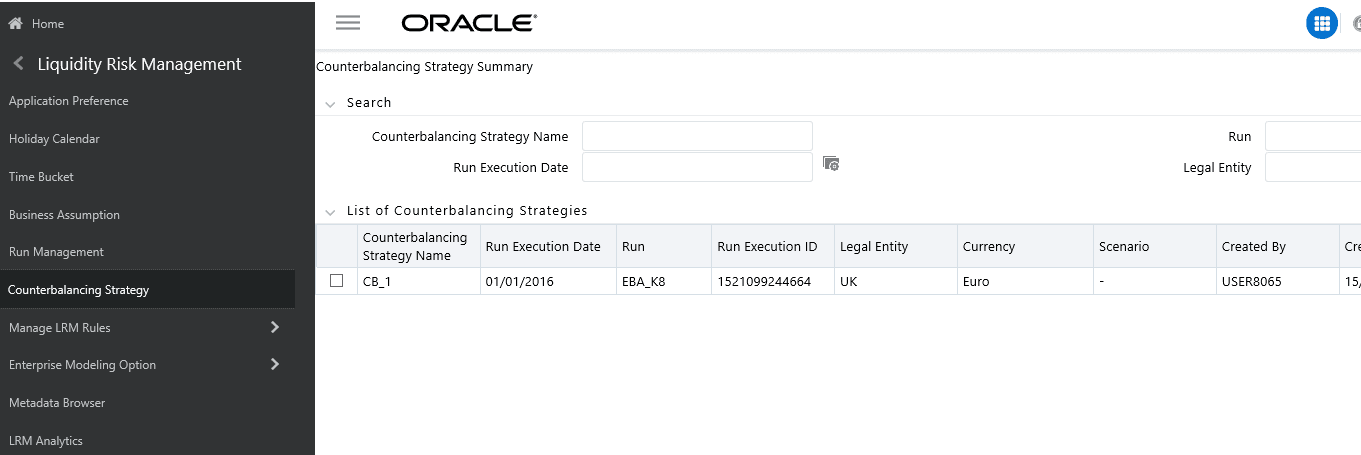
The Counterbalancing Strategies Summary window of the application allows you to define and execute a Counterbalancing Strategy in the application.
The search section contains multiple parameters. You can specify one or more search criteria in this section. When you click the Search icon, depending upon the search criteria, this filters and displays the relevant search combination parameters under the list of Counterbalancing Strategies.
Search Field or Icon |
Description |
|---|---|
Search |
This icon allows you to search the counterbalancing strategy based on the search criteria specified. Search criteria include a combination of Name, Run Name, Execution Date, or Legal Entity. The counterbalancing strategies displayed in the Counterbalancing Strategy summary table are filtered based on the search criteria specified on the clicking of this icon. |
Reset |
This icon allows you to reset the search section to its default state that is, without any selections. Resetting the search section displays all the existing counterbalancing strategies in the Counterbalancing Strategies Summary table. |
Counterbalancing Strategy Name |
This section allows you to search the pre-defined Counterbalancing Strategy based on the Counterbalancing Strategy name. Specify the Counterbalancing Strategy Name to search for the pre-defined Counterbalancing Strategy. |
Run |
This section allows you to search the pre-defined Counterbalancing Strategy based on the Run Name. Specify the Run Name here to search for the pre-defined Counterbalancing Strategy. |
Run Execution Date |
This section allows you to search the pre-defined Counterbalancing Strategy based on Execution Date. Specify the Execution Date here to search for the pre-defined Counterbalancing Strategy. |
Legal Entity |
This section allows you to search the pre-defined Counterbalancing Strategy based on Legal Entity. Specify the Legal entity to search for the predefined Counterbalancing Strategy. |
Runs Icon Name |
Icon |
Description |
|---|---|---|
Add |
|
This icon allows you to define a new Counterbalancing Strategy. |
View |
|
This icon allows you to view the selected Counterbalancing Strategy. |
Edit |
|
This icon allows you to edit the selected Counterbalancing Strategy. |
Delete |
|
This icon allows you to delete the selected Counterbalancing Strategy. |
After executing Contractual, BAU, and Stress Runs, Counterbalancing Strategies are applied to the liquidity gaps which are identified after the execution of the Run.
Follow these steps to apply Counterbalancing Strategies on identified liquidity gaps:
1. Click  in the counterbalancing strategy summary window.
The Counterbalancing Strategy Definition window
appears to define the counterbalancing strategy.
in the counterbalancing strategy summary window.
The Counterbalancing Strategy Definition window
appears to define the counterbalancing strategy.
Figure 64 Counterbalancing Strategy Definition
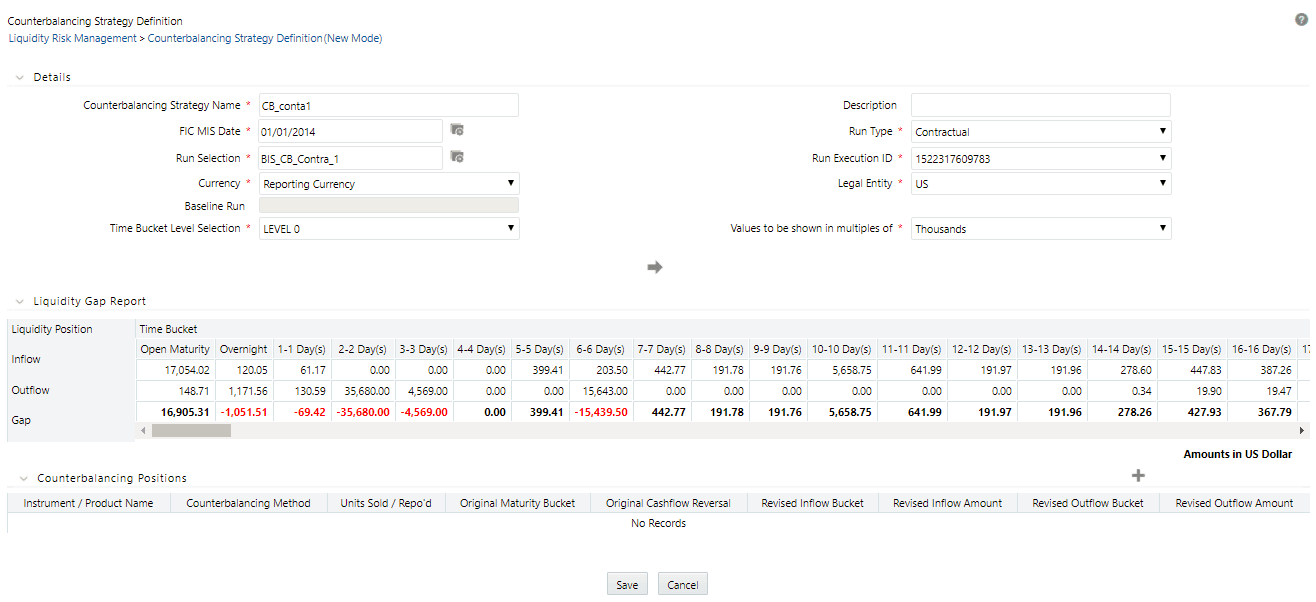
2. Enter the name of the counterbalancing strategy in the field Counterbalancing Strategy Name.
3. Enter the Description of the Counterbalancing Strategy.
4. Click  to select
the As of Date field.
to select
the As of Date field.
NOTE:
Depending on the As of Date selected, the other fields are filtered and then values are displayed.
5. Select the type of Run (Contractual or Business-As-Usual) under field Run Type.
6. Click to select
the Run Name in the Run Selection field.
7. Select the Run Execution ID from the dropdown.
8. Select the Currency for which the Counterbalancing Strategy is to be executed.
9. Select the Legal Entity for which the Counterbalancing Strategy is to be executed.
10. Select the level at which the Time Buckets are to be displayed.
11. Select the Values to be shown in multiples of Thousands, Million, or Billion, shown in the preceding figure:
12. Click  to
display the Liquidity Gap Report, shown in the
following figure. If there are any negative gaps, they are highlighted
in red.
to
display the Liquidity Gap Report, shown in the
following figure. If there are any negative gaps, they are highlighted
in red.
Figure 65 Liquidity Gap Report

13. Click in the Counterbalancing Positions
section to add the counterbalancing strategies. The Add
Counterbalancing Position window appears.
Figure 66 Add Counterbalancing Positions
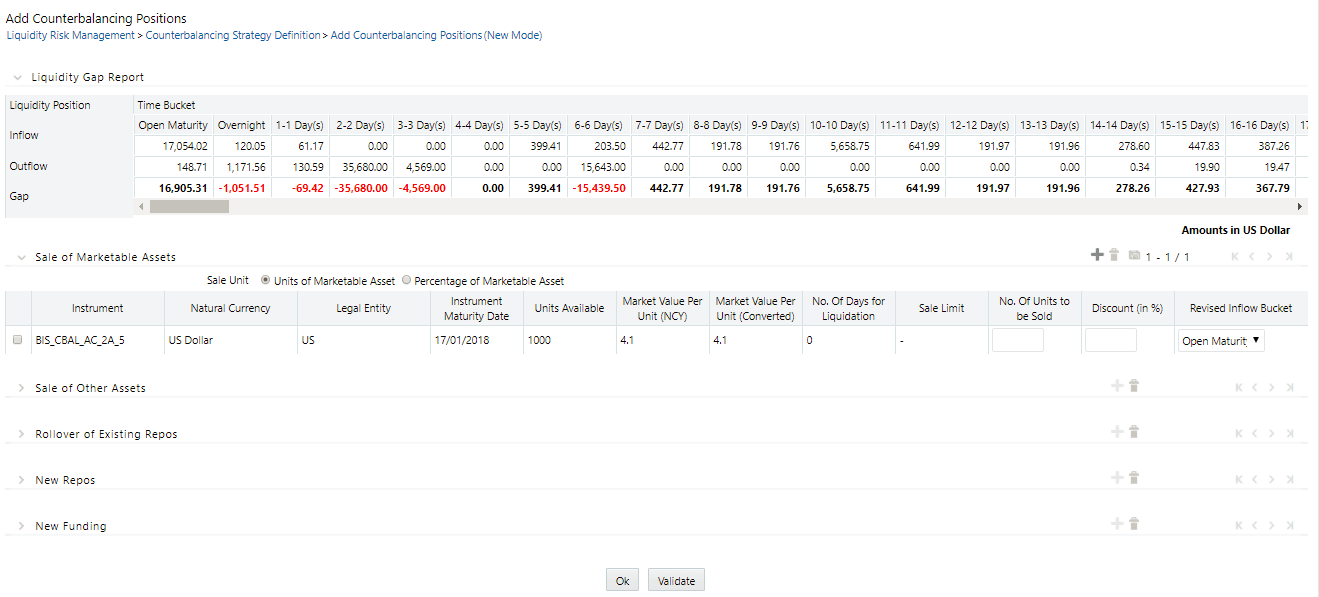
a. In the Add Counterbalancing Position window, follow these steps:
i. In this window, you can define five different types of counterbalancing strategies. See the Adding Counterbalancing Positions section.
ii. Each counterbalancing
strategy has its edit option () which will allow you
to select the instrument from the Instrument Selection
browser window and apply the counterbalancing strategy to the identified
Liquidity Gap. A detailed explanation about the inputs required for each
counterbalancing strategy is provided in the Counterbalancing
Positions section.
iii. If an additional
instrument is to be added, then click and
repeat the procedure.
NOTE:
The following errors may appear while defining Counterbalancing Strategies:
· The Counterbalancing strategy name already exists. Please specify a different name: This error appears if you enter the name of the counterbalancing strategy which is already defined then system.
· The upper bound of the Inflow Bucket cannot be less than MIS Date + No. of Days for Liquidation: This error appears when the time bucket selected is less than the execution date.
· Units to be sold cannot be greater than the Units Available: This error message appears if the given units to be sold are more than the units available for the selected instrument.
· Discount % needs to be between 0 and 100%: This error message appears if the values provided in the discount field is not between Zero and Hundred.
· Revised Maturity Bucket should fall within the range of the number of days to maturity of the underlying instrument: This error message appears, if the revised maturity date bucket entered is greater than the maturity date of the underlying.
iv. After adding counterbalancing positions, click OK or,
v. Click Validate to validate the entries updated by you.
The Validate Counterbalancing Positions window appears which indicates the positions which have breached limits specified as well as exceed available units.
Figure 67 Validate Counterbalancing Positions

vi. The Validations section displays the following:
— Positions: The selected positions in which breach occurs is displayed.
— Counterbalancing Method: The counterbalancing method of the position is displayed.
— Exceeds Available Units: The positions which exceed available units are marked in red. These are treated as errors and must be changed to save the strategy. If any position has this error, the strategy cannot be saved.
— Sale Limit Breach: The positions which breach the sale limit specified are marked in yellow. These are warning messages which are displayed when you continue to save. You are allowed to save the strategy without changing these positions.
— Repo Limit Breach: The positions which breach repo limit specified are marked in yellow. These are warning messages which are displayed when you continue to save. You are allowed to save the strategy without changing these positions.
— Counterparty Limit Breach: The positions which breach counterparty limit specified are marked in yellow. These are warning messages which are displayed when you continue to save.
vii. You are allowed to change the discounts and continue with the definition.
viii. To revalidate, click Revalidate button. The same window appears with all positions which are rectified and no longer exceed units available or breach limits are marked in green.
ix. On the Validate Counterbalancing Positions window, click OK to return to the Add Counterbalancing Positions window.
x. On the Add Counterbalancing Positions window, click OK to return to the Counterbalancing Strategy Definition window.
NOTE:
· The positions are grouped according to the counterbalancing method.
· The Add Counterbalancing Positions window is displayed only when all positions marked in red are rectified.
14. Click Apply in the Counterbalancing Strategy Definition window to execute the Counterbalancing Strategy and view the updated report with the revised liquidity gaps.
You can now view the time bucket wise gap report and see the impact of each counterbalancing strategy selected in the Liquidity Gap Report Post Counterbalancing section. You can save these strategies for future use by clicking the Save button.
This section allows you to add one or more counterbalancing
positions, which together constitute a counterbalancing strategy. When
you click Add ,
the Counterbalancing Strategy Definition window is displayed where you
can specify the counterbalancing positions to be applied.
Topics:
To add Sale of Marketable Assets Counterbalancing Strategy, follow these steps:
1. To select
individual marketable instruments that are to be sold, click Add
in the Sale of Marketable Assets section.
The Instrument Selection window is displayed.
2. Select the Instrument to which Sale of Marketable Asset Counterbalancing Strategy is to be applied and click.
3. The list of instruments displayed in the Instrument Selection window is taken from the table FSI LRM Instrument table where Marketability Indicator is set to Y.
4. You can alternatively search for the instrument by selecting the various filter options in the Advanced Filter field.
5. The selected information is auto-populated from the FSI LRM INSTRUMENT table when you select the instrument in the Instrument Selection window.
6. The following details of each selected instrument are displayed:
§ Instrument
§ Natural Currency
§ Legal Entity
§ Instrument Maturity Date
§ Units Available
§ Market Value Per Unit (NCY)
§ Market Value Per Unit (Converted)
§ No. of Days for Liquidation
§ Sale Limit
§ No. of Units / Percentage to be Sold
§ Discount (in %)
§ Revised Inflow Bucket
7. You must specify the following sale parameters:
§ No. of Units / Percentage to be Sold: Enter the number of units or percentage of the instrument to be sold based on the Sale Limit parameter selected.
§ Discount (in %): Provide information on the discount on the price of the instrument. The discount should be entered in Percentage.
§ Revised Inflow Bucket: Select the inflow bucket where the stated cash inflow will occur.
For a detailed explanation of Sale of Marketable Assets, see the Sale of Marketable Assets section.
To add Sale of Other Assets Counterbalancing Strategy, follow these steps:
1. To select
individual assets that are to be sold, click Add in
the Sale of Other Assets section. The Non-Marketable Asset Selection
window is displayed.
2. Select the Non-Marketable Asset to which Sale of Other Assets Counterbalancing Strategy is to be applied and click OK.
3. The information is auto-populated from the FSI LRM Instrument table when you select the Asset in the Instrument Selection window.
4. The following details of each selected instrument are displayed:
§ Asset
§ Natural Currency
§ Legal Entity
§ Asset Value(NCY)
§ Asset Value (Converted)
§ Number of Days for Liquidation
§ Sale Limit
§ Value of Assets to be Sold
§ Discount (in %)
§ Revised Inflow Bucket
5. You must specify the following sale parameters:
§ Value of Assets to be Sold: Enter the percentage of the instrument to be sold based on the Sale Limit parameter selected.
§ Discount (in %): Provide information on discount provided on the price of the instrument. The discount should be entered in percentage.
§ Revised Inflow Bucket: Select the inflow bucket where the cash inflow will occur.
For a detailed explanation on Sale of Other Assets, see the Sale of Other Assets section.
To add Rollover of Existing Repos Counterbalancing Strategy, follow these steps:
1. To select
individual repos, click Add in
the Rollover of Existing Repos section. The Repo Selection
window is displayed.
2. Select the Repo to which Rollover of Existing Repos Counterbalancing Strategy is to be applied and click OK.
3. The list of Repos to be rescheduled, displayed in the Instrument Selection window is taken from the FSI LRM Instrument table where encumbrance status is set to N and it is a Repo Transaction.
4. You can alternatively search for the instrument by selecting the various filter options in the Advanced Filter field.
5. The information is auto-populated from the Fact Common Account Summary table when you select the Repos in the Instrument Selection window.
6. The following details of each selected instrument are displayed:
§ Repo Name
§ Natural Currency
§ Legal Entity
§ Counter Party
§ Repo Maturity Date
§ Repo Maturity Amount (NCY)
§ Repo Maturity Amount (Converted)
§ Underlying Instrument
§ Instrument Maturity Date
§ Units Available
§ Market Value Per Unit (NCY)
§ Market Value Per Unit (Converted)
§ Units to be Rolled Over
§ Revised Maturity Bucket
§ Haircut (in %)
7. You must specify the following parameters:
§ Units to be Rolled Over: Provide information on the number of units to be rolled over.
§ Revised Maturity Bucket: Specify the Revised Time Bucket into which the repo values are to be readjusted. Revised Maturity Bucket should fall within the range of the number of days to maturity of the underlying instrument.
§ Haircut (in %): Provide the Haircut in %.
For a detailed explanation on Rollover of Existing Repos, see the Rollover of Existing Repos section.
To add New Repos Counterbalancing Strategy, follow these steps:
1. To select
individual new repos, click Add in
the New Repos Counterbalancing Strategy section. The New Repos
window is displayed.
2. Select the Instrument to which New Repos Counterbalancing Strategy is to be applied.
3. The list of instruments displayed in the Instrument Selection window is taken from the FSI LRM Instrument table where the underlying is a Repo.
4. You can alternatively search for the instrument by selecting the various filter options in the Advanced Filter field.
5. The information is auto-populated from the Fact Common Account Summary table when you select the Instrument to be purchased.
6. The following details of each selected instrument are displayed:
§ Instrument
§ Natural Currency
§ Legal Entity
§ Availability Start Date
§ Availability End Date
§ Units Available
§ Market Value per Unit(NCY)
§ Market Value per Unit (Converted)
§ Repo Limit
§ Counter Party
§ Revised Maturity Amount
§ No. and Units to be Repo’d
§ Haircut (in %)
§ Revised Inflow Bucket
§ Revised Maturity Bucket
7. You must specify the following parameters:
§ No. and Units to be Repo’d: Enter the number of units to be repo’d.
§ Haircut (in %): Provide the Haircut in %.
§ Revised Inflow Bucket: Enter the Revised Inflow Bucket, that is, in which bucket you are going to purchase the Instrument.
§ Revised Maturity Bucket: Enter the Revised Maturity Bucket
For detailed explanation on New Repos, see the New Repos section.
To add New Funding Counterbalancing Strategy, follow these steps:
1. To select
new funding, click Add in the New
Funding Counterbalancing Strategy section. The Product window
is displayed.
2. Select the Product to which the New Funding Counterbalancing Strategy is to be applied.
3. The list of products to be purchased displayed in the Instrument Selection window is taken from the DIM GL Account table, where GL items with GL Type as Liability is considered.
4. You can alternatively search for the instrument by selecting the various filter options in the Advanced Filter field.
5. Select the Product, Borrowing Date (inflow date), Borrowed Amount, Maturity Date, and Amount.
6. Select a funding product and provide the following parameters:
§ Legal Entity: Enter the legal entity which is raising the new funding in the context of the counterbalancing position.
§ Line of Business: Enter the line of business of the legal entity which is raising the new funding.
§ Natural Currency: Enter the natural currency of the new deposit or borrowing account.
§ Counterparty: Enter the counterparty who is deemed to have provided the new funding.
§ Inflow Bucket: Enter the transaction start bucket that is, the bucket in which the inflows from the new deposit or borrowing are recorded.
§ Inflow Amount: Enter the cash received from the new funding.
§ Maturity Bucket: Enter the maturity bucket of the transaction that is, the bucket in which cash outflows are recorded.
§ Maturity Amount: Enter the outflow amount at the maturity of the new funding.
For a detailed explanation on New Funding, see the New Funding section.


