This chapter describes Allocation Execution History functionality.
· UNDOing the results of previously executed allocation rules
· Viewing rule definitions in effect when an allocation rule was executed
· Viewing inline reports of data generated by an allocation rule's Source, Driver, and Output components for a selected rule execution
· Viewing listings of distinct data sources that contributed to an allocation's Source
· Viewing listings of subsequent allocation runs which included any of the current allocation rule's Outputs in their Source queries
· Cross-referencing to or from the execution history of any allocation rule
This chapter presents the following topics:
· Allocation Execution History User Interface
· Allocation Execution Audit Functionality
Allocation Execution History allows you to review the runtime history of any allocation rule. You may see the order in which allocation rules are completed, you may UNDO the results generated by any allocation rule, and you may drill into the details of individual allocation executions to audit what a rule did at the time that it ran.
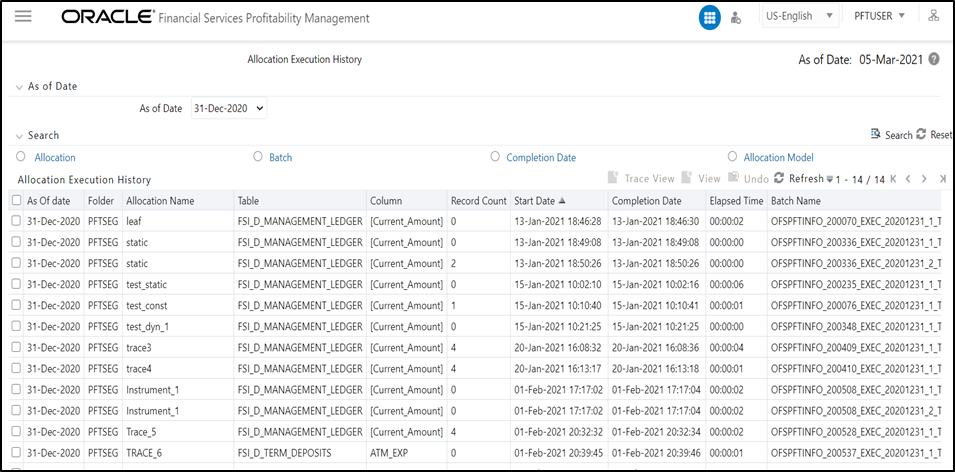
The Allocation Execution History summary screen presents a grid that lists a series of allocation runs sorted by As-of-Date and by Completion Date. You may sort on any column you choose by clicking on a column title, but the results will always be sorted first by As-of-Date and second by the column you have chosen.
When you first enter the Allocation Execution History summary screen, your results are filtered down to the most recent As-of-Date for which there is any allocation rule history. You may select a different As-of-Date from a drop-down list, but the only As-of-Date's that are offered are those for which allocation history exists. You may optionally select “All As-of-Dates”.
As-of-Date: Controls how much rule execution history is displayed in the body of the summary grid. Here, the latest As-of-Date is displayed as default. When you select the As-of-Date option as All As-of-Dates, the Allocation Execution History Summary Grid will display the Allocation Names based on As-of-Date sorting and then Completion Date (that is, based on As-of-Date).
The search container is used to specify criteria that will reduce the number of rule executions that will be displayed in the Allocation Execution History summary grid. You may search based on:
· Allocation Name
· Batch Name
· Ranges of completion Date and Time
· Allocation Model
These constraints function as radio buttons, and the functionality of each type of search is explained below.
Figure 126: Allocation Execution History
· Allocation Name: Performs a wild card search on Allocation Name. The search is executed when the user selects the Search button.
· Batch: Performs a wild card search on Batch Name. The search is executed when the user selects the Search button.
· Completion Date: Restricts the number of rules displayed on the Allocation Execution History summary screen based on a user's specification of single execution date and a “no earlier than” starting time and a “no later than” ending time. The search is executed when the user selects the search button.
· Allocation Model: This allows you to view the allocation rules those are grouped under an allocation model. The Allocation Model consists of a list of individual allocation rules that can be executed as a single unit.
· Search: After entering search criteria, the user selects the Search icon to perform the search function. The As-of-Date from the first container on the screen is always applicable when the Summary screen is initially built or is refreshed. You may, however, select the “All As-of-Dates” option that effectively removes the As-of-Date as a constraint.
· Reset: Removes values entered as search criteria and refreshes the screen.
The Allocation Execution History summary grid offers several controls that allow the user to perform different functions when an allocation rule is selected. More than one Allocation Rule can be selected at a time but this will cause some of the icons to become disabled.
· View: After having chosen a single row out of the grid, selecting the View icon drills into an audit trail for the currently selected rule. The View icon is disabled if no rows have been selected or if multiple rows have been selected. See “Allocation Execution Audit Functionality” below for details.
Allocation Execution History View functionality for the allocations using the Management Ledger table is not yet supported but will be supported in a future release.
· UNDO: This is icon is used to UNDO or reverse one or more allocation runs. For details, see UNDO Functionality below.
· Refresh: This icon refreshes the contents of the Summary Grid. Users may want to do this if they have requested an UNDO or if they are simply watching as allocation rules currently running in a batch complete. Selecting Refresh will not alter any Search criteria you may have selected.
· Pagination Options: As with all Summary screens, the maximum number of rows displayed per page is generally governed by the Pagination Records value you set in Global Preferences. You may use this local “Pagination Options” control to override your normal default value. You may set your local value using Pagination Options of 10, 25, 50, or any value between 1 and 50.
· VCR Buttons: VCR Buttons allow you to navigate between pages.
The following columns categorize each allocation rule in the summary grid:
You can sort any of these columns by clicking on the text in the column header. Explanations of the meaning of each column header are as follows:
· As-of-Date: Displays the As-of-Date for which the allocation rule was executed.
· Folder: Displays the name of the Folder to which the allocation rule belongs.
· Allocation Name: Displays the allocation rule's short name. A “mouse over” on the rule's name displays the rule's long description as well as the Identity Code generated or used by that allocation. Identity Codes may be used in queries against the database to identify rows generated by the rule.
· Table: This denotes the target table name in the database where the allocation is either posted or updated records. For example, Ledger Stat, Management Ledger, and so on.
· Column: This denotes the target column name in the database where the allocation is either posted or updated records.
· Record Count: Displays the Record count as 1 or 0. To allocate a flat amount for each account, use Record Count as 1.
· Start Date: Displays the date and time at which each allocation rule started.
· Completion Date: Displays the date and time at which each allocation rule is completed.
· Elapsed Time: Displays the elapsed time required for each allocation rule to complete shown in hours, minutes, and seconds.
· Batch Name: Displays the Batch name under which each allocation rule was executed. For rules executed directly from the Allocation Specification user interface, the system automatically generates synthetic batch names.
· Status: Denotes the status of each allocation rule. Values include “Completed” and “Marked for UNDO”. Rules that are “Marked for UNDO” are in the process of being UNDONE. This status will normally disappear in just a few seconds or minutes. To refresh the status of allocations that are “Marked for UNDO”, click on the Refresh control.
· Allocation Model Name: Displays the allocation model name under which the allocation rule is grouped. The allocation Model consists of a list of individual allocation rules that can be executed as a single unit.
· Allocation Model Sequence: Displays the sequence number that is, how many times the Allocation Model was executed.
NOTE:
Allocation Model Name and Allocation Model Sequence columns will be blank for any Allocation Rule that was not executed from within an Allocation Model.
For Allocations that insert or update date in the Management Ledger and Ledger Stat tables, an UNDO operation reverses the effect of that rule run. For allocations that update data in instrument or transaction tables, an UNDO operation updates the column targeted by that allocation run with a value of zero.
Because UNDOING a rule effectively removes completed allocation data from your environment, your management may wish to restrict your access to UNDO functionality. For details on restricting action to UNDO functionality, see Application Preferences. The UNDO icon is enabled whenever you select one or more rows from the summary grid. Upon requesting an UNDO operation, a pop-up dialog appears offering the following UNDO options:
· Selected Allocations
· Selected Batches
· Selected Allocation Models
· Mass UNDO
· If you choose "Selected Allocations", each row that you have selected from the summary grid will be UNDONE. This functionality works only if Enable Undo for Selected Allocations option in the Application Preferences is set to Yes.
· If you choose “Selected Batches”, all rule executions that belong to any of the batches you have selected will be UNDONE. This functionality works only if Enable Undo for Selected Batches option in the Application Preferences is set to Yes.
· If you choose “Selected Allocation Models”, all rule executions that belong to any of the Allocation Models that you have selected will be UNDONE. This functionality works only if Enable Undo for Selected Allocation Models option in the Application Preferences is set to Yes.
Oracle Insurance Allocation Manager for Enterprise profitability supports UNDO of Allocation Models using Batch Execution screen.
For creating the Batch for UNDO of Allocation Models:
In the Batch Maintenance screen, create a Batch and a corresponding Task with component as "RUN EXECUTABLE", and provide the following as the "Executable" property value.
PFTUNDO.sh,<INFODOM>_<BATCH_RUN_ID>
ParameterID=<ALLOCATION_MODEL_SYS_ID>-<ALLOCATION_MODEL_SEQ_NUM> A
where:
INFODOM - Information Domain name
BATCH_RUN_ID - Any unique identifier to identify the batch execution
ALLOCATION_MODEL_SYS_ID - Sys ID number of the allocation model to be undone
ALLOCATION_MODEL_SEQ_NUM - Sequence number to specify which execution of the allocation model is to be undone. This can be obtained from the Allocation History screen.
· If you choose “Mass UNDO”, every rule execution whose "Completion Date" (a time-stamp value) is chronologically later than the earliest row that you have selected from the summary grid will be UNDONE. This functionality works only if Enable Mass Undo option in the Application Preferences is set to Yes.
After having selected a single row from the summary grid and selecting the View icon, a series of screens are displayed showing the allocation rule as it appeared at the time the rule was executed. If the rule has been modified since it was executed, the body of the rule will not be displayed. Future releases of Oracle Insurance Allocation Manager for Enterprise Profitability will include rule versioning so that you will always be able to see the structure of any rule at the time it was executed.
The following three sections – Process Tabs, Allocation Header, and Audit Trail/User Comments – are common to each of the five Allocation Execution History View (audit) screens.
· Process Tabs: The Process Tabs display the process flow of the underlying allocation rule definition. The Initial Definition and Review tabs from the specification process flow are not displayed here, but one additional tab is added: Trace Allocation. The tabs displayed are Source, Operator, Driver, Outputs, and Trace Allocation. When choosing these tabs the specific process page is displayed.
· Allocation Header: This section contains header level information about the rule run including the rule's Name, Description, and Folder, the As-of-Date for which the rule was run, the Batch Name under which the rule was run, and its Completion Time. The Allocation Header also displays the allocation type.
· Audit Trail/User Comments: The Standard Audit Trail/User Comments section is common to all detail screens. You may add additional comments when viewing allocation execution history if your user ID is assigned the Auditor role, subject to a maximum of 4000 characters.
· Inline Reports: The audit functionality provided within Allocation Execution History includes inline reports for Sources, Drivers, and Outputs of allocation rules. These inline reports are described in detail in the following sections.
NOTE:
Trace and Inline Reporting functionality for allocations using the Management Ledger table is supported.
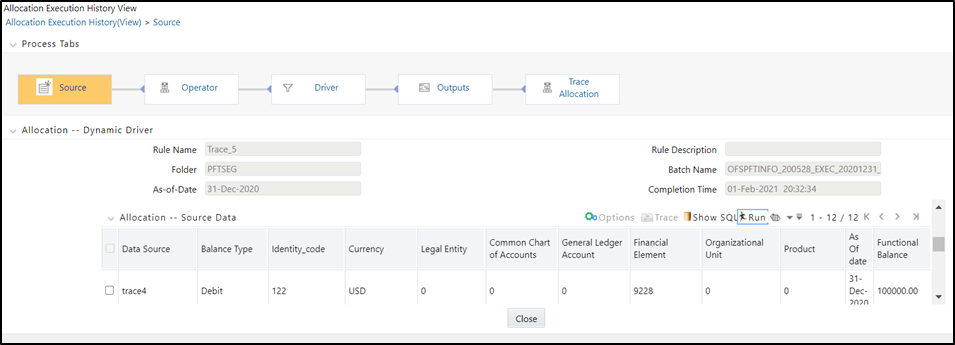
· Source Tab: The Source tab is the first to be displayed when the user chooses to View a specific allocation run on the Allocation Execution History Summary page. This tab displays the details pertaining to the allocation's Source specification at the time that it was run. This view-only screen also offers an inline report of the Source data generated by the allocation rule at the time that it was run and offers the user the ability to trace the sources of the date that fed into the current allocation.
· Allocation Source Definition: The For section of the Allocation Execution History Source tab displays a read-only version of the For section of the underlying allocation rule's Source specification. The Other Filters section of the Allocation Execution History Source tab displays a read-only version of the Other Filters section of the underlying allocation rule's Source specification.
· Allocation Source Data: This section of the screen is initially empty. If you wish to see an inline report for the allocation's source data, you must select the Run icon. Actual queries generated by the allocation engine are persisted at runtime so that the inline reports will always be available (regardless of whether or not the rule has been modified since it was executed). The Source inline report excludes any data generated by allocations or other processes that ran after the rule run is currently being examined.
These include Options, Trace, Show SQL, and Run.
· Run: Select the Run icon to invoke the Source Inline Report.
· Excel Export: Excel export functionality is used for adding / editing source data in the source tab of Allocation Execution History.
· Show SQL: Select the Show SQL icon to view the query that generates the inline report. That is, it displays the Source Query that has been prepared and stored in the database while running the allocation. You may copy and paste this SQL to any query tool.
· Trace: After having run the inline report, you may trace to another allocation rule that contributed to the Source of the current allocation rule by checking a select box on one of the current report rows and then selecting the trace icon. Non-allocation sources are disabled; only allocations may be traced.
· Options: After having executed an inline report, selecting the Options icon invokes a History Options dialog. This dialog shows two containers: Dimension Display and Hide/Collapse Dimensions.
· Dimension Display: This container offers you radio buttons with options to display short dimension names, long dimension names, or both within your inline report.
· Hide/Collapse Dimensions: This container offers you the option of “collapsing” or “hiding” selected dimensions from your inline report. Dimensions containing only a single value within your report may be “hidden”, i.e., removed from the inline report. Dimensions containing multiple values within your report may be “collapsed” upon. A “collapsed” dimension is removed from both the SELECT and GROUP BY clauses of the inline report query. If you “collapse” a dimension, it is removed from your inline report and the number of rows within the report is reduced.
· Operator Tab: This tab displays the allocation's Operator specification at the time that the rule was run.
· Driver Tab: This tab displays the details pertaining to the allocation's Driver specification at the time that it was run. This view-only screen also offers an inline report of the Driver data generated by the allocation rule at the time that it was run and offers the user the ability to trace the sources of the date that fed into the current allocation.
· Allocation Driver Definition: The For section of the Allocation Execution History Driver tab displays a read-only version of the For section of the underlying allocation rule's Driver specification. The Other Filters section of the Allocation Execution History Driver tab displays a read-only version of the Other Filters section of the underlying allocation rule's Driver specification.
· Allocation Driver Data: This section of the screen is initially empty. If you wish to see an inline report for the allocation's driver data, you must select the Run icon. Actual queries generated by the allocation engine are persisted at runtime so that the inline reports will always be available (regardless of whether or not the rule has been modified since it was executed). The Driver inline report excludes any data generated by allocations or other processes that ran after the rule run is currently being examined.
These controls, including Options, Trace, Show SQL, and Run, operate identically to those described above under Allocation Source Data Controls.
· Excel Export: Excel export functionality allows you to export Allocation Execution History source data from the source tab.
Figure 127: Excel Export in Allocation Execution History View Driver Tab
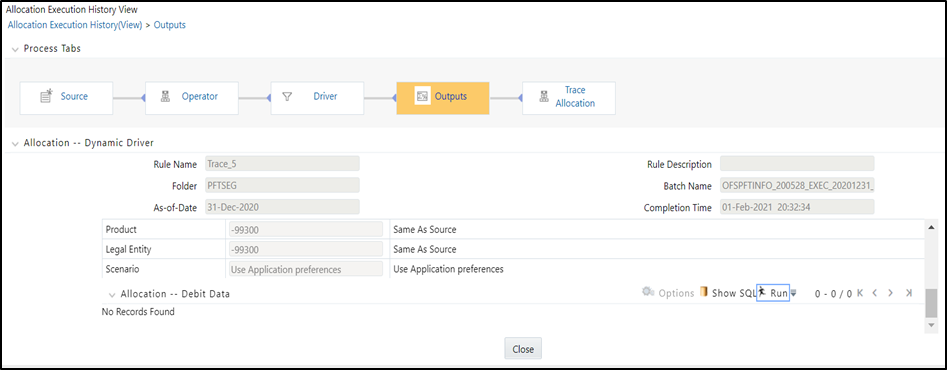
· Outputs Tab: The Outputs tab displays the details pertaining to the allocation's Output specification at the time that it was run. This view-only screen also offers an inline report of the Output data generated by the allocation rule at the time that it was run.
Figure 128: Outputs Tab in Allocation Execution History View
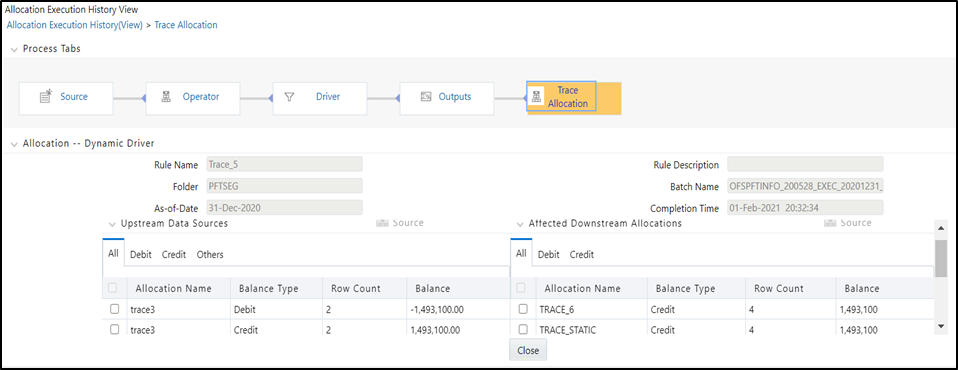
· Trace Allocation Tab: The Trace Allocation tab displays two containers, one showing distinct upstream data sources and the other showing affected downstream allocations.
· Upstream Data Sources: The Upstream Data Sources container displays all distinct Sources of data that fed into the current allocation run. You may trace any upstream allocation, but you may not trace non-allocation sources (initial ledger loads, transfer pricing rate migrations, and so on). The All, Debit, Credit, and Others tabs within the Upstream Data Sources container allow you to discriminate by Balance Type.
· Affected Downstream Allocations: The Affected Downstream Allocations container displays all downstream allocation rules that included the outputs of the current rule run in their Source queries. You may trace to any downstream allocation. The All, Debit, Credit, and Others tabs within the Affected Downstream Allocations container allow you to discriminate by Balance Type.
Figure 129: Affected Downstream Allocations
· Hyperlinking between Audit Reports: Selection checkboxes often appear in the first column of the Upstream Data Sources and Affected Downstream Allocations containers on the Trace Allocation tab. Similarly, selection checkboxes often appear in the first column of the Source and Driver inline reports.
These checkboxes appear whenever a data source is itself an allocation rule. You may click on any checkbox and then click on the Trace control to hyperlink to the Allocation Execution History of the allocation source you just chose.