 to
open the Advanced search.
to
open the Advanced search. Use the Summary Report page to filter the list of reports that you want to open, view, analyze, and/or take action.
Three types of searches are supported: Views, Basic Search, and Advanced Search. The Reports List section displays the list of reports you have specified in the search parameters. Use the Summary page to perform the following search activities and view the results:
· Basic Search: This search is based on a limited set of search fields, such as Report Number and Report Name. This is the default search option.
· Advanced Search:
This search is based on the ability to specify an additional set
of fields to narrow down your search results. Use to
open the Advanced search.
· Views: This search helps you to quickly filter the reports based on pre-defined search queries. Select the search criteria from the Views option and filter the list of reports.
· Saving Views: Use this option to save your search criteria as a View. The saved views are available in the Views drop-down list.
· Regulatory Reports List: This is the list of reports that matches the search criteria provided.
This search is based on a limited set of search criteria and helps retrieve the required reports for your analysis. This search type is very useful if you know the report details such as report name and report number. Only those reports that match the criteria you specify are displayed.
To search for reports using basic search criteria, follow these steps:
1. Go to the Summary Report page. By default, the Basic Search option is displayed.
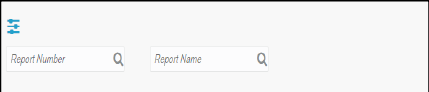
2. Enter the required fields as described in Table 5.
3. Click Search. Report(s) matching your search criteria are displayed.
The Advanced Search offers an additional set of fields to the search fields provided for the Basic Search. This option helps you narrow down your search results. You can use combinations of these search criteria to quickly find the reports you are looking for.
To search for reports using advanced search criteria, follow these steps:
1. On
the Summary Report page, click
the Advanced Search  .
The Advanced Search window
is displayed.
.
The Advanced Search window
is displayed.
Use the expand  or
collapse
or
collapse  buttons to maximize or minimize the filter pane.

2. Enter the required fields as described in Table 6 .
3. Click Apply Filter. The reports matching your search criteria are displayed on the Summary page.
To carry out a different search, click the Reset button and enter your search criteria again.
Views search helps you quickly filter the reports based on pre-defined search queries. You can save your search criteria as Views. For more information on pre-defining the search as views, see Saving Views .
To search reports using Views option, follow these steps:
1. On the Summary page, go to the Views search option.
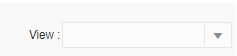
2. Select the pre-defined views from the Views drop-down list. The Summary page refreshes to show the results matching the View search criteria.
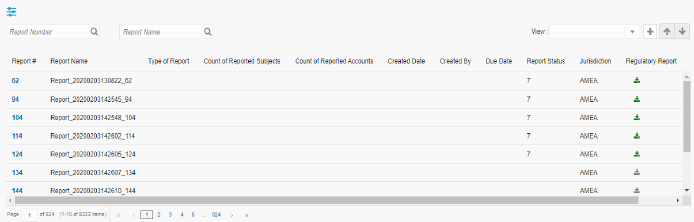
Save as View option allows you to save your search criteria as a View. The saved views are available in the Views drop-down list. For more information, see Views .
For example, if you regularly search for reports approved by Supervisor1 and reports approved on or before December 2019, you can pre-define a search as SupDecember under Views. When you log in to the application next time, you need not enter all search criteria again, you just select the pre-defined view as SupDecember and filter the reports.
To save your search criteria as a view, follow these steps:
1. On
the Summary Report page, click
the Advanced Search  .
The Advanced Search window
is displayed.
.
The Advanced Search window
is displayed.
2. Enter the search criteria in the search fields. For more information on the search criteria, see Table 6 .
3. Click Save as View. The Save as View window is displayed.
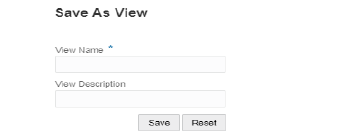
4. Enter the view name and view details. The fields marked with * asterisk are mandatory.
NOTE |
The View Description field allows a maximum of 255 characters. |
5. Click Save. A confirmation message is displayed.
6. Click OK. The view is saved and is displayed in the Views drop-down list.
NOTE |
The saved view is available only to the user who has created it, not to other users. |
Use the Regulatory Reports section to view the list of reports based on your search criteria. Additional information of the reports is provided that you can use to further analyze or take actions. By default, all reports are displayed if you do not use any search criteria to filter the list.

The Reports List displays the list of all or specific reports you are looking for. You can select a report by clicking the corresponding Report link to view the details, analyze it, and resolve it, based on your role privileges.
The Regulatory Reports List page has the following UI controls:
· Sort Ascending/Descending : You
can sort the Report List in ascending or descending order using  ,
respectively.
,
respectively.
· Column Labels: The column labels provide you names of the columns. For example, Report Name, Report Type, and so on. This helps you to sort the information on the report that you are looking for.
· Tool Tip: A Tool Tip that provides additional information is displayed when you position the cursor over a column label.
· Column Size: You can change the width of the column by dragging the column to right or left direction using the mouse or you can select the Resize option. To resize the column using Resize option, right click on the column. The Resize option is displayed.
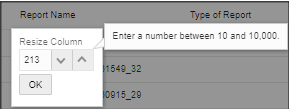
Use the arrow icons to increase or decrease the size of the column or enter a number between 10 to 10,000 and click OK. The size of the column is updated based on your selection.
· Page Display: Use this option to modify the number of reports you view on a page (records per page) and also navigate back and forth between pages to view all reports in the Report List.
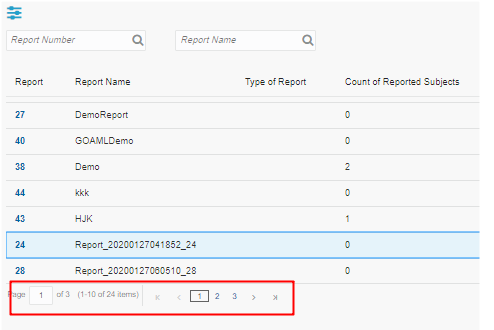
7. To view a specific page, enter the number of the page, use arrow marks to go to the next or previous page, or click on the existing numbers such as 1, 2, 3, and so on to go directly to that page.
Column Name |
Description |
|---|---|
Report Number |
The unique report identification number. This is a link to navigate to the Report Details page for further analysis. |
Report Name |
The name of the report. |
Type of Report |
The type of the report. |
Case ID |
The case ID associated with the report. |
Count of Report Subjects |
The count of the reported subject. It is the total number of subjects reported in the STR. |
Count of Report Accounts |
The count of the reported accounts. It is the total number of accounts involved in the STR. It will have both source and destination accounts. |
Created Date |
The date when the report was created. |
Created By |
The user who created the report. |
Report Status |
The status of the report. For example, Approved, Open, and so on. Based on the status you can open the Details page and take appropriate action on the report. |
Jurisdiction |
The jurisdiction to which the report is mapped. For example, AMEA, JAPAC, and so on. Jurisdiction over a territory relates to the geographic area over which the court has the authority to decide cases. |
Regulatory Report |
Click |
Zip File |
The name of a zip file. |
