 in
the Process Modeller Summary window.
in
the Process Modeller Summary window.Click in
the Process Modeller Summary window.
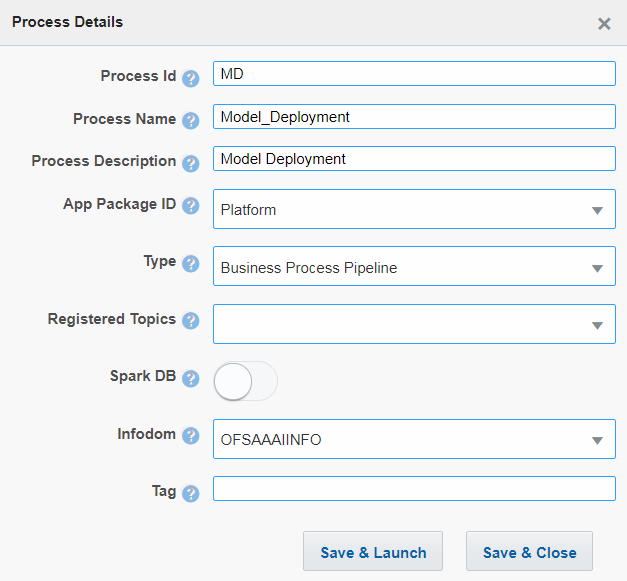
1. Enter a unique Process ID, Process Name and a description.
2. Select the appropriate app package in which you want to create the process. For more information, see the Application Package section.
3. Select Business Process Pipeline from the Type drop-down list.
4. Select the information domain in which you want to create the Business Pipeline, from the Infodom drop-down list. The list displays all the infodoms mapped to the applications configured in your OFSAA instance.
5. Click Save & Launch. The Process Flow canvas is displayed.
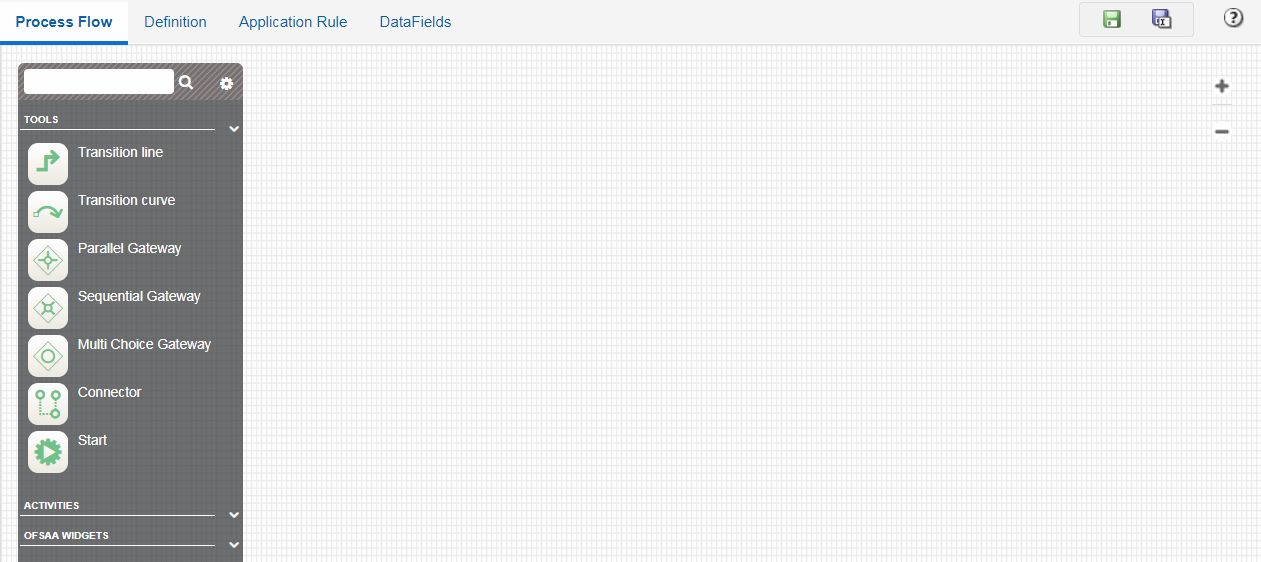
6. Click  Start from the Tools pane in the floating toolbar and click
on the drawing canvas where you want to place it. This Start activity
indicates the beginning of the Process.
Start from the Tools pane in the floating toolbar and click
on the drawing canvas where you want to place it. This Start activity
indicates the beginning of the Process.
7. Design your Process with various components available in the Process Flow tab. For more information on each component, see Components for Designing Your Process Flow section.