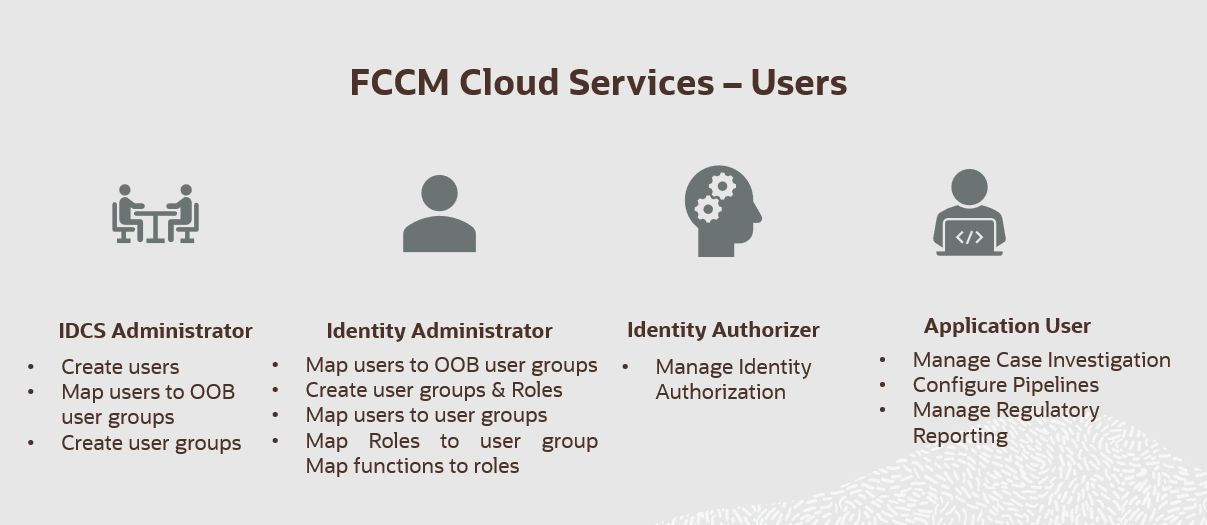
In Oracle Financial Services Crime and Compliance Management Cloud Service, users have roles through which they gain access to functions and data. Users can have any number of roles.
The following figure shows the User Persona Details:
NOTE:
User-Group mapping changes from IDCS will take 5 minutes to sync with application. If these changes are made during active user session then it will be reflected on next login.
In order to allow users to access functions in the application, Administrators must classify users and the functions they are permitted to access. The Functions imply controlling various actionable units in the application via functional access. For example, create a case, add a customer, add an account, and so on.
Users are mapped to groups, which must be mapped to specific security attributes, such as Business Domain and Jurisdiction. Groups are mapped to Roles, and Roles are mapped to Functions. Users can perform activities associated with their user group throughout the functional areas of the application.
Before mapping security attributes, you must complete the following:
a. Create users.
e. Map user groups to security attributes
Security layers control how users interact with the application. The following table describes the security layers.
Security Details within the Application
Security Layer |
|
|
Type |
Controls |
Description |
Roles |
Access to Features and Functions |
User roles are used to identify which features and functions the user can access within the application. For example, Case Analysts can access and take action on cases. |
Business Domains |
Access to Case and Business Information |
You can restrict access along operational business lines and practices, such as Retail Banking. Users can only see cases that are assigned to at least one of the business domains their user group is mapped to. For more information about Business Domains, see Business Domains. |
Jurisdictions |
Access to Case Information |
You can restrict access using geographic locations and legal boundaries. Users can only see cases that belong to the jurisdiction their user group is mapped to. For more information about Jurisdictions, see Configuring Jurisdictions. |
Role-based security in Oracle Financial Services Crime and Compliance Management Cloud Service controls who can do what on which data.
NOTE:
New users should be mapped to the following roles to access the Home page of the Cloud application.
· Function read role
· Group read role
· User read role
· Role read role
This table summarizes role-based access.
Component |
Description |
Who |
Is a role assigned to a user |
What |
Is a function that users with the role can perform |
Which Data |
Is the set of data that users with the role can access when performing the function |
This table provides some examples of role-based access.
Who |
What |
Which Data |
Data Administrator |
Can perform Data Preparation/ Ingestion |
Business Data |
Case Analyst |
Can view cases |
Business and Operational data |
Group |
User Role |
Functionality |
Identity Administrator |
Identity Administrator |
· View the reports · View the object storage · View the OAUTH credentials · Perform the Identity and access management operations |
Identity Authorizer |
Identity Authorizer |
Authorize the Identity and access management operations |
IDCS Administrator |
IDCS Administrator |
· Create users · Map users to IDNTY_ADMIN group · Map users to IDNTY_AUTH group |
TM User Groups |
||
TM Group - OFS_TM |
||
Pipeline Administrator Group |
Pipeline Administrator |
· Configure pipelines · Configure threshold sets |
Threshold Administrator Groups |
CS Administrator |
Load watch list data |
CM User Groups |
||
CM Administrator Group |
CM Administrator |
· Configure jurisdictions and business domains · Configure case statuses · Configure case actions · Configure case types · Configure case system parameters |
CM Analyst Group |
CM Analyst |
· Search for cases · Investigate cases · Set a case due date · Recommend case closure |
CM Supervisor Group |
CM Supervisor |
· Map jurisdictions to pipelines · Perform real-time screening · Overwrite updates made by Analyst · Promote to case · Search for cases · Investigate cases · Set a case due date · Approve or reject recommendations to close cases · Close cases |
Scheduler Service User Groups |
||
Job Administrator Group |
Job Administrator |
Manage jobs |
Scheduler Administrator Group |
Scheduler Administrator |
Manage batches |
Process Modelling Framework (PMF) User Groups |
||
CM Administrator Group |
Manage Workflow Monitor |
Access the Manage Workflow Monitor window NOTE: The mapping of this role does not allow view, edit, and add actions. |
CM Administrator Group |
Workflow Access |
Access the Process Modeller menu from the Navigation Tree NOTE: The mapping of this role does not allow view, edit, and add actions. |
CM Administrator Group |
Workflow Monitor Access |
Access the Process Monitor window NOTE: The mapping of this role does not allow view, edit, and add actions. |
CM Administrator Group |
Workflow Read |
View the PMF workflow |
CM Administrator Group |
Workflow Write |
Perform view, edit, and add actions in PMF |
NOTE:
Administrators must be mapped to all the roles described in the preceding table to allow them to perform these operations in PMF.
Privileges |
Case Supervisor |
Case Analyst |
Access Cases |
X |
X |
Search for Cases |
X |
X |
View Case List |
X |
X |
View Dashboard |
X |
X |
Edit Case Context |
X |
X |
View Event Details |
X |
X |
Set Event Decision |
X |
|
Add/Delete/View Accounts |
X |
X |
Add/ Delete /View Customers |
X |
X |
Add/ Delete /View Transactions |
X |
X |
Add/ Delete /View External Entities |
X |
X |
View Related Case |
X |
X |
View Related Events |
X |
X |
Clear Due Date |
X |
X |
Set Due Date |
X |
X |
Set Case Owner |
X |
X |
Set Case Assignee |
X |
X |
Recommend Close without Regulatory Report |
X |
|
Recommend Close with Regulatory Report |
X |
|
Reject Recommendation |
X |
|
Close a Case as False Positive |
X |
|
Close a Case as True Positive |
X |
|
View Evidence (Attachment and Comment list) |
X |
X |
Add Document |
X |
X |
Remove Document |
X |
X |
View Attachments |
X |
X |
Remove Attachments |
X |
X |
Add Narrative |
X |
X |
View Narrative |
X |
X |
View Audit History |
X |
X |
Add Investigation Comments |
X |
X |
Own a Case |
X |
X |
Generate CRR Reports |
X |
|
Viewing Case Reports |
X |
X |
Save Case Search Criteria of Report |
X |
X |
Update Case Search Criteria of Report |
X |
X |
Delete Case Search Criteria of Report |
X |
X |
Export the Report in Excel |
X |
X |
Privileges |
Case Admin |
Add Case Status |
X |
Edit Case Status |
X |
Add Case Action |
X |
Edit Case Action |
X |
Mapping the Action to Status |
X |
Mapping the Action to Case Type |
X |
Mapping the Action to User Role |
X |
Configuring Case System Parameters |
X |
Add Business Domains |
X |
Edit Business Domains |
X |
Add Jurisdictions |
X |
Edit Jurisdictions |
X |
Add Case Types |
X |
Edit Case Types |
X |
Configuring Security Mappings |
X |