Create Map Group via Workbook
This section describes the process for creating Map Groups by importing a workbook. The spreadsheet workbook has to be prepared by the user locally and uploaded into the Map Group Wizard. It should contain the Map Group name and the corresponding Map Group data in a required format. The wizard collects all the data from the spreadsheet automatically and feeds them in the OIPA application creating Map Groups for the same.
Execute the following steps to create a new Map Group via import spreadsheet option:
- Navigate to the new Map Group Wizard as explained in the previous section (Create Map Groups).
-
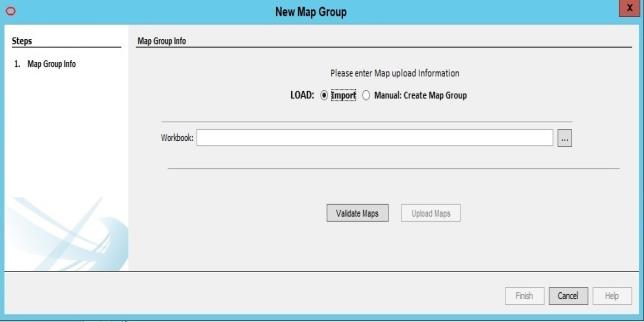
Under 'LOAD', select the Import option. The Workbook text box is enabled.
Select Import option -
Under Workbook option, browse and select the workbook that you want to import.
-
Click Validate Maps button. The Wizard will validate the Worksheets as per workbook requirements. In case of an already existing workbook or if the workbook does not satisfy any of the necessary workbook requirements, the wizard will throw an error.
-
If the workbook clears the validation process, Upload Maps button is enabled.
-
Click Upload Maps button. Once the workbook is successfully uploaded, the Finish button is enabled.
-
Click Finish. The Map Groups are successfully created.
At any point if you want to cancel the process, click cancel button. This option cancels the process and takes the user back to the New Map Group Wizard page. All progress will be deleted.
| Note | Until the user clicks Finish, the process can be canceled at any time. |
Workbook Requirements
- The workbook should be in the XLS format.
- The Legend should be presented in its own worksheet and it should always be the first worksheet in the workbook.
- Each spreadsheet after the Legend spreadsheet is limited to one Map Group.
- New spreadsheets (Map Group sheets) have to be created (after the Legend sheet)for each Map Group listed in the Legend sheet and it's name should be same as the Map Group name. A Map Group sheet is a combination of certain Map Criteria for each Map Value.
- Each Criteria name is derived from the Legend Worksheet. These names will be given to the criteria column headings on each Map Group worksheet
- Any blank worksheet other than the first worksheet will be ignored by the workbook load process.
- If multiple Map Groups are being uploaded using the Workbook, make sure that the Map Groups included in the Workbook are of the same data type.
Workbook Format
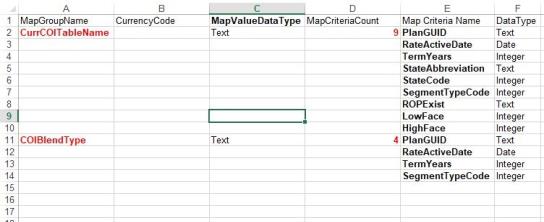
The data content of the Legend worksheet must be of the following order:
- The Legend key must begin from A1 with corresponding Legend Value expected in A2, this legend data must define the Map Group Description.
-
The Legend key B1 with corresponding Legend value expected in B2, defines the Currency Code which is an optional value for all Map Value Data types, including decimal.
-
The Legend key C1 with corresponding Legend value expected in C2, defines the Value Data Type of the Map Group.
-
The Legend key D1 with corresponding Legend value expected in D2, defines the Count of the Map Criteria(s).
-
The Legend key E1 with corresponding Legend value expected from E2 to E(n), defines the Map Criteria name. Here 'n' is the value of Map Criteria Count in D2+1.
-
For Example: In the above sample of Legend sheet, for Map Group: CurrCOITableName, the Map Criteria Count is 9 so the data in column D for Map Criteria name is getting finished on E10.
-
After the nth row, user is expected to fill the data for another Map group set. Where, the next row will have the Map group in column A, Currency Code in Column B, Map Value data type in column C, Map Criteria Count in column D. Column E would be having Map Criteria Name.
-
The Legend Key F1 with corresponding Legend Value expected in F2 to Fn, defines the data type of Map Criteria in the same row. Data Type are expected to be of four types only- Date, Integer, Decimal and Text.
-
Any other columns other than A, B, C, D, E and F are expected to be blank.
-
Any data present in the columns other than A, B, C, D, E and F will be ignored by the workbook load process.
-
One workbook could define one map group or multiple map groups. After the nth row, information may be totally blank. If the Map Group Name has not been defined in the Legend worksheet after the nth row, then the data following the row needs to be ignored.
Workbook Spreadsheet Definition Requirements
- Each spreadsheet workbook after the Legend sheet must have only one Map Group.
-
Each Map Group Data needs to be presented in it's own worksheet.
-
A Map Group worksheet is a combination of some Map Criteria to obtain a Map Value.
-
Each Map Group Data spreadsheet should be named after the Map Group description defined in the Legend Sheet in column A.
-
The literal name of each criteria is derived from the Legend on Worksheet # 1 and will populate the criteria column headings on each Map Group worksheet.
-
Each Spreadsheet is expected to be named after the Map Group Name defined in the Legend Sheet.
-
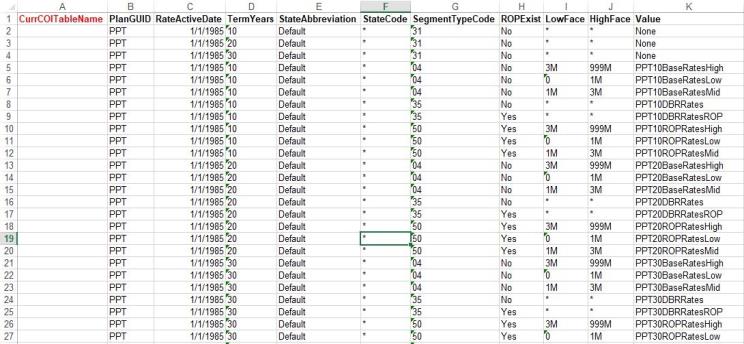
The Map Group Data Sheet should start from cell A1, Map Group Data Name as defined in the legend sheet is expected in this cell of the Excel sheet.
-
Row 1 starting from column B will have the Map Criteria Names as defined in the Legend sheet against the corresponding Map Group.
-
The number of Map Criteria Columns is expected to be as same as Map Criteria Count defined in Legend Sheet against the corresponding Map Group with the exception of the Value column. Order of columns need not match the order provided by the legend, only the number of columns must match, the names must all be provided and must match all the names defined in the legend.
-
The data for the Map Criteria columns must start from Row 2 below the Map Criteria. The data is expected to be of Map Criteria Data Type defined in the legend sheet against the corresponding Map Criteria.
-
After the Map Criteria Columns, Map Value column is expected where Row 1, Label 'Value' is present.
-
Any data present in the columns after the Value column will be ignored in the Workbook Load Process.
-
Value Column is expected to have data entries for Data Type defined in the Legend Sheet (Column C). The Data Type entries must be of four types only- Date, Integer, Decimal and Text.
-
Any row having the Map Criteria Data is expected to have Map Value.
-
Blank Rows after the end of the Map Criteria Data to the end of spreadsheet are to be ignored.