The ‘Courier Setup’ is used to register the courier companies with whom the bank has a tie up for cheque pickup services. These courier companies are used for mapping in various other screens including transaction capturing and corporate enrichment.
By using ‘Courier Setup’ screen, you can maintain the courier company’s details..
Create Courier Setup
This screen is used to create a courier code and capture the complete detail of the courier company. Newly created courier codes take effect once authorized and cannot be modified thereafter.
Navigation Path: Collections > Maintenance > Courier Setup > Create Courier Setup
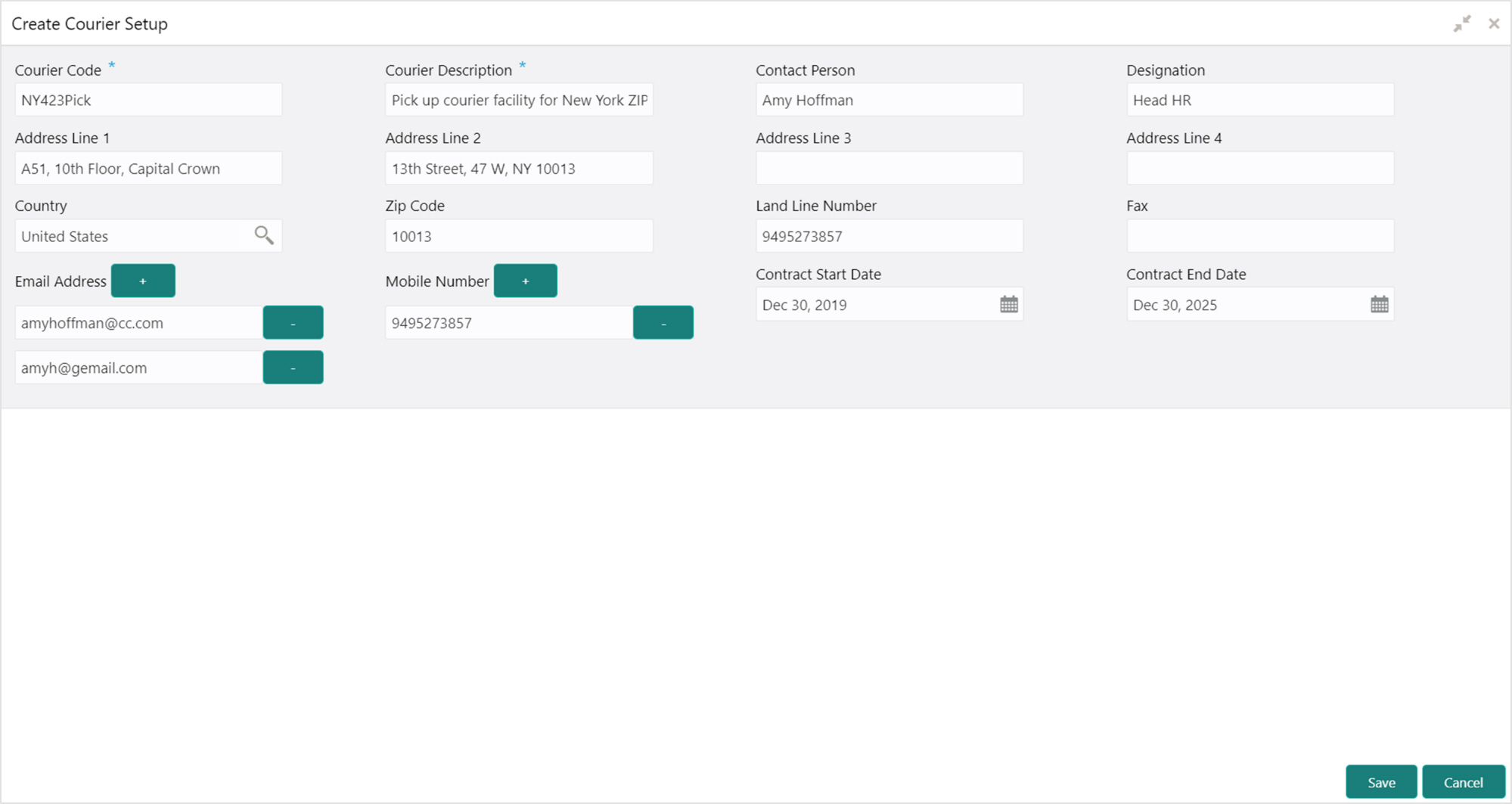
1. Refer to the following table for specifying details on the above screen:
Note: Fields marked with “*” are mandatory.
|
Field Name |
Description |
|
Courier Code * |
Enter unique alphanumeric code to be created for a courier company. This field cannot be modified once authorized. |
|
Courier Description * |
Enter the name and description of the courier company. |
|
Contact Person |
Enter name of the contact person from the courier company. |
|
Designation |
Enter the designation of contact person from the courier company. |
|
Address Line 1 |
Enter the first line of courier company’s address. |
|
Address Line 2 |
Enter the second line of courier company’s address. |
|
Address Line 3 |
Enter the third line of courier company’s address. |
|
Address Line 4 |
Enter the fourth line of courier company’s address. |
|
Country |
Click the Search icon to select the country. |
|
Zip Code |
Enter the postal code of the selected address. |
|
Land Line Number |
Enter the land line contact number of the courier company. |
|
Fax |
Enter the fax contact number of the courier company. |
|
Email Address |
Enter an official email address of the courier company. Click Add (+) icon to add more email addresses. You can delete an email address by clicking Remove (-) icon given for it. |
|
Mobile Number |
Enter mobile number of the selected contact person. Click Add (+) icon to add more mobile numbers. You can delete a number by clicking Remove (-) icon given for it. |
|
Contract Start Date |
Click the Calendar icon to select the date from which contract with courier company starts. |
|
Contract End Date |
Click the Calendar icon to select the date on which contract with courier company expires. |
2. Click Save to save the record and send for authorization.
View Courier Setup
By using this screen, you can view, modify, delete, or authorize courier code details.
Navigation Path: Collections > Maintenance > Courier Setup > View Courier Setup
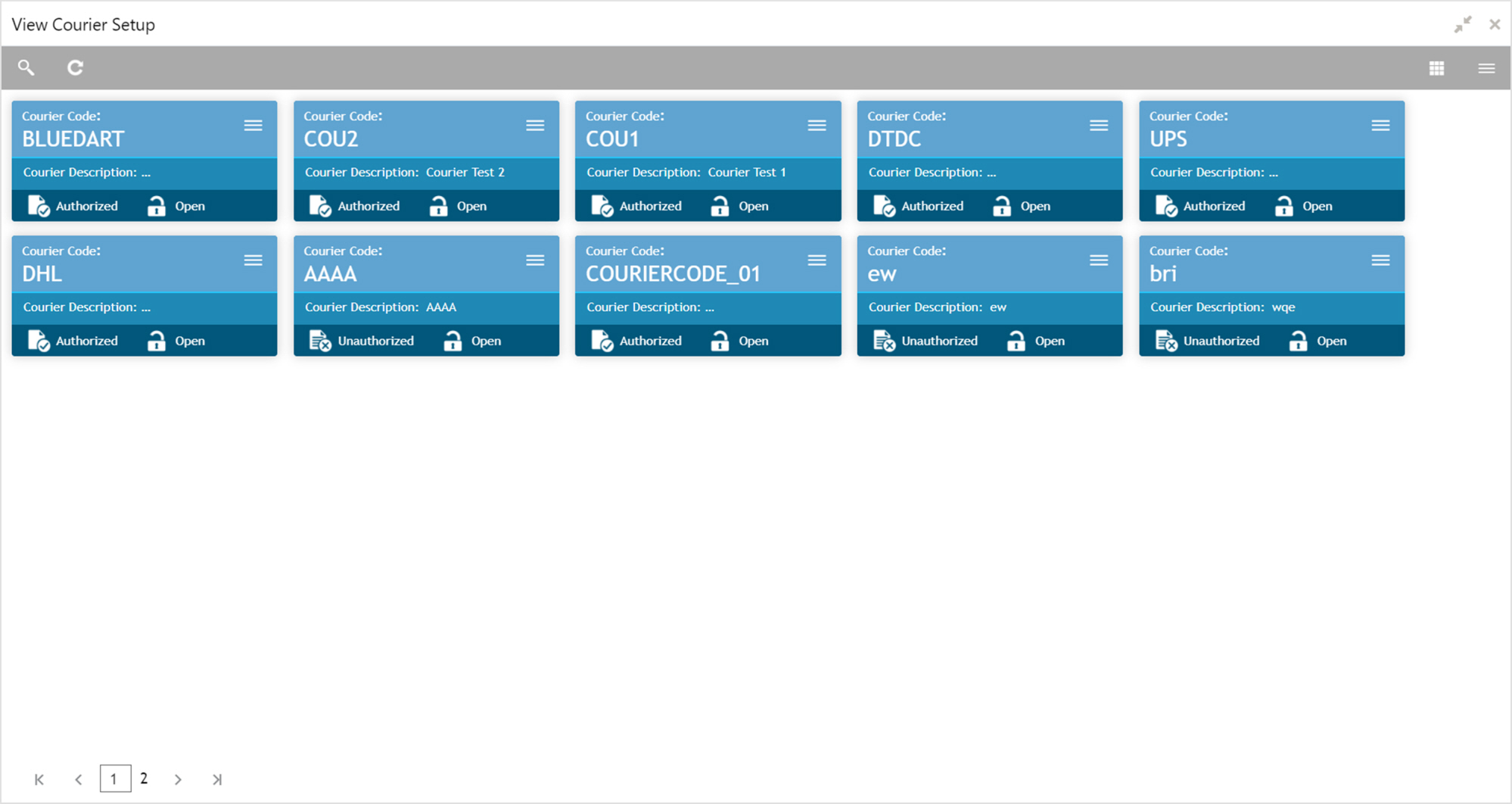
Perform the following steps to take actions on the courier code. Click the Options ( ) icon and then click any of the below option:
• Unlock – To modify the record details. Refer to the Create Courier Setup section for field level details.
• Authorize – To authorize the record. Authorizing requires necessary access rights.
a. Optional: Click View to view the record details.
b. Select the record to authorize and then click Confirm.
• Delete/Close – To remove the record.
a. Optional: On the confirmation pop-up window, click View to view the record details.
b. Click Proceed to delete the record.
• Copy – To copy the courier code details for creating a new record.
• View – To view the courier code details.