Performing Purchase Order Inquiry
The Purchase Order Inquiry screen helps you to search for purchase orders based on various criteria, such as, ‘File Reference Number’, ‘Purchase Order Number’, ‘Party’, ‘Purchase Order Status’, ‘Date Range’, ‘Currency’, and ‘Amount Range’.
Navigation Path: Receivables > Inquiry > Purchase Order Inquiry
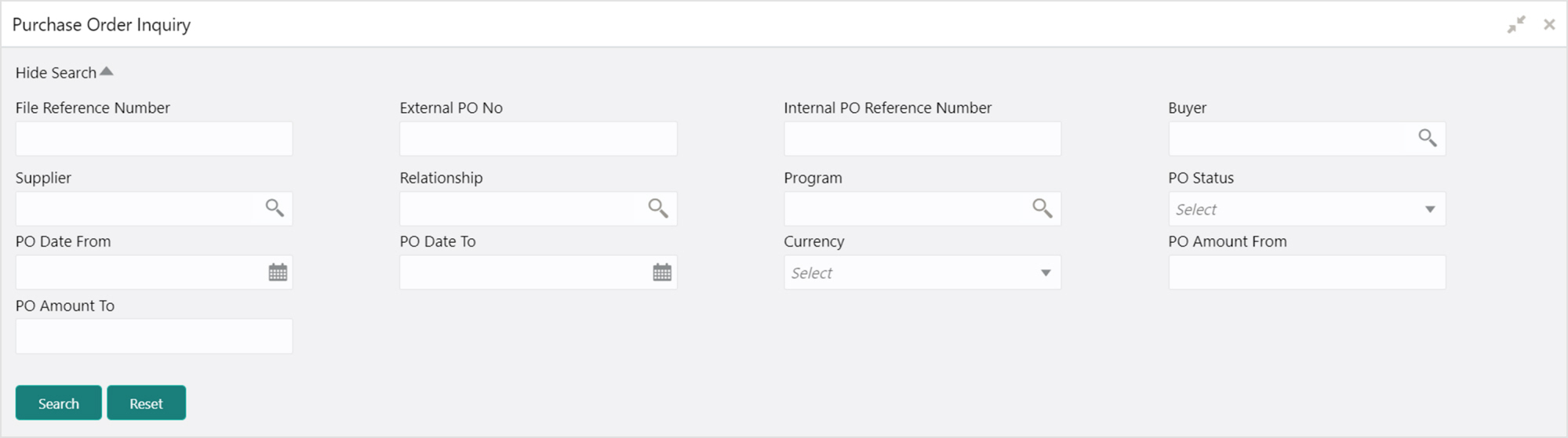
1. Refer the following table for specifying details in the above screen:
Note: Select the value for at least one mandatory field to generate search result. Fields marked with ‘*’ are mandatory.
|
Field Name |
Description |
|
File Reference Number * |
Enter the unique reference number of the file used for uploading purchase orders. |
|
External PO No |
Enter the external reference number of the purchase order. |
|
Internal PO Reference Number |
Enter the system generated reference number of the purchase order. |
|
Buyer |
Click the Search icon to find and select the buyer. |
|
Supplier |
Click the Search icon to find and select the supplier. |
|
Relationship |
Click the Search icon to find and select the relationship. |
|
Program |
Click the Search icon to find and select the program. |
|
PO Status |
Select the required status of the purchase order. |
|
PO Date From |
Click the Calendar icon to select the start date of the purchase order date range. |
|
PO Date To |
Click the Calendar icon to select the end date of the purchase order date range. |
|
Currency |
Select the required currency. |
|
PO Amount From |
Enter the ‘from’ amount of the purchase order amount range. |
|
PO Amount To |
Enter the ‘to’ amount of the purchase order amount range. |
2. Click Search to view the search result in the Purchase Order List section. The search result screen is displayed below.
OR
Click Reset to clear the search criteria.

3. Click the link in the External PO No column to view the details of the purchase order.