The ‘Charge Code’ screen helps you to maintain charge code for a specific charge group, charge type, and charge category. You can also specify the expiry date of the charge code from this menu.
Create Charge Code
Navigation Path: Receivables > Maintenance > Charges > Charge Code > Create
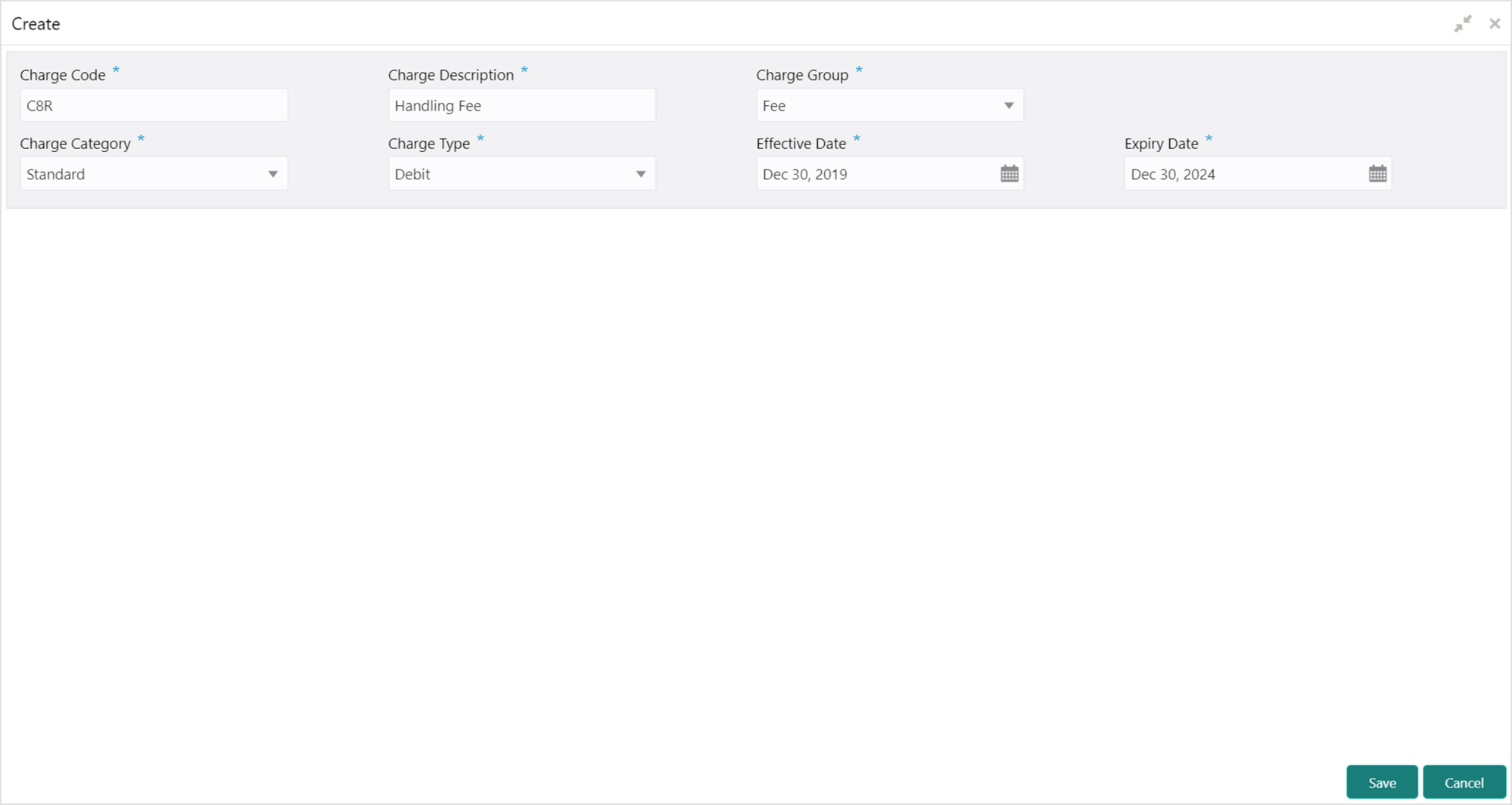
1. Refer to the following table for specifying details on the above screen:
Note: Fields marked with ‘*’ are mandatory.
|
Field Name |
Description |
|
Charge Code * |
Enter the unique charge code to be created. |
|
Charge Description * |
Enter the description of the charge. |
|
Charge Group * |
Select the group to which this charge code belongs. This field is purely for the purpose of maintaining information in the Management Information System (MIS). The available options are: • Rebates • Tax • Commission • Fee |
|
Charge Category * |
Select the value to specify whether charge is of tax or standard category. |
|
Charge Type * |
Specify if this charge code is of debit or credit type. |
|
Effective Date * |
Click the Calendar icon to select the start date of the charge code validity. |
|
Expiry Date * |
Click the Calendar icon to select the end date of the charge code validity. |
2. Click Save to save the record and send for authorization.
View Charge Code
Navigation Path: Receivables > Maintenance > Charges > Charge Code > View
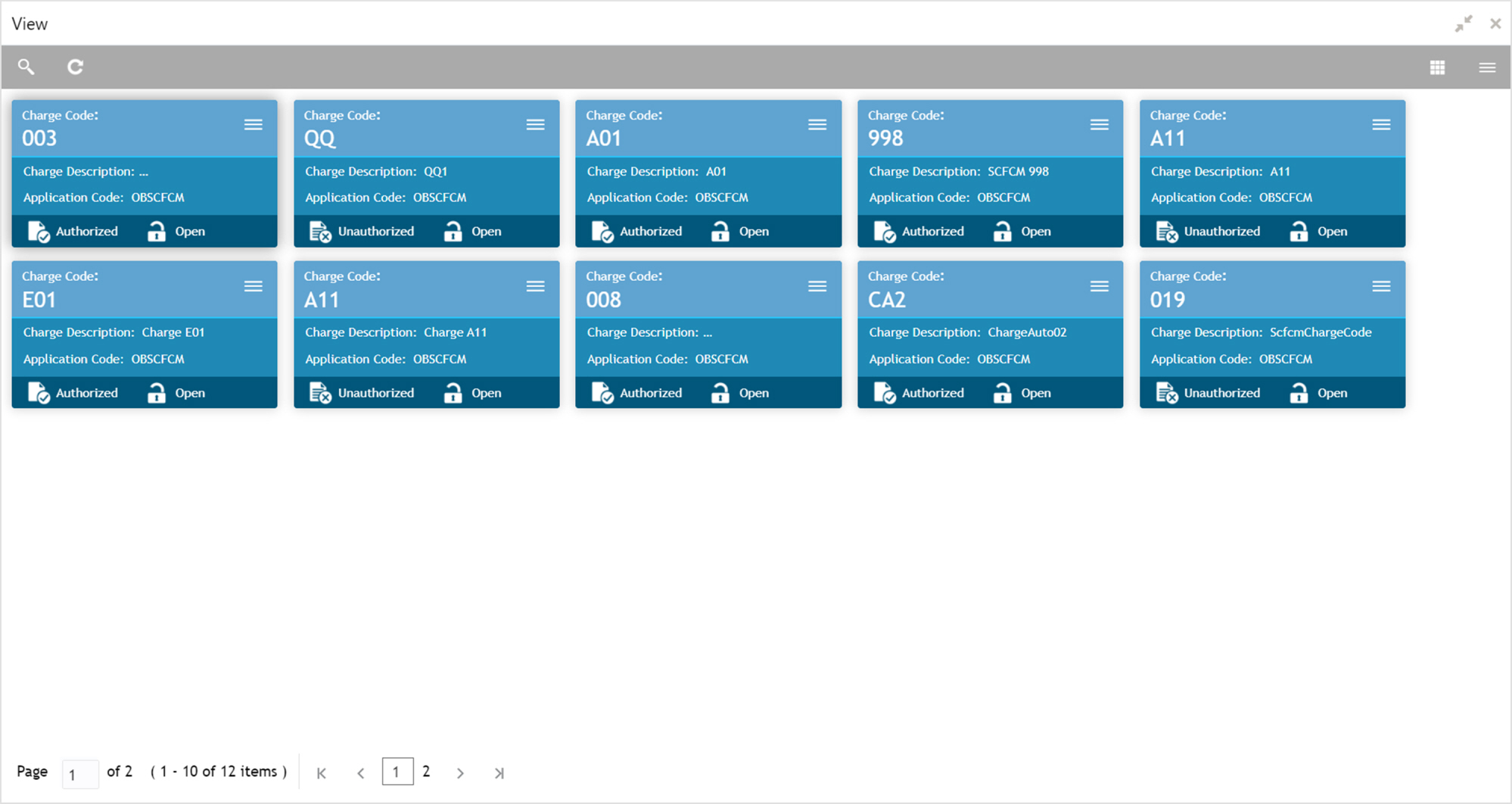
Perform the following steps to take actions on the charge codes. Click the Options ( ) icon and then click any of the below option:
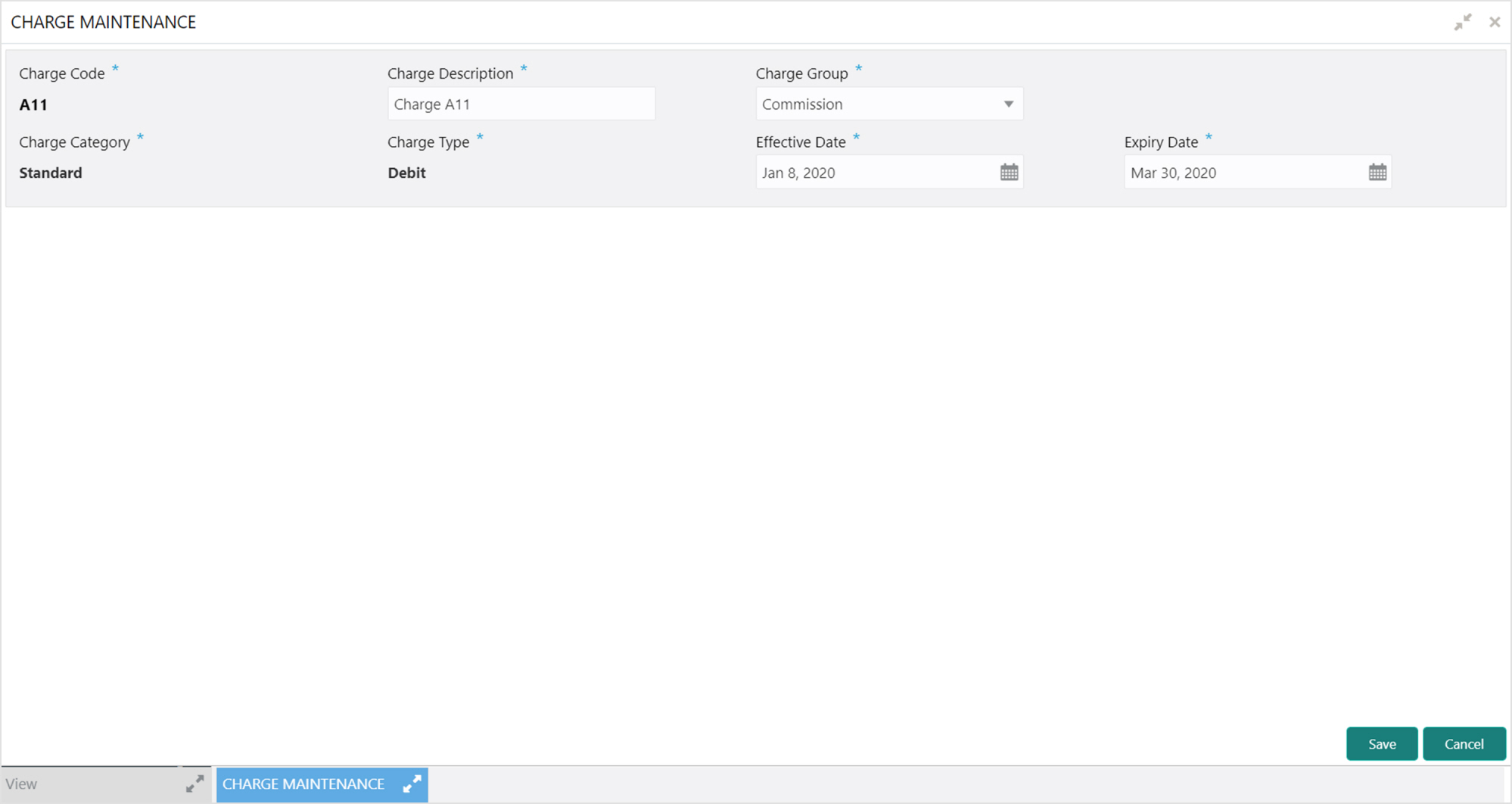
• Unlock – To modify the record details. Refer to the Create Charge Code section for field level details.
• Authorize – To authorize the record. Authorizing requires necessary access rights.
a. Optional: Click View to view the record details.
b. Select the record to authorize and then click Confirm.
• Delete/Close – To remove the record.
a. Optional: On the confirmation pop-up window, click View to view the record details.
b. Click Proceed to delete the record.
• Copy – To copy the charge code details for creating a new record.
• View – To view the charge code details.