This module describes the procedure for prepayment models analysis.
The Prepayment Model Analysis window allows you to develop a model for prepayment rate calculations as per the chosen risk factors.
A progress sequence is added as a graphical user interface that helps you to hover over at any stage and see the call-out to check the progress during modeling a prepayment model.
Topics:
· Understanding Prepayment Model
· Editing Prepayment Model Analysis Rule
· Deleting Prepayment Model Analysis Rule
· Copying Prepayment Model Analysis Rule
Note: Populate the data in table FSI_M_PROD_INST_TABLE_MAP as the model searches the processing tables as per the selected products based on mapping in this table.
For User Roles and Functions related to Prepayment Model Analysis, see the Creating Application Users section of OFS Asset Liability Management Application Pack Installation and Configuration Guide.
In the Oracle Financial Services Analytical Applications Infrastructure home screen, select Financial Services Asset Liability Management.
Note: For FTP, select Financial Services Funds Transfer Pricing Management. For BSP, select Financial Services Balance Sheet Planning Management
1. To access Prepayment Model Analysis window, navigate to ALM Assumption Specification, select Prepayment Rules and then select Prepayment Model Analysis.
Note: For FTP, navigate to ALM Assumption Specification. For BSP, navigate to BSP Assumption Specification.
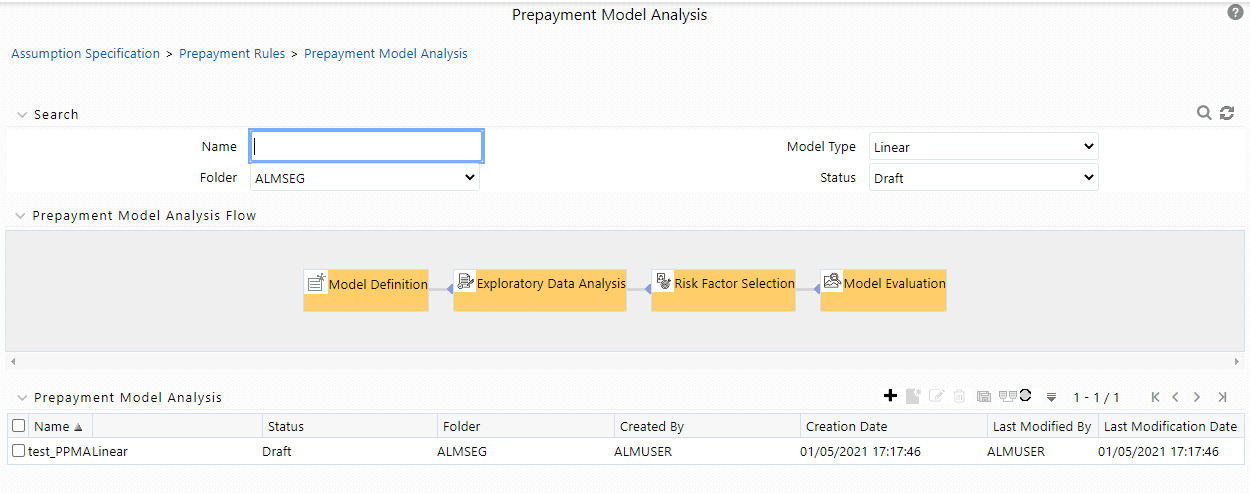
Description of Prepayment Model Analysis summary window as follows
2. The definitions based on the search criteria are listed under the List of Prepayment Model Analysis. This is the search section that contains multiple parameters. You can specify one or multiple search criteria in this section. When you click Search, depending upon the search criteria, the corresponding Prepayment Model Analysis Summary would be shown. The Prepayment Model Analysis Summary window displays the following fields.
|
Fields |
Description |
|---|---|
|
Search |
This icon allows you to search the Prepayment Model Analysis definition based on the search criteria specified. Search criteria may include a combination of Name, Folder, Status, and Model Type. The Prepayment Model Analysis rule definitions displayed in the Prepayment Model Analysis Summary table are filtered based on the search criteria specified on clicking this icon. |
|
Reset |
This icon allows you to reset the Search section to its default state without any selections. Resetting the Search section displays all the existing Prepayment Model Analysis rule definitions in the Prepayment Model Analysis Summary table. |
|
Name |
This field allows you to search the pre-defined Prepayment Model Analysis rule based on the Rule name. Enter the Rule name. |
|
Folder |
This field allows you to search for the pre-defined Prepayment Model Analysis rule definitions based on the selected folder. This field displays a list of folders that you have access to as a drop-down list. Selecting a folder from the drop-down list displays only those Prepayment Model Analysis rule definitions that are defined within the selected folder/segment in the Prepayment Model Analysis rule Summary table. |
|
Model Type |
This field allows you to search the pre-defined Prepayment Model Analysis rule based on type. Model Type would only be defined for “Confirmed” models. All models which are still in draft, would not have any Model type. This drop-down has the following options: · Linear · Polynomial |
|
Status |
This field allows you to search the pre-defined Prepayment Model Analysis rule based on status. This drop-down list displays the statuses Draft or Completed. Selecting a status from the drop-down list displays only those Prepayment Model Analysis rule definitions that are defined within the selected status in the Prepayment Model Analysis Summary table. |
The Prepayment Model Analysis Summary page offers several icons that allow you to perform different functions when a Prepayment Model Analysis rule is selected.
|
Fields |
Description |
|---|---|
|
Add
|
Click Add icon to build a new Prepayment Model Analysis rule. The Add icon is disabled if any row is selected in the table. |
|
View |
Select a single row in the table to enable the View icon. Click View to view the contents of a Prepayment Model Analysis rule in read-only format. The View icon is enabled only when a single Prepayment Model Analysis rule is selected in the table. |
|
Edit |
Selecting a single row out of the pane enables the Edit icon. Click the Edit icon to modify a previously saved Prepayment Model Analysis rule. The Edit icon is only enabled when a single Prepayment Model Analysis rule is selected. You can control the number of rows to display on the window by selecting the Pagination Options icon from the action bar. |
|
Copy |
Selecting a single row out of the pane enables the Copy icon. Click the Copy icon to create a copy of an existing Prepayment Model Analysis rule. The Copy icon is only enabled when a single Prepayment Model Analysis rule has been selected. |
|
Check Dependencies
|
Select the Prepayment Model Analysis rule. Click the Check Dependencies to generate a report on all rules that utilize your selected Prepayment Model Analysis rule. The Check Dependencies icon is only enabled when a single Prepayment Model Analysis rule has been selected. |
|
Delete |
Select one or more rows in the table to enable the Delete icon. Click Delete to delete the selected Prepayment Model Analysis rule. Only prepayment models that are not being used, could be deleted. |
|
Refresh |
Click Refresh to refresh the Prepayment Model Analysis summary page. |
To select a Prepayment Model Analysis, select a check box in the first column of the table. More than one Prepayment Model Analysis can be selected at a time, but this disables some of the icons.
Description of Prepayment Model Analysis summary window as follows
You can select or deselect all the Prepayment Model Analysis rules on the Summary page by selecting the check box in the upper left-hand corner of the Summary table directly to the left of the Name column header.
The following table provides the Prepayment Model Analysis details based on the search criteria.
|
Column |
Description |
|---|---|
|
Name |
Displays the Prepayment Model Analysis rule's short name. |
|
Creation Date |
Displays the Date and Time at which a Prepayment Model Analysis rule was created. |
|
Created By |
Displays the Name of the user who created the Prepayment Model Analysis rule. |
|
Last Modification Date |
Displays the Date and Time at when a Prepayment Model Analysis rule was last modified. |
|
Last Modified By |
Displays the Name of the user who last modified the Prepayment Model Analysis rule. |
|
Status |
Displays the Status of rule. |
Search for a Model to perform any of the following tasks:
· Update, Copy or Delete existing rules.
· Define methodologies for products or define other processing assumptions
To search for a model, follow these steps:
1. Navigate to the Prepayment Model Analysis window.
2. Enter the following details:
§ Name
§ Folder
§ Model Type
§ Status

Description of Search on Prepayment Model Analysis summary window as follows
3. Click Search .
Only rules that match the search criteria are displayed.
To define a model, follow these steps::
1. Navigate to Prepayment Model Analysis window. Click Add +. The Definition window is displayed.
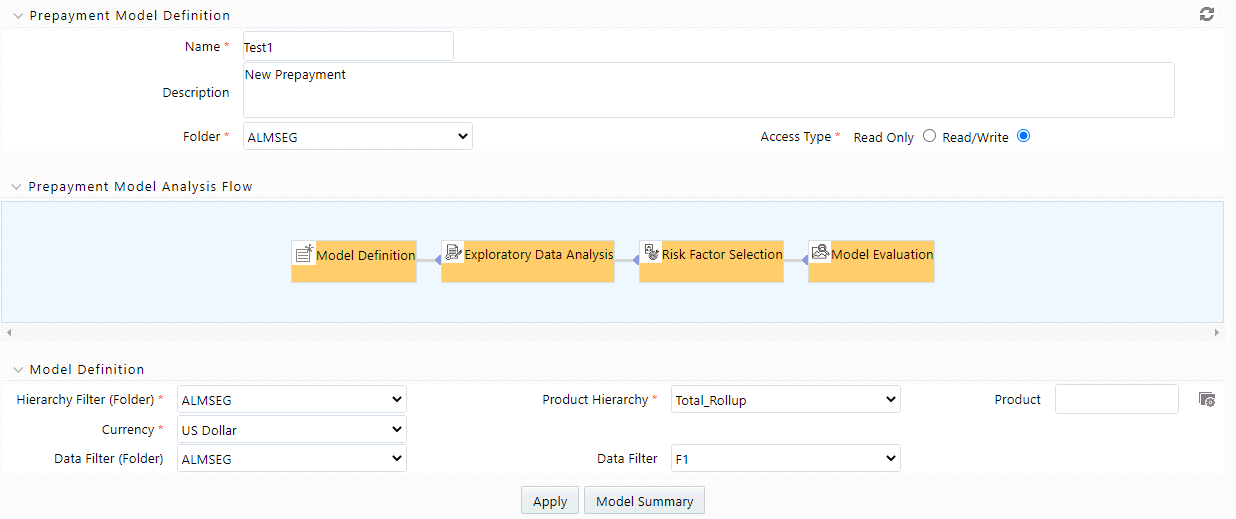
Description of Creating a Prepayment Model Analysis rule as follows
2. Enter the following details.
Fields |
Description |
|---|---|
|
Name |
Enter the name of Prepayment Model Analysis rule |
|
Description |
Enter the description of Prepayment Model Analysis rule |
|
Folder |
Select the folder where you want to save Prepayment Model Analysis rule |
|
Access Type |
Select Access Type as Read-only or Read/Write. |
|
Hierarchy Filter (Folder) |
Select the folder of Hierarchy Filter. |
|
Product Hierarchy |
Select the Product Hierarchy. |
|
Product |
Based on selected product hierarchy in model definition UI, Hierarchy Browser will expand the product hierarchy and you can select any parent/leaf node by clicking on view button next to product in model definition screen. |
|
Currency |
Select the currency for Prepayment Model Analysis rule. |
|
Data Filter (Folder) |
Select the folder name of data filter for Prepayment Model Analysis rule |
|
Data Filter |
Select the data filter for Prepayment Model Analysis rule. |
3. Click Apply to navigate to Exploratory Data Analysis window.
4. Exploratory Data Analysis window is used to perform EDA calculations.
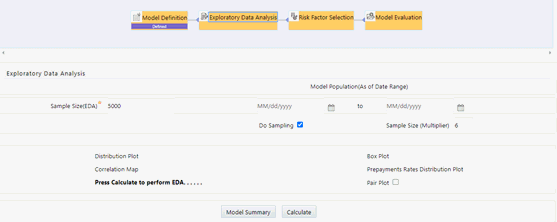
Description of Exploratory Data Analysis tab of Prepayment Model Analysis window as follows
5. Enter the following details in Exploratory Data Analysis window.
Fields |
Description |
|---|---|
|
Sample Size |
Sample size of dataset for EDA |
|
Model Population (As of Date Range) |
You can define a date range within which one wants to use data for model creation as model population. By Default, Date range would be populated as below: End Date: Max (As of Date) available in Model input Table Start Date: Max [min (As of Date), End Date – 10 Years] |
Do Sampling |
Select this option to create model based on a data Sample rather than the whole population. By default, Do Sampling is enabled. This would enhance performance due to lesser number of records considered for modelling, without degrading model quality. |
Sample Size (Multiplier) |
After selecting sample size for EDA, you can select multiplier value. This indicates sample size required for model creation. For example, if 1000, records are selected as sample size for EDA, and multiplier is 6, then a minimum of 1000*6 = 6000 records would be required for model creation. Note: This checkbox is enabled only if Do Sampling checkbox is selected. |
6. Click Calculate to perform Exploratory Data Analysis and get EDA plots. You can refresh the window using Refresh button to check if EDA is completed.
This window will give complete information about all the risk factors along with prepayment rates. So you can decide what all factors would best represent the prepayment rate and would be best for model building.
You can hover over any graph and zoom in to enhance visibility of graph.
Click Model Summary to navigate back to Model Summary window after saving all inputs/EDA graphs defined/generated till this point.
Click Re-Calculate if you want to change the sample size and redo the EDA again. Change the sample size and click Re-Calculate.
If you want to perform EDA multiple times (for example, three versions V1, V2, V3.), then use Versions (EDA) to view them. For example, when you are on EDA screen and performing EDA 3rd time, but still want to go with 2nd EDA version, then select that version and subsequent processing would be based on V2. If you have run EDA only once, then this drop-down would not be available.
When you hovers over Sample size for EDA, it displays Default value (callout) as Default Value is 5000.
7. Click Pair Plot to generate Pair Plot/Grid along with other EDA graphs. Pair Plot/Grid is a detailed graph, that can further slow down the processing. So you can explicitly select the pair plot checkbox and click on calculate to perform the EDA.
8. Click Next. The Risk Factor Selection window is displayed. By default, all the risk factors will be disabled.
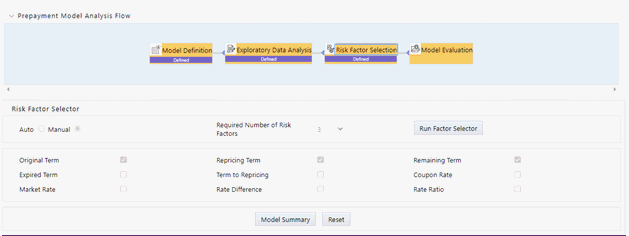
Description of Risk Factor Selection tab of Prepayment Model Analysis rule as follows
9. Click Auto Select or Manual Select. By default, Auto Select option is checked.
§ When you are in Auto Select Mode, System would perform required calculations, co-relation/collinearity analysis in the backend based on the required number of risk factors (Maximum 3), System would auto-select the best representative set of risk factors as per the input data.
§ If you want to change sample size and re-calculate EDA again, click Exploratory Data Analysis block and perform EDA with updated sample size. Again, the process starts from that step onwards, and updated EDA plots/graphs would be saved for the model.
§ When you select Manual Select Mode, all risk factors will be available for selection. Select 1,2 or 3 risk factors based on your data.
10. Click Next to navigate to Model Evaluation window. A confirmation message is displayed. Click OK.
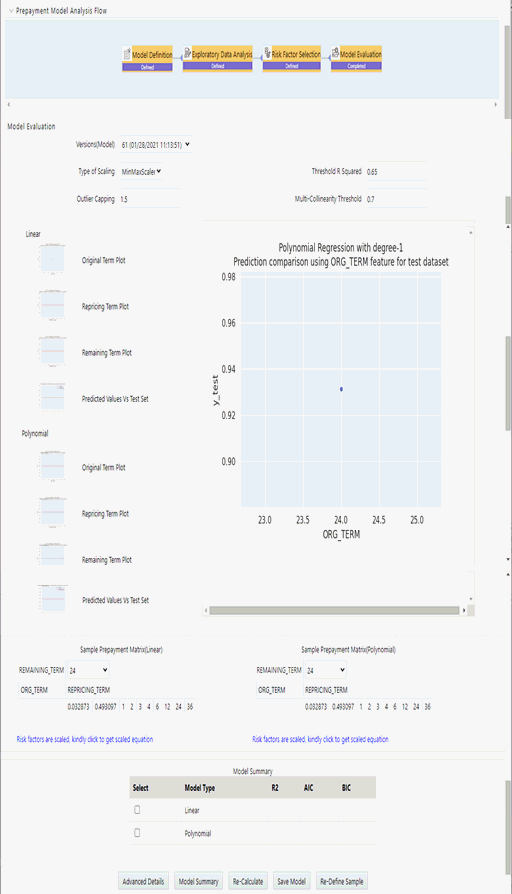
Description of Model Evaluation tab of Prepayment Model Analysis rule as follows
11. Click Calculate to view all the evaluation parameters and quality plots.
Click Re-Calculate if you are not satisfied with the model quality to change the model parameters and revise the model definition. You can zoom the graph to enhance visibility.
You can select any risk factor as page axis for sample prepay matrix on Model Evaluation window; using re-define sample button, only when number of risk factors is 3. Same selected page axis will be carried forward while creating prepayment matrix as well.
If you are changing parameters and generating different versions of model, then you can see all the versions, generated due to different set of model parameters in Versions (Model) drop-down. If you have run “model evaluation’ only once, then this drop down and title above “Model Versions” would not be available. As per the selected version, Advanced Model Details window is also updated.
The Model Details window helps you to evaluate the model fit. It would have following comparisons:
Predicted Values Vs Risk Factor 1,2,3, as per the number of risk factors considered for model building. This will dynamically adjust as per number of risk factors selected.
Predicted Values Vs Test Sample.
Sample prepayment matrix as per both the models (Linear and Polynomial).

Description of Sample Prepayment Matrix Details of Prepayment Model Analysis rule as follows
User would have option to redefine, values for sample matrix by clicking on “Re-define Sample” button. Below pop up would open up if user would like to re-define sample buckets. Again this pop up would dynamically adjust based on number of risk factors selected in the model.
Click Model Summary to view Model Summary window, after saving all details.
Click Re-Define Sample if you want to modify risk factor values for sample matrix. This pop up would dynamically adjust to display 1,2 or 3 dimensions as per the chosen model.
In case you want to update values on which sample matrix is generated, you can click on ‘Re-define Sample’. Below window would open up where you can update the risk factor values:

Description of Sample Matrix Values window as follows
Add row using Add +. You can add multiple rows or delete multiple rows using buttons in panel 1. Default sample matrix is10*10, but once you re-define sample, matrix can be truncated to any dimensions.
The redefined matrix will be saved along with model.
Model summary parameters like R2, AIC and BIC.
Both (Linear/Polynomial) models are produced when the system compares model generated R2 against the R2 threshold defined by the user. The final option is given to you to choose any one of these models. Based on infrastructure availability and model complexity, user can choose any one of linear/polynomial model.
Click Save Model to save the model. Same model could be referred to populate prepayment rate matrix.
Click Re-Calculate to re-evaluate model based on changed model parameters.
If you want to change sample size and re-calculate EDA again, click Exploratory Data Analysis block and perform EDA with updated sample size. Again, process would start from that step onwards and updated EDA plots/graphs would be saved for the model.
If you want to update selected risk factors, click Risk Factor Selection block and change risk factors. Again, process would start from that step onwards and updated risk factors would be saved for the model.
Advance Details – To verify the model quality, all the model statistics are given on a different screen, which would be available with ‘Advance Details’ button like R2, F value, P – Value, and so on.
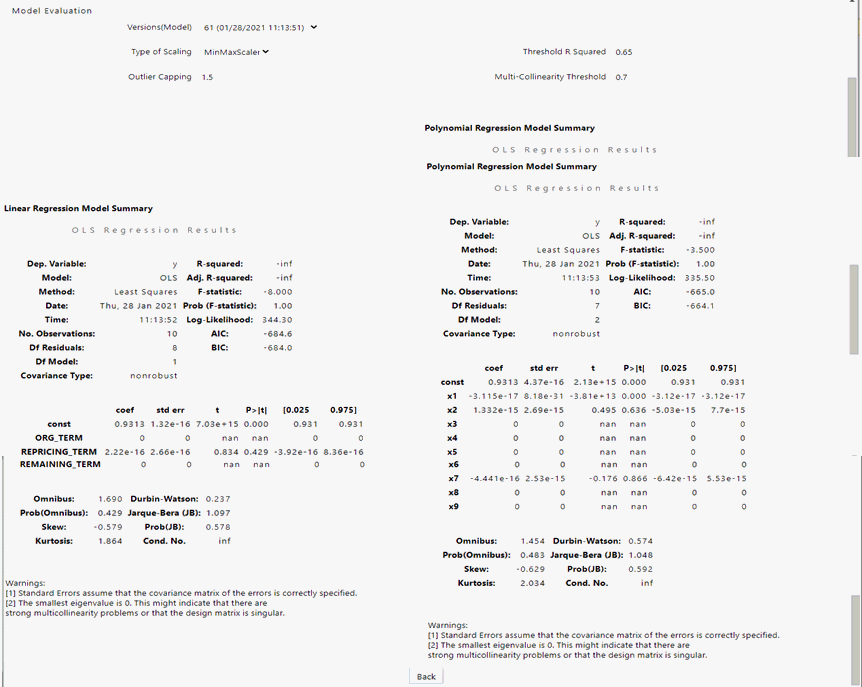
Description of Advance Details of Prepayment Model Analysis rule as follows
Reset button on each screen would help to delete all the calculations done in subsequent steps. That is, if you have done EDA and selected particular EDA version to do further calculations like ‘Risk factor Selection’ or ‘Model Evaluation’. In case you are not satisfied with model, you can go back to EDA, click ‘Reset’ to clear out the details/calculations performed in subsequent stages and do recalculate with a different set of parameters.
Following are the default values/usage of Parameters:
Parameters |
Default Values |
|---|---|
EDA Sample Size |
This would allow you to define a sample size for exploratory data analysis. A bigger sample would increase CPU and memory usage, but it would better represent the model population. You have the option not to use sampling by setting Do_Sampling parameter to false. Procedure for the same is given in next section. |
Type of scaling |
Many a times, risk factors are not in consistent range, e.g. one of the risk factor’s values could be in 1-500 range but another risk factor could be just in 2-3 range. So, risk factor 1 would influence the model more and you would get a biased model. So, to make all the risk factors consistent, scaling is used. There are two types of scaling: Min-Max Scaling = (X – min)/(max – min) Standard = (X – Mean)/Std. Deviation |
Threshold R2 |
R-squared values range from 0 to 1 and are commonly stated as percentages from 0% to 100%. An R-squared of 100% means that all movements of prepayment rate (dependent variable) are completely explained by movements in the chosen risk factors (independent variable(s). |
Multi-collinearity Threshold |
For model creation if two risk factors/variables are highly correlated or correlation > 0.7, they would make model unstable. So based on this value, if variables are highly correlated or above defined threshold, one of them would be dropped while model creation. |
Outlier Capping |
This would allow user to reject values beyond certain percentile. Sometimes, input data has few extreme values which could distort the model. So you could reject those values and get a stable model. |
Exploratory Data Analysis:
Sample Size (EDA) - 5000
Model Population Range - It would be auto-populated based on the data in risk factor table. Maximum would be 10 years older from latest available date. In case you think, older data is not relevant, as of date range can be updated.
Model Evaluation:
Type of scaling – min Max Scaler
Threshold R2 – 0.65
Outlier capping – 1.5 Percentile
Multi-collinearity Threshold – 0.7
To edit a rule, perform following steps:
1. Navigate to Prepayment Model Analysis window.
2. Search for Prepayment Model Analysis rule which you want to edit. For more information, see the Searching for Rules section.
3. Select the Prepayment Model Analysis rule. Click Edit to open the rule you want to update. You cannot edit more than one Prepayment Model Analysis rule at a time. The Edit Definition window is displayed.
4. Modify the details, only model type can be changed from linear to polynomial or vice versa and click Apply.
5. Click Save to navigate back to Prepayment Model Analysis summary window.
You can delete rules that are no longer required.
NOTE:
A rule cannot be retrieved after deletion.
Restrictions on deleting rules are:
· You cannot delete rules if you have only Read privileges. Only users with read/write privilege and rule owners can delete models.
· You cannot delete a rule that has a dependency, that is, model is being used in any of the prepayment matrix to calculate prepayment rates.
To delete a rule, follow these steps:
1. Navigate to the Prepayment Model Analysis window.
2. Search for a Prepayment Model Analysis rule. For further information, see the Searching for Rules section.
3. Select the Prepayment Model Analysis appropriate rule and click Delete.
You can copy rules to avoid having to enter data multiple times. This saves time and effort and also reduces mistakes.
To copy a rule, follow these steps:
1. Navigate to the Prepayment Model Analysis window.
2. Search for a Prepayment Model Analysis Rule. For further information, see the Searching for Rules section.
3. Select the appropriate
Prepayment Model
Analysis rule
and click Copy  to
duplicate the rule.
to
duplicate the rule.
4. Select a folder where you want to save the Prepayment Model Analysis rule copy.
5. Enter a unique name for the new Prepayment Model Analysis rule.
6. (Optional) Enter a brief description of the rule.
7. Select the access type.
8. Click Save .
You can check dependencies for rules to know where a particular rule, dimension, member, attribute, IRC has been used. This also prevents accidental deletion of rules having dependencies.
To check the dependency of a Prepayment Model Analysis rule, follow these steps:
1. Navigate to the Prepayment Model Analysis window.
2. Search for a Prepayment Model Analysis rule. For further information, see the Searching for Rules section.
3. Select the appropriate
Prepayment Model
Analysis rule
or rules and click Check Dependencies  corresponding
to the rule that you want to check for.
corresponding
to the rule that you want to check for.
NOTE:
You can select more than one rule at a time to check dependencies.
The Dependency Information window opens containing the following information: Child Object Name, Child Object Type, Folder, Parent Object Name, Parent Object Type, and Folder.
NOTE:
You cannot delete a child object which has dependencies. You will get a message: Dependencies found. Cannot delete.
To delete the child, you must first delete the outermost parent object which uses the child.