
This chapter describes the procedure for working with and managing Rate Dependency Patterns.
Topics:
· Overview of Rate Dependency Patterns
· Searching for Rate Dependency Patterns
· Creating Rate Dependency Patterns
Rate Dependency Patterns allow you to set up relationships between the level of Interest Rates, Economic Indicators, or Rate Spreads and ALM forecast assumption rules. After defining Rate Dependency Patterns, you can attach these patterns to ALM forecast business rules. ALM assumption rules with Rate Dependency Patterns, work together with your Forecast Rate scenarios to determine assumptions applicable to each specific scenario within your simulation. The following rule types support Rate Dependent assumptions:
· Forecast Balances
· Forecast Maturity Mix
· Forecast Pricing Margins
· Transaction Strategies
· Formula Results
When Rate Dependency Patterns are attached to an ALM business rule, you will be able to input multiple versions of each assumption type within a single assumption rule. The ALM engine dynamically retrieves the assumptions which apply to the scenario being processed.
The procedure for working with and managing Rate Dependency Patterns is similar to that of other Asset Liability Management business rules. It includes the following steps:
· Searching for Rate Dependency Patterns. For more information, see the Searching for Rules section.
· Creating Rate Dependency Patterns. For more information, see the Creating Rules section.
· Viewing and Editing Rate Dependency Patterns. For more information, see the Viewing and Editing Rules section.
· Copying Rate Dependency Patterns. For more information, see the Copying Rules section.
· Deleting Rate Dependency Patterns. For more information, see the Deleting Rules section.
Search for a Rate Dependency Pattern to perform any of the following tasks:
· View
· Edit
· Copy
· Delete
· Check Dependencies
Prerequisites
Predefined rate dependency patterns
Figure 1: Rate Dependency Pattern Summary Page
Description of the Rate Dependency Pattern Summary Page as follows
1. Navigate to the Rate Dependency Pattern Summary page. This page is the gateway to all rate dependency patterns and related functionality. You can navigate to other pages relating to rate dependency patterns from this page.
2. Enter the search criteria.
3. Enter the Code or Name of the Pattern.
4. Click Search.
Only patterns that match the search criteria are displayed.
NOTE:
You can control the number of rows to display on the window by selecting the Pagination Options from the action bar
You can create Rate Dependency Patterns to attach to forecast business rules. Follow these steps:
1. Navigate to the Rate Dependency Pattern Rule Summary page.
2. Enter a Name and a brief description of the pattern.
2.Select the Folder and Access Type.
3. Select the Rate Dependency Pattern Type from Rate Dependency Pattern Type: Rate-Level Dependent, Rate-Spread Dependent, or Economic Indicator Dependent.
Figure 2: Rate Dependency Pattern Page to Create a New Rate Dependency Pattern Rule

Description of the Rate Dependency Pattern Page as follows
The selection of the Rate Dependency Pattern type determines the information you must provide to successfully define that pattern type. See:
· Defining Rate-Level Dependent Rate Dependency Patterns
· Defining Rate-Spread Dependent Rate Dependency Patterns
· Defining Economic Indicator Dependent Rate Dependency Patterns
The Rate-Level Dependent Relationship allows you to define assumptions for different values of a single indicator interest rate. The indicator interest rate, referred to as the Base Interest Rate, is defined by an Interest Rate Code, a term selection, and a rate lag.
Figure 3: Base Rate Tab of the Rate Dependency Pattern Rule after selecting Rate-Level Dependent option

Description of the Base Rate Tab after selecting Rate-Level Dependent option as follows
|
Fields |
Description |
|---|---|
|
Base Rate Tab |
|
|
Interest Rate Code |
The Interest Rate Code identifies the reference yield curve or rate index whose forecasted value determines the assumptions to reference. You can select the Interest Rate Code from all available interest rate codes, as defined within Rate Management. |
|
Term Selection |
If the selected Interest Rate Code is a yield curve, you must also select a term. Your term choices depend on the definition of the Interest Rate Code within Rate Management. Note that the selection automatically defaults to the shortest available term. |
|
Rate Lag |
If you want the base interest rate calculation to perform a look back function, you can input a rate lag. The new business assumption lookup uses the forecasted interest rates as of a date within the current modeling bucket less the rate lag. If the timing of the new business is End of Bucket, the Lookup function uses the last day of the bucket less the rate lag. For all other cases, the mid-point of the bucket less the rate lag is used. |
|
Rate Tiers Tab |
|
|
Lookup Method |
The lookup method determines which new business assumption is selected from the input values when the forecasted interest rate falls between two rate tiers. There are two methods to choose from: Interpolate: If you select Interpolate, the assumption is an interpolated value, using straight line interpolation, calculated from the assumptions associated with the two nearest interest rate tiers. The interpolation uses a simple straight-line interpolation formula. Range: If you select Range, Oracle ALM selects the new business assumption as the closest assumption associated with the rate tier which is less than or equal to the forecasted interest rate. |
1. Provide the Base Rate details. See Table.
2. Select Save to navigate to the Rate Tiers tab. After you have selected a rate-level relationship and defined your base interest rate, you must define rate tiers. Rate Tiers provide the lookup values for which different assumptions can be input.
3. Select Add Rows to add the number of Rate Tiers tab to include in your pattern.
4. Input the appropriate Rate Level for each Rate Tier.
Figure 4: Rate Tiers Tab of the Rate Dependency Pattern Rule after selecting Rate-Level Dependent option

Description of the Rate Tiers Tab after selecting Rate-Level Dependent option as follows
5. Select the Lookup Method.
6. Select Save to complete the definition.
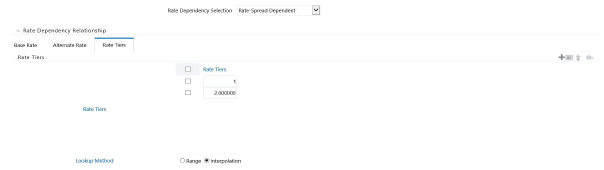
With the Rate-Spread Dependent Relationship, you can input assumptions for different spreads between two indicator interest rates. You define the first indicator interest rate, the Base Interest Rate, as described previously. The second indicator Interest Rate, the Alternate Interest Rate, also requires the selection of an Interest Rate Code, a Term Selection, and a Rate Lag.
The rate spread equals to Alternate Interest Rate - Base Interest Rate
Figure 5: Base Rate Tab of the Rate Dependency Pattern Rule after selecting Rate-Spread Dependent option
Description of the Base Rate Tab after selecting Rate-Spread Dependent option as follows
1. Define the Base Interest Rate details. See Table.
2. Select Save.
3. Define the Alternate Interest Rate details. These fields are the same as the Base Rate tab.
4. Select Save.
5. Define the Rate Tiers for the Spreads.
Description of the Rate Tiers Tab after selecting Rate-Spread Dependent option as follows
6. Select the Lookup Method.
7. Select Save to complete the definition.
With the Economic Indicator Dependent Relationship, you can input assumptions for different levels of a selected Economic Indicator. The only required selection for this method is the type of Economic Indicator. You can select the Economic Indicator from all available Economic Indicators for the selected Currency, as defined within Rate Management.
Figure 6: Rate Tiers Tab of the Rate Dependency Pattern Rule after selecting Economic Indicator option

Description of the Rate Tiers Tab after selecting Economic Indicator option as follows
1. Select the Economic Indicator.
2. Select Save.
3. Define the Rate Tiers for the Economic Indicators. See Table.
4. Select the Lookup Method.
5. Select Save to complete the definition.