This section provides detailed steps to install and configure D3, a visualization framework, which is used in a few reports of IPA and RPA.
To deploy the D3 OBIEE server, follow these steps:
1. Copy the analyticsRes folder from $FIC_HOME/OFS_IPA_DASHBOARDS directory to OBIEE Server at the following location:
$ORACLE_HOME/user_projects/domains/
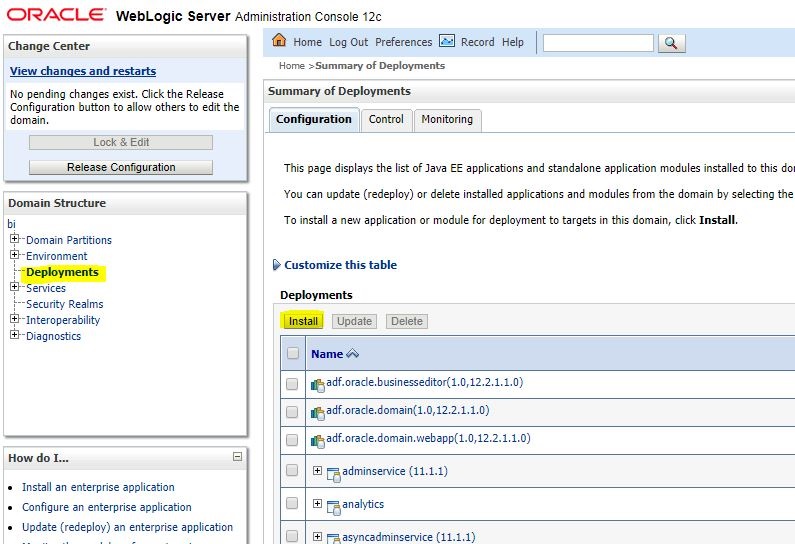
2. Login to web logic server, navigate to Deployments in your domain structure, and then click Install.
Figure 53: WebLogic Administration Console
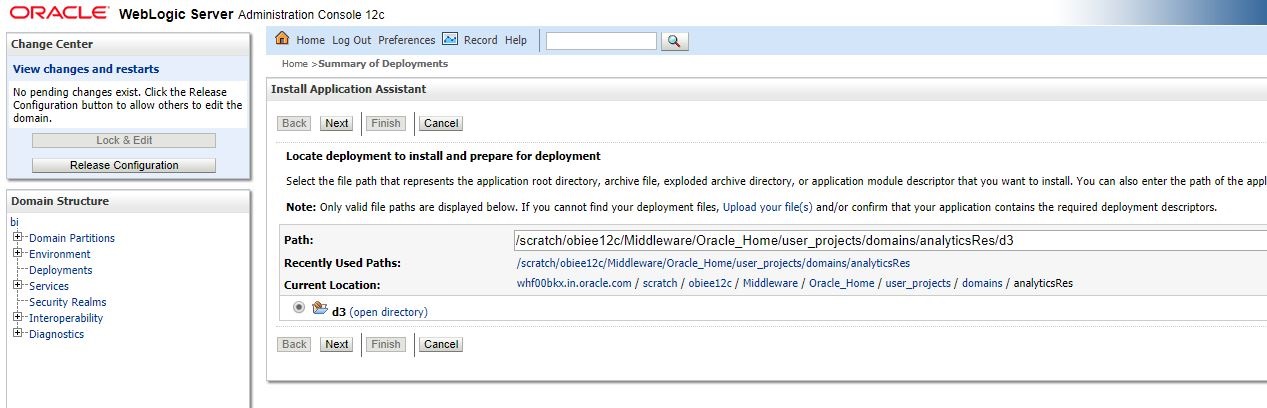
3. Paste the full path to the d3 directory, select the check box next to d3 (open directory), and click Next.
Figure 54: WebLogic Administration Console – Locale Deployment
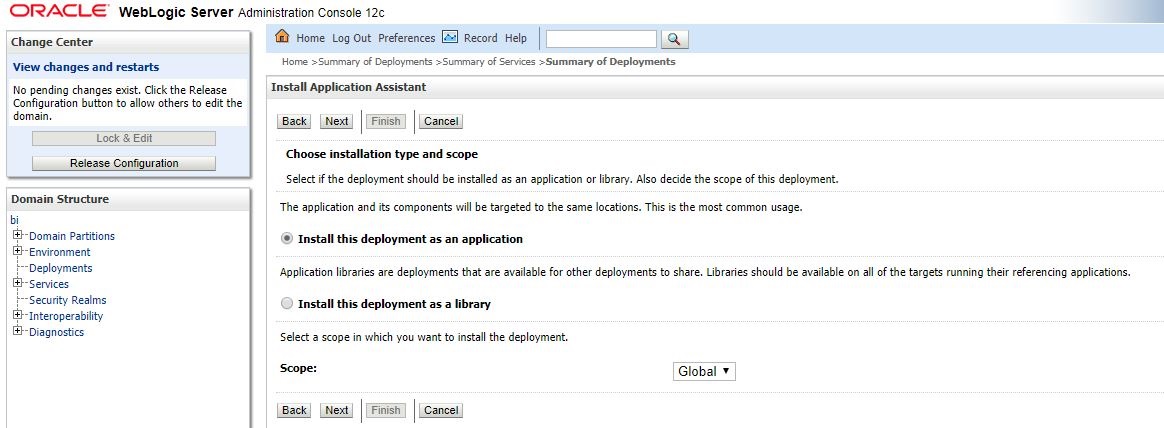
4. Select Install this deployment as an application and click Next.
Figure 55: WebLogic Administration Console – Installation Type Selection
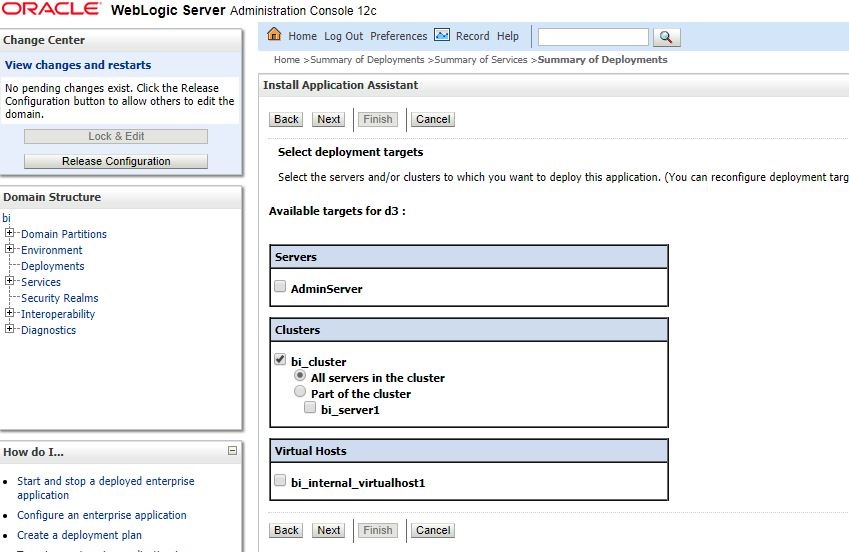
5. Click bi_cluster, and then select the All servers in the cluster option.
Figure 56: WebLogic Administration Console – Deployment Targets
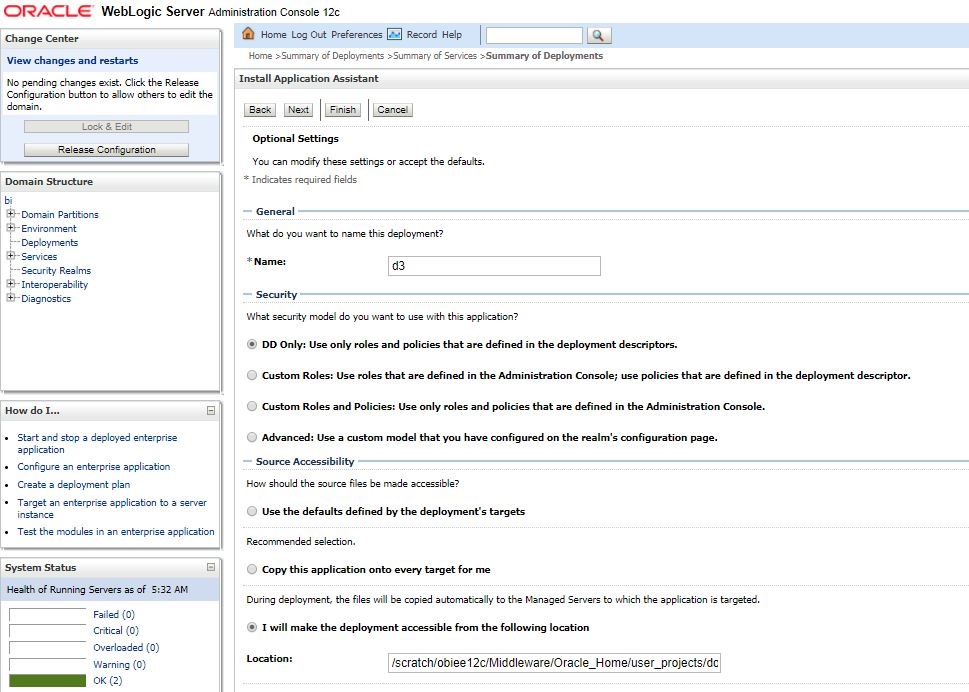
6. Select I will make the deployment accessible from the following location and click Finish.
Figure 57: WebLogic Administration Console – Optional Settings
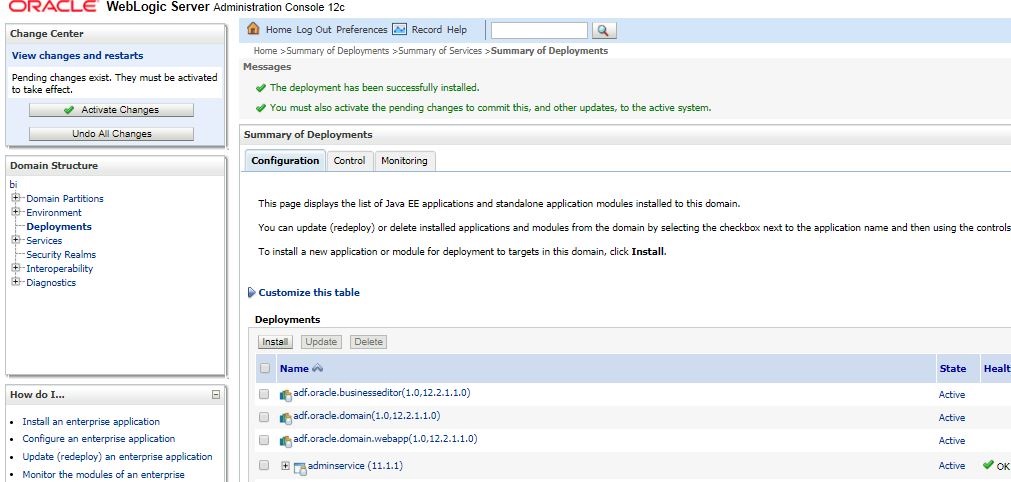
7. Click Activate Changes.
Figure 58: WebLogic Administration Console – Summary of Deployments
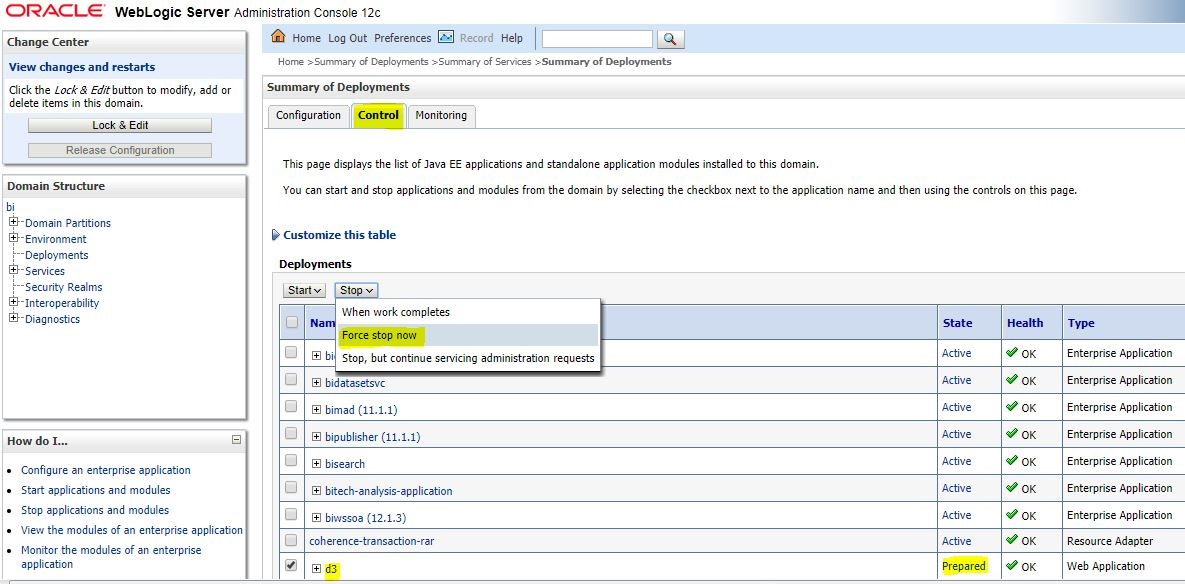
8. After activating the changes, the application will now be in a Prepared state. Click the Control tab. All the installed applications are displayed. Stop the application by selecting the check box next to it and then select Force Stop Now from the Stop menu.
Figure 59: WebLogic Administration Console – Cusomize the Deployed Applications
9. Start the application by selecting the check box next to it and then select Servicing all requests from the Start menu.
Figure 60: WebLogic Administration Console – Cusomize the Deployed Applications
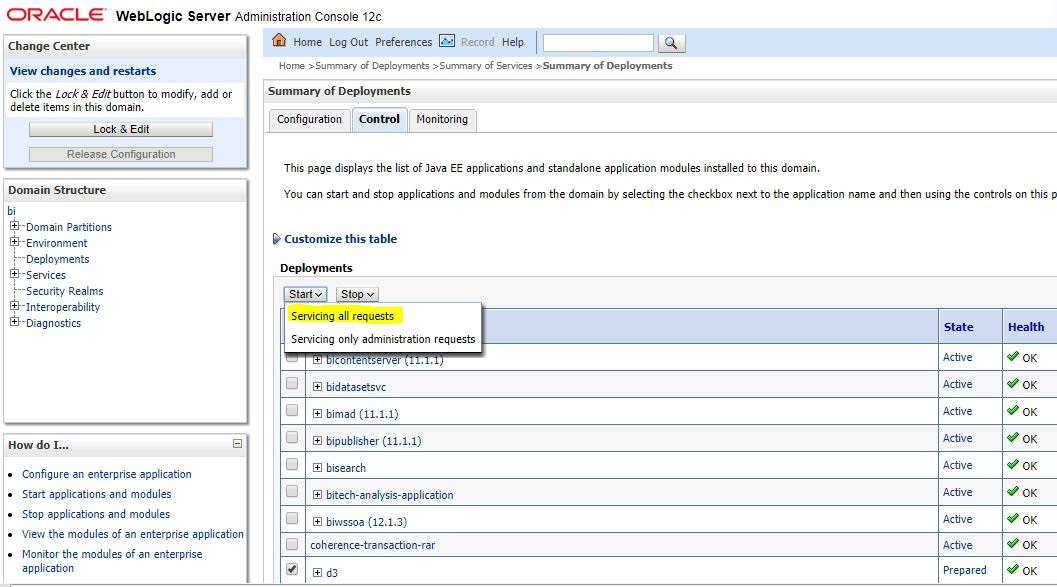
10. The application will now change to the Active state and is ready to use.