This section provides information for additional configuration required for the web servers on OFS HM.
NOTE |
The instructions in this section are applicable if you are upgrading from an earlier version of OFS HM to Release 8.1.0.0.0. |
Configuration for WebSphere: To configure WebSphere, see the Configure WebSphereApplication Server for Application Deployment section. Additionally, configure for REST services. For details, see the Configuring WebSphere for the REST Services Authorization section in the OFS Analytical Applications Infrastructure Administration Guide.
Additionally, you must configure the Work Manager in WebSphere and map it to the OFSAA instance. For details, see the Work Manager Configurations section in the OFS Analytical Applications Infrastructure Administration Guide.
Configuration for WebLogic: To configure WebLogic, see the Configure WebLogic forApplication Deployment section. Additionally, configure for REST services. For details, see the Configuring WebLogic for the REST Services Authorization section in the OFS Analytical Applications Infrastructure Administration Guide.
Additionally, you must configure the Work Manager in WebLogic. For details, see the Work Manager Configurations section in the OFS Analytical Applications Infrastructure Administration Guide.
Configuration for Tomcat: For the successful execution of Data Mapping in Tomcat, perform the configurations mentioned in the Configuration for Tomcat section in the OFS Analytical Applications Infrastructure Administration Guide.
For additional configurations, see the Configure Apache Tomcat Server for Application Deployment section.
This is a mandatory security procedure for WebSphere to restrict the unauthorized access of configuration files in directories. For detailed information, see the Oracle Financial Services Analytical Applications Infrastructure Security Guide.
Perform the following configuration to set the WebSphere shared library to support jersey 2x and Jackson 2.9x libraries.
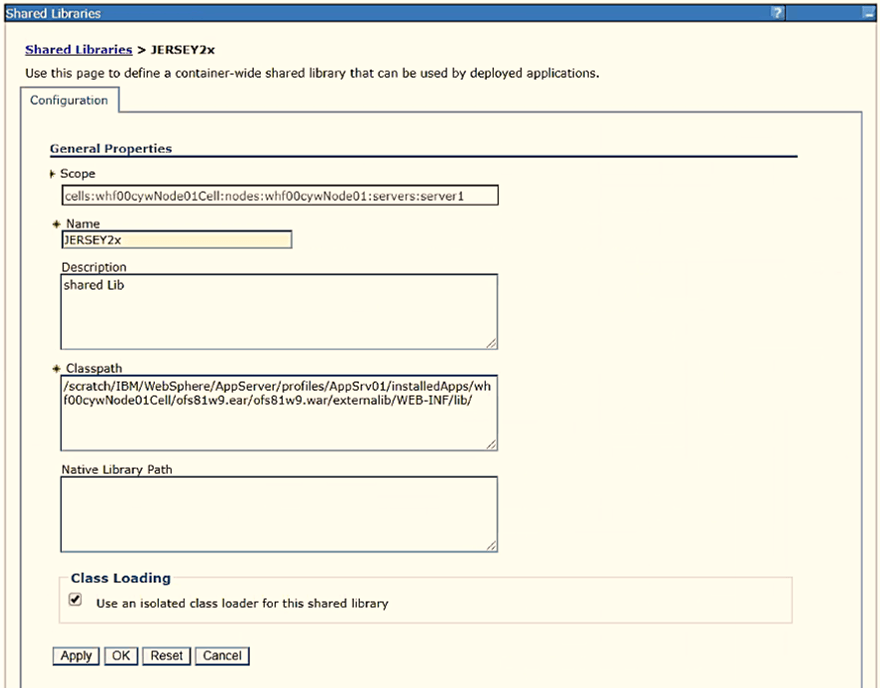
Click Environment from the menu on the left to expand and view the list. Click Shared Libraries to open the Shared Libraries window.
Figure 12: WebSphere Shared Libraries
Enter the following details:
Name: Enter a uniquely identifiable name.
Description: Enter a valid description.
Classpath: Enter the absolute path where the JARs related to Jersey 2.x and Jackson 2.9x are copied. These jars are available in the <OFSAA_HOME>/ficweb/webroot/externallib/WEBINF/lib/ directory after creation of the EAR file. Another format of representation of the path is <ofsaa_deployed_area_location>/externallib/WEBINF/lib/.
Select Use an isolated class loader for this library.
Click OK to save to master configuration.
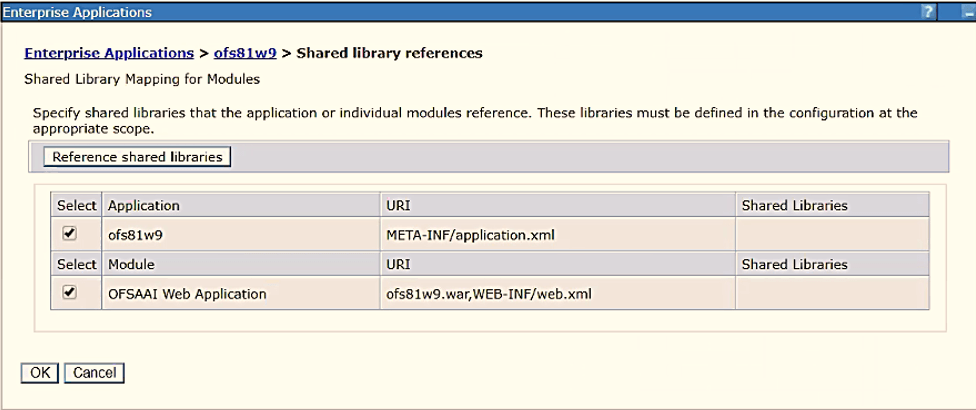
Select the application or module and map the shared libraries. Click OK. In the following figure, ofsa is selected.
Figure 13: WebSphere Shared Library References
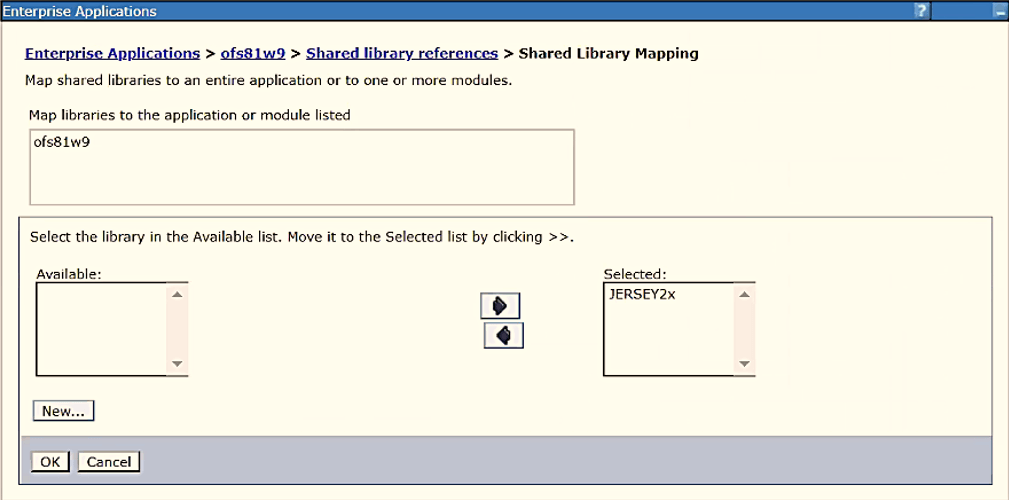
From the Shared Library Mapping window, move the required shared libraries from Available to Selected. In the following figure, JERSEY2x is selected.
Figure 14: WebSphere Shared Libraries Mapping Selection
Click OK.
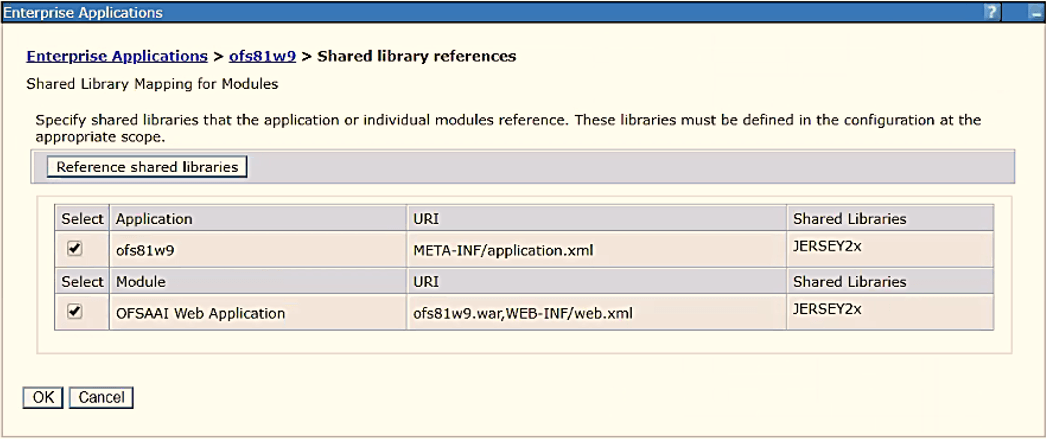
Similarly, select the next application or module and repeat the procedure from steps 5 to 7.
Figure 15: WebSphere Shared Libraries Select Next Application
Disable the built-in JAX-RS via JVM property.
Navigate to the WebSphere admin console in the Servers select WebSphere Application Servers then selectyourServerName.
In the Server Infrastructure section, go to Java and Process Management select Process definition, select Java Virtual Machine then select Custom properties.
Add the following property:
com.ibm.websphere.jaxrs.server.DisableIBMJAXRSEngine=true
NOTE |
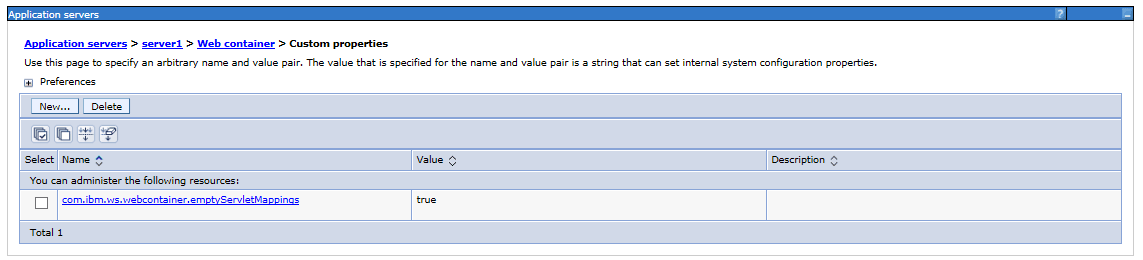
If the application does not
come up post the steps mentioned above, then, navigate
to Application Servers select server 1, select Web container
then select Custom properties and modify
the following property to True: |
Restart the application.