
As part of Expected Credit Loss Computations, financial institutions in certain geographies are required or permitted to adjust the ECL values with additional reserves as per the guidelines applicable to their jurisdiction. OFS Loan Loss Forecasting and Provisioning application allow financial institutions to compute the additional reserve values corresponding to one or more factors specific to a portfolio. The factors could be Qualitative, Environmental, or any other type as required. The Qualitative and Environmental (Q&E) Reserve allocation is assigned at an account level. The factor-level values are then rolled up to a portfolio level and used in adjusting the aggregated ECL amount.
Reserve Factor Definition and Reserve Adjustment Computation Process
Period Specific Reserve Factor Segment Mapping Process
Computation of Required Reserve
OFS Loan Loss Forecasting and Provisioning application feature a set of work-flow based User Interfaces that enable financial institutions to compute various additional reserves and then adjust the computed ECL values, ECL computed using various methodologies for each account.
The steps in this process are the following:
· Create Factors under different reserve types and define the purpose of these factors.
· For any given period, create a list of applicable factors.
· Select the segments or portfolios for which each of these factors is applicable and assign the values, either as a percentage or an absolute value, for each Factor-Segment combination and perform what-if analysis by doing a test compute of the reserve value based on the assigned values.
· Send the period-specific factor-segment definitions (individually) for approval.
· Go through the Workflow process to approve or reject these factor-segment definitions.
· Once approved, execute the adjustment process to compute the additional reserves for each factor-segment combination and adjust the expected credit loss values at the segment (aggregated) level.
This section details the process of creating Reserve Factor definitions, mapping Reserve Factor-Segment definitions, and the approval process for these definitions. Only those users who are mapped to the LLFP Admin User Group can create Reserve Factor definitions.
Accessing Reserve Factor Definition Section
Creating Reserve Factor Definition
Viewing Reserve Factor Definition
Copying Reserve Factor Definition
All Reserve Factors are linked to a Reserve Type. Therefore, you must provide necessary Reserve Types in the Staging Area and move data to the Dimension table by executing the required SCD. Only upon the availability of data in the Dimension table, the Reserve Factor UIs display the required data which is used to create new Factors.
NOTE:
The Reserve Type Population SCD does not support newline characters, blank space, and any other special characters in the Staging Data.
You can access the Reserve Factor Definition section by clicking the Reserve Factor Definition link, present in the LHS menu of the OFS Loan Loss Forecasting and Provisioning application.
Upon clicking this link, the Reserve Factor Definition window is displayed:
Figure 21: The Reserve Factor Definition Window
The definitions are displayed with details such as Name, Description, Factor type, Basis, Currency, and Measure. You can search for existing definitions by entering a keyword in the Name field and by clicking Search from the Search table.
Perform the following steps to create a Reserve Factor Definition:
1. In the Reserve Factor Definition window, click Add to open the Reserve Factor Definition window.
Figure 22: The Reserve Factor Definition Window
2. Populate the Reserve Factor Definition form as tabulated.
Field |
Description |
|---|---|
Name |
Enter a name for the Reserve Factor definition. |
Description |
Enter a description of the Reserve Factor definition. |
Folder |
Select a folder from the drop-down list. |
Reserve Type |
Select a reserve type from the drop-down list. |
Basis |
Select either Amount or Percentage. Note: If you select Amount, then the Currency field is enabled. If you select Percentage, then the Base Measure field is enabled. |
Currency |
Select the currency from the drop-down list. Note: This field is enabled only if you selected the Amount in the Basis field. |
Base Measure |
Select a Base Measure from the drop-down list. Available options are: · Expected Credit Loss · Allowance Amount · Carrying Amount · Undrawn Amount · Exposure Limit Note: This field is enabled only if you selected Percentage in the Basis field. |
3. Click Save.
The Audit Trail section at the bottom of the Multiple Rating window displays the metadata related to the definition and contains the fields Created By, Creation Date, Last Modified By, and Last Modification Date with a System ID. The User Comments section facilitates you to add or update additional information as comments.
The View feature enables you to view the definition details. To view the definition details, select the checkbox adjacent to the definition you want to view and click View. Upon clicking this button, the details of the definition are displayed in the Reserve Factor Definition window.
NOTE:
You cannot edit or update the details in this window.
The copy feature enables you to copy the details of an existing Reserve Function definition and create a new definition.
Perform the following steps to copy an existing definition and create a new definition:
1. In the Reserve Factor Definition section, select the checkbox adjacent to the definition that you want to copy.
2. Click Copy to open the Save As window is displayed.
3. In the Name field, enter the name of the definition.
4. In the Description field, enter a description of the definition.
5. Click Save.
Once the definitions are created, you can perform mapping using the Reserve Function Mapping UI of the OFS Loan Loss Forecasting and Provisioning application.
Reserve Factor Segment Mapping Process section enables you to create a definition against a specific period for reserve adjustments and in each definition, map the Reserve factor definitions to segments for which they are applicable, and post the approval work-flow, execute the Reserve Adjustment process. Only those users who are mapped to the LLFP Analyst User Group can Create Reserve Mappings and submit them for approval.
Accessing Reserve Factor Segment Mapping Section
Creating Reserve Factor Segment Mapping
Creating Reserve Factor Segment Mapping
Editing Reserve Factor - Segment Mapping
Viewing Reserve Factor Mapping
Approve or Reject Reserve Factor Segment Mapping
Execution of Reserve Factor-Segment Definition for a Specific CECL Run
Deleting Reserve Factor Mapping
You can access the Reserve Factor Segment Mapping section by clicking the Reserve Factor Segment Mapping link, present in the LHS menu of the OFS Loan Loss Forecasting and Provisioning application.
When you click this link, the Reserve Factor Mapping Summary window is displayed:
Figure 23: The Reserve Factor Mapping Summary Window

The definitions are displayed with details such as Valid From, Valid To, Created By, Created Date, Modified By, and Modified Date. You can search for existing definitions by entering Valid From and or Valid To in respective fields and by clicking Search from the Search table.
Perform the following procedure to create a Reserve Factor Segment Mapping:
1. In the Reserve Factor Mapping Summary window, click Add to open the Reserve Factor Mapping window.
Figure 24: The Reserve Factor Mapping Window
2. Populate the Reserve Factor Mapping form as tabulated:
Field |
Description |
|---|---|
Date Selection pane |
|
Valid From |
Click Calendar in this field and select the Valid From date from the calendar. |
Valid To |
Click Calendar in this field and select the Valid To date from the calendar. |
Factor Selection 1. In the Reserve Factor Definition Summary window, click Add to select the required Reserve Factor definitions. 2. Click OK. 3. In the Factor Selection table, the Reserve Factor definitions are displayed with the details such as Name, Basis, Currency, Measure, Segments Assigned, Current Status, Remarks Initial ECL, Reserve, Final ECL, and Percentage Change. In the Remarks column, you can provide remarks for the selected factors. The View button enables you to view the remarks details such as Remarks, Current Status, Created By, and Created Date. 4. Click Apply. |
|
Run Selection and Trial Adjustments This allows you to perform a what-if analysis that helps you understand the change in ECL, based on the adjustment values that have been given for a factor before you send it for approval. |
|
Select a CECL Run |
Select the active and executed CECL runs from the drop-down list. |
FIC MIS Date |
Select the MIS date from the drop-down list. This list displays only those dates which on which the CECL Run is available. |
Select a Run |
Select a Run from the drop-down list. |
3. Click Map.
The mapping is executed and the Initial ECL for given Run, Reserve for given Run, Final ECL for given Run, and Percentage change in ECL for given Run values are generated.
4. Click Submit.
The mapping is saved and is displayed under the Reserve Factor Mapping table of the Reserve Factor Mapping Summary window.
The Audit Trail section at the bottom of the Multiple Rating window displays the metadata related to the definition and contains the fields Created By, Creation Date, Last Modified By, and Last Modification Date with a System ID. The User Comments section facilitates you to add or update additional information as comments.
Perform the following steps to edit and update the Reserve Factor - Segment Mapping:
1. In the Reserve Factor Segment Mapping table, select the checkbox adjacent to the mapping that you want to edit.
2. Click Edit o open the Reserve Factor Mapping window.
3. Update the values in the required fields.
NOTE:
You cannot edit or update the values under the Date Selection table.
4. Click Submit.
The updated definition is displayed under the Reserve Factor Mapping table.
The View feature enables you to view the definition details. To view the mapping details, select the checkbox adjacent to the mapping you want to view and click View. Upon clicking this button, the details of the mapping are displayed in the Reserve Factor Definition window.
NOTE:
You cannot edit or update the details in this window.
You can approve or reject an existing Reserve Factor Segment Mapping, which is pending approval. Only a user with Approver privileges can approve or reject a mapping. Only those users who are mapped to the LLFP Admin User Group can Approve or Reject a Reserve Factor Segment Mapping. A mapping that is created by a user cannot be approved by the same user even if the user has approver privileges.
Perform the following steps to approve or reject a Reserve Factor Segment Mapping:
1. In the Reserve Factor Segment Mapping table, select the checkbox adjacent to the Reserve Factor Segment Mapping that you want to approve or reject.
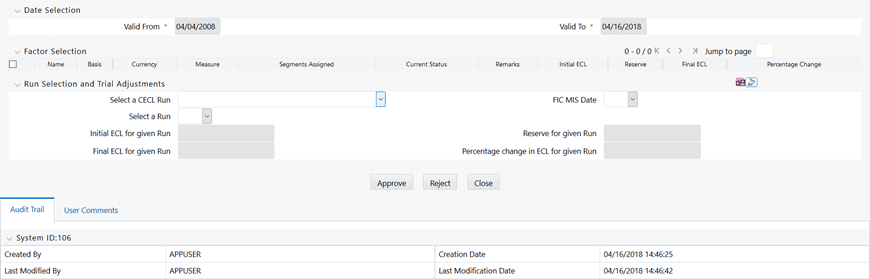
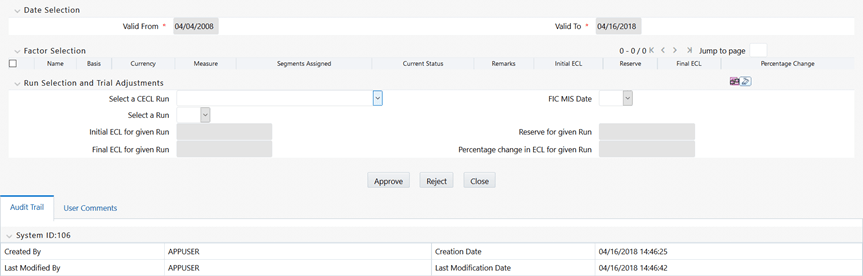
2. Click Approve or Reject to open the Reserve Factor Mapping window.
3. Populate the Reserve Factor Mapping form as tabulated.
Field |
Description |
|---|---|
Run Selection and Trial Adjustments This allows you to perform a what-if analysis that helps you understand the change in ECL, based on the adjustment values that have been given for a factor before you send it for approval. |
|
Select a CECL Run |
Select the active and executed CECL runs from the drop-down list. |
FIC MIS Date |
Select the MIS date from the drop-down list. This list displays only those dates which on which the CECL Run is available. |
Select a Run |
Select a Run from the drop-down list. |
4. Select the checkboxes adjacent to the Factors that you want to Approve or Reject.
NOTE |
Remarks are mandatory for factors that are being approved or rejected. |
|---|
5. Click Approve or Reject.
If you clicked Approve, then the selected Factors are finalized.
If you select Reject, then you can redo the mapping process and send it for approval again.
Performing the following steps to execute the approved factors within a Period Specific Factor-Segment mapping definition:
1. In the Reserve Factor Segment Mapping table, select the checkbox adjacent to the definition that you want to execute.
2. Click Execute to open the Execute Reserve Computation Process window.
3. Populate the Execute Reserve Computation Process form as tabulated.
Field |
Description |
|---|---|
Select a CECL Run |
Select the active and executed CECL runs from the drop-down list. |
FIC MIS Date |
Select the MIS date from the drop-down list. This list displays only those dates which on which the CECL Run is available. |
Select a Run |
Select a Run from the drop-down list. |
4. Click Execute.
Upon execution, the underlying process parses through all the approved factors and computes the reserve adjustments for every Factor-Segment combination. These intermediate values are stored for every Run. Post this, the reserve adjustments are aggregated to the segment level and posted in the Segment Level Aggregate table. This enables the computation of the final required reserve value.
You can delete an existing Reserve Factor Mapping definition from the Reserve Factor Mapping Summary window.
Perform the following steps to delete one or more existing Reserve Factor Mapping definitions:
1. In the Reserve Factor Mapping table, select the checkbox(s) adjacent to the Reserve Factor Mapping definitions you want to delete.
2. Click Delete.
A warning dialog is displayed.
3. Click Yes.
The selected definitions are removed from the Reserve Factor Mapping Summary window.
The application computes the Impairment Gain or Loss Calculation using the CECL, computed within the Run. This Impairment Gain or Loss value does not include the Reserve adjustments made using the Reserve factor Adjustment feature. If you have made additional adjustments, the same must be included in the final Required Reserve computation.