The granular level of data stored in the subledger can be used to generate the accounting entries. The sub-ledger generates bookings and reports to feed the general ledgers, management reporting, and analysis tools. By maintaining detailed data and handling complex calculations and reconciliations, it takes stress off the general ledgers. The application also picks up more than one set of data per LOA for subledger processing. Note that the application only picks up data from the latest ECL run. This allows for GL consolidation, cloud migration, and provides the accuracy and suitability of ledger data.
The subledger supports currency conversion. To enable or use this feature, the user must select the currency as reporting currency while creating the subledger definition. Please note that the system should also have the currency rate for the currency conversion as per the fic_mis_date before calling the subledger run to add the journal balances as per the selected reporting currency.
Search for SubLedger Definitions
Create New SubLedger Definition
Execute a SubLedger Definition
Create a New Version of the SubLedger Definition
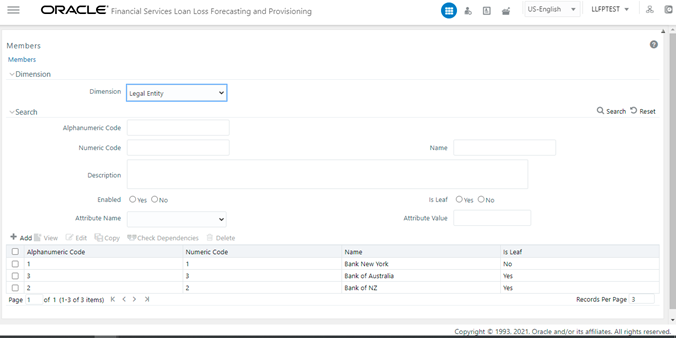
Perform the following steps to create a legal entity:
1. Navigate to Common Object Maintenance, click Dimension Management, and then click Member to open the Members page.
Figure 35: The Members page
2. Click Add to open the Members Member Definition (New Mode) window.
3. Populate the fields. For a parent legal entity, in the Is Leaf field, select No. For more information on adding a member definition, see the Adding Member Definition section in the OFS AAI User Guide.
4. Click Save.
5. Repeat steps 2 and 3 to create the child legal entities. For a child legal entity, in the Is Leaf field, select Yes.
6. Click Save.
7. Navigate to Hierarchy Maintenance to open the Hierarchies page.
Figure 36: The Hierarchies page
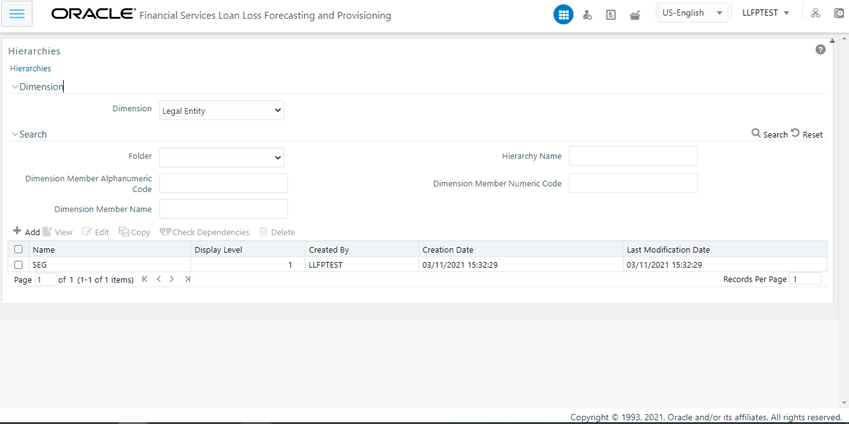
8. Click Add.
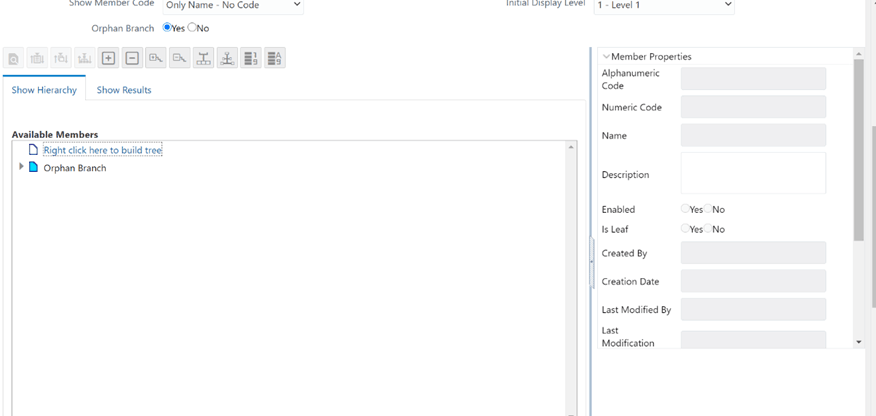
9. Right-click and select Add Child, and add the parent entity.
Figure 39: The Hierarchies page
10. Right-click and select Add Leaf and add the child entities.
Figure 36: The Hierarchy Properties Window
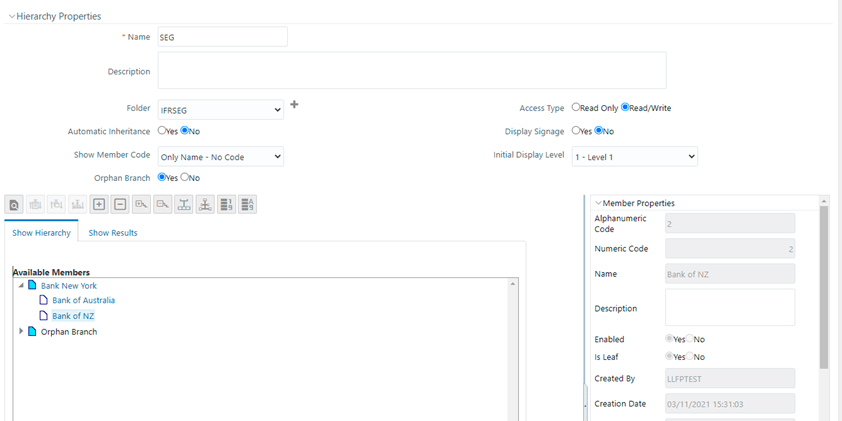
11. For more information, see the Hierarchy Maintenance section in the OFS AAI User Guide.
NOTE:
The hierarchy that is created must exactly match the hierarchy that is being considered for the ECL / CECL runs.
12. Click OK and then click Save.
You can access the SubLedger window by clicking the SubLedger element from the left-hand side menu. When you click this element, the SubLedger window is displayed:
Figure 33: The Subledger Definition Summary Window
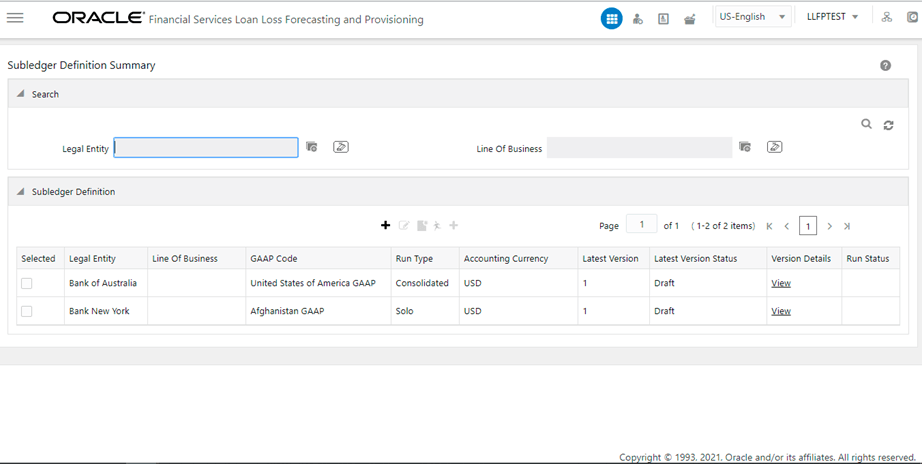
This window displays the existing sub-ledger definitions in the SubLedger Definition pane. This window also enables you to define a new sub-ledger, edit the existing definitions, view the details of the existing definition, run the definitions, and create new versions of the existing definitions.
The Search feature enables you to filter the list of existing definitions and find the definitions that you require.
Figure 34: The Subledger Definition Search Results
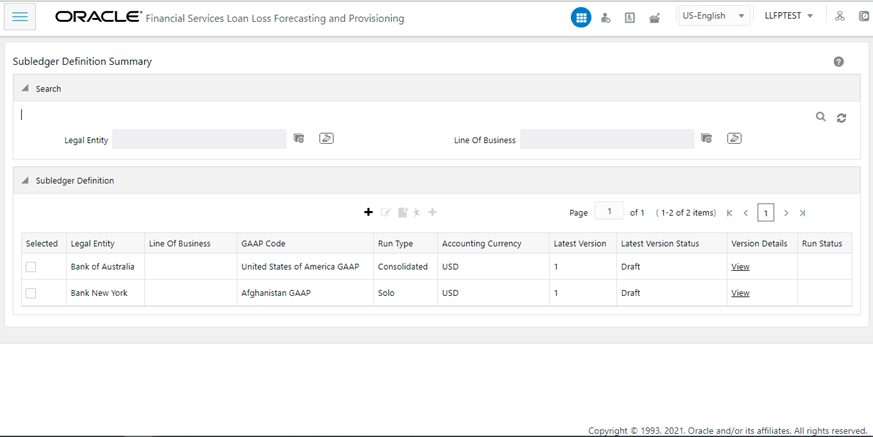
To search for definitions, select the required items from the Legal Entity and Line Of Business fields, and click Search.
The list of sub-ledger definitions in the SubLedger Definition table is refreshed and the definitions that match your search criteria are displayed.
Perform the following steps to create new sub-ledger definitions:
NOTE:
If you want to import definitions created by you, then see the Object Migration section in the OFS Analytical Applications Infrastructure User Guide.
1. In the SubLedger Definition pane, click Add to open the SubLedger Process window.
Figure 36: The Subledger Process window
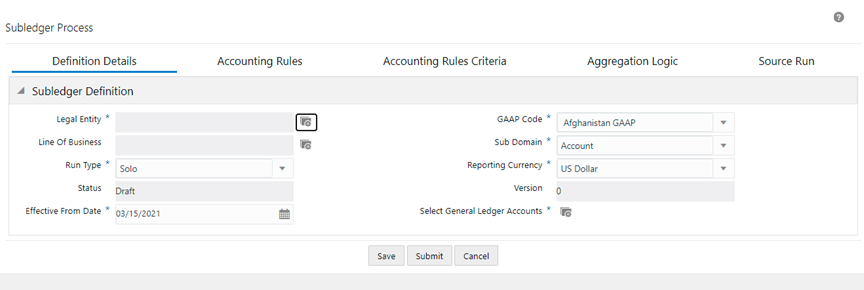
2. Populate the Subledger Definition pane in the Definition Details tab.
Field |
Description |
|---|---|
Fields marked with asterisks (*) in the window are mandatory. |
|
Legal Entity |
Click Hierarchy Selection adjacent to this field. Select the required Legal Entity from the Hierarchy Selection window. For more information, see Hierarchy Selection. |
GAAP Code* |
Select a GAAP Code from the drop-down list. |
Line of Business |
Click Hierarchy Selection adjacent to this field. Select the required Legal Entity from the Hierarchy Selection window. For more information, see Hierarchy Selection. |
Sub Domain |
Select a calculation method from the drop-down. The available methods are: · Account |
Status |
This field is not editable and is in the Draft status. |
Run Type |
Select either Solo or Consolidated from the drop-down list. |
Reporting Currency |
Select a currency from the drop-down list. This list will only contain the currencies that are enabled as active and as reporting currency through the Currency feature on the LHS menu. |
Version |
When creating a definition, the version is set to 0. You cannot change this value. |
Effective From Date |
Select an effective date from the calendar icon. |
Select General Ledger Accounts |
Click Hierarchy Selection to select a value from the following fields: Note: You must create the members and hierarchies in the Member and Hierarchy Maintenance window to populate data in this field. For more information about creating members and hierarchies, see the OFS Analytical Applications Infrastructure User Guide. · Hierarchy Folder: Select a hierarchy folder from the drop-down. · Hierarchy: Select a hierarchy from the drop-down. · Members: Add or remove members from the Selected Members pane. By default, all accounts will appear in this list. |
3. Click Save.
4. Select the Accounting Rules tab.
Figure 37: The Accounting Rules Tab
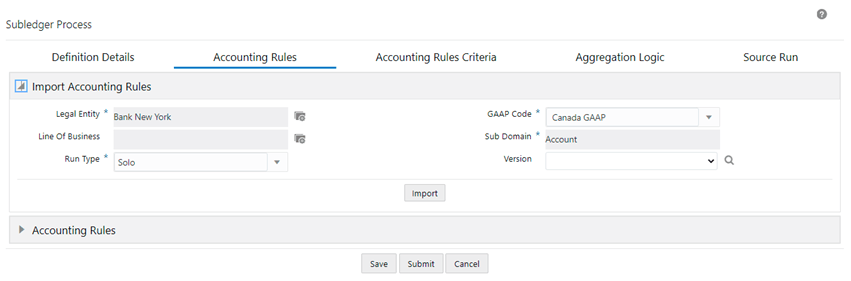
5. Populate the Import Accounting Rules pane in the Accounting Rules tab.
Field |
Description |
|---|---|
Fields marked with asterisks (*) in the window are mandatory. |
|
Legal Entity |
Click the Hierarchy Selection adjacent to this field. Select the required Legal Entity from the Hierarchy Selection window. For more information, see Hierarchy Selection. |
GAAP Code* |
Select a GAAP Code from the drop-down list. |
Line of Business |
Click Hierarchy Selection adjacent to this field. Select the required Legal Entity from the Hierarchy Selection window. For more information, see Hierarchy Selection. |
Sub Domain* |
Select a calculation method from the drop-down list. The available methods are: · Account |
Run Type |
Select either Solo or Consolidated from the drop-down list. |
Version |
When creating a definition, the version is set to 0. You cannot change this value. |
Figure 38: The Accounting Rules Tab with the Expanded Accounting Rules Pane
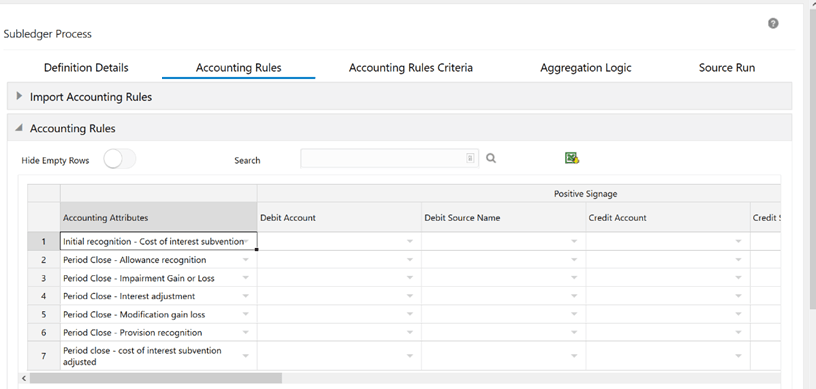
6. Click Import to download the Excel file on your system.
a. Fill the Excel file with the required data.
b. Copy the data from Excel and paste it into the respective columns in the Accounting Rules pane.
NOTE:
You must ensure the following:
· The data in the columns in the application must exactly match the data as per the columns in the Accounting Rules Excel. If the rules data was not added correctly, then the system will give you a validation error and you must add the rules data correctly in the corresponding columns in the application.
· Your system must contain the same GL entries as per the entries in the Debit Account column in the Accounting Rules Excel. If you copy and paste a GL entry that your system does not contain from Excel into the Debit Account column in the application, then the system will not validate it.
c. Populate the Accounting Rules pane by pasting the data from the imported Excel into the respective columns.
Field |
Description |
|---|---|
Hide Empty Rows |
Click Enable When enabled, the empty rows in the Accounting Rules table are hidden. |
Accounting Attributes |
Select an attribute from the drop-down list. |
Debit Account |
Select a debit account from the drop-down list. |
Debit Source Account |
Select a credit account from the drop-down list. |
Credit Account |
Select a debit account from the drop-down list. |
Credit Source Account |
Select a credit account from the drop-down list. |
Modify Accounts for Opposite Signage |
Select this checkbox if you want to modify accounts for opposite signage. |
Journal Comments |
Enter the required journal comments for the sub-ledger. |
Workflow Comments |
Enter the required workflow comments for the sub-ledger. |
The pane allows you to perform the following actions:
· Insert a new row before
· Insert a new row after
· Delete selected rows
· Copy
· Export the Excel
7. If you want to view the information about the GL accounts and account attributes, in the upper-right corner of the table, click the Export Accounting Rules icon to download the Excel file.
8. Click Save.
9. Click the Accounting Rules Criteria tab.
Figure 39: The Accounting Rules Criteria tab
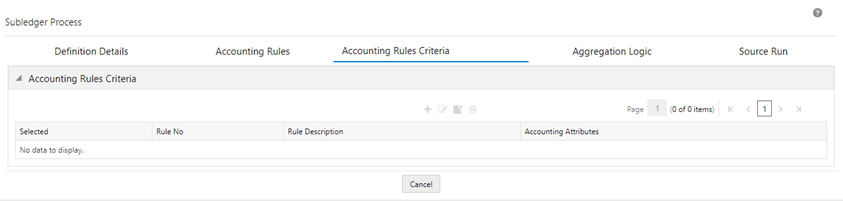
10. Click Add to open the Accounting Rules Criteria window.
Figure 41: The Accounting Rules Criteria Window
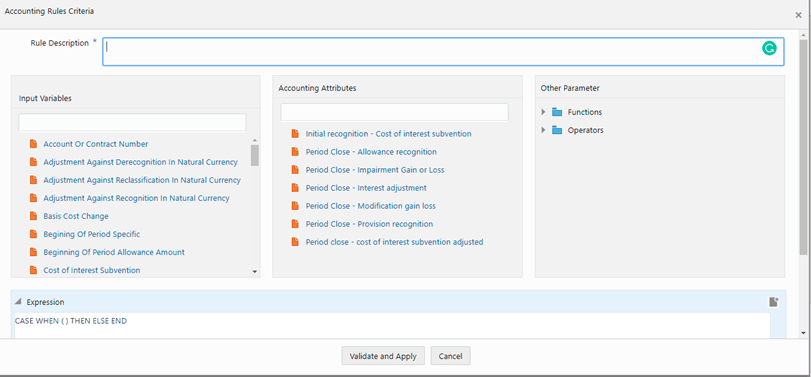
a. In the Rule Description* field, enter a description for the rule.
b. In the Input Variables pane, select the required input variables from the list to populate the Expression pane.
c. In the Accounting Attributes pane, select the required accounting attribute from the list to populate the Expression pane.
d. In the Other Parameters pane, select the required functions and operators. The following are the available functions and operators:
§ Functions
— AND
— ABS
— Case
— Floor
— Greatest
— Least
— MOD
— OR
§ Operators
— Greater than
— Plus
— Minus
— Less Than
— Equal
e. After you have built your Expression, click Validate and Apply.
11. Click OK.
The condition is added to the accounting attribute.
NOTE:
A condition can be mapped to multiple attributes but an accounting attribute can be mapped only to a single condition. For example, you have created Condition A and Condition B. You have mapped Condition A to Accounting Attributes A1, A2, and A3. But the same accounting attributes cannot be mapped to Condition B.
12. Click the Aggregation Logic tab.
This tab allows you to aggregate the results and pass journal entries at a chosen consolidated level. Consolidated entries might give added insights into the impact of changes on the chosen grouping.
NOTE:
Only those credit and debit general ledgers total balances that are associated with an accounting attribute are checked and added to the journal entry. This ensures that only balanced journal entries are passed. If there is an imbalance between the accounting attributes, then the accounting attributes general ledger balances will not be passed to the journal entries.
Figure 41: The Aggregation Logic Tab
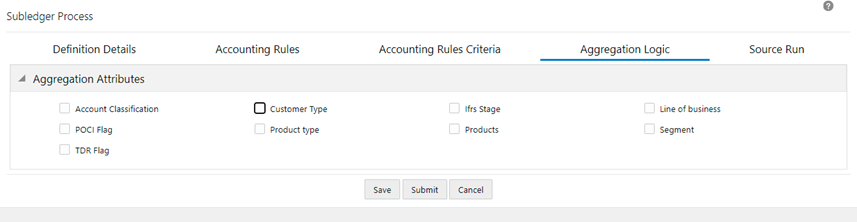
13. Select the checkbox(s) adjacent to the required attributes.
14. Click Save.
15. Click the Source Run tab.
Figure 42: The Source Run Tab
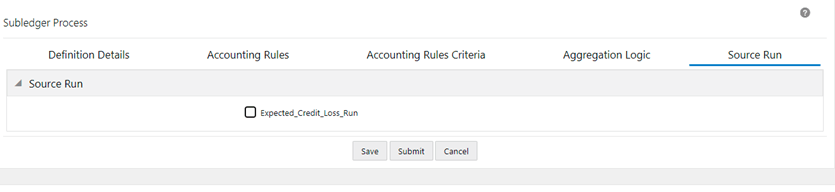
16. Select the required source runs. This is the list of ECL / CECL runs that have been executed. The source runs that appear in this tab, depending on the values that you selected in the Legal Entity, Line of Business, fields in the Definition Details tab.
17. Click Save. The definition is now in draft mode. The definition can be executed in draft mode before submitting it for approval.
18. If you want to send it to the approver then click Submit, then log in as an approver and approve the definition.
After a subledger definition has been submitted for approval, you cannot modify any fields. You can modify the fields only if the Approver has rejected the subledger definition.
The Audit Trail pane at the bottom of the definition window displays the Created By, Creation Date, last modified by, and Last modification date details. The User Comments field enables you to add additional information as a comment.
Perform the following steps to edit subledger definitions:
1. In the SubLedger Definition table, select the checkbox adjacent to the subledger definition that you want to edit.
2. Click Edit, to open the SubLedger Process window.
3. Update the required fields. For more information, see Create a New SubLedger Definition.
4. Click Save.
The saved definition is displayed in the SubLedger Definition table on the SubLedger Definition Summary window.
The Audit Trail pane at the bottom of the definition window displays the Created By, Creation Date, last modified by, and Last modification date details. The User Comments field enables you to add additional information as a comment.
Perform the following steps to view subledger definitions:
1. In the SubLedger Definition window, select the checkbox adjacent to the SubLedger definition that you want to view.
2. Click View, to open the SubLedger Process window.
3. Click Cancel to go back to the SubLedger Definition window.
Perform the following steps to execute subledger definitions:
1. In the SubLedger Definition table, select the checkbox adjacent to the subledger definition that you want to run.
2. Click Run, to open the Execute window.
Figure 44: The Execute window
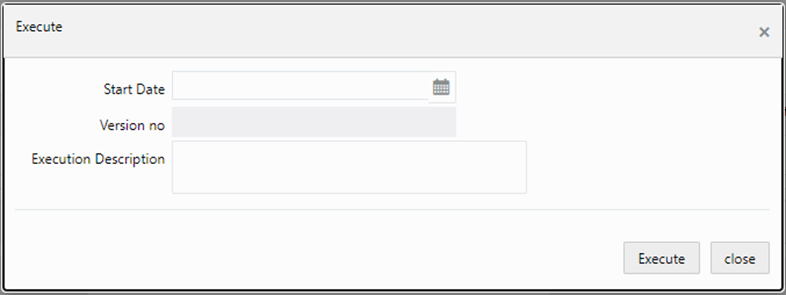
3. In the Date Selection window, click the Calendar icon and select a date.
4. In the Version no field, enter a version of the definition that you want to execute.
5. In the Execution Description field, enter a description.
6. Click Execute to generate the Information Command Center (ICC) batch run ID.
The selected SubLedger definition is marked for execution. Additionally, view the log file in the Batch monitor screen. See the OFS AAI User Guide.
The subledger error logs can be viewed from the Batch Monitor screen from Common Object Maintenance and the Subledger Definition Summary page. To view the subledger error log from the Batch Monitor screen, see the OFS AAI User Guide. Perform the following steps to view subledger error logs from the Subledger Definition Summary page:
1. On the SubLedger Definition Summary page, in the Run Status column, select the status link corresponding to the sub-ledger definition that you want to view the error log for. The View Logger window appears.
Figure 43: The View Logger Window
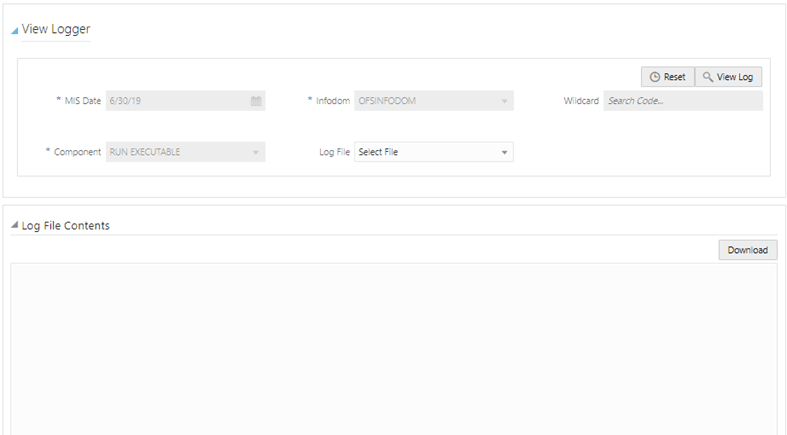
2. Click the Log File drop-down list to select a log file.
3. Click View Log to populate the Log File Components pane.
4. Additionally, you can click Download if you want to download the selected log file.
5. Click Close to go back to the SubLedger Definition window.
Finalizing a subledger run enables you to conclude the journal entries of the associated base run and manual adjustment run. You cannot finalize a run more than once. Before finalizing a subledger run; run the base subledger and approve it, then approve and run the subledger manual adjustment (if any), then finalize the approval through the maker and checker process. To finalize a SubLedger run from the SubLedger Definition Summary window, perform the following steps:
NOTE:
You cannot finalize a subledger run that contains imbalanced
journals.
1. Log in as a Maker.
2. In the SubLedger Definition table, select the subledger definition that you want to send for approval to finalize.
3. In the Version Details column, click View to open the Version Details pane.
Figure 46: The Version Details Pane

4. In the Number of Executions column, click the link to open the Finalize pane.
The number in the Number of Executions column corresponds to the number of source runs that you selected in the Source Run Tab of the Subledger Process page. The run is picked from the most recent FIC MIS date.
Figure 47: The Finalize Pane

5. In the Selected column, select the check box adjacent to the sub-ledger run that you want to send for approval, and then click Submit.
The selected sub-ledger run is sent for approval.
6. After the Subledger Approver has approved the sub-ledger run for finalization, repeat steps 2, 3, and 4.
7. In the Selected column, select the check box adjacent to the sub-ledger run that you want to finalize, and then click Finalize.
A message appears, confirming that the version was successfully finalized. You can also download the .txt file containing the imbalanced journals for a selected date.
Perform the following steps to create a new version of an existing subledger definition:
1. In the SubLedger Definition table, select the checkbox adjacent to the subledger definition that you want to edit.
2. Click New Version, to open the SubLedger Process window.
NOTE:
You can create new versions only for the Approved definitions.
3. Update the required fields. For more information, see Create New SubLedger Definition.
NOTE:
The effective date for the new version must be a later date from the last execution date.
4. Click Save.
The saved definition is displayed in the SubLedger Definition table of the SubLedger Definition Summary window.
