
This section provides information about OFS Model Management and Governance (OFS MMG) by using the OFS LLFP Models.
Topics:
· Signing into the Oracle Financial Services Model Management and Governance Application
· Python Models Deployment Topology
· Execute Models using Scheduler Service
After the application is installed and configured, access the Oracle Financial Services Model Management and Governance application.
To access the Oracle Financial Services Model Management and Governance Application, follow these steps:
1. Enter the application URL in your browser. The Login page is displayed.
Figure: OFS Model Management and Governance Application Login Page
2. Enter your User ID and Password.
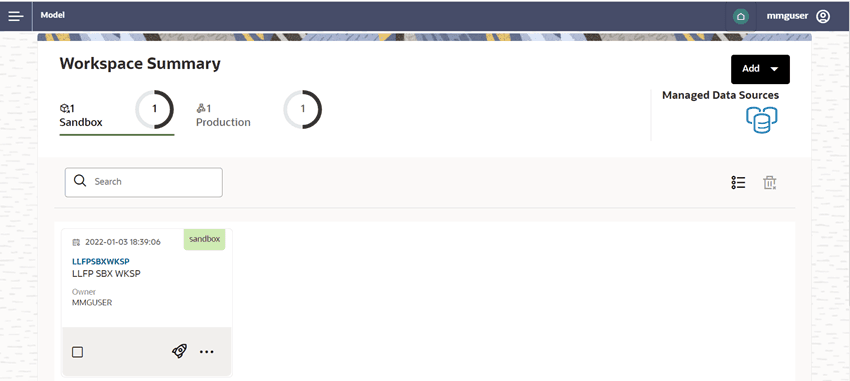
3. Click Log in. The Workspace Summary Page is displayed.
Figure: The Workspace Summary Page
NOTE:
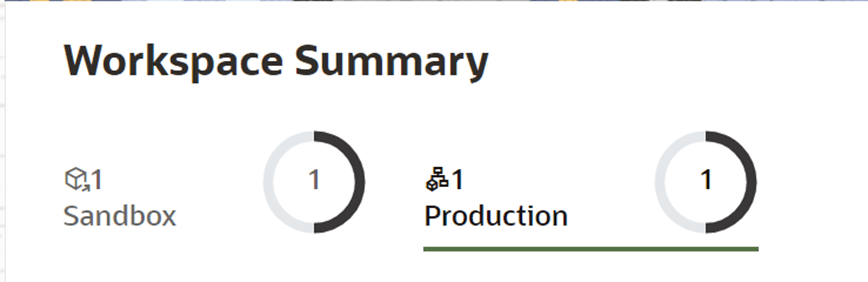
As part of the OFS LLFP Python Models, two workspaces are provided, one for Sandbox and one for Production.
Figure: Workspace Summary
The workspace is populated with data from the datasets in the External Sources or from the OFS LLFP Atomic Schema.
To populate the Workspace, perform the following steps:
1. Navigate to the Workspace Summary Page. The page displays the Workspace records in a table format.
2. Click More next to the corresponding Workspace and then select Populate Workspace to populate the Workspace with data from a dataset data in the Populate Workspace Window.
Figure 4: Populate Workspace Window
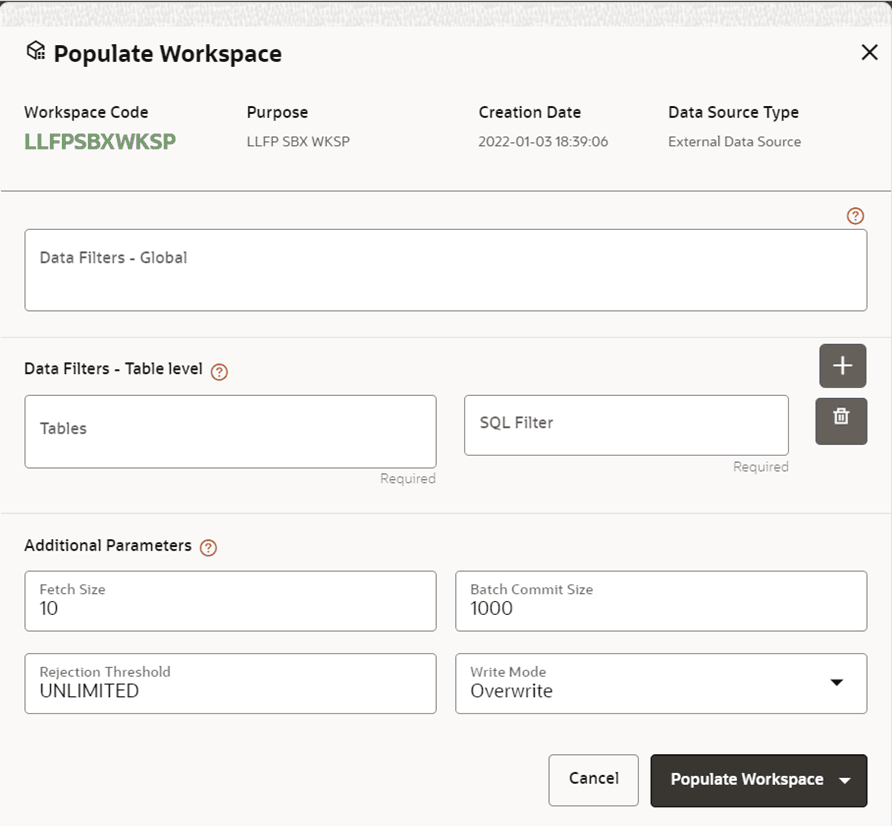
3. Click Populate Workspace to start the process. Here, you can create the batch by using Create Batch option or create and execute by using the Create and Execute Batch option. On selecting either of these options, a workspace population task gets added to the batch.
NOTE:
For more information on the operations that can be performed in the Workspace, see the Using Workspace Management Section in the Oracle Financial Services Model Management and Governance User Guide.
Use the Workspace Window to launch a Workspace. The Workspace Window displays a menu for Models and an Application Configuration and Model creation submenu.
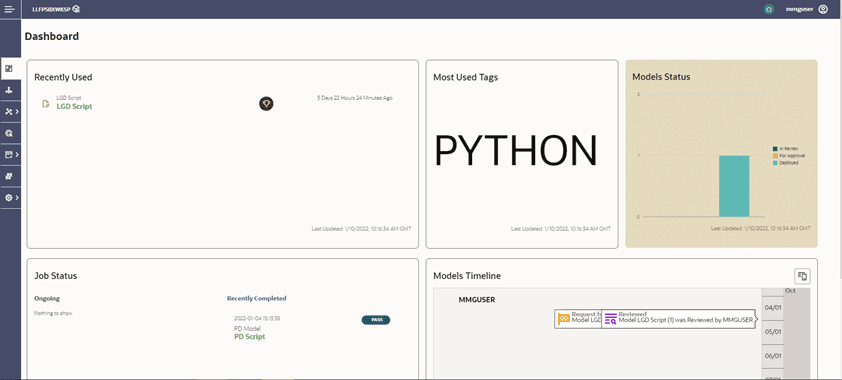
Navigate to Click Launch next to the corresponding Workspace. The Workspace Dashboard is displayed. The OFS MMG Dashboard window is displayed with the application configuration and model creation menu.
Figure: The Workspace Dashboard
NOTE:
For more information about the workspace Dashboard window, see the Access the Workspace Dashboard Window Section in the Oracle Financial Services Model Management and Governance User Guide.
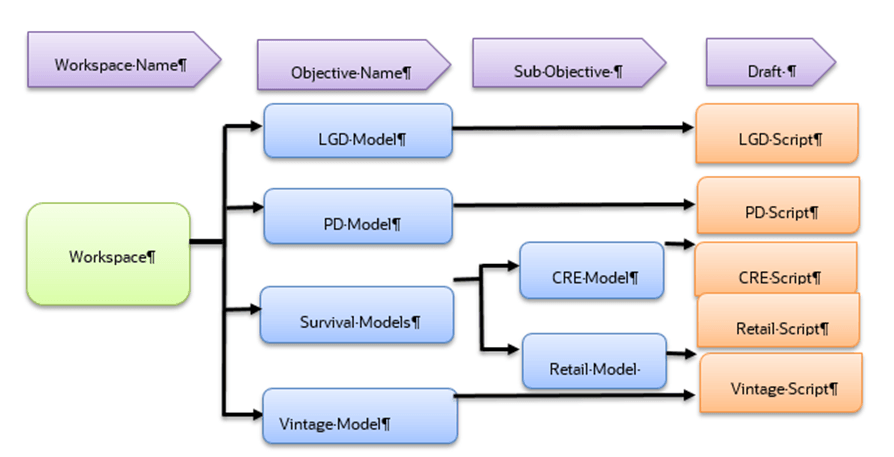
The following image illustrates the deployment topology of the Python Models.
Figure: The Logical Architecture implemented for the OFS LLFP Python Models
This section provides detailed information on using Model Management.
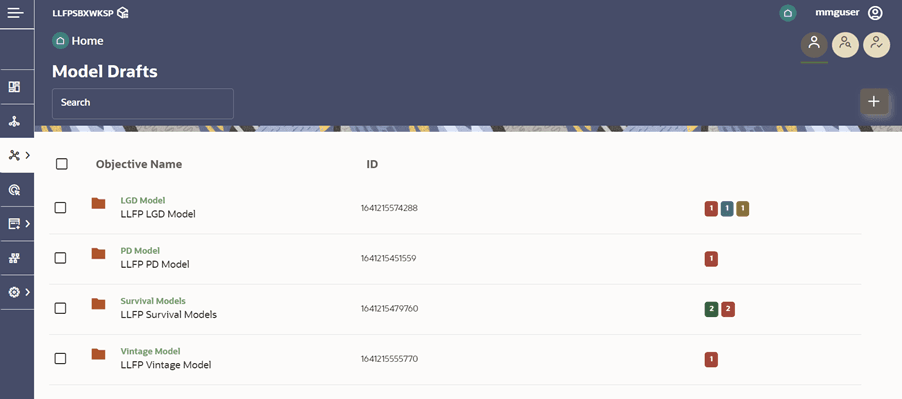
The Advance Model Management Window allows you to create and publish models.
1. Click Advanced Model Management to display the Model Management Window. This window displays the folders that contain models and their records in a table format.
Figure: The Model Management Page
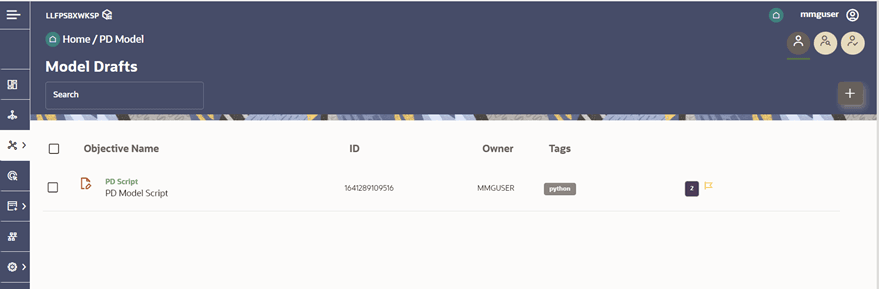
2. Navigate to Models.
Figure: The Draft Model
NOTE:
To know more about the Access the Advance Model Management Window, refer to the Access the Advance Model Management Window Section in the Oracle Financial Services Model Management and Governance User Guide.
Pipeline Designer enables you to design the paragraph by using widgets instead of using Python codes. In addition, if you add new paragraphs in Data Studio, the added paragraphs are displayed in a widget format. Similarly, if you create a Notebook by using Pipeline Designer, it can be opened for editing in Data Studio by using the Studio Notebook option.
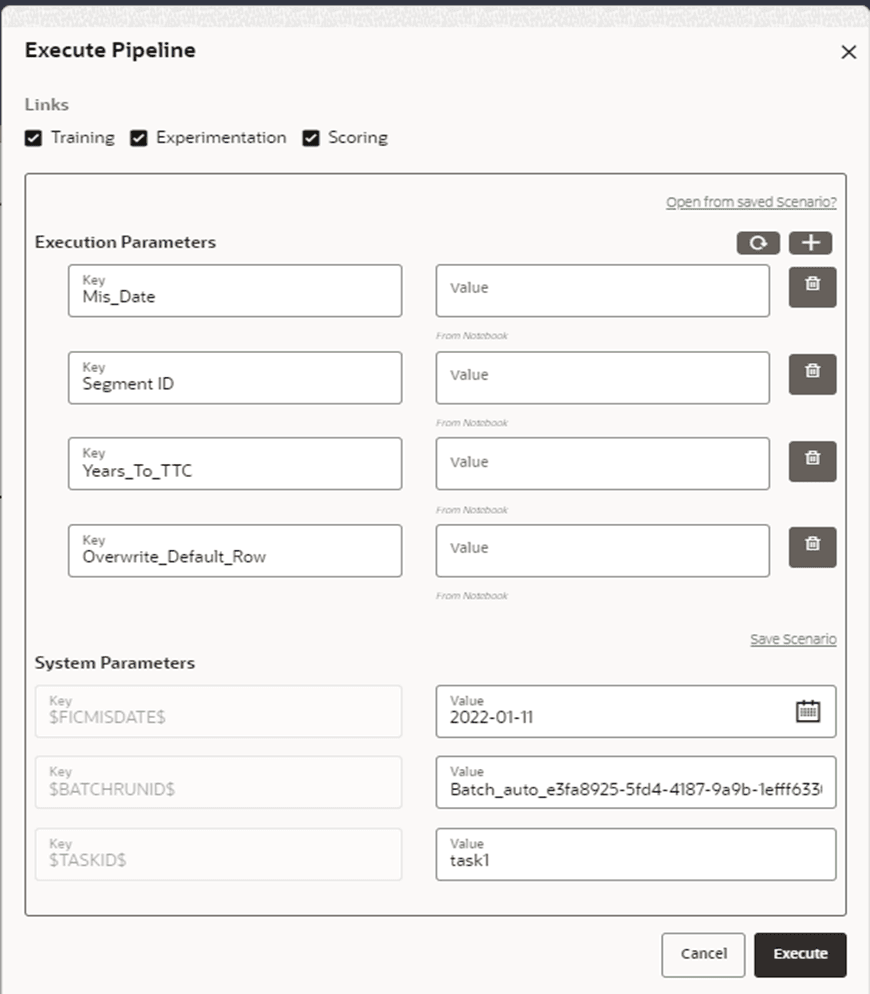
1. Click Execute to view the Execute Pipeline Window.
Figure: A Sample of the Execute Pipeline Window
Perform the following steps to use Notebook for executing the model:
1. Click Run Paragraphs to Execute all paragraphs. For more information, see the Oracle Financial Services Model Management and Governance User Guide.
Figure: The Notebook Tab

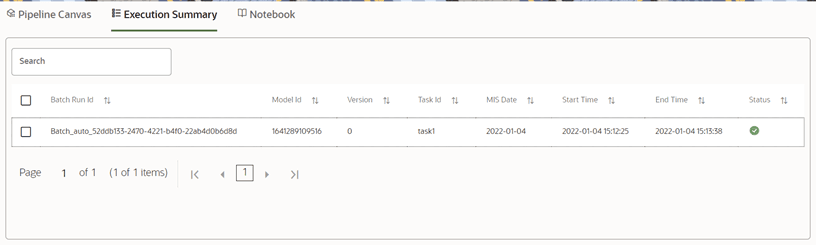
· This section of Pipeline Designer displays the summary of the executed pipelines.
Figure: The Execution Summary Tab
NOTE:
For more information about the model execution parameters, see the Model Actions Section in the Oracle Financial Services Model Management and Governance User Guide.
After creating or modifying the existing draft models, you can publish the Notebooks that contain the Model script.
1. Click next to corresponding Draft Model and select Publish Data Studio to open the Publish Model Window.
Figure: The Publish Model Window
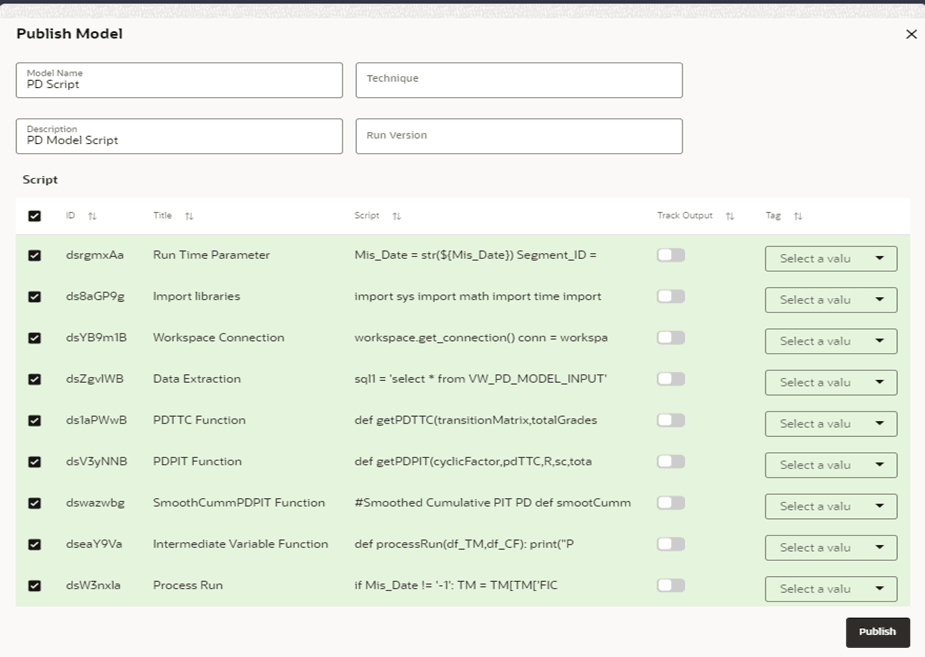
2. Enter the details as tabulated.
Field or Icon |
Description |
|---|---|
Model Name |
The field displays the name of the Model. Modify the name if required. |
Model Description |
The field displays the description for the Model. Enter or modify the description if required. |
Technique |
Enter the registered technique to use. |
Run Version |
Select a run version. |
Script
|
The table displays the Paragraphs that were created in the Training Model. Select the Paragraphs that you want to use to create the Scoring Model. Track Output - Select this to track the output of the Paragraph. |
3. Click Publish.
You can view model information for Champion Models that require approval and so on.
1. Click on the Model or Draft name to open the Model details.
· The icon
 indicates that the Model is the challenger.
· The icon indicates that the Model is the champion.
Figure 13: Hover the Mouse over the Model Details
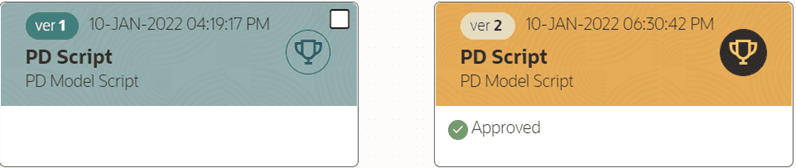
To make a model a champion from this window, hover the mouse in the selected model columns. and click to display the Model Deployment Window.
Figure 14: The Model Deployment Details Window
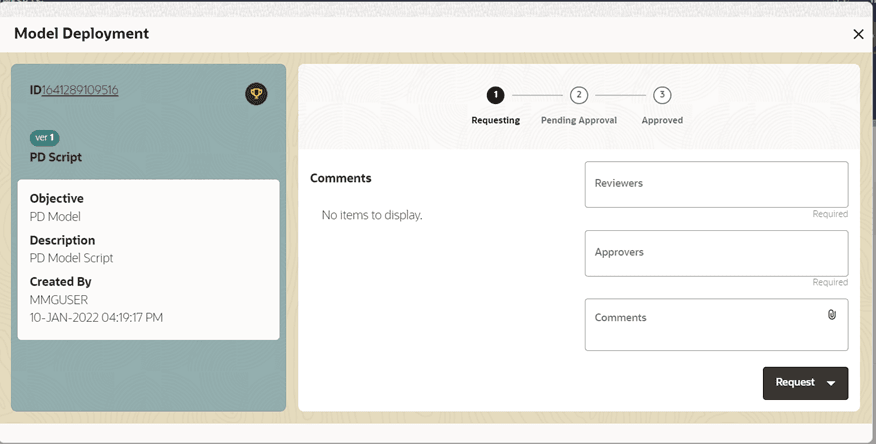
2. Select the reviewer group from the Reviewers drop-down list.
3. Select the Approver group from the Approvers drop-down list.
4. Enter comments in the Comments Field and click to attach files to support the comments.
5. Use the following features on the window to perform additional actions.
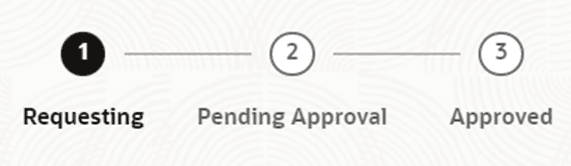
· View the model status in the progress indicator. The progress Indicator displays the various stages of progress that the model has been through. Accordingly, you must request, review, or approve Models.
Figure 15: The Model Approval Progress Indicator
6. Click the type of request from the drop-down list:
· Model Acceptance: To review and accept the model creation.
· Model Acceptance + Promote to Production: To review and promote the model to production.
· Make Champion - Local: If the model is not the champion model, select to make it the local champion.
· Promote to Production: To promote a model to production
· Make Champion - Global: If the model is not the champion model, select to make it the Global champion.
· Retire Champion: To retire a Champion model
· Comment History: A record of comments entered in the cycle of model creation and approval with the feature to download attachments.
The model sent for acceptance or promotion to production is now displayed to a Reviewer when signed in, who must either accept the request or reject it.
NOTE:
For more information on the actions that can be performed on Models, see the Create, Review, Approve, and Deploy a Model Section in the Oracle Financial Services Model Management and Governance User Guide.
After using the Promote to Production feature on a Model, a Model can be accessed from the production environment.
A Sandbox must have the Production Workspace attached for this option to be enabled.
This section provides detailed information on the Model execution parameters.
Sl. No. |
Parameter |
Details |
|---|---|---|
1 |
Product Code |
Provide the Product Code for which the data is available in the Sandbox Schema that you want to execute. |
2 |
Region/ Country ID |
Provide the Country or Region Code for which the data is available in the Sandbox Schema that you want to execute. |
3 |
Mis Date |
Provide the Date for which the data is available in the Sandbox Schema. |
NOTE:
Global Variable (output_save_batch_size): For the performance improvement, as part of the OOB Model, 3000 output rows can be inserted at once. Users can modify the Global Variable output save batch size based on data and traffic between servers.
This table provides detailed information on the PD Model execution Parameters.
Sl. No. |
Parameter |
Details |
|---|---|---|
1 |
Mis Date |
Provide the Date for which the data is available in the Sandbox Schema. |
2 |
Segment ID |
This refers to the segments or portfolios that need to be considered for the PD Model executions. For Example: · Each Segment can pass as a number (101) · Execute all Segments by using the pass as number (-1) · Multiple Segment can pass as list e.g. [101,102] |
3 |
Year To TTC |
Number of Years for Smoothing the PD Values. This is used to define the number of years over which the PD values have to be smoothened from the PIT values to the TTC values post the application of Economic Scenarios. For example, the total PD Term Structure is for 10 years and the Economic Scenarios have been provided for 3 years with the Years to TTC as 4. The model output will have PIT PDs for 3 years, smoothened PD values for years 4 to 7, and TTC PDs for years 8 to 10. |
4 |
Overwrite |
The value must be Y if the user wants to make the default state as absorption state, else use the value N. |
NOTE:
Global Variable (output_save_batch_size): For performance improvement, as a part of the OOB Model, 3000 output rows can be inserted at once. Users can modify the Global Variable output save batch size based on data and traffic between servers.
This table provides information on the Survival Model execution parameters.
Sl. No. |
Parameter |
Details |
|---|---|---|
1 |
Product ID |
Provide the Product Code for which the data is available in the Sandbox Schema that you want to execute. |
2 |
Country ID |
Provide the Country or Region Code for which the data is available in the Sandbox Schema that you want to execute. |
3 |
Mis Date |
Provide the Country or Region Code for which the data is available in the Sandbox Schema that you want to execute. |
4 |
Plot Account |
Provide the Account Name for Plot the Graph. |
NOTE:
Global Variable output_save_batch_size: For performance improvement, as part of the OOB Model, 3000 output rows can be inserted at once. Users can modify the Global Variable output save batch size based on data and traffic between servers.
max_dummies: Customization is provided for the characteristic independent variables. If many values are available in any characteristic variable, then that will suppress the effect of other variables and the model will not get trained properly. Hence, to avoid this, additional customization is provided in terms of limiting the number of values in a given characteristic variable by considering their frequency. For example, let us assume that the Collateral Type contains many unique values. Hence, the model will select the highest top 2 frequency of unique values and keep the remaining values as others. If a user needs to change this as per their requirement then they can do the same by doing trivial changes in the Python code.
Code: Global Variable "max_dummies = 3"
This table lists the required Python libraries.
Sl. No |
3rd party Library Name |
LGD Model |
PD Model |
Survival Models |
Vintage Model |
|---|---|---|---|---|---|
1 |
cx-oracle |
Yes |
Yes |
Yes |
Yes |
2 |
Numpy |
Yes |
Yes |
Yes |
Yes |
3 |
Pandas |
Yes |
Yes |
Yes |
Yes |
4 |
Matplotlib |
Yes |
|
Yes |
Yes |
5 |
Sklearn |
Yes |
|
Yes |
|
6 |
Lifelines |
|
|
Yes |
|
7 |
Scipy |
|
Yes |
|
|
8 |
Seaborn |
|
|
|
Yes |
9 |
statsmodels |
Yes |
|
· |
· |
The scheduler is a service in the Infrastructure System that automates behind-the-scenes tasks that are necessary to sustain various enterprise applications and functionalities. This automation enables the applications to control unattended background jobs program execution. The functionalities in a Scheduler provide a graphical user interface and a single point of control for the definition and monitoring of the background executions.
NOTE:
The Scheduler Service can be configured in both the Sandbox and Production Workspace. But for Production Execution, configure it in the Production Workspace and utilize the output for future ECL Calculations.
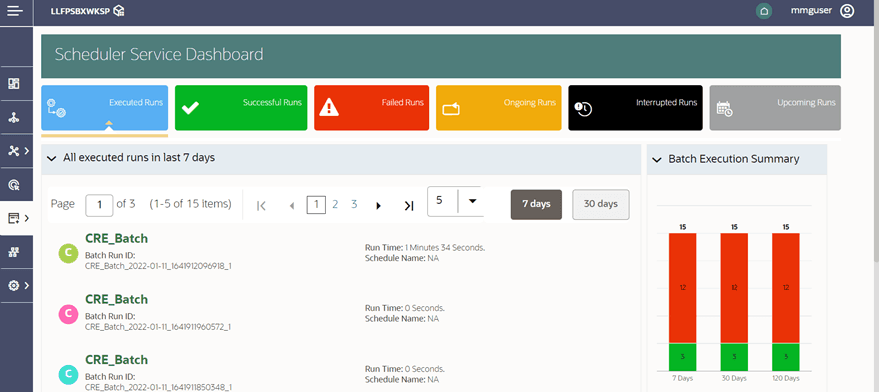
This dashboard is the landing page of the Scheduler. On this page, you can view the following details:
· Tabs such as Executed Runs, Successful Runs, Failed Runs, Ongoing Runs, Interrupted Runs, and Upcoming Runs. You can click the tabs to view the details of the Batches based on their status. For example, click Ongoing Runs to view the details of the batches that are currently running.
· The Batches that were executed in the last 7 days with details such as Batch Name, Batch Run ID, and Run-Time. Click 30 days to view the batches executed over the last 30 days. You can click the icon corresponding to a Batch to monitor it.
· The Batch Execution Summary Pane displays the count of total batches executed for the last 7 days, 30 days, and 120 days. Additionally, you can view the separate count of successful batches, failed batches, interrupted batches, ongoing batches, and the batches that are yet to begin, by placing your cursor over the color given for each batch status.
Figure: The Scheduler Service Dashboard
Following are the stages in the Scheduler:
· Define Batch is used for creating a new batch, modifying Batch details, and deleting unwanted Batches.
· Define Task is used for creating tasks for the Batches,
· Schedule Batch is used for executing a Batch instantaneously and scheduling batches.
· Monitor Batch is used to track the execution of the Batches to view the real-time status.
The Define Batch Window displays the details of all existing Batches such as Batch ID, Batch Name, Batch Description, Last Modified By, and Last Modified Date. This window allows you to create a new Batch, edit, copy and delete Batches.
You can create a new Batch in the Define Batch Window and schedule and monitor the batch that you created.
To create a new Batch, perform the following steps:
1. In the Define Batch window, click . The Create a New Batch Window is displayed.
2. Specify the details as tabulated.
Field |
Description |
|---|---|
Batch Details |
|
Batch Name |
The Batch Name is auto-generated by the system or you can give a custom name. You can specify a Batch name based on the following conditions: Note: · The Batch Name should be unique across the Information Domain. · The Batch Name must be alphanumeric and should not start with a number. · The Batch Name should not exceed 60 characters in length. · The Batch Name should not contain any special characters except '_'. |
Batch Description |
Enter a description for the Batch based on the Batch name. Note: The Batch description should be alphanumeric. It should not exceed 200 characters in length. |
Service URL Name/ Service URL |
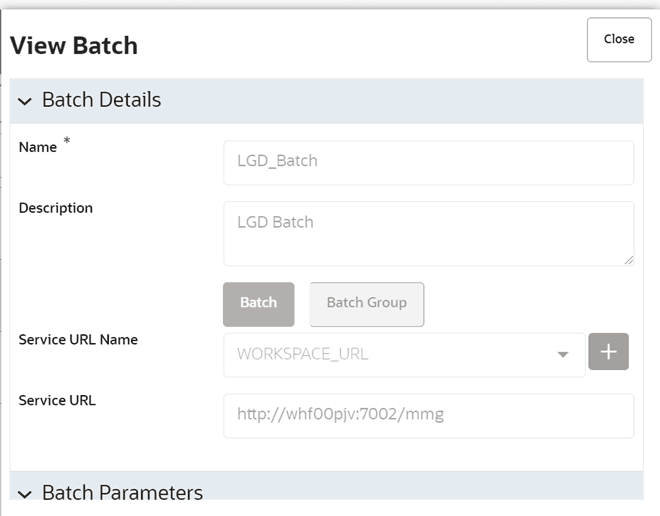
Select the Service URL name from the drop-down list, if it is available. The Service URL is displayed in the Service URL field. Note: For Modeling WORKSPACE_URL must be selected. To add a new Service URL, enter a name to identify it in the Service URL Name Field and enter the correct URL in the Service URL Field. You can enter a partial URL here and the remaining URL in the Task Service URL. |
3. From the Batch Parameters pane, click to add a new Batch Parameter. By default, $FICMISDATE$ and $BATCHRUNID$ are added as Batch parameters.
You can delete a parameter by clicking corresponding to the parameter.
4. Click Save. The new Batch is created and displayed in the Define Batch Window
Figure 17: The View Batch Window
The Define Tasks Window displays the list of tasks associated with a specific Batch definition. You can create new tasks, edit the existing tasks or delete unwanted tasks.
To add a new task, perform the following steps:
1. Click Define Tasks from Scheduler Service.
2. Select the Batch for which you want to add a new task from the Batch Name drop-down list.
3. Click . The Create a New Task Window is displayed.
4. Specify the details as tabulated.
Field |
Description |
|---|---|
Task Details |
|
Task Name |
Enter the task name. Note: - The Task Name must be alphanumeric and must not begin with a number. - The Task Name must not exceed 60 characters in length. - The Task Name must not contain any special characters except underscore (_). |
Task Description |
Enter the task description. No special characters are allowed in Task Description. Words like Select from or Delete From (identified as potential SQL injection vulnerable strings) must not be entered in the Description. |
Components |
For modeling perspective select Model. |
Task Type |
Select the task type from the drop-down list. The options are REST, EXTERNAL API, and SCRIPT. Currently, only REST is supported. |
Batch Service URL |
Select the required Batch Service URL from the drop-down list. This field can be blank and you can provide the full URL in the Task Service URL Field. Note: For modeling perspective, WORKSPACE_URL must be selected. |
Task Service URL |
Enter task service URL if it is different from Batch Service URL. |
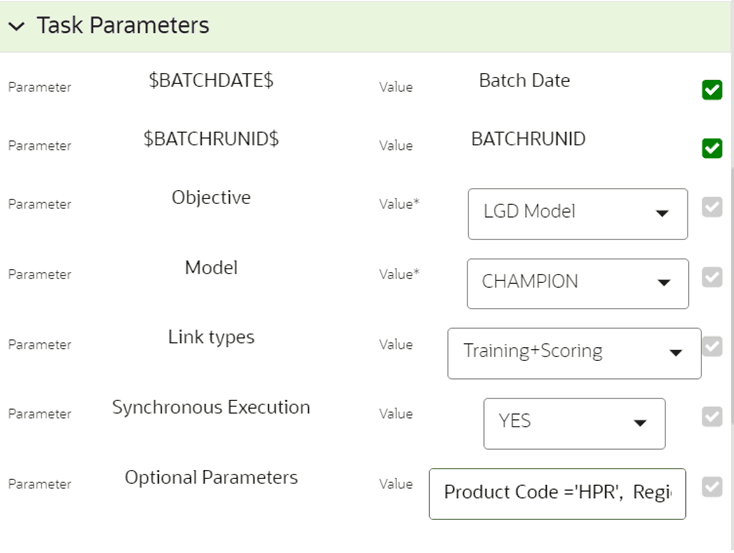
Task Parameters |
|
$BATCHDATE$ |
By Default, values are added. |
$BATCHRUNID$ |
By Default, values are added. |
Objective |
Select the Objective name from the drop-down list. For example, PD Model, LGD Model, Survival Models/CRE Model, etc. |
Model |
Select the Model type from the drop-down list. For example, Champion, etc. |
Link Types |
Select the link type from the drop-down list. The options are Training, Scoring, or Training+Scoring. |
Synchronous Execution |
Select Yes or No from the drop-down list. |
Optional Parameters |
Pass the run-time parameter. Syntax: a1='100',a2='xyz' For example. Product Code='HPR',Region='NJ',FIC Mis Date='20100401' |
5. Click Save.
Figure: The Task Details Window
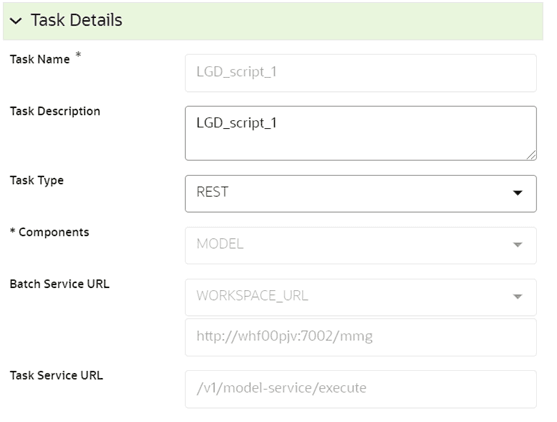
Figure: The Task Parameters Window
The Schedule Batch window facilitates you to run, schedule, re-start, re-run the batches in the Scheduler Service. After you upload the data in the required format into the Object Storage, you must load the data into the system using the Scheduler Service. You can schedule them to run in a required pattern and view the run time status of the scheduled services using the Monitor Batch feature.
The Schedule Batch window allows you to perform the following operation to a batch:
· Execute a Batch
· Schedule a Batch
· Re-start a Batch
· Re-run a Batch
NOTE:
For more information on the Schedule Batch, see the Schedule Batch Section in the OFS Scheduler Service User Guide.
The Execute Batch option allows you to run a batch instantaneously. To execute a Batch, perform the following steps:
1. Click Schedule Batch from the Scheduler Service. The Schedule Batch Window is displayed.
2. Select the Batch Name from the Batch Name drop-down menu. For example, LGD_BATCH.
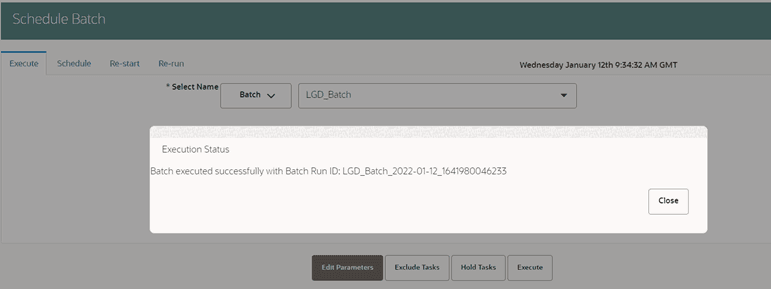
3. Click Execute. The Execution Status Dialog Box is displayed with the Batch successfully executed message. This indicates the unique identification reference number for the batch and the date of the batch execution.
Figure 20: The Schedule Batch & Execution Status
The Monitor Batch feature enables you to view the status of executed Batch along with the task's details. You can track the issues if any, at regular intervals and ensure smoother Batch execution. A visual representation, as well as a tabular view of the status of each Tasks in the Batch, is available.
NOTE:
Logs are saved in LOG_HOME path /scratch/users/logs/home_logs/execution
To know more about Monitor Batch, refer to the Monitor Batch Section in the OFS Scheduler Service User Guide.