The ‘Payment Inquiry’ screen helps you to inquire real time status of payment based on the various criteria such as ‘Payment Reference Number’, ‘Payment Party’, ‘Counterparty’, ‘Payment Range’, ‘Date Range’ etc.
Navigation Path: Receivables > Inquiry > Payment Inquiry
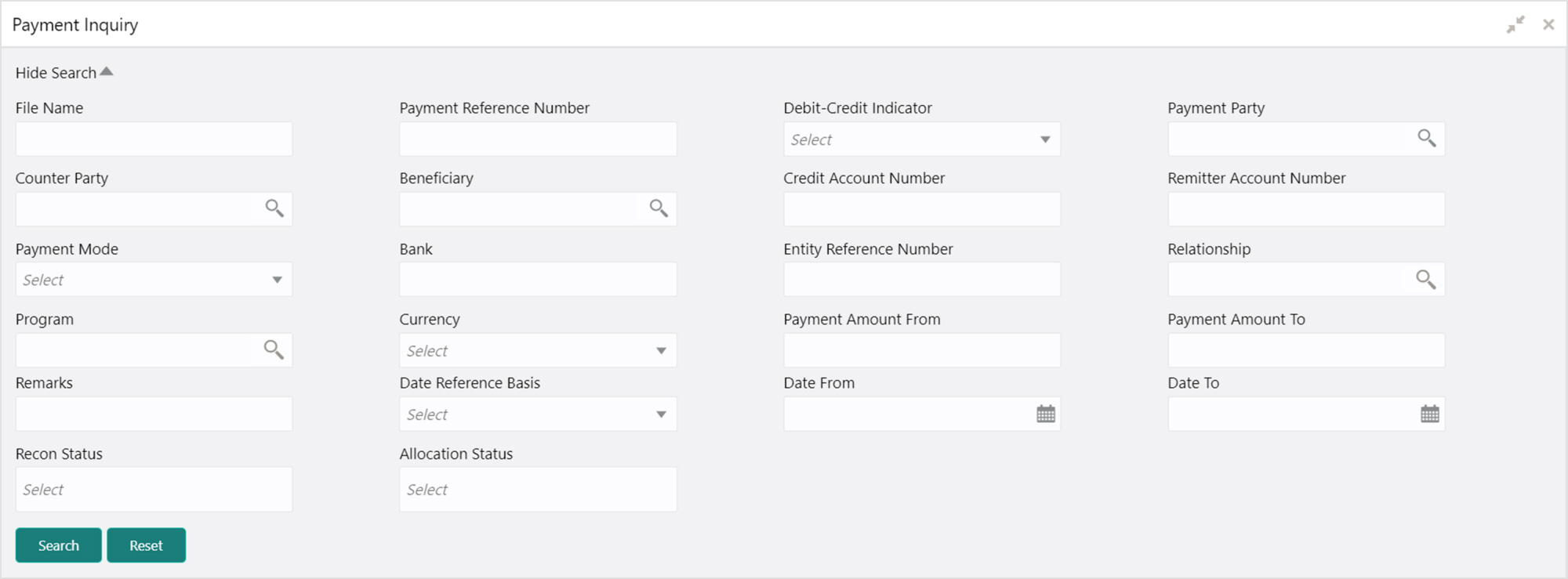
1. Refer to the following table for specifying details on the above screen:
Note: Select the value for at least one mandatory field to search payment details. Fields marked with ‘*’ are mandatory and marked with ‘**’ are conditionally mandatory.
|
Field Name |
Description |
|
File Name |
Enter the file name to search the |
|
Payment Reference Number ** |
Enter the unique payment reference number to search for. It is generated by the remitting bank in case of EFT credit and host bank in case of account transfer or debit. |
|
Debit-Credit Indicator |
Select the payment type as debit or credit to search for. |
|
Payment Party ** |
Click the Search icon and select the party who has made the payment. |
|
Counterparty ** |
Click the Search icon and select the counterparty. |
|
Beneficiary |
Click the Search icon and select the beneficiary of the payment. |
|
Payment Mode |
Select the mode through which payment is made. |
|
Credit Account No |
Enter the account number into which the payment is credited. |
|
Remitter Account No |
Enter the account number from which the payment is debited. |
|
Bank |
Enter the bank name included in the payment details. |
|
Branch |
Enter the bank’s branch name included in the payment details. |
|
Entity Reference No |
Enter the entity reference number linked with the payment. |
|
Relationship |
Click the Search icon and select the relationship code of the payment party or counterparty. |
|
Currency |
Select the currency in which the payment is made. |
|
Payment Amount From ** |
Enter the lowest payment amount of the range. |
|
Payment Amount To ** |
Enter the highest payment amount of the range. |
|
Remarks |
Enter the remarks added in the payment transaction. |
|
Date Reference Basis * |
Select the reference basis of the date range as ‘Payment Date’ or ‘Value Date’. |
|
Date From * |
Click the Calendar icon and select start of the date range. Maximum date range can be of 1 year. |
|
Date To * |
Click the Calendar icon and select end of the date range. Maximum date range can be of 1 year. |
|
Recon Status |
Select the reconciliation status of the payment to search from. You can select multiple recon statuses. |
2. Click Search to view the search result in the grid.

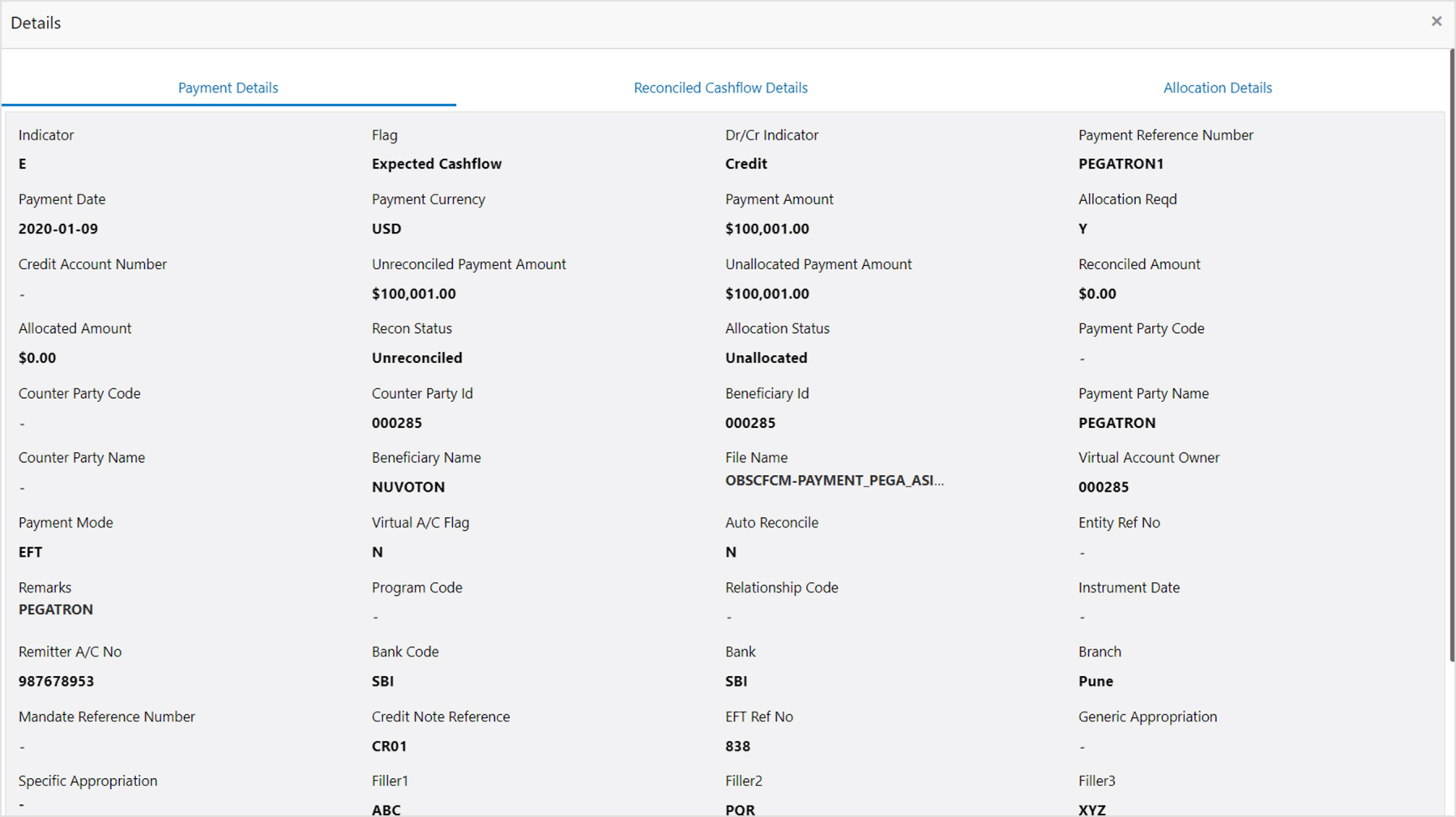
3. Optional: Click the payment reference number to view more details.