Maintaining Charge Preferential Pricing
Preferential pricing can be maintained for charges for specific products or parties.
Create Charge Preferential Pricing
Navigation Path: Receivables > Maintenance > Charges > Charge Preferential Pricing > Create
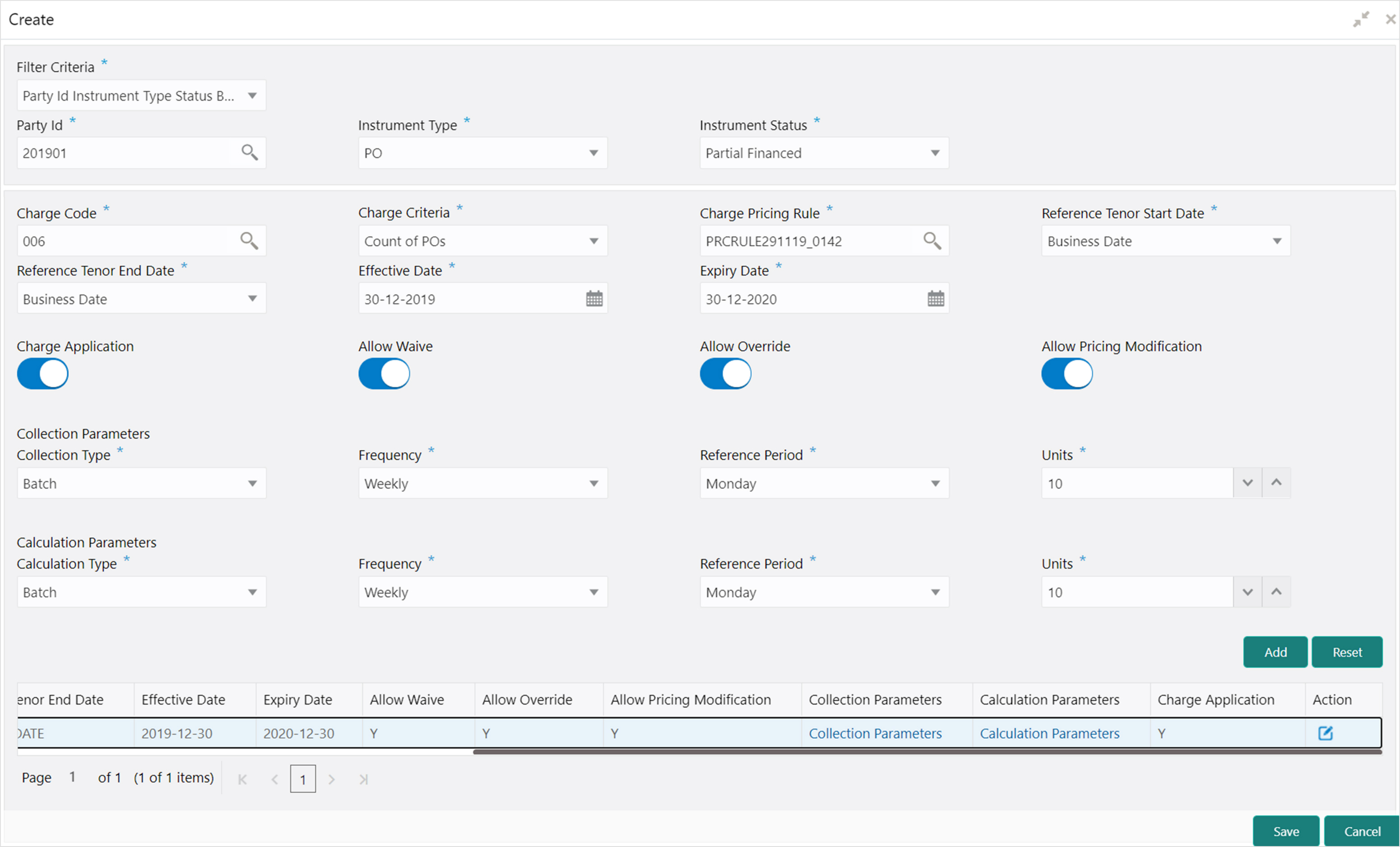
1. Refer to the following table for specifying details in the above screen:
Note: Fields marked with ‘*’ are mandatory and ‘**’ are conditionally mandatory.
|
Field Name |
Description |
|
Filter Criteria * |
Select the filter criteria. Based on the selected criteria, the Party ID, Instrument Type, and Instrument Status fields are displayed. |
|
Party Id * |
Click the Search icon to select the party ID. |
|
Instrument Type * |
Select the type of instrument. Instrument statuses are available bases on selected instrument type. This field is displayed only if ‘Instrument Type’ is included in the filter criteria. |
|
Instrument Status * |
Select the status of the instrument. This field is displayed only if ‘Instrument Type’ is included in the filter criteria. |
|
Charge Code * |
Click the Search icon to select charge code for pricing configuration. |
|
Charge Criteria * |
Select the criteria to be considered based on which charge should be calculated. |
|
Charge Pricing Rule * |
Click the Search icon to select the pricing rule. |
|
Parent Charge Code * |
Select the parent charge code. This field is displayed only when you select parent charge code in Charge Criteria field. |
|
Reference Tenor Start Date * |
Specify which date should be considered to calculate the start of tenor duration. |
|
Reference Tenor End Date * |
Specify which date should be considered to calculate the end of tenor duration. |
|
Effective Date * |
Click the Calendar icon to select the start date of the preferential pricing validity. |
|
Expiry Date * |
Click the Calendar icon to select the end date of the preferential pricing validity. |
|
Charge Application |
Switch the toggle On to enable the charge application. |
|
Allow Waive |
Switch the toggle On to enable the charge waiving. |
|
Allow Override |
Switch the toggle On to enable the overriding of charges. |
|
Allow Pricing Modification |
Switch the toggle On to allow pricing modification. |
|
Collection Parameters |
|
|
Collection Type * |
Specify how the pricing should be collected. |
|
Frequency ** |
Specify the frequency for charge collection. This field is displayed only when collection type is batch. |
|
Reference Period ** |
Specify when the collection should take place for the selected frequency. This field is displayed only when the collection type is batch. |
|
Unit ** |
Specify the number of units to be collected in a batch. This field is displayed only when the collection type is batch. |
|
Calculation Parameters |
|
|
Calculation Type * |
Specify how the pricing should be calculated. |
|
Frequency ** |
Specify the frequency for charge calculation. This field is displayed only when the calculation type is batch. |
|
Reference Period ** |
Specify when the calculation should take place for the selected frequency. This field is displayed only when the calculation type is batch. |
|
Unit ** |
Specify the number of units to be calculated in a batch. This field is displayed only when the calculation type is batch. |
|
Charges grid |
The details of any preferential pricing added in this screen appear as an entry in this grid. |
2. Click Save to save the record and send for authorization.
View Charge Preferential Pricing
Navigation Path: Receivables > Maintenance > Charges > Charge Preferential Pricing > View
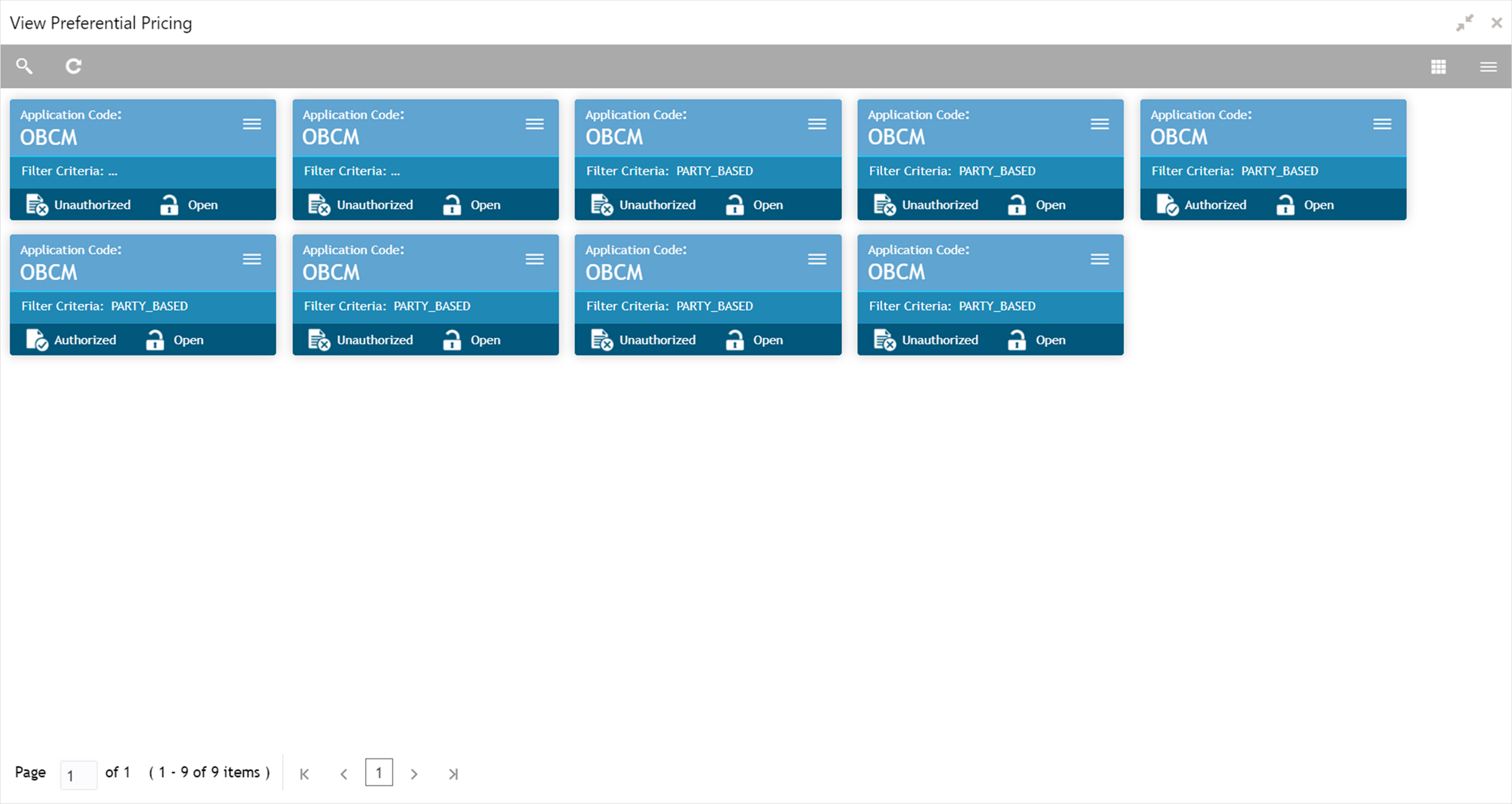
Perform the following steps to take actions on the charge preferential pricing. Click the Options ( ) icon and then click any of the below option:
• Unlock – To modify the record details. Refer to the Create Charge Preferential Pricing section for field level details.
• Authorize – To authorize the record. Authorizing requires necessary access rights.
a. Optional: Click View to view the record details.
b. Select the record to authorize and then click Confirm.
• Delete/Close – To remove the record.
a. Optional: On the confirmation pop-up window, click View to view the record details.
b. Click Proceed to delete the record.
• Copy – To copy the charge preferential pricing details for creating a new corporate.
• View – To view the charge preferential pricing details.