This section details the steps to be followed during the OFS Balance Computation Engine application installation.
Topics:
· Extract the OFSBCE Application Software
· Configure the OFS_IBCE_PACK.xml File
· Configure the Schema Creator Utility
· Configure the OFSAAI_InstallConfig.xml File
· Configure the Silent.props file
· Backup the Configuration Files
· Execute the Schema Creator Utility
· Verify the Schema Creator Log Files
· Install the OFSBCE Application
· Install a New OFSBCE Application on an Existing OFSAA Instance
To complete the OFS BCE installation process, you must perform the following steps listed in the Installation Checklist. Use this checklist to verify whether these steps are completed or not.
Sl. No. |
Activity |
|---|---|
1 |
Extract the OFS BCE application software. |
2 |
Configure the OFS_IBCE_PACK.xml file. |
3 |
Configure the OFS_IBCE_SCHEMA_IN.xml file. |
4 |
Configure the OFSAAI_InstallConfig.xml file. |
5 |
Configure the Silent.props file. |
6 |
Backup the configuration files. |
7 |
Execute the Schema Creator Utility in Offline, Online, or TCPS modes and verify the log file. |
8 |
Verify the Schema Creator Log Files. |
9 |
Trigger the application installation. |
You must be logged in to the UNIX operating system as a non-root user to perform the following steps. To extract the software, follow these steps:
1. Download the unzip utility (OS-specific) unzip_<os>.Z and copy it in Binary mode to the directory that is included in your PATH variable.
If you already have an unzip utility to extract the contents of the downloaded archive, skip this step. Uncompress the unzip installer file with the command:
uncompress unzip_<os>.Z
NOTE:
If an error message "uncompress: not found [No such file or directory]" is displayed, contact your UNIX administrator.
2. Assign 751 permission to the file with the following command:
chmod 751 unzip_<OS>
For example: chmod 751 unzip_sparc
3. Extract the contents of the OFS BCE Application Release 8.1.1.0.0 installer archive file in the download directory with the following command:
unzip OFS_IBCE_PACK.zip
4. Extract the following patch in the download directory:
§ 32548944 – OFSAAI one-off patch. See the ReadMe packaged with the patch for further instructions about how to extract the patch.
5. Navigate to the download directory and assign 750 permission to the installer directory with the following command:
chmod -R 750 OFS_IBCE_PACK
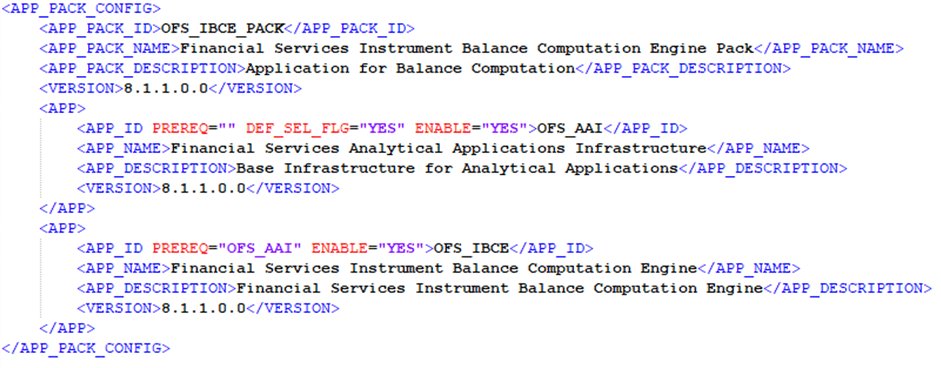
The OFS_IBCE_PACK.xml file holds details on the various products that are packaged together in OFS BCE.
To configure the OFS_IBCE_PACK.xml file, follow these steps:
1. Navigate to the OFS_IBCE/conf directory.
2. Open the OFS_IBCE_PACK.xml file in a text editor.
3. Configure the OFS_IBCE_PACK.xml file as mentioned in the following table.
Figure 3: Sample OFS_IBCE_PACK.xml File
Tag Name/ Attribute Name |
Description |
Mandatory (Y/ N) |
Comments |
|---|---|---|---|
APP_PACK_ID |
Unique Application Pack Identifier |
Y |
Unique Seeded Value. Do not modify this value. |
IS_OPT_INSTALL VALUE="TRUE" |
Unique Application Entry |
Y |
Unique Seeded Value. Do not modify this value. |
APP_PACK_NAME |
Unique Application Pack Name |
Y |
Unique Seeded Value. Do not modify this value. |
APP_PACK_DESCRIPTION |
Unique Application Pack Description |
Y |
Unique Seeded Value. Do not modify this value. |
VERSION |
Unique release version |
Y |
Unique Seeded Value. Do not modify this value. |
APP |
Unique Application Entries |
Y |
Unique Seeded Value. Do not modify this value. |
APP_ID |
Unique Application Identifier |
Y |
Unique Seeded Value. Do not modify this value. |
APP_ID/ PREREQ |
Prerequisite Application/ Product |
Y |
Unique Seeded Value. For most applications, OFS AAAI is the prerequisite set. For all other applications, the default Application ID is set to none. You can set it for the applications you would like to install. Do not modify this value. |
APP_ID/ DEF_SEL_FLAG |
Default Selected Flag |
Y |
In all Application Packs, Infrastructure would have this value set to "YES". Do not modify this value. |
APP_ID/ ENABLE |
Enable Application/ Product |
Y |
YES for OFS_AAI and OFS_IBCE. Do not modify this value. The default value is NO for Others. Permissible values are YES and NO. Set this attribute- value to YES against every APP_ID which is licensed and must be enabled for use. NOTE: The Application or Product cannot be disabled once enabled. Only those Applications or Products, which are enabled, are installed. To enable the other licensed Applications or Products, you must reinstall by setting the flag to Y for the APP_ID. However, in case of reinstallation, to enable other Applications or Products, skip the execution of the schema creation utility if it does not include the creation of any additional sandbox. |
APP_NAME |
Unique Application/ Product Name |
Y |
Unique Seeded Value. Do not modify this value. |
APP_DESCRIPTION |
Unique Application/ Product Name |
Y |
Unique Seeded Value. Do not modify this value. |
VERSION |
Unique release version |
Y |
Unique Seeded Value. Do not modify this value. |
4. Save and close the file.
The Schema Creator utility enables you to quickly get started with the installation by creating Database User(s)/ Schema(s) (RDBMS), assigning the necessary GRANT(s), creating the required entities in the schemas and so on.
The schema creator utility must be configured and executed before installation of any OFS BCE Application.
Topics:
· Configure Schema Creator Utility for RDBMS Installation
To configure the Schema Creator Utility, ensure that you obtain the following details:
· Oracle User ID/Password with SYSDBA privileges
· JDBC Connection URL for RAC/Non RAC database
· The HOSTNAME/IP of the server on which OFSAA is getting installed
If the installation is performed for RDBMS, provide the application-specific schema details in the OFS_IBCE_SCHEMA_IN.xml file.
You can configure the following schema types:
· CONFIG: This schema holds the entities and other objects required for OFSAA setup configuration information. There can be only one CONFIG schema per the OFSAA instance.
· ATOMIC: This schema holds the data model entities. One ATOMIC schema is attached to one Information Domain. There can be multiple ATOMIC schemas per the OFSAA instance.
Creating database schemas, objects within schemas and assigning appropriate grants are the primary steps in the installation process of OFSAA Applications.
The OFS_IBCE_SCHEMA_IN.xml file allows to specify database schemas required for the installation. Update the required values in this file before executing the schema creator utility.
To configure the OFS_IBCE_SCHEMA_IN.xml file, follow these steps:
1. Log in to the system as non-root user.
2. Navigate to the OFS_IBCE_PACK/schema_creator/conf/ directory.
3. Edit the OFS_IBCE_SCHEMA_IN.xml file using a text editor and configure the values as mentioned in the following table.
Figure 4: Sample OFS_IBCE_SCHEMA_IN.xml File
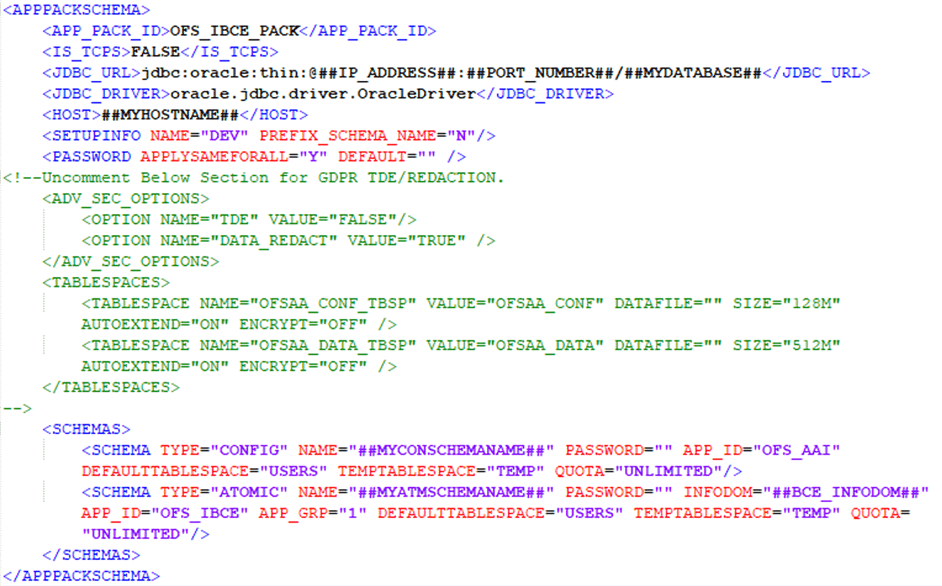
Figure 5: APPPACKSCHEMA Block

Tag Name / Attribute Name |
Description |
Mandatory (Y / N) |
Default Value / Permissible Value |
Comments |
|---|---|---|---|---|
<APP_PACK_ID> |
Seeded unique ID for the OFS Application Pack. |
Y |
Seeded |
Do not modify this value.
|
<IS_TCPS> |
Enter if the TCPS configuration is required. |
Y |
Seeded, with FALSE as the default value. |
Modify this to TRUE if you require the installer to uptake the configuration. |
<JDBC_URL> |
Enter the JDBC URL. You can enter RAC/ NON-RAC enabled database connectivity URL. |
Y |
Example: jdbc:oracle:thin:@< DBSERVER IP/ HOST/ IP>:<PORT>:<SID> or jdbc:oracle:thin:@//[HOS T][:PORT]/ SERVICE or jdbc:oracle:thin:@(DESCRI PTION=(ADDRESS_ LIST=(ADDRESS=(PROT OCOL=TCP)(HOST=[HO ST])(port=[PORT]))(ADD RESS=(PROTOCOL=TCP) (HOST=[HOST])(PORT=[ PORT]))(LOAD_ BALANCE=yes)(FAILOV ER=yes))(CONNECT_ DATA=(SERVICE_ NAME=[SERVICE]))) For example: jdbc:oracle:thin:@//dbhos t.server.com:1111/service 1 or jdbc:oracle:thin:@//dbsho st.server.com:1111/scan-1 or jdbc:oracle:thin:@(DESCRI PTION=(ADDRESS_ LIST=(ADDRESS=(PROT OCOL=TCP)(HOST=dbho st1.server.com)(port=1111) )(ADDRESS=(PROTOCO L=TCP)(HOST=dbhost2.s erver.com)(PORT=1521))( LOAD_ BALANCE=yes)(FAILOV ER=yes))(CONNECT_ DATA=(SERVICE_ NAME=service1))) |
Ensure to add an entry (with SID/ SERVICE NAME) in the tnsnames.ora file on the OFSAA server. The entry must match with the SID/ SERVICE NAME used in the JDBC URL. |
<JDBC_DRIVER> |
This driver name is seeded by default. |
Y |
Example: oracle.jdbc.driver.OracleDriver |
Only JDBC Thin Driver is supported. Do not modify this value. |
<HOST> |
Enter the Hostname/ IP Address of the system on which you are installing the OFSAA components. |
Y |
Host Name/IP Address |
|
<SETUPINFO>/PREFIX_SCHEMA_NAME |
Identifies whether the value specified in <SETUPINFO>/NAME attribute must be prefixed to the schema name. |
N |
YES or NO |
Default value is YES. |
<SETUPINFO>/NAME |
Enter the acronym for the type of implementation. This information is displayed in the OFSAA Home Page. On executing the schema creator utility, this value is prefixed with each schema name. For example: dev_ofsaaconf, uat_ofsaatm. |
Y |
Accepts strings with a minimum length of two and a maximum of four. Example: DEV, SIT, PROD |
This name appears in the OFSAA Landing Page as "Connected To: DEV". The schemas being created get this prefix. For example, dev_nameconf, uat_nameconf, and so on. |
<PASSWORD>/ DEFAULT* |
Enter the password if you want to set a default password for all schemas. You also must set the APPLYSAMEFORALL attribute as Y to apply the default password for all the schemas. |
N |
The maximum length allowed is 30 characters. Special characters are not allowed. |
On successful execution of the utility, the entered password in the OFS_IBCE_SCHEMA_IN.xml file is nullified. |
<PASSWORD>/ APPLYSAMEFORALL |
If you have entered Y in APPLYSAME- FORALL attribute and also have specified individual passwords for all the schemas, then the specified individual passwords will take precedence. |
Y |
Default value: N Permissible value: Y or N
Enter Y if you want to apply the password specified in the DEFAULT attribute for all the schemas. If you enter as N, you must provide individual passwords for all schemas. |
Setting this attribute value is mandatory, if the DEFAULT attribute is set. |
Figure 6: SCHEMAS Block

Tag Name / Attribute Name |
Description |
Mandatory (Y / N) |
Default Value / Permissible Value |
Comments |
|---|---|---|---|---|
<SCHEMA>/TYPE |
The different types of schemas that are supported in this release are ATOMIC, CONFIG, SANDBOX, and ADDON. By default, the schemas types are seeded based on the Application Pack. |
Y |
ATOMIC/CONFIG/SANDBOX/ADDON SANDBOX and ADDON schemas are not applicable for OFS_IBCE_PACK. |
Only One CONFIG schema can exist in the file. Do not edit this attribute value. This schema identifies as the CONFIGURATION schema that holds the OFSAA setup detains and other Metadata information. Multiple ATOMIC/ SANDBOX/ADDON schemas can exist in the file. |
<SCHEMA>/NAME |
The schemas’ names are seeded based on the Application Pack by default. You can edit the schema names if required. The Schema Name will have a prefix of the SETUPINFO/ NAME attribute. SCHEMA NAME must be the same for all the ATOMIC Schemas of the applications within an Application Pack. |
Y |
The permissible length is 15 characters and only alphanumeric characters are allowed. No special characters are allowed except underscore _. |
The SETUPOINFO/NAME attribute value is prefixed to the schema name being created. For example, if a name is set as 'ofsaatm' and setupinfo as 'uat', then schema being created is 'uat_ofsaatm'. NAME must be the same where APP_GRP=1 for all SCHEMA tags (not applicable for this Application). |
<SCHEMA>/PASSWORD |
Enter the password of the schema to be created. If this attribute is left blank, then the password specified in the <PASSWORD>/DEFAULT attribute is applied as the Schema Password. |
N |
The maximum length allowed is 30 characters. Special characters are not allowed. |
It is mandatory to enter the password if you have set the <PASSWORD>/ APPLYSAMEFORALL attribute as N. |
<SCHEMA>/APP_ID |
The Application ID is seeded based on the Application by default. |
Y |
Unique Seeded Value |
Identifies the Application/ Product for which the schema is being created. Do not edit this attribute value. Do not modify this value. |
<SCHEMA>/DEFAULTTABLESPACE |
Enter the available default tablespace for DB User. If this attribute is left blank, then USERS is set as the default tablespace. |
N |
Default value: USERS Permissible value: Any existing valid tablespace name. |
Modify this value to associate any valid tablespace with the schema. |
<SCHEMA>/TEMPTABLESPACE |
Enter the available temporary tablespace for DB User. If this attribute is left bank, TEMP is set as the default tablespace. |
N |
Default value: TEMP Permissible value: Any existing valid temporary tablespace name. |
Modify this value to associate any valid tablespace with the schema. |
<SCHEMA>/QUOTA |
Enter the quota to be set on DEFAULTTABLESPACE attribute for the schema/ user. By default, the quota size is set to 500M. Minimum: 500M or Unlimited on default Tablespace. |
N |
Example: 600M or 600m 20G or 20g UNLIMITED or unlimited |
Modify this value to grant the specified quota on the mentioned tablespace to the user. |
<SCHEMA>/ INFODOM |
Enter the name of the Information Domain to associate this schema. The schema creator utility automatically derives an Information Domain Name based on the Application Pack if no value is specified for this attribute. |
N
|
Permissible length is 16 characters and only alphanumeric characters are allowed. No special characters are allowed. |
|
Figure 7: ADVANCE SECURITY Block

Tag Name / Attribute Name |
Description |
Mandatory (Y / N) |
Default Value / Permissible Value |
Comments |
|---|---|---|---|---|
<ADV_SEC_OPTIONS>/ |
Parent tag to hold Advance Security Options. |
N |
NA |
Uncomment the tag and edit if you want to add security options. For example, TDE and Data Redact. For details, see the example following the rows. |
<ADV_SEC_OPTIONS>/TDE |
Tag to enable/disable TDE feature. |
N |
Default value is FALSE. To enable TDE, set this value to TRUE. |
Ensure this tag is not commented if you have uncommented <ADV_SEC_OPTIONS>. |
<ADV_SEC_OPTIONS>/DATA_REDACT |
Tag to enable/disable Data Redaction feature. |
N |
Default value is FALSE. To enable DATA_REDACT, set this value to TRUE. |
Ensure this tag is not commented if you have uncommented<ADV_SEC_OPTIONS>. |
Figure 8: TABLESPACES Block

Tag Name / Attribute Name |
Description |
Mandatory (Y / N) |
Default Value / Permissible Value |
Comments |
|---|---|---|---|---|
<TABLESPACES> |
Parent tag to hold <TABLESPACE> elements |
N |
NA |
Uncomment the tag and edit only if tablespaces are to be created as part of the installation. For details, see the example that follows the table. When TDE is TRUE in ADV_SEC_OPTIONS, then it is mandatory for the <TABLESPACES> tag to be present in the XML file. |
<TABLESPACE>/NAME |
Logical Name of tablespace to be created. |
Y |
OFSAA_CONF_TBSP OFSAA_DATA_TBSP |
Name, if specified, must be referred in the <SCHEMA DEFAULTTABLESPACE= "##NAME##"> attribute. Note the ## syntax. |
<TABLESPACE>/VALUE |
Physical Name of the tablespace to be created. |
Y |
NA |
Value, if specified, is the actual name of the TABLESPACE. |
<TABLESPACE>/DATAFILE |
Specifies the location of the data file on the server. |
Y |
NA |
Enter the absolute path of the file to be created. |
<TABLESPACE>/AUTOEXTEND |
Specifies if the tablespace must be extensible or have a hard limit. |
Y |
ON or OFF |
Set to ON to ensure that the tablespace does not run out of space when full. |
<TABLESPACE>/ENCRYPT |
Specifies if the tablespace(s) must be encrypted using TDE. |
Y |
ON or OFF |
Set to ON to ensure that the tablespaces when created are encrypted using TDE. Note: Encryption of tablespaces requires enabling Transparent Data Encryption (TDE) on the Database Server.
|
4. Save and close the file.
Example: The following snippet shows that TDE is enabled and hence the tablespace is shown with encryption ON.
<ADV_SEC_OPTIONS>
<OPTION NAME="TDE" VALUE="FALSE"/>
<OPTION NAME="DATA_REDACT" VALUE="FALSE" />
</ADV_SEC_OPTIONS>
<TABLESPACES>
<TABLESPACE NAME="OFS_AAI_TBSP_1" VALUE="TS_USERS1" DATAFILE="/
scratch/ora12c/app/oracle/oradata/OFSPQA12CDB/ts_users1.dbf" SIZE="500M" AUTOEXTEND="ON" ENCRYPT="ON" />
<TABLESPACE NAME="OFS_AAI_TBSP_2" VALUE="TS_USERS2" DATAFILE="/
scratch/ora12c/app/oracle/oradata/OFSPQA12CDB/ts_users2.dbf" SIZE="500M" AUTOEXTEND="ON" ENCRYPT="ON" />
</TABLESPACES>
<SCHEMAS>
<SCHEMA TYPE="CONFIG" NAME="ofsaaconf" PASSWORD="" APP_ID="OFS_AAI" DEFAULTTABLESPACE="##OFS_AAI_TBSP_1##" TEMPTABLESPACE="TEMP"
QUOTA="unlimited"/>
<SCHEMA TYPE="ATOMIC" NAME="ofsaaatm" PASSWORD="" APP_ID="OFS_AAAI" DEFAULTTABLESPACE="##OFS_AAI_TBSP_2##" TEMPTABLESPACE="TEMP" QUOTA="unlimited" INFODOM="OFSAAAIINFO"/>
</SCHEMAS>
To configure the OFS_InstallConfig.xml file, follow these steps:
1. Navigate to the OFS_IBCE_PACK/OFS_AAI/conf/ folder.
2. Open the OFSAAI_InstallConfig.xml file in a text editor.
3. Configure the OFSAAI_InstallConfig.xml file as mentioned in the following table.
You must manually set the InteractionVariable parameter values as mentioned in the table. If a value is not applicable, enter NA. Ensure that the value is not entered as NULL.
InteractionVariable Name |
Significance and Expected Value |
Mandatory |
|---|---|---|
<Layer name="GENERAL"> |
||
InteractionGroup name=”WebServerType” |
||
WEBAPPSERVERTYPE |
Identifies the web application server on which the OFSAA Infrastructure web components are deployed. Set the following numeric value depending on the type of web application server: · Apache Tomcat = 1 · IBM WebSphere Application Server = 2 · Oracle WebLogic Server = 3 For example, <InteractionVariable name="WEBAPPSERVERTYPE">3</InteractionVari able> |
Yes |
InteractionGroup name=”OFSAA Infrastructure Server Details” |
||
DBSERVER_IP |
Identifies the hostname or IP address of the system on which the Database Engine is hosted. NOTE: For RAC Database, the value must be NA. For example, <InteractionVariable name="DBSERVER_ IP">14.15.16.17</InteractionVariable> or <InteractionVariable name="DBSERVER_ IP">dbhost.server.com</InteractionVariable> |
Yes |
InteractionGroup name=”Database Details” |
||
ORACLE_SID/SERVICE_NAME |
Identifies the Oracle DB Instance SID or SERVICE_NAME NOTE: The Oracle_SID value must be the same as it is mentioned in JDBC_URL. For example, <InteractionVariable name="ORACLE_SID/SERVICE_ NAME">ofsaser</InteractionVariable> |
Yes |
ABS_DRIVER_PATH |
Identifies the directory where the JDBC driver (ojdbc<version>.jar) exists. This is typically the $ORACLE_HOME/jdbc/lib directory. For example, <InteractionVariable name="ABS_DRIVER_ PATH">">/oradata6/revwb7/ oracle </InteractionVariable> NOTE: See Hardware and Software Requirements to identify the correct ojdbc<version>.jar file version to be copied. |
Yes |
InteractionGroup name=”OLAP Detail” |
||
OLAP_SERVER_ IMPLEMENTATION |
Identifies whether the OFSAA Infrastructure OLAP component must be configured. It depends on whether you intend to use the OLAP feature. The following numeric value must be set depending on your choice: · YES: 1 · NO: 0 NOTE: If the value for OLAP_SERVER_IMPLEMENTATION is set to 1, the installer checks if the following environment variables are set in the .profile file: · ARBORPATH · HYPERION_HOME · ESSBASEPATH |
No |
InteractionGroup name=”SFTP Details” |
||
SFTP_ENABLE |
Identifies if the SFTP (Secure File Transfer Protocol) feature is to be enabled. The following numeric value must be set depending on your choice: · SFTP: 1 · FTP: 0 |
Yes |
NOTE: The default value for SFTP_ENABLE is 1, which signifies that SFTP is used. Oracle recommends using SFTP instead of FTP because SFTP is more secure. However, you can ignore this recommendation and use FTP by setting SFTP_ENABLE to 0. You can change this selection later from the OFSAAI administration interface. Set SFTP_ENABLE to -1 to configure ftpshare and weblocal path as a local path mounted for the OFSAAI server. |
||
FILE_TRANSFER_PORT |
Identifies the port used for the file transfer service. The default value specified is 22 (SFTP). Specify a value as 21 or any other PORT value if the value for SFTP_ENABLE is 0. For example, <InteractionVariable name="FILE_TRANSFER_ PORT">21</InteractionVariable> |
Yes |
InteractionGroup name=”Locale Detail” |
||
LOCALE |
Identifies the locale information to be used during the installation. This release of the OFSAA Infrastructure supports only US English. For example, <InteractionVariable name="LOCALE">en_US</InteractionVariable> |
Yes |
InteractionGroup name=”OFSAA Infrastructure Communicating ports" NOTE: The following ports are used internally by the various OFSAA Infrastructure services. The default values mentioned are set in the installation. If you intend to specify a different value, update the parameter value accordingly, ensure that the port value is in the range 1025 to 65535, and the respective port is enabled. |
||
JAVAPORT |
9999 |
Yes |
NATIVEPORT |
6666 |
Yes |
AGENTPORT |
6510 |
Yes |
ICCPORT |
6507 |
Yes |
ICCNATIVEPORT |
6509 |
Yes |
OLAPPORT |
10101 |
Yes |
MSGPORT |
6501 |
Yes |
ROUTERPORT |
6500 |
Yes |
AMPORT |
6505 |
Yes |
InteractionGroup name="Web Details" NOTE: If the value for HTTPS_ENABLE is set to 1, ensure that you have a valid certificate available from a trusted CA and it is configured on your web application server. |
||
HTTPS_ENABLE |
Identifies whether the UI must be accessed using HTTP or HTTPS scheme. The default value is set to 0. The numeric value must be set depending on the following options: · YES: 1 · NO: 0 For example, <InteractionVariable name="HTTPS_ENABLE">0</InteractionVariable> |
Yes |
WEB_SERVER_IP |
Identifies the HTTP Server IP or Hostname or web application server IP or Hostname, to be used to access the UI. This IP is typically the HTTP server IP. If a separate HTTP server is not available, then the value must be Web application server IP or Hostname. For example, <InteractionVariable name="WEB_SERVER_ IP">10.11.12.13</InteractionVariable> or <InteractionVariable name="WEB_SERVER_ IP">myweb.server.com</InteractionVariable> |
No |
WEB_SERVER_PORT |
Identifies the web server port, which is typically 80 for non-SSL and 443 for SSL. If a separate HTTP server exists, the port value must be the value configured for the web server. Warning: The installer will not accept the port value as: · 80, if the HTTPS_ENABLE variable is 1 · 443, if the HTTPS_ENABLE variable is 0 For example, <InteractionVariable name="WEB_ SERVER_PORT">80</InteractionVariable> |
No |
CONTEXT_NAME |
Identifies the web application context name which is used to build the URL to access the OFSAA application. You can identify the context name from the following URL format: <scheme>://<host>:<port>/<context-name>/ login.jsp For example: https://myweb:443/ofsaadev/login.jsp For example, <InteractionVariable name="CONTEXT_ NAME">ofsaadev</InteractionVariable> |
Yes |
WEBAPP_CONTEXT_PATH |
Identifies the absolute path of the exploded EAR file on the web application server. · For Tomcat, specify the Tomcat directory path till /webapps. For example, /oradata6/ revwb7/tomcat/webapps/. · For WebSphere, specify the WebSphere path as <WebSphere profile directory>/installedApps/<NodeCellName>. For example, / data2/test//WebSphere/AppServer/profiles/<Profile_Name>/installedApps/aiximfNode01Cell, where aix-imf is the Hostname. · For WebLogic, specify the WebLogic home directory path. For example, /<WebLogic home directory path>/bea/wlserver_10.3 NOTE: For WebLogic, the value specified for this attribute is ignored and the value provided against the attribute WEBLOGIC_DOMAIN_HOME is considered. |
Yes |
WEB_LOCAL_PATH |
Identifies the absolute path to any directory on the web application server that can hold temporary files, which are uploaded as part of the usage of the application. Set this in the FTPSHARE location. NOTE: During a clustered deployment, ensure that this path and the directory are the same on all the nodes. |
Yes |
InteractionGroup name="Weblogic Setup Details” |
||
WEBLOGIC_DOMAIN_HOME |
Identifies the WebLogic Domain Home. For example, <InteractionVariable name="WEBLOGIC_DOMAIN_HOME">/home/weblogic/bea/user_ projects/ domains/mydomain</InteractionVariable> |
Yes. Specify the value only if WEBAPPSERVERTYPE is set as 3 (WebLogic) |
InteractionGroup name="OFSAAI FTP Details” |
||
OFSAAI_FTPSHARE_PATH |
Identifies the absolute path of the directory that is identified as the file system stage area. NOTE: The directory must exist on the same system on which the OFSAA Infrastructure is being installed (can be on a separate mount). The user mentioned in the APP_SFTP_USER_ID parameter in the following example must have RWX permission on the directory. For example, <InteractionVariable name="APP_FTPSHARE_PATH">">/oradata6/revwb7/ftpshare</ InteractionVariable> |
Yes |
OFSAAI_SFTP_USER_ID |
Identifies the user who has RWX permissions on the directory identified for the parameter APP_FTPSHARE_PATH. |
Yes |
OFSAAI_SFTP_PRIVATE_KEY |
Identifies the SFTP private key for OFSAAI. For example, <InteractionVariable name="OFSAAI_SFTP_PRIVATE_KEY">/home/ofsaapp/.ssh/id_rsa</InteractionVariable> By default, the value is NA, which indicates that, for authentication, you are prompted to enter the password for the user <OFSAAI_SFTP_USER_ ID>. For more information on how to generate an SFTP Private key, see the Set Up SFTP Private Key section. |
No |
OFSAAI_SFTP_PASSPHRASE |
Identifies the passphrase for the SFTP private key for OFSAAI. For example, InteractionVariable name="OFSAAI_SFTP_PASSPHRASE">enter a pass phrase here</InteractionVariable> By default, the value is NA. If the OFSAAI_SFTP_PRIVATE_KEY value is given and the OFSAAI_SFTP_PASSPHRASE value is NA, then the passphrase is identified as empty. |
No |
Log in to OFSAA UNIX user using the Putty tool, where you plan for installation and generate a pair of authentication keys using the ssh-keygen command. If required, set passphrase. Otherwise, the OFSAAI_SFTP_PASSPHRASE tag must be set to NA.
To generate a private key, enter the commands as shown:
ssh-keygen -t rsa
Generating public/private rsa key pair.
Enter file in which to save the key (/home/ofsaapp/.ssh/id_rsa):
Created directory '/home/ofsaapp/.ssh'.
Enter passphrase (empty for no passphrase):
Enter same passphrase again:
Your identification has been saved in /home/ofsaapp/.ssh/id_rsa.
Your public key has been saved in /home/ofsaapp/.ssh/id_rsa.pub.
The key fingerprint is:
3e:4f:05:79:3a:9f:96:7c:3b:ad:e9:58:37:bc:37:e4
ofsaapp@OFSASERVER:~> cat /home/ofsaapp/.ssh/id_rsa.pub >> /home/ofsaapp/.ssh/authorized_keys
Ensure the following permissions exist for the given directories:
· permissions of .ssh must be 700
· permissions of .ssh/authorized_keys must be 640
· permission of .ssh/id_rsa must be 400
· Permission of UNIX User created must be 755
Topics:
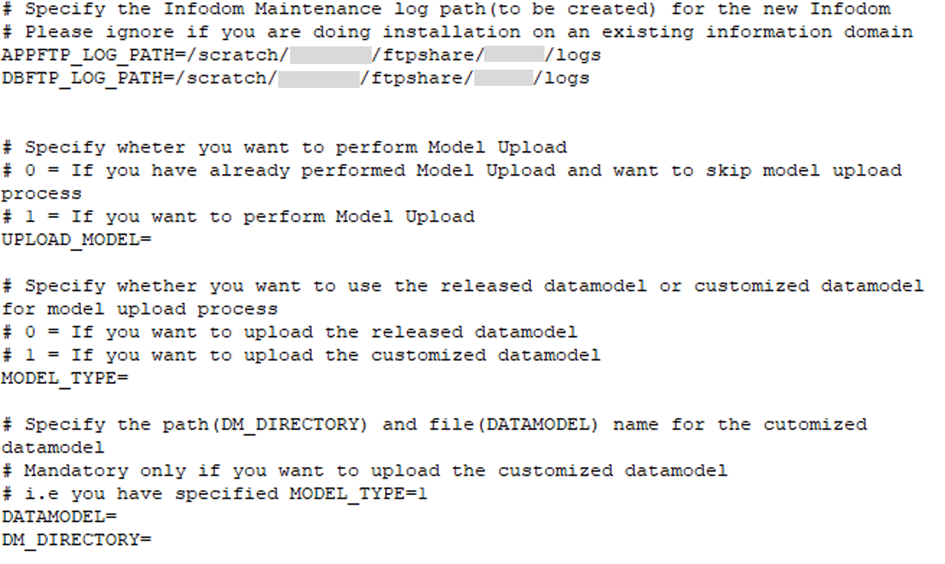
This section is for fresh installation of OFS BCE Release 8.1.1.0.0. In the installer kit path OFS_IBCE_PACK/appsLibConfig/conf/, rename the Silent.template file to Silent.props. Edit the Silent.props file and modify only the following parameters.
NOTE:
If you set the UPLOAD_MODEL property to 1 in the Silent.props file, then the Data Model gets uploaded automatically with the OFSBCE installer.
If you set the UPLOAD_MODEL property to 0 in the Silent.props file, then the Data Model does not get uploaded. Therefore, you need to upload the Data Model through the OFSBCE Application UI after the OFSBCE Application installation completes. For more information, see the Data Model Management section in the Oracle Financial Services Advanced Analytical Applications Infrastructure User Guide Release 8.1.1.0.0.
Property Name |
Description of Property |
Permissible Values |
Comments |
|---|---|---|---|
UPLOAD_MODEL |
To perform the Model Upload. |
0: No 1: Yes |
Mandatory |
MODEL_TYPE |
The released data model or customized data model. |
0: Released 1: Customized |
Mandatory only if you want to upload the data model. |
DATAMODEL |
The path for the customized data model. |
Not Applicable |
Mandatory only if you want to upload the customized data model. |
DM_DIRECTORY |
The file name for the customized data model. |
Not Applicable |
Mandatory only if you want to upload the customized data model. |
Figure 13: Sample Silent.props File
Back up the SCHEMA_CREATOR.xml, OFS_IBCE_SCHEMA_IN.OUT.xml, and Silent.props files for future reuse to upgrade the existing applications or install new applications.
File Name |
Directory |
|---|---|
OFS_IBCE_SCHEMA_IN.xml OFS_IBCE_SCHEMA_BIGDATA_IN.xml |
OFS_IBCE_PACK/schema_creator/conf |
OFS_IBCE_SCHEMA_IN.OUTPUT.xml |
OFS_IBCE_PACK/schema_creator/ |
Silent.props |
OFS_IBCE_PACK/appsLibConfig/conf |
Depending on your requirement to run the BCE installer, you must select the appropriate schema creator utility execution option.
Topics:
· Execute the Schema Creator Utility in Offline Mode
· Execute the Schema Creator Utility in Online Mode
· Executing the Schema Creator Utility in TCPS Mode
· Execute the Schema Creator Utility when Installing Subsequent Applications Pack
Choose the Offline Mode option, if you do not have login credentials to the database with SYSDBA privileges. In this mode, the utility generates an SQL script with all the required DDLs for Users, Objects, and Grants. That script must be executed by the DBA on the appropriate database identified for OFSAA usage.
To execute the schema creator utility in the offline mode, you must have the following privileges:
· SELECT ON DBA_ROLES
· SELECT ON DBA_USERS
· SELECT ON DBA_DIRECTORIES
· SELECT ON DBA_TABLESPACES
· CREATE SESSION
NOTE:
Explicit Grants to the User are required. Grants assigned through Roles are not supported.
To execute the schema creator utility in the offline mode, follow these steps:
1. Log in to the system as a non-root user.
2. Navigate to the OFS_IBCE_PACK/schema_creator/bin/ directory.
3. Execute the osc.sh file using the following command:
./osc.sh -o -s
4. Then the following message is displayed:
You have chosen OFFLINE mode. Triggering the utility in OFFLINE mode will generate the script. Do you wish to proceed? (Y/y or N/n)
Enter Y to proceed.
5. Enter the DB Username with SELECT privileges.
6. Enter the User Password.
7. The console runs the initial validation checks and displays the following message:
You have chosen to install this Application Pack on <Name of the Atomic Schema> ATOMIC schema. Do you want to proceed? (Y/N).
8. Enter Y to start the script generation.
9. The following message is displayed:
You have chosen to install this Application Pack on <Name of the Infodom>. Do you want to proceed? (Y/N).
Enter Y to proceed.
10. On successful execution of the schema creator utility, the console displays the following status message:
Schema Creator executed successfully. Execute the file scratch/ofsaaapp/OFS_IBCE/schema_creator/sysdba_output_scripts.sql before proceeding with the installation.
NOTE:
If there are any errors during the SQL script execution, reconfigure the OFS_IBCE_SCHEMA_IN.xml file and repeat steps in this procedure to execute the utility. This regenerates the script with the correct information.
NOTE:
If there are any errors during the SQL script execution, reconfigure the OFS_IBCE_SCHEMA_IN.xml and/or OFS_IBCE_SCHEMA_ BIGDATA_IN.xml files and repeat steps in this procedure to execute the utility. This regenerates the scripts with the correct information.
11. Navigate to the OFS_IBCE/schema_creator directory.
12. Log in to the database using credentials with SYSDBA privileges.
13. Execute the sysdba_output_scripts.sql file using the following command:
SQL>@sysdba_output_scripts.sql
Alternatively, you can copy the sysdba_output_scripts.sql file and SQLScripts folder to a remote server, and execute the sysdba_output_scripts.sql file after providing appropriate execute permissions.
NOTE:
See the sysdba_output_scripts.log file for execution status. If there are any errors, contact My Oracle Support (MOS). If there are no errors in the execution, the log file is empty.
The OFS_IBCE_SCHEMA_OUT.XML file is successfully generated. Do not modify this file.
Choose the Online Mode option, if you have login credentials to the database with SYSDBA privileges. In this mode, the utility connects to the database and executes the DDLs for Users, Objects and Grants.
To execute the utility, follow these steps:
1. Log in to the system as a non-root user.
2. For the RDBMS mode of installation, edit the file OFS_IBCE_PACK/schema_creator/conf/OFS_IBCE_SCHEMA_IN.xml file in a text editor. See the Configure the OFS_IBCE_SCHEMA_IN.xml File section for values to modify in the XML file.
3. Navigate to the OFS_IBCE/schema_creator/bin directory.
4. Execute the Schema Creator utility.
For Example: ./osc.sh -s
The OFS_IBCE_SCHEMA_OUTPUT.XML file is successfully generated. Do not modify this file.
If you intend to run the BCE Application Installer in TCPS mode, it is mandatory to execute the schema creator utility.
To execute the utility, follow these steps:
1. For the RDBMS mode of installation, edit the file OFS_IBCE_PACK/schema_creator/conf/OFS_IBCE_SCHEMA_IN.xml file in a text editor. See the Configure the OFS_IBCE_SCHEMA_IN.xml File section for values to modify in the XML file.
2. Execute the utility.
./osc.sh -s TCPS <WALLET_HOME>
For example: $ ./osc.sh -s TCPS /scratch/oraofss/wallet
The OFS_IBCE_SCHEMA_OUT.XML file is successfully generated. Do not modify this file.
When executing the schema creator utility during the installation of a subsequent Applications Pack, you can choose to install the pack either on the same Information Domain /Atomic Schema of the existing application pack or on a new Information Domain / Atomic Schema. You can execute the schema creator utility either in the Online or Offline mode.
To execute the schema creator utility while creating the schemas for a subsequent application pack, follow these steps:
1. For the RDBMS mode of installation, edit the file OFS_IBCE_PACK/schema_creator/conf/OFS_IBCE_SCHEMA_IN.xml file in a text editor. See the Configure the OFS_IBCE_SCHEMA_IN.xml File section for values to modify in the XML file.
2. Execute the utility.
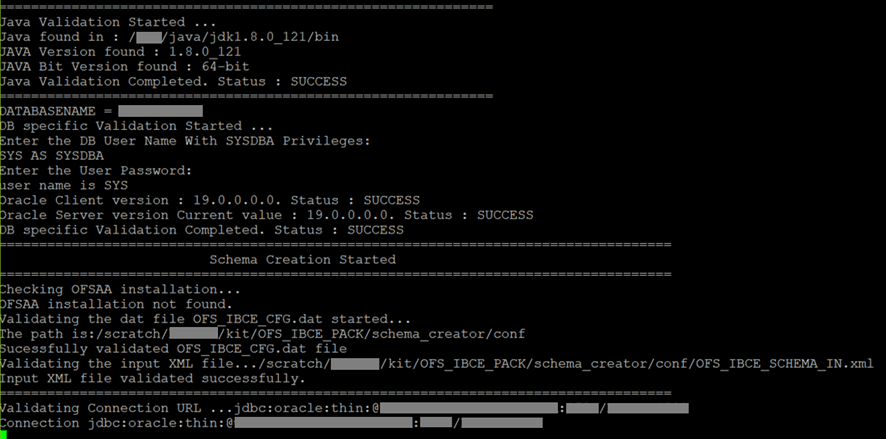
For Example: ./osc.sh -s
Figure 15: Beginning of the schema creation
NOTE:
You must use the same config schema user name as the previous Application Pack.
3. The utility identifies the Application Packs that are already installed on the current OFSAA setup and displays the following on the console:
§ Atomic schema of the existing Application Pack
§ Information Domain Name of the existing Pack
§ List of Installed Application Packs
4. Select the Atomic User on which you want to install the Application Pack.
Figure 16: Select the Atomic Schema and Infodom
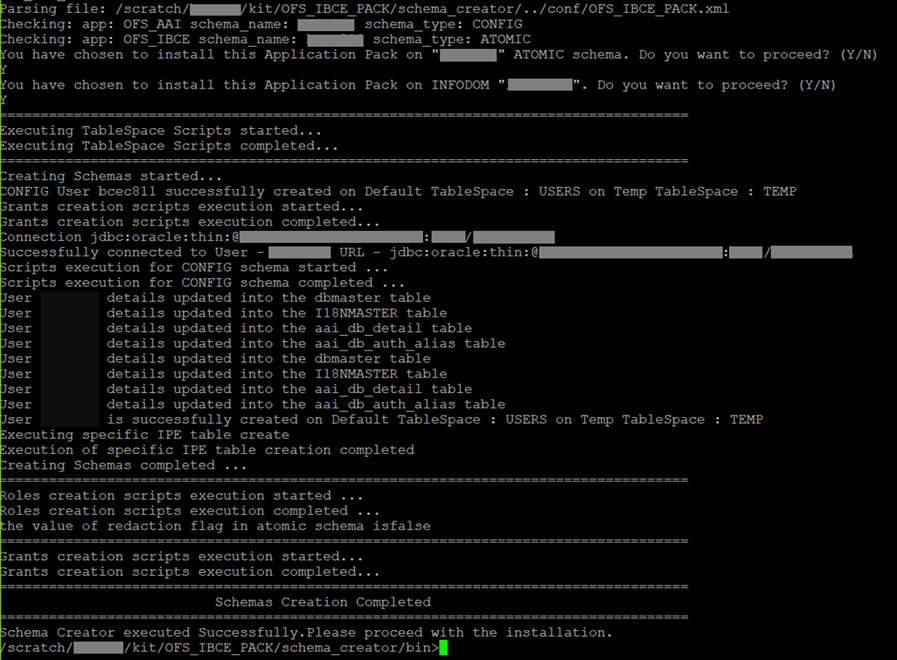
On successful execution of schema creator utility, the console displays the following status message:
Success. Please proceed with the installation.
NOTE:
If there are any errors, contact Oracle Support Services.
See the following logs directory for more information:
· OFS_IBCE_PACK/schema_creator/logs/
· The log file sysdba_output_scripts.log in the OFS_IBCE_PACK/schema_creator/logs/ directory for execution status if executed in offline mode. This log will be empty if there are no errors in the execution.
NOTE:
1. Before you begin the installation, ensure you have configured and executed the following files:
2. Configure the OS File System Settings and Environment Settings in the .profile File. Add TNS Entries in TNSNAMES.ORA File.
3. Configure the OFS_IBCE_PACK.xml File.
4. Configure the Schema Creator Utility:
· Configure the OFS_IBCE_SCHEMA_IN.xml File (for RDBMS installation)
· Configure the OFSAAI_InstallConfig.xml File (Do not configure this file if an installation of OFSAAI 8.1 already exists).
5. Configure the Silent.props file:
· Execute the Schema Creator Utility.
NOTE:
When installing OFSBCE on the Solaris OS, the following error occurs:
FICDB LIBRARIES WILL NOT BE DEPLOYED AS DEFAULT COMBINATION solaris11/oracle19.0 IS NOT AVAILABLE IN KIT.
NOTE:
When installing OFSBCE on an integrated environment, the following error occurs:
ORA-01427: single-row subquery returns more than one row.
You can ignore this error.
To install the OFS BCE Application, follow these steps:
1. Log in to the system as a non-root user.
2. Identify a directory for installation and set the same in the user .profile file as follows:
FIC_HOME=<OFSAA Installation Directory>
export FIC_HOME
3. Execute the user .profile file.
. ./.profile
4. Navigate to the OFS_IBCE_PACK/bin directory.
5. Enter the following command in the console to execute the application pack installer with Silent option.
./setup.sh SILENT
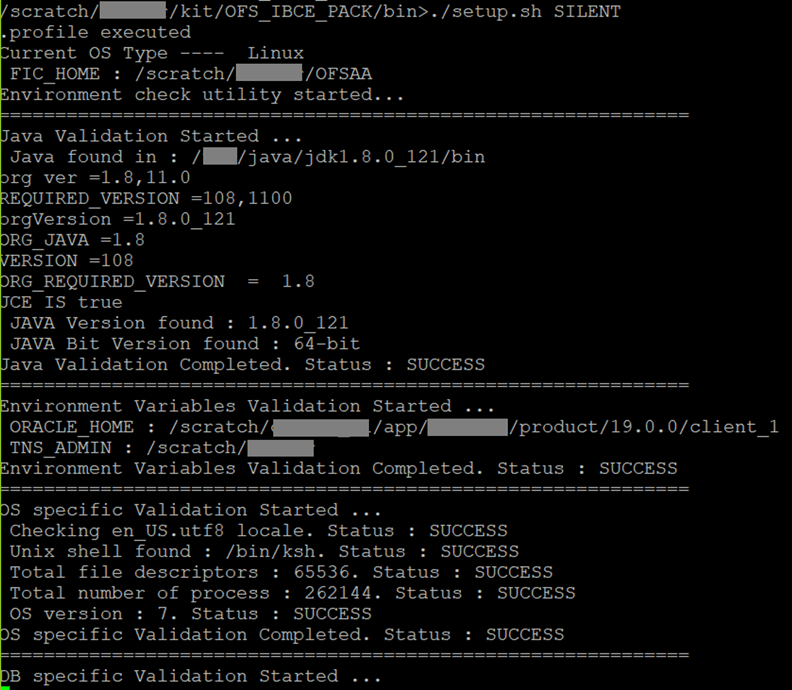
6. The installer proceeds with the Pre-installation Checks.
Figure 17: Pre-installation Checks
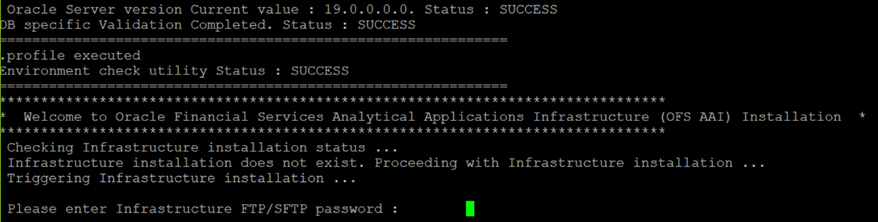
7. Enter the OFSAA Processing Tier FTP/SFTP password value when prompted in the command prompt and proceed.
Figure 18: OFSAA Processing Tier FTP/SFTP password
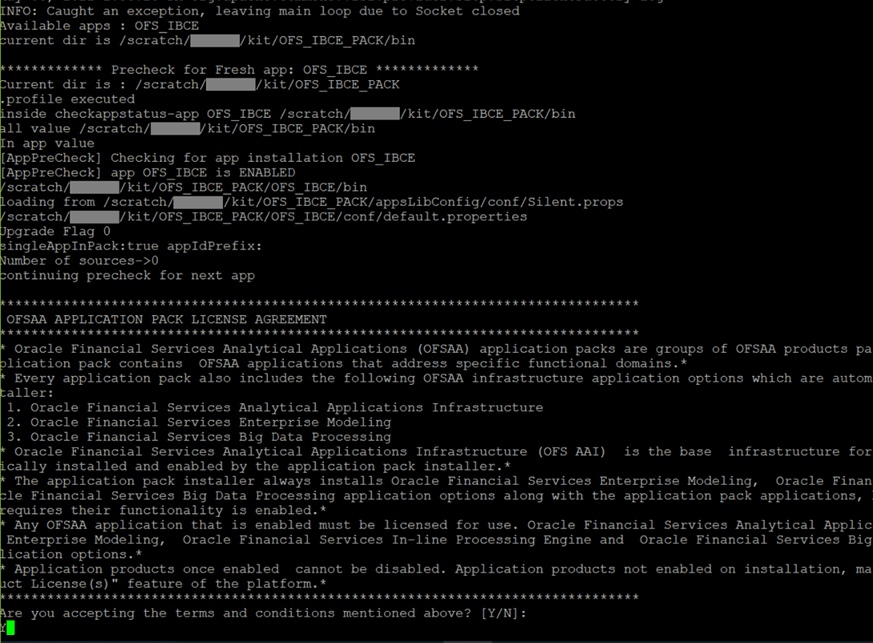
8. The process displays the OFSAA License. Enter Y and proceed.
Figure 19: OFSAA License
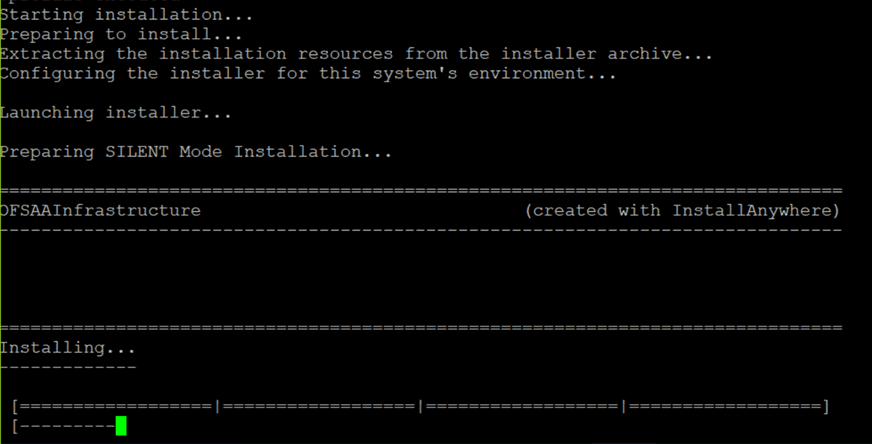
9. The installer installs the OFS AAI Application Pack.
Figure 20: OFSAAI Silent Mode Installation
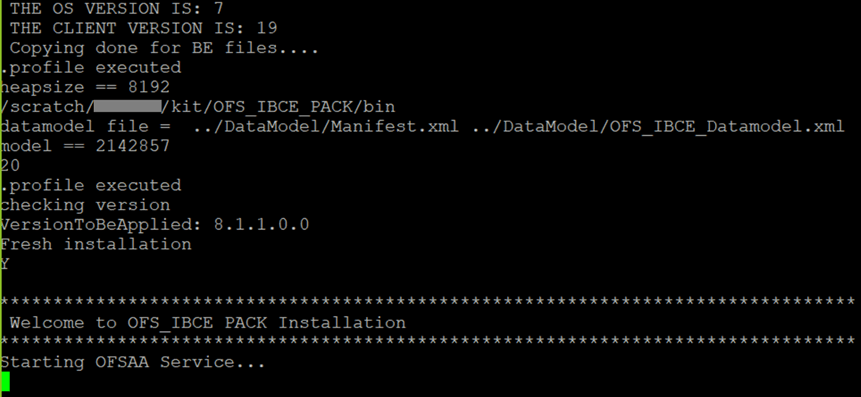
10. After OFSAAI is installed, the BCE installation begins.
Figure 21: BCE Silent Mode Installation
11. The OFSAA Infrastructure installation performs a post-install health check automatically on successful installation of the product.
The following message is displayed in the console:
Installation completed
12. To verify if the release is applied successfully, check the log files mentioned in the Verify the Log File Information section.
13. Do the Post-installation steps. For the additional configuration information, see the Additional Configuration section.
This is an installation scenario, where you have already installed an application pack from the Release v8.1.1.0.0 and now you want to install the OFSBCE Application Pack from the Release v8.1.1.0.0. For example, the OFSDF Application Pack v8.1.1.0.0 is already installed and now you want to install the OFSBCE Application Pack v8.1.1.0.0.
NOTE:
When installing OFSBCE on the Solaris OS, the following error occurs:
FICDB LIBRARIES WILL NOT BE DEPLOYED AS DEFAULT COMBINATION solaris11/oracle19.0 IS NOT AVAILABLE IN KIT.
You can ignore this error.
NOTE:
When installing OFSBCE on an integrated environment, the following error occurs:
ORA-01427: single-row subquery returns more than one row.
You can ignore this error.
1. Configure the OFS_IBCE_PACK.xml File.
2. Configure the Schema Creator Utility:
§ Configure the OFS_IBCE_SCHEMA_IN.xml File (for RDBMS installation)
NOTE:
Configuring the OFSAAI_InstallConfig.xml file is not required in this scenario.
3. Configure the Silent.props file.
4. Execute the Schema Creator Utility.
NOTE:
While defining the schema details for the application packs, provide the same schema details given in the previous installation of the other application pack. The output file OFS_BFND_SCHEMA_OUTPUT.xml is generated as a result of the schema creation process.
6. Verify the Log File Information.
7. Do the Post-installation steps. For the additional configuration information, see the Additional Configuration section.