4 Job Management
Batch jobs are initiated by users when required to perform updates to records.
To manage batch jobs, select Batch Jobs from the Admin list. The Manage Batch Jobs page shows the list of all jobs. The jobs are shown in descending order with the most recent job at the top of the list.
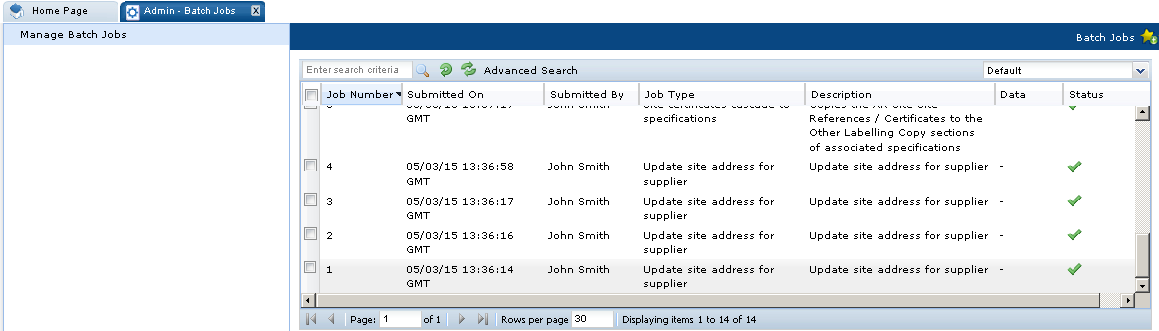
The following columns are shown for each job:
-
Job Number
-
Submitted On: Date and time when the job was submitted.
-
Submitted By: Name of the user who submitted the job.
-
Job Type
-
Description: Any comments entered when the job was submitted. If no comments were entered, the filename of any uploaded files will appear here.
-
Data: If a job was submitted using a spreadsheet, an icon is shown in this column. The user can click the spreadsheet icon and select whether to open or download the spreadsheet.
-
Status: The following icons show the job status:
Table 4-1 Manage Batch Jobs Icons
Icon Status Description 
Created
The job is created.

Submitted
The job is ready to run.

In Progress
The job is currently running.

Completed
The job completed. All changes were successfully made.

Failed
Errors were encountered. Changes were not made.

Cancelled
The job was cancelled.

Internal Failure
An internal failure occurred.
You can choose which batch jobs you want to view. The following list views are available:
-
All Jobs
-
Failed Jobs: Show jobs with a status of failed.
-
Running Jobs: Shows jobs with a status of in progress.
-
Site TM Changes: Shows jobs with a job type of Change Site Technologist.
Opening a Batch Job
To open a batch job, double click the job in the list. The job will open as a new tab.
-
The job's bookmark shows the Job Number and the Job Type.
-
A Messages tab appears if any errors were encountered when the job ran.
-
An Attachments tab stores the file used to upload data, or where applicable, a rejects file containing records that could not be uploaded due to errors.
-
A Linked Jobs tab shows links to related jobs if part of a series of jobs.