
On successful login, the OFSAA Landing screen is displayed.
Figure 16: OFSAA Landing screen
OFSAA Landing screen shows the available Applications as tiles, for which a user has access to. Clicking the respective Application tile launches that particular application. You can change the landing page based on your preference.
This section describes the user interface components in the OFSAA Landing page.
Figure 17: User Interface Components
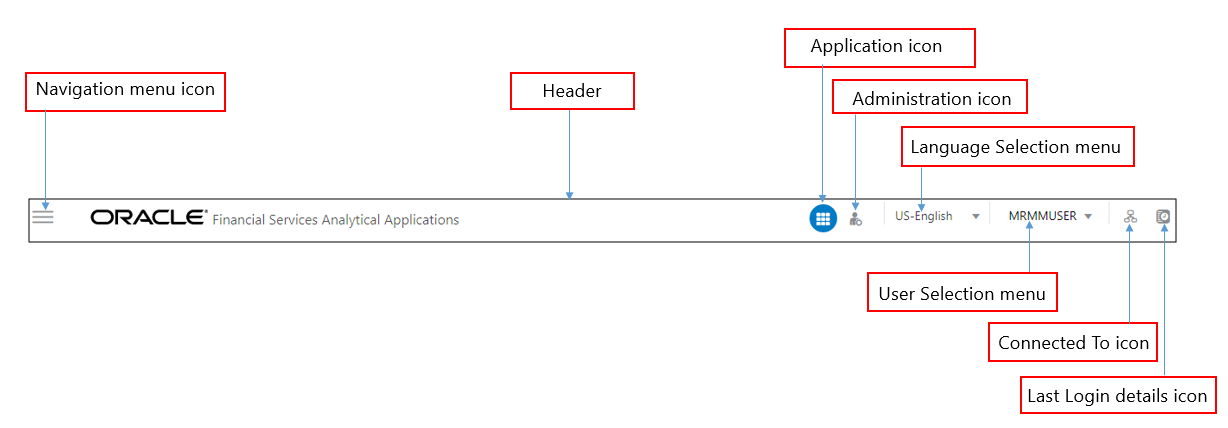
· Navigation Menu: This icon is used to trigger the Application Navigation Drawer.
· Application Icon: This icon is used to show the available Applications installed in your environment at any time.
· Administration Icon: This icon is used to go to the Administration window. The Administration window displays modules like System Configuration, Identity Management, Database Details, manage OFSAA Product Licenses, Create New Application, Information Domain, Translation Tools, and process Modelling Framework as Tiles.
· Reports Icon: This icon is used to launch various User Reports such as user Status Report, User Attribute Report, User Admin Activity Report, User Access Report, and Audit Trial Report.
· Language Menu: It displays the language you selected in the OFSAA Login Screen. The language options displayed in the Language Menu are based on the language packs installed in your OFSAA instance. Using this menu, you can change the language at any point in time.
· User Menu: Clicking this icon displays the following menu:
Figure 18: User Menu

§ Preferences: To set the OFSAA Landing Page.
§ Change Password: To change your password. For more information, see the Change Password section in the OFS AAI User Guide. This option is available only if SMS Authorization is configured.
§ Log Out: To log out from OFSAA applications.
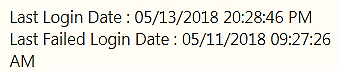
§ Last Login Details: This displays the last login details as shown.
Figure 19: Last Login Details
To launch the navigation drawer, follow these steps:
1. Click the
Navigation menu  to
launch the Navigation Drawer as shown.
to
launch the Navigation Drawer as shown.
Figure 20: Navigation Drawer

Here the navigation items appear as a list. The First Level menu shows the installed applications. Clicking an application displays the second-level menu with the application name and Common tasks menu. The arrangement of the menu depends on your installed application.
2. Clicking an item in the menu displays the next level sub-menu and so on. For example, to display Data Sources, click Financial Services Enterprise Modeling select Data Management select Data Management Framework, select Data Management Tools, and then select Data Sources.
Figure 21: Navigation Drawer Menus and Submenus

3. Click  Hierarchical
Menu to display the navigation path of the current submenu as shown.
Hierarchical
Menu to display the navigation path of the current submenu as shown.
Figure 22: Navigation Submenu

4. The RHS Content
Area shows the Summary page of Data Sources. Click anywhere in the Content
Area to hide the Navigation Drawer. To launch it back, click the Navigation
menu .
5. Click Home to display the OFSAA Landing Screen.
The Administration and Configuration section allows the System Administrators to configure the Server details, Database details, OLAP details, and Information Domain along with the other Configuration process such as segment and metadata mapping, and mapping segment to security. System Configuration is mostly an onetime activity which helps the System administrator to make the Infrastructure system operational for usage.
Click the Administration Icon
 from the header to display
the Administration tools in the Tiles menu. Click System
Configuration from the Tiles menu to view a submenu list.
from the header to display
the Administration tools in the Tiles menu. Click System
Configuration from the Tiles menu to view a submenu list.
NOTE |
After you have accessed a
tool from the submenu, the options are also available in the Navigation
List to the left. Click the Navigation menu
|
Figure 23: System Configuration Submenu


You (System Administrator) must have full access rights to ftpshare directory with appropriate User ID and password to add and modify the server details.
System Configuration consists of the following sections.
· Database Server
· Application Server
· Web Server
· Database Details
· OLAP Details
· Information Domain
· Configuration
· Create Application
In an integrated environment, where you have multiple applications installed on the same domain or infrastructure, OFSAAI allows you to see the other licensed applications through the UI. For more information, see the View OFSAA Product Licenses after Installation of Application Pack in the OFS Analytical Applications Infrastructure User Guide Release 8.1.0.0.0.
 to access the
Navigation List.
to access the
Navigation List.