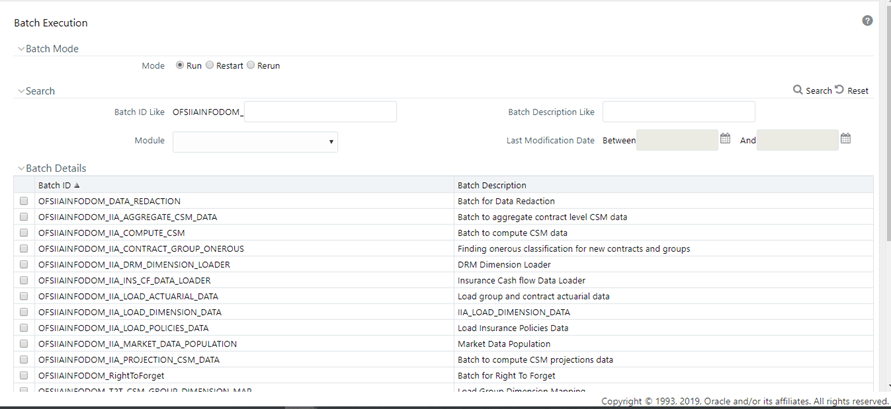
Batch Execution refers to the process of initiating a Batch for current processing. When a Batch is submitted for execution, a series of commands are sent to the database concerning the defined component parameters. This, in turn, returns an array of update counts (required value definitions) when the commands are executed successfully. For detailed information on batch executions, see the section on Batch Execution in the Oracle Financial Services Analytical Applications Infrastructure User Guide.
This chapter contains information on how to run or execute the batches required in the Oracle Insurance Accounting Analyzer application.
You can access the Batch Execution window by navigating to Common Object Maintenance, select Operations, and then select Batch Execution from the left- pane of the Oracle Insurance Accounting Analyzer application
To execute a batch in the Batch Execution window:
1. In the Batch Mode pane, select Run to open the Batch Details pane.
Figure 114: The Batch Details Pane
2. Select the checkbox adjacent to the Batch ID that has to be executed. You must execute the following batches in the sequence specified in the following table:
Table 12: The Sequence to execute the Batches
Execution Order |
Run Name or Batch Id |
1 |
<INFODOM>_IIA_DRM_DIMENSION_LOADER |
2 |
<INFODOM>_IIA_LOAD_DIMENSION_DATA After you load this batch, to map the insurance scenario number used in your STG table to the required insurance scenario type, you must perform the following steps: 1. Navigate to Common Object Maintenance, select Dimension Management, and then Member. 2. In the Dimension drop-down, select Insurance Scenario and then click Edit. Figure 115: Example of the Insurance Scenario dimension screen
3. Map the insurance scenario with the required insurance scenario type attribute. 4. Click Save. The Insurance scenario is mapped with the insurance scenario type attribute. After you complete the preceding steps, continue executing the following batches. |
3 |
<INFODOM>_T2T_CSM_GROUP_DIMENSION_MAP |
4 |
<INFODOM>_IIA_INS_CF_DATA_LOADER |
5 |
<INFODOM>_IIA_LOAD_POLICIES_DATA |
6 |
<INFODOM>_IIA_MARKET_DATA_POPULATION |
7 |
<INFODOM>_INPUT_VARIABLE_CALC_<LIABILITY_CALCULATION_ID> |
8 |
<INFODOM>_IIA_CALCULATION_<LIABILITY_CALCULATION_ID> |
NOTE |
If your template contains multiple FIC_MIS_DATEs, then the batches <INFODOM>_INPUT_VARIABLE_CALC_<LIABILITY_CALCULATION_ID> and <INFODOM>_IIA_CALCULATION_<LIABILITY_CALCULATION_ID> must be executed in the following sequence: · For the first FIC_MIS_DATE, execute the <INFODOM>_INPUT_VARIABLE_CALC_<LIABILITY_CALCULATION_ID> batch and then the corresponding FIC_MIS_DATE <INFODOM>_IIA_CALCULATION_<LIABILITY_CALCULATION_ID> batch. · For the second FIC_MIS_DATE, execute the second FIC_MIS_DATE <INFODOM>_INPUT_VARIABLE_CALC_<LIABILITY_CALCULATION_ID> batch and then execute corresponding second FIC_MIS_DATE <INFODOM>_IIA_CALCULATION_<LIABILITY_CALCULATION_ID> batch. |
3. In the Batch Details pane, click Schedule Batch to define a new batch or modify a pre-defined Batch Schedule. See the Batch Scheduler section in the Oracle Financial Services Analytical Applications Infrastructure User Guide.
4. In the Task Details toolbar, click Exclude or Include to exclude or include a task, or click Hold or Release to hold or release a task before executing the batch. See the Modify Task Definitions of a Batch section in the Oracle Financial Services Analytical Applications Infrastructure User Guide.
5. Specify the Information Date (mandatory) by clicking the calendar icon. The specified date is recorded for reference.
NOTE |
You can also modify the required task parameters of the selected Batch and include the changes during the Batch rerun. See the Specify Task Details in the Oracle Financial Services Analytical Applications Infrastructure User Guide. |
6. Click Execute Batch and then select OK to confirm the batch execution.
7. An information dialog is displayed indicating that the batch execution was triggered successfully. Repeat steps 2 to 6 for all the batches mentioned in step 2.
