The Reconciliation Summary page provides a visual representation of the list of executions that are completed successfully along with its details.
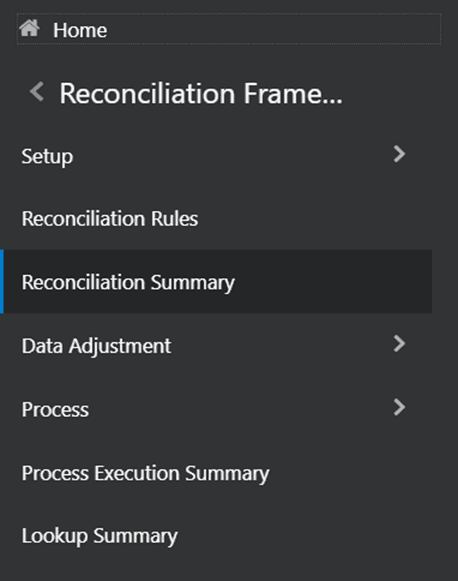
1. Navigate to Reconciliation Framework and select Reconciliation Summary.
Figure 75: Reconciliation Summary Navigation Pane
2. When you navigate to the Reconciliation Summary page, the Reconciliation History page appears.
Figure 76: Reconciliation History Page
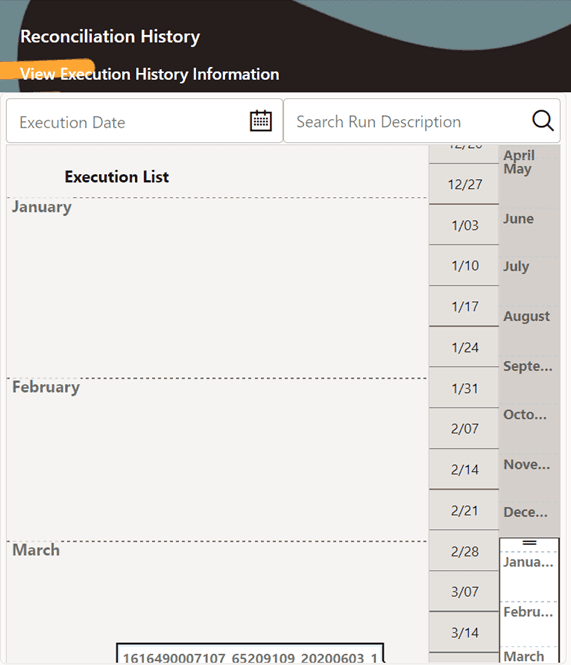
§ Execution Date: The date on which the Reconciliation has been executed. Users can select the execution date by clicking on the calendar icon.
§ Search Run description: This drop-down list shows different runs for a given execution date selected in the execution date field. Users can select a particular run description and see the execution details on the right panel of the screen.
3. This screen provides a list of all the successful executions complete for the previous period, by default. You can zoom in to a particular day of a month and check the list of executions.
4. Click one execution, it gives a high-level summary of that particular execution. Once the execution is selected, Two panels appear on the right side. The first panel provides the details about the number of definitions executed in that execution and the second panel provides the time taken for that execution in seconds along with the Start and End timestamps.
Figure 77: Reconciliation History Page for Single Execution Details
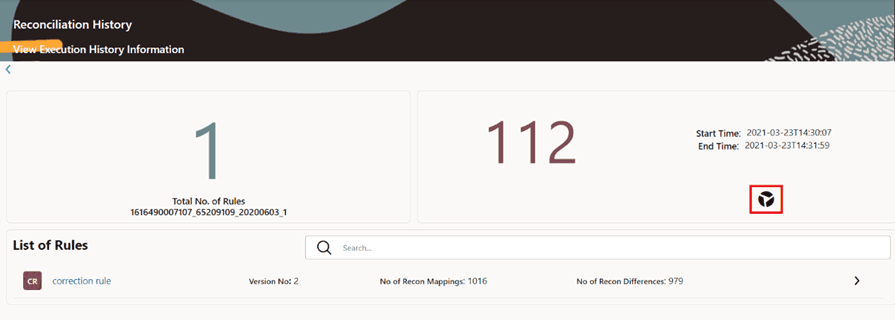
5. Click Rule  .
The details about the execution along with the reconciled balances are
displayed.
.
The details about the execution along with the reconciled balances are
displayed.
Figure 78: Reconciliation History Page-List of Rules
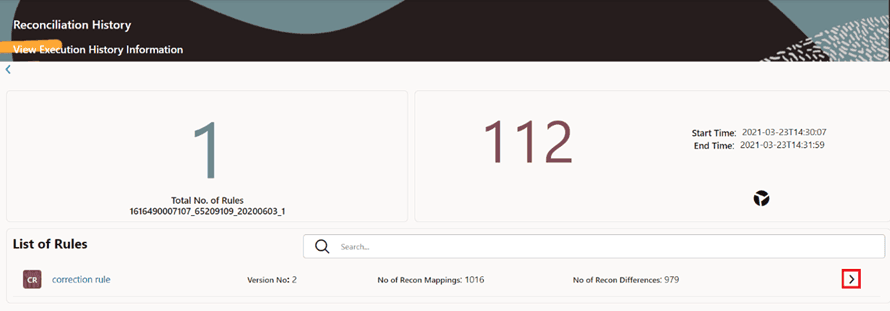
6. Click  . The details of the
execution entity name along with the balance type are displayed. You can
open the report details using the additional icons (highlighted in the
following figure).
. The details of the
execution entity name along with the balance type are displayed. You can
open the report details using the additional icons (highlighted in the
following figure).
Figure 79: Reconciliation History Page-List of Rules Navigations
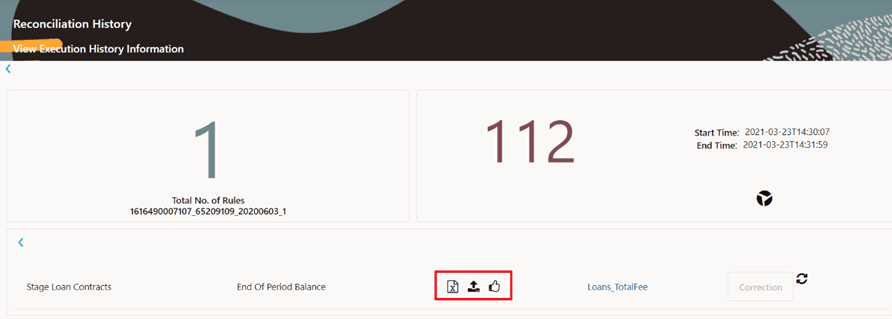
For executions that have been executed with Auto Approval Flag as Yes, the Adjustments are directly posted in the target tables. For other Executions that are executed with Auto Approval Flag as No, the user has the choice to review the adjustments, modify the default values, and then approve the adjustments.
§ Export:
Click Export  to
export the adjustments to an excel sheet and save it.
to
export the adjustments to an excel sheet and save it.
§ Import:
Click Import  to
upload the excel workbook with modified adjustment values.
to
upload the excel workbook with modified adjustment values.
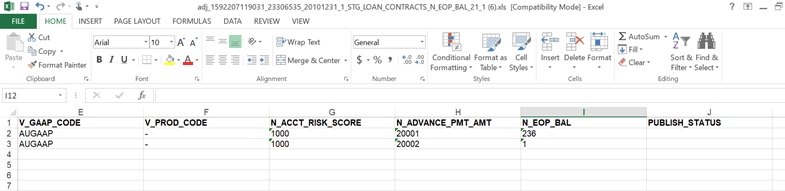
Partial Adjustments: The user has the flexibility to tag one or more adjustments while importing the adjustment into the application. Users can enter the keywords Publish or P in the PUBLISH_STATUS column of the excel workbook. Only the adjustments that are marked for publish will be posted to the Product Processor.
i. Click the Export icon after running the GL rule with autoapproval flag=N. The generated excel sheet has a new column called PUBLISH_STATUS with no values initially.
Figure 80: Excel Sheet with PUBLISH_STATUS Column
ii. Users can either enter Publish or P against the records they want to post to the Product Processor table and then upload the file back to the server as earlier and click the Approve icon. Only the approved records get published in the target table.
Figure 81: Excel Sheet with PUBLISH_STATUS Column as Publish or P

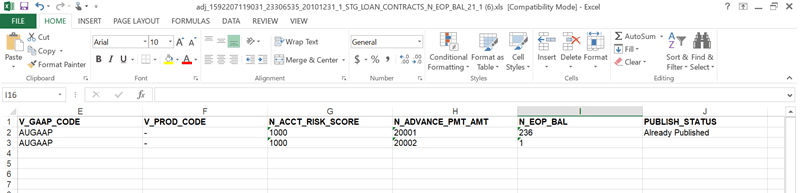
iii. When the user clicks Export again, the records that were published have the status as Already Published.
Figure 82: Excel Sheet with PUBLISH_STATUS Column as Already Published
Repeat the above steps to publish the other records.
§ Publish:
Click Publish  to
display the total amount approved by the Authorizer.
to
display the total amount approved by the Authorizer.
The user needs to exercise caution while clicking Publish icon. Adjustments once published will be posted in the target table.
§ Adjustment template: Click the Adjustment template link, it opens the Post Adjustment Data window displaying the number of rows adjusted and the list of the adjustments.
Figure 83: Adjustment template link

From the list of Entity Type with its Balance Type, click the displayed link that directs to the Post Adjustment Data window. This window displays the Number of Rows Adjusted along with the details of the adjustment.
Among other properties, each Adjustment Entry consists of a Run Execution ID, a GL Date, and a Definition. You may search on any of these properties in the Search section.
Figure 84: Post Adjustment Data Window

7. From the list of rules, click the required rule. The chart representations are displayed for all the dimensions in Reconciliation for a default Currency available in the Definition.
Figure 85: Reconciliation History page-Chart representation
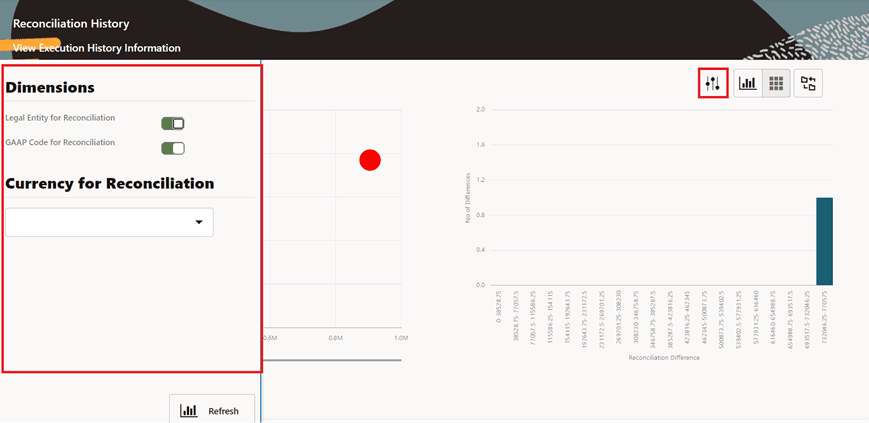
8. Click  on the Left-Hand
Side of the page, as shown in Figure 79. This has the list of dimensions
that are used in the rules involved with the execution. You can select
any number of dimensions and check the different balances for the selected
dimensions. A drop-down list with all the available currencies for the
selected definition is available and you can select the required currency.
on the Left-Hand
Side of the page, as shown in Figure 79. This has the list of dimensions
that are used in the rules involved with the execution. You can select
any number of dimensions and check the different balances for the selected
dimensions. A drop-down list with all the available currencies for the
selected definition is available and you can select the required currency.
Figure 86: Reconciliation History Page-Chart Representation Dimensions Settings
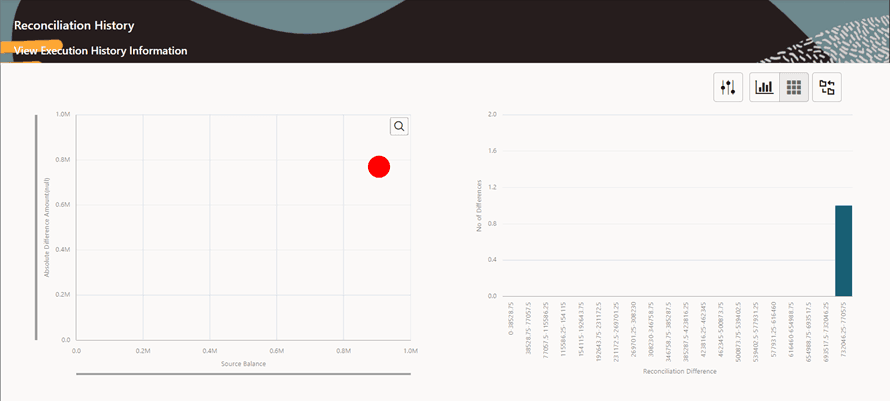
9. The Reconciliation History page displays two charts.
Figure 87: Reconciliation History Page-Two Charts Representation
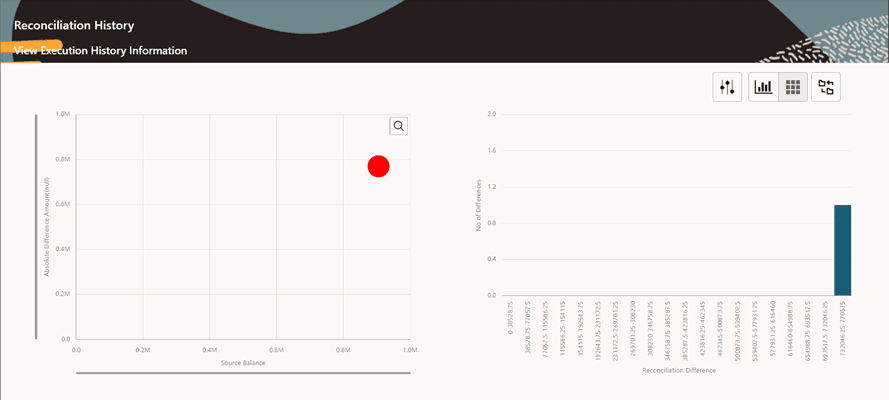
10. Bubble Chart with X-Y plot, where X-axis gives the Source balance and Y-axis gives the Absolute Target balance. The size of the bubble is determined by the ratio of Absolute Recon Difference to Source Balance.
The following are the color representation of the bubble with their descriptions:
§ The color of the bubble is green when none of the differences have breached the Threshold (NB).
§ The color of the bubble is Red if at least one of the differences is breached (NPT, PPT, NAT, PAT).
For more information on NPT, PPT, NAT, and PAT, see the Glossary section.
Figure 88: Reconciliation History Page-Bubble Chart
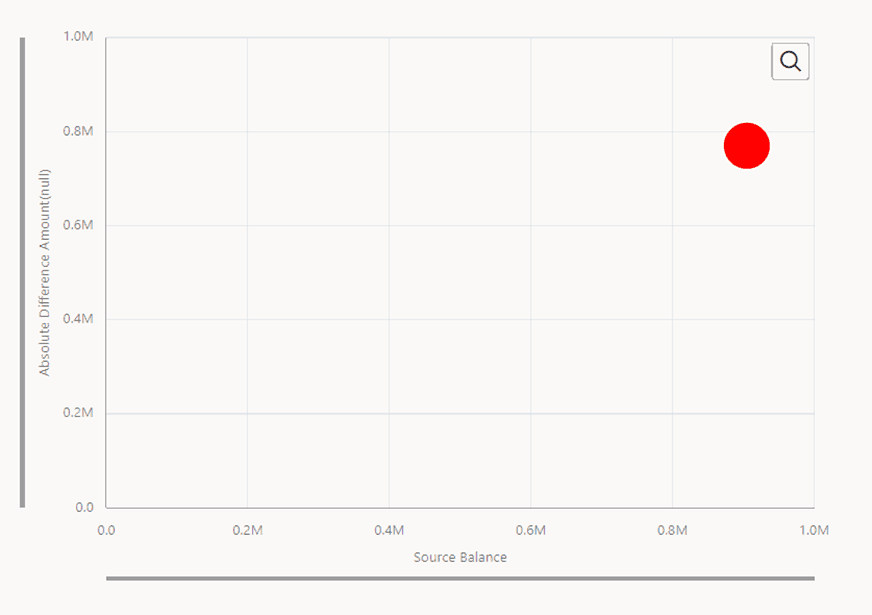
11. Click the Bubble to view the tabular format of all the differences aggregated to form that bubble.
Figure 89: Tabular Format View for Bubble Chart

12. You can view the FCT_RECONCILIATION_DIFFERENCE table in a flexible format.
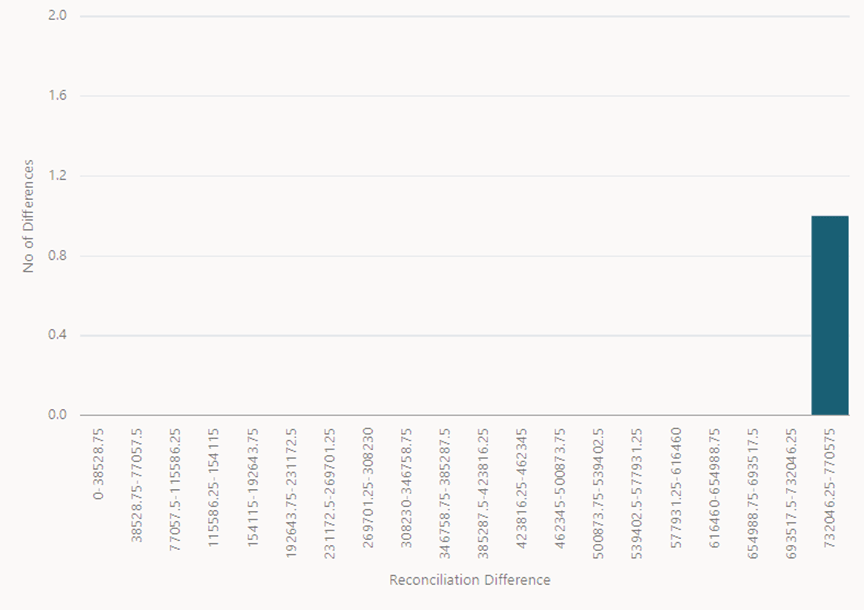
13. Histogram with X-Y plot, where the X-axis is the buckets of Absolute Recon Differences, and the Y-axis is the number of definitions in a bucket.
Figure 90: Reconciliation History Page-Histogram Chart
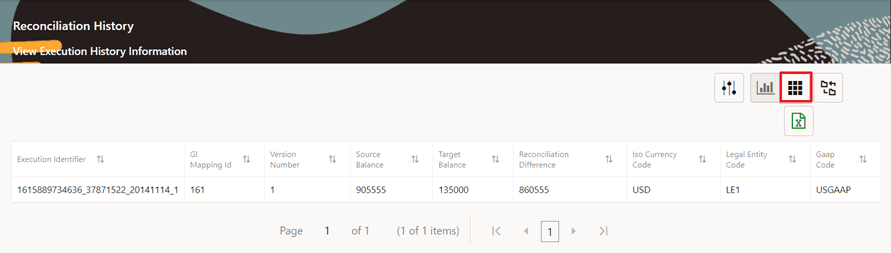
14. Click  to navigate to the Grid
visualization of the aggregated differences for the selected dimensions
and currency.
to navigate to the Grid
visualization of the aggregated differences for the selected dimensions
and currency.
Figure 91: Reconciliation History Page-Application Icon View
15. Click  on the grid to export the
grid values to an excel sheet and save it.
on the grid to export the
grid values to an excel sheet and save it.
16. Click  to return to the Bubble
chart and Histogram.
to return to the Bubble
chart and Histogram.
17. Click  to navigate to the Reconciliation
Summary page.
to navigate to the Reconciliation
Summary page.
On browsing through the reconciliation differences, you must investigate and determine the reasons for a GL reconciliation difference. If you have identified the account or the contract that is responsible for the reconciliation difference, you can then rectify the difference by posting a Correction Entry on that account. A Correction Entry alters the balance of the identified account within the Product Processor. When an account is corrected, a contra entry is posted into the corresponding Contra GL Account, simultaneously.
Figure 92: Correction Dataflow
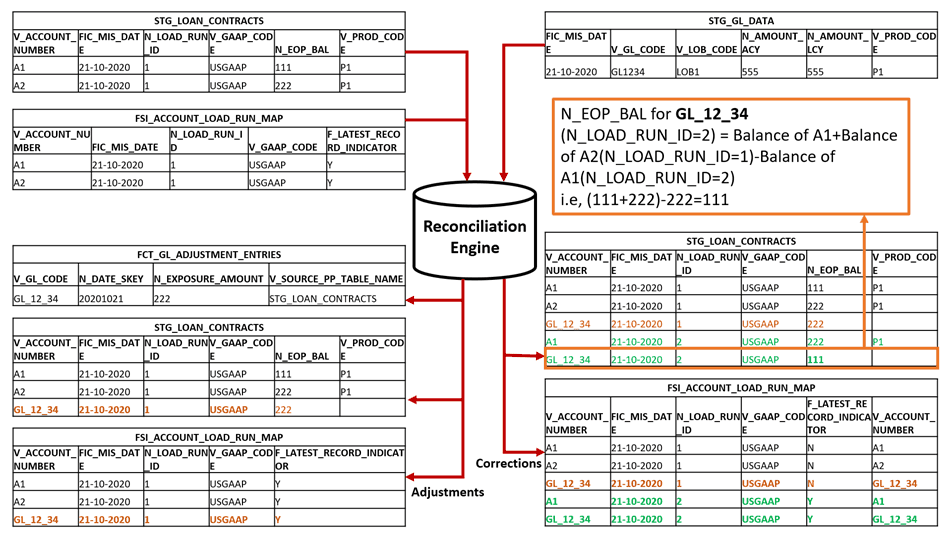
The Correction button in this section is enabled only if the data is posted to the Product Processor (Auto Approval=Y/N).
The Data Entry window pertains to the posting of Correction Entry after updating details of the entries.
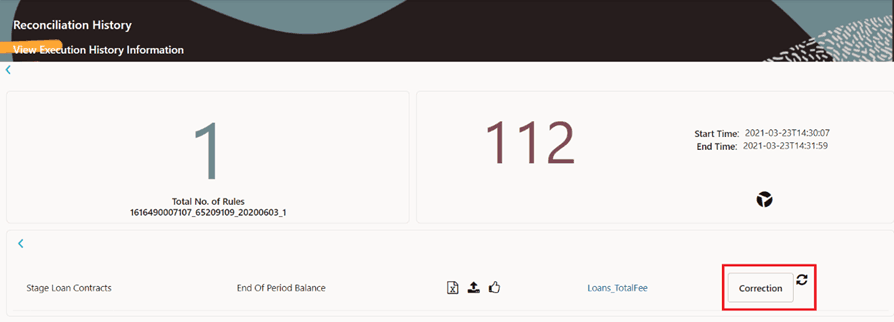
1. Click the
refresh  icon to enable the Correction
button.
icon to enable the Correction
button.
The Correction button is enabled only if the data is posted to the Product Processor.
Figure 93: Correction button enabled
2. Right-click the Correction button to perform the following functions:
Figure 94: Export, upload and publish
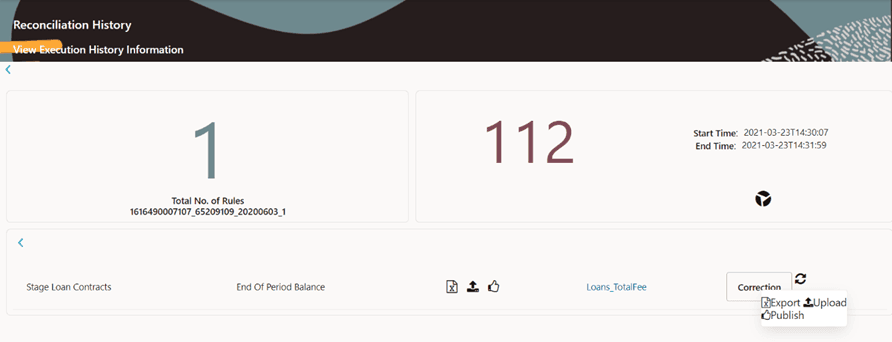
§ Export:
Click the Export icon
to export the correction of an account to an excel sheet and save it.
§ Upload:
Click the Upload icon
to upload the excel workbook with the modified correction values of an
account.
The user has the flexibility to tag one or more corrections while uploading the correction entry into the application. Users can enter the keywords Publish or P in the PUBLISH STATUS column of the excel workbook. Only the adjustments that are marked for publish are posted to the Product Processor.
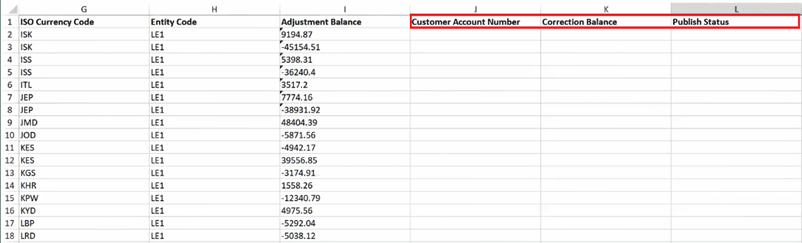
i. Click the Export icon and an excel sheet gets generated with data posted on the Product Processor with three new columns namely Customer Account Number, Correction Balance, and PUBLISH STATUS with no values.
Figure 95: Excel Sheet with Customer Account Number, Correction Balance, and PUBLISH STATUS Column
NOTE:
The file format for the excel sheet to be uploaded is adj_corr_<Run_Execution_ID>_<PP_TABLE_BAL_COL>_<MAPID_VERSION>.xlsx. For example, adj_corr_1616069456370_60228974_20200603_1_STG_LOAN_CONTRACTS_N_EOP_BAL_101_2.
ii. In the Customer Account Number column, the user has to use a valid customer number. For more information to use the valid customer number, see the section, Load Run ID Implementation in Reconciliation Framework.
NOTE:
Load Run ID population is a prerequisite for the Correction Entry. For more information on the Correction Entry refer to the
Perform the following checks before uploading the excel sheet:
o Customer Account Number should be registered in the FSI_ACCOUNT_LOAD_RUN_MAP table.
o Dimension values of this Customer Account Number must be the same as dimension values of the Adjustment Account Number of the exported excel.
o Correction balance must have a numerical value and cannot be empty or cannot have a varchar value.
NOTE:
The import status can be seen in the FSI_MESSAGE_LOG table, using Run Execution ID as the filter. All the records in the uploaded excel must follow the above checklist, if any one of the records fails, the uploading of the entire excel fails and you must re-upload the excel after fixing the incorrect records and checking the status in the FSI_MESSAGE_LOG table.
iii. In the Correction Balance column, enter the correction balance.
iv. Users can enter either Publish or P against the records they want to post to the Product Processor table and then upload the file back to the server as earlier and click the Publish icon. Only the approved records are published in the target table.
Figure 96: Excel Sheet with PUBLISH STATUS Column as Publish or P

v. When the user clicks the Export icon again, the records that were published earlier have the status as Already Published.
NOTE:
The user has to re-export and then import every time there is an incremental correction in the record.
Figure 97: Excel Sheet with PUBLISH_STATUS Column as Already Published

§ Publish:
Click Publish icon
to post the updated Adjustment Balance in the Product Processor table
with the new Load Run ID for both the Customer Account Number and the
Adjustment Account Number.
The updated adjustment balance reflects in the exported correction excel when the user re-exports after publishing the record.