
This chapter provides information about Object Migration for GL Reconciliation Rules and the Adjustment Rules in OFSAA in the Reconciliation Framework application and step-by-step instructions to use this section.
The following are the assumptions and prerequisites:
· The GL Reconciliation application version is the same in both source and target environments.
· Same configuration between source and target environments.
· Master data for the dimensions is the same in both source and target environments.
· If the data model is customized, upload the customized model to the target environment before starting the environment migration exercise.
· The dimension data is loaded into respective dimension tables. The Dimension member codes should remain the same between source and target environments.
· A run chart is executed to load stage and dimension data before migration is done.
· The offline Object Migration utility of OFSAAI is present in both the environments under consideration.
· Migration of Business Metadata objects of OFSAAI (Dimensions, Hierarchies, Datasets, and so on) are not considered in this section. Refer to documentation associated with OFSAAI on object migration for migrating OFSAAI objects.
· Before migrating the GL Reconciliation definitions, ensure that the configuration is complete in the Entity and Type Configuration Maintenance pages of the target environment.
· Make sure OFSAAI services like Webserver and FIC SERVER both are running.
· The migration of data adjustment templates (Chapter 12) should be performed before object migration for Reconciliation Rule is done.
Object migration for GL Reconciliation rules provides flexibility to the user to migrate GL Reconciliation definitions through an offline process. In this process, the user can move one or more definitions from source to target environment. This section mentions the steps that need to be followed by the user for migrating reconciliation definitions (Rules) between different GL Recon environments.
GL Reconciliation Object Migration provides the following features:
· Migration of all definitions at once
Pass ALL as an input in the OBJECTMIGRATION.xml and all the definitions are moved to your target environment. The state of the moved definitions in the target environment is discussed in the next section.
· Migration of selected definitions
Put the map ID and version number of each of the definitions you want to move in the OBJECTMIGRATION.xml file. How to pass this input is discussed in the How to Use the Utility section.
· During the import of GL Recon rules the data adjustment templates used within recon rules are updated with the new data adjustment template IDs (assuming obj. Migration is done).
All definitions in the source environment are divided into the following categories:
1. The map name matches with some of the definitions in the target environment.
All the definitions whose Map name exists are given the same map ID and the appropriate version number (highest available) is given to the moved definitions.
2. The map name is new and does not exist in the target environment.
All the definitions whose map name does not exist are grouped according to their map name (or Map ID) and each of the group members is given a new map ID that is the lowest available in the same order as these definitions are in the Source environment. Each member of the group has a different version number.
3. For more information see Use Case of GL Recon Command Line Utility.
Offline Object Migration is a two-step process as follows:
1. Export of Objects from the source environment
2. Import of Objects in the target environment
For both of these steps, refer to sample file OBJECTMIGRATION.xml, which is also present at $MIGRATION_HOME/conf/ in the OFSAAI setup.
Follow the below procedure to export objects from the source environment:
1. Replace placeholders of UserId, Infodom with source UserId & Infodom.
2. For $Folder put the segment name for the infodom provided above. Mention locale as ‘en_US’.
3. $FILE_NAME: Specify the file name that is created under the "metadata/archive" folder. For example, mention ‘rules’ in place of $FILE_NAME and you get rules.dmp in the archive folder.
Fail On Error: Fail on any error that occurred while restoring metadata. Mention ‘Y’ for Yes and ‘N’ for No.
OVERWRITE: If Metadata exists in the system then Overwrite while restoring metadata. Mention ‘Y’ for Yes and ‘N’ for No. In Mode tag: mention EXPORT.
For FAILONERROR and OVERWRITE, it is recommended to mention ‘Y’.
4. In the OBJECT tag, mention “ALL” for Code property, to export all definitions. Else, for each definition put an equal number of OBJECT tag with map ID and the version number in comma-separated format.
Type: Use 3100 for GL Reconciliation definitions.
5. The format for All OBJECTS tag is:
<OBJECTS TargetFolder="GLRECONSEG"><OBJECT Code="ALL" Type="3100"/></OBJECTS>
6. For three definitions, the OBJECTS tag is:
<OBJECTS TargetFolder= GLRECONSEG >
<OBJECT Code= "1,1" Type= "3100" />
<OBJECT Code= "1,2" Type= "3100" />
<OBJECT Code= "2,1" Type= "3100" />
</OBJECTS>
7. Navigate to $MIGRATION_HOME/bin and execute /ObjectMigration.sh after providing executable permissions.
8. A file $FILE_NAME.dmp, for example rules.dmp is created in $MIGRATION_HOME/metadata/archive.
Move this file to $MIGRATION_HOME/metadata/restore folder. You can copy the file in the target environment by creating a "restore" folder under the "metadata" directory (if not available).
9. Exporting definitions from the source environment is done successfully.
Follow the below procedure to import objects to the target environment:
1. Repeat 1-3 steps as followed in export mode. In Mode tag: mention IMPORT.
2. In the OBJECT CODE property, mention “1,1”.
NOTE:
Everything that is exported is imported. You cannot choose only certain definitions to move.
3. Format for OBJECTS Tag is:
<OBJECTS TargetFolder="GLRECONSEG">
<OBJECT Code="1,1" Type="3100" />
</OBJECTS>
4. Navigate to $MIGRATION_HOME/bin and execute /ObjectMigration.sh after providing executable permissions.
5. Check GLReconLogger.log for logs. It provides details such as, number of definitions that have successfully moved and other errors.
Importing objects to the target environment is done successfully.
NOTE:
Re-save the hierarchy HGL010 (Map Definition) after the definitions are migrated.
An example of exporting and importing Object is mentioned below:
Suppose you want to move 5 definitions from the source environment to the target environment.
In this case, see the OBJECTMIGRATION.xml for Export.
Execute ObjectMigration.sh and move rules.dmp file to $MIGRATION_HOME/metadata/restore/.
See the OBJECTMIGRATION.xml for Import.
Execute ObjectMigration.sh and move rules.dmp file to $MIGRATION_HOME/metadata/restore/.
See the GLReconLogger.log file for the operation report. If no errors are shown then, all definitions are moved without any error.
Status of Definitions in the target environment:
To understand this, we take an example of the following cases:
1. The target environment is clean and has no definitions defined in it. The five definitions are placed in this environment.
|
MapName |
MapId |
VersionNumber |
|---|---|---|
|
GL Def 3 |
1 |
1 |
|
GL Def 2 |
2 |
1 |
|
GL Def 1 |
3 |
1 |
|
GL Def 1 |
3 |
2 |
|
GL Def 1 |
3 |
3 |
2. The target environment had 20 groups of definitions with different map names. One of the definitions groups in the target environment has map Name: GL Def 1 and Map Id: 13 and has three definitions with 1, 2 & 3 version number and none of the definitions group has map Name ‘GL Def 2’ or ‘GL Def 3’.
|
MapName |
MapID |
VersionNumber |
|---|---|---|
|
GL Def 1 |
13 |
4 |
|
GL Def 1 |
13 |
5 |
|
GL Def 1 |
13 |
6 |
|
GL Def 2 |
21 |
1 |
|
GL Def 3 |
22 |
1 |
Object migration for Adjustment Rules provides flexibility to the user to migrate Adjustment Rules through an online process. In this process, the user can move one or more definitions from source to target environment. This section mentions the steps that the user needs to follow for migrating Adjustment Rules between different environments of the same version. Users can log in to the target Infodom and can pull the adjustment template definition from the source Infodom, and migrate them back to the target Infodom.
GL Reconciliation Object Migration for Adjustment Rules provides Object migration of Adjustment Templates
The following are the steps for Object migration of Adjustment Templates:
1. From the Navigation Tree menu, click the Common Tasks, and then click the Object Migration to display the Object Migration Summary window.
Figure 98: Object Migration Summary Navigation Pane
2. Click the Configuration link, the Source Configuration window appears.
Figure 99: Object Migration Summary Page

3. In the Source Configuration window, enter the Name, Description, and the following DB details fields:
§ JDBC Driver Name: The name of the JDBC driver.
§ JDBC Connection String: Standard JDBC connection string in jdbc:oracle:thin:@<hostname:port>:<servicename> format.
§ User ID: Enter the DB user name for the atomic schema.
§ Password: Provide the DB user password for the atomic schema.
§ Web Server URL: Enter the OFS hostname: port/servlet, in the Web Server URL.
§ Source Infodom: Enter the Information Domain in the Source Infodom pane.
Figure 100: Source Configuration Page

4. Click the Validate button, to validate the information.
5. Click the Save button.
NOTE:
Online Object Migration has the following prerequisites:
1. Key dimensions in source and target environments should match. The rows should match with these two tables:
· rev_dimensions_b
· rev_dimensions_tl.
2. Online migration should ideally be working on using identical source and target environments. (same AAI version, patch set level, Data model, etc).
6. After configuring the source Infodom details, click the Add icon in the Object Migration Summary window.
The Object Migration window appears.
Figure 101: Object Migration Window

7. Click the Data Adjustments link from the left navigation pane.
Figure 102: Data Adjustment Pane

The Available Data Adjustments definitions from the source Infodom appear on the left panel.
Figure 103: Available Data Adjustments Pane

8. Enter a Name and Source for migration definition.
9. Select the adjustment definitions you want to migrate, and move them to the right panel.
10. Select the Overwrite Object check box if you want to migrate a previously migrated definition and then click the Save button, to save the definition or click the Migrate button, to save the migration definition as well as migrate the object selected.
11. Click the View Log, on the Object Migration Summary page.
Figure 104: View Log Link

12. The View Log window displays the migration status with the Task ID information.
Figure 105: Task ID Link
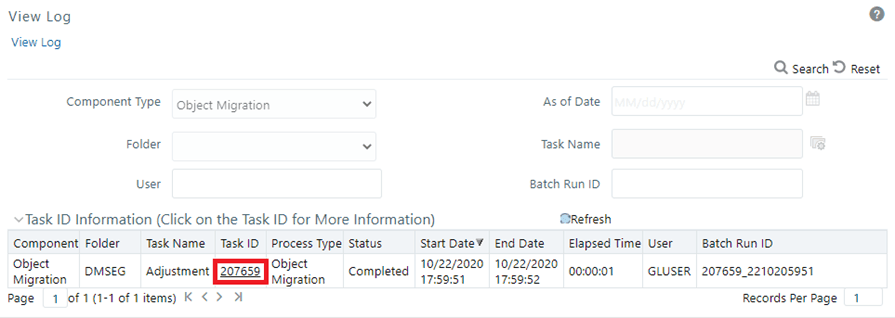
Click the Task ID hyperlink, to get the Log Information for the respective Task ID.
Figure 106: Log Information Window
