
Topics:
· Overview of OFS Analytical Applications Reconciliation Framework Reports and Dashboards
· Accessing the Standard Reports and Dashboards
OFS Analytical Applications Reconciliation Framework integrates the results generated by the OFS Analytical Applications Reconciliation Framework with Oracle Business Intelligence. It provides you with a reporting-cum-information framework that can be used for generating reports and viewing information relevant to computations and other aspects of the OFS Analytical Applications Reconciliation Framework Application. It serves as a single regulatory and management reporting solution. OFS Analytical Applications Reconciliation Framework leverages the capabilities of Oracle Business Intelligence Enterprise Edition, to provide out-of-the-box reporting of your OFS Analytical Applications Reconciliation Framework Application results. Through OBIEE, you have access to a robust reporting engine for managing all of your business intelligence requirements. The key elements are listed as follows:
· Tabular and pivot table reporting
· Drill across capability
· Dashboard publishing
· Export options, such as Excel, PowerPoint, and PDF
You can access the standard dashboards and reports by accessing the OBIEE end user URL and logging in to the application. When you sign on to the application, you are directed to the Home Page, which will show basic summary reports. At the top right-hand corner of the window, click the dashboard drop-down menu containing the listing of all of the seeded dashboards that you can select for navigating to the desired location.
Figure 111: Business Intelligence page- Seeded Dashboards
OFS Analytical Applications Reconciliation Framework Analytics consists of three dashboards:
· Home
· Threshold Breach
· Reconciliation Execution Audit Trail
Figure 112: Business Intelligence page- Reconciliation Framework Analytics

Each seeded dashboard contains a set of prompts at the top of the page, which require selections for the reports to produce results. Make the appropriate selections for each prompt to correctly filter the query for your results. The Home and Threshold Breach dashboard consists of the following page level prompts:
Figure 113: Home and Threshold Breach dashboard level prompts

· Extraction Date: Select the FIC MIS Date and click the Calendar icon.
· Scenario Type: Select the Scenario Type from the drop-down as Reported or Actual. Reported data indicates that the GL reconciliation differences are identified based on forecasted figures.
· Execution ID: All successful Run executions with the status as complete in the Run Execution Summary window are populated here. Select the appropriate Run Execution ID from the drop-down.
After updating the prompts click the Apply button. To refresh the data in the fields click Reset.
The Reconciliation Execution Audit Trail Dashboard consists of the following page level prompts:
Figure 114: Reconciliation Execution Audit Trail dashboard level prompts

· User ID: Data is displayed based on the User ID selected from the drop-down list.
· Information Type: Select the information type from the drop-down list as Null, Error, or Info.
· Execution Date: Select the date on which the Run is executed.
A few reports also have filters at each reporting level which are detailed in the section Report Descriptions. Select the appropriate report filters so that data is displayed accordingly. Each report within a dashboard contains the following features:
· Refresh: Click this button to update the values displayed in the report.
· Print: Click this button to print a particular report.
· Export: Click this button to export data into multiple formats such as PDF, Excel, PowerPoint, and so on.
· Return: To navigate back to the previous window click Return.
· Create Bookmark Link: To share or save a browsed page click Create Bookmark Link. Sort icons also appear on each tabular report to sort the data in ascending or descending order. A few reports also consist of a drill-through capability wherein you can navigate to the most granular level of data.
Topics:
· Dashboard: Reconciliation Execution Audit Trail
This section provides information about the Dashboard Home page used in the Reconciliation Framework application.
Report Name |
Reconciliation Execution Summary |
|---|---|
Report Level Filters |
Not Applicable |
Report Description |
This tabular report displays, in a nutshell, the following parameters of the selected Run Execution ID: · Map Name: This is the name of the reconciliation as defined in the Reconciliation Management window. · Map-Version Number: This is the version number of the defined reconciliation. The version number indicates the number of times the reconciliation is edited at the reconciliation definition stage. · Legal Entity: The Legal Entity as defined for this particular map and the version number is displayed here. · Consolidation Type: The consolidation type as Solo, Consolidation, or Aggregate is displayed here. · Reconciliation Type: The reconciliation type, that is, a Ledger to Ledger Reconciliation, General Ledger to Product Processor (Manual Reconciliation), or General Ledger to Product Processor (Auto Reconciliation) is displayed here. · Reconciliation Level: Displays the level at which the reconciliation is performed, that is, GL Level or Map Level. · Adjustment Allocation: Adjustment Allocation is displayed here as Yes or No as defined in the Reconciliation Management windows. · Balance Type: The Reconciliation period as defined in the Reconciliation Management window is displayed here. · Reconciliation Dimensions: The Mandatory Dimensions and as well as Optional Reconciliation Dimensions (if any) are displayed here. |
Drill-through On |
Not Applicable |
Figure 115: Reconciliation Execution Summary page

Table 12: Reconciliation Difference Report information
Report Name |
Reconciliation Difference Report |
|---|---|
Report Level Filters |
Map Name: This is the name of the reconciliation as defined in the Reconciliation Management window. Map Version: This is the version number of the defined reconciliation. The version number indicates the number of times the reconciliation is edited at the reconciliation definition stage. Reconciliation Difference Value Display: If the Reconciliation Difference is to be displayed in actual format, select Actual, or else select Percentage. |
Report Description |
This tabular report displays, in a nutshell, the identified Reconciliation Differences for a particular Map. The following parameters are displayed · GL Name: The name of the specific GL entity code of the selected Map name is displayed · Currency: Displays the currency in which the actual reconciliation difference is displayed · Source Balance: The account balance at the source GL entity level is displayed here § Target Balance: The account balance at the target GL entity level (for Ledger to Ledger reconciliation) or Product Processor is displayed here. § Positive Reconciliation Difference: Any positive reconciliation difference based on the source entity balance is displayed here. § Negative Reconciliation Difference: Any negative reconciliation difference based on the target entity balance is displayed here. Note: If the percentage is selected in the Reconciliation Difference Value Display field, then the positive reconciliation difference and negative reconciliation difference are compared and the relevant percentage value is populated. For example: If Actual Positive Reconciliation Difference is 5000 and Actual Negative Reconciliation Difference is 0, then the percentage is displayed as 100 for positive reconciliation difference. Absolute Reconciliation Difference: This is calculated as the total difference by ignoring the signs between the negative and positive reconciliation differences. For example: if Positive Reconciliation Difference is 19,500 and Negative Reconciliation Difference is 23,000, then the absolute difference is 42,500. Net Reconciliation Difference: This is the net difference between negative and positive reconciliation differences. For example: if Positive Reconciliation Difference is 19,500 and Negative Reconciliation Difference is 23,000, then the net difference is 3,500. |
Drill-through On |
GL Name |
Drill-through |
Report Name: Reconciliation Difference Detailed Report |
Description |
Navigation Path: Click GL Name in the Reconciliation Difference Report to view the detailed report. This detailed report is displayed for the particular Map Name and Version number selected in the Report Level Filters. This tabular report provides a detailed view of the identified reconciliation differences and the following parameters are reported: · GL Name: The name of the specific GL entity code of the selected Map Name is displayed. · Legal Entity: The Legal Entity as defined for the particular map and version number is displayed here. · GAAP Code: The GAAP code defined in the reconciliation is displayed here. · Currency: Displays the currency in which the actual reconciliation difference is displayed. · Other optional dimensions: Values against respective optional dimensions (if any) are reported here. · Source Balance: The account balance at the source GL entity level is displayed here. · Target Balance: The account balance at the target GL entity level (for Ledger to Ledger reconciliation) or Product Processor is displayed here. · Reconciliation Difference: The net reconciliation difference is displayed here. |
Figure 116: Reconciliation Difference Report

Figure 117: Reconciliation Difference Detailed Report

Table 13: Reconciliation Adjustment Report information
Report Name |
Reconciliation Adjustment Report |
|---|---|
Report Level Filters |
· Map Name: This is the name of the reconciliation as defined in the Reconciliation Management window. · Map Version: This is the version number of the defined reconciliation. The version number indicates the number of times the reconciliation is edited at the reconciliation definition stage. · Reconciliation Difference Value Display: If the Reconciliation Difference is to be displayed in Actual format select Actual, or else select Percentage. |
Report Description |
This tabular report is displayed if Adjustment Allocation is selected as Yes while defining reconciliation. This report displays in a nutshell, the adjustment amount pass The following parameters are displayed: · GL Name: The name of the specific GL entity code of the selected Map Name is displayed. · Currency: Displays the currency in which the Adjustment Entry is processed. · Reconciliation Difference: The net reconciliation difference is displayed here. · Legal Entity: The Legal Entity as defined for this particular map and the version number is displayed here. · Approved Adjustment Amount: The adjustment amount authorized by the approver is displayed here. · Pending Adjustment Amount: The adjustment amount pending to be submitted from the Adjustment Entry window is displayed here. · Submitted Adjustment Amount: The adjustment amount submitted from the Adjustment Entry window, however waiting to be approved by authorizer is displayed here. · Rejected Adjustment Amount: The adjustment amount rejected by the authorizer from the Adjustment Entry Approval window is displayed here |
Drill-through On |
GL Name |
Drill-through |
Report Name: Reconciliation Adjustment Detailed Report Navigation Path: Click GL Name in the Reconciliation Adjustment Report to view the detailed report. This detailed report is displayed for the particular Map Name and Version number selected in the Report Level Filters. This tabular report provides a detailed view of the adjustment entries passed and the following parameters are reported: · GL Name: The name of the specific GL entity code of the selected Map Name is displayed. · Legal Entity: The Legal Entity as defined for this particular map and the version number is displayed here. · Currency: Displays the currency in which the actual reconciliation difference is displayed. · GAAP Code: The GAAP code defined in the reconciliation is displayed here. · Other optional dimensions: Values against respective optional dimensions (if any) are reported here. · Exposure Amount: The Adjustment Entry amount is displayed here. · Authorization Status: If the Adjustment Entry is approved, pending to be submitted, or submitted but pending to be approved, then the relevant status is displayed here. · Product Processor: The PP to which the Adjustment Entry is passed is displayed here. · Product Processor Balance Column: The specific column in the PP to which the Adjustment Entry is passed is displayed here |
Figure 118: Reconciliation Adjustment Report

Figure 119: Reconciliation Adjustment Detailed Report

Table 14: Threshold Breach Summary information
Report Name |
Threshold Breach Summary |
|---|---|
Report Level Filters |
Not Applicable |
Report Description |
This report displays in a nutshell, the threshold parameters of the selected Run Execution ID. The following parameters are reported: Global Threshold: Global Threshold displayed here indicates the point of reconciliation difference greater than which execution process may stop or continue at the time of execution. Global Threshold is compared with cumulative percentage difference across all reconciliation definition getting executed in a Run. · Execution on Threshold Breach: Depending upon your selection in the Run Execution Parameters window, Continue or Stop is displayed here. · Auto Approval: The value as selected in the Run Execution Parameter window that is, Yes or No, is displayed here. · Global Threshold: If the Global Threshold Level is breached or not breached, then the relevant information is displayed here. · In a tabular form the following parameters are reported: · Map Name: This is the name of the reconciliation as defined in the Reconciliation Management window. · Map-Version Number: This is the version number of the defined reconciliation. The version number indicates the number of times the reconciliation is edited at the reconciliation definition stage. · Number of Observations: The number of times the same map and version is executed is displayed here. · Number of Breaches: The number of breaches reported based on the threshold value specified in the Reconciliation Management window is displayed here. |
Drill-through On |
Map Name |
Drill-through Description |
Report Name: Threshold Breach Detailed Report Navigation Path: Click Map Name in the Threshold Breach Summary to view the detailed report. Map Level Filters: Map Name, Map Version This tabular report provides a detailed view of the threshold value breaches and the following parameters are reported: · GL Name: The name of the specific GL entity code of the selected Map Name is displayed. · Legal Entity: The Legal Entity as defined for this particular map and the version number is displayed here. · Currency: Displays the currency in which the actual reconciliation difference is displayed. · GAAP Code: The GAAP code defined in the reconciliation is displayed here. · Other optional dimensions: Values against respective optional dimensions (if any) are reported here · Source Balance: The account balance at the source GL entity is displayed here. · Target Balance: The account balance at the target GL entity (for Ledger to Ledger reconciliation) or Product Processor is displayed here. · Reconciliation Difference: The net reconciliation difference amount is displayed here. · Threshold Breach Type: The threshold breach type is displayed here as a negative or positive breach. This is based on positive and negative reconciliation differences. · Threshold Value: The value as per the breach type is displayed here. · Threshold Currency: The Threshold currency is displayed if the Threshold value is in Absolute format. · Threshold Breached by The value or percentage by which the threshold value is breached based on the reconciliation difference is reported here. |
Figure 120: Threshold Breach Summary

Figure 121: Threshold Breach Detailed Summary
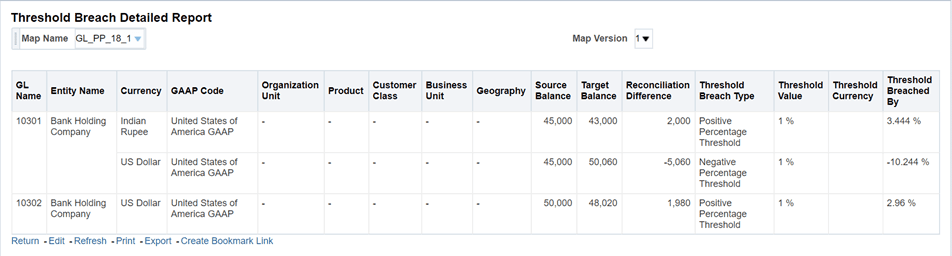
Table 15: Global Threshold Breach Summary information
Report Name |
Global Threshold Breach Summary |
|---|---|
Report Level Filters |
Not Applicable |
Report Description |
This report displays in a nutshell, the global threshold parameters of the selected Ru Execution ID. The following parameters are reported: · Global Threshold Percentage: Global Threshold displayed here indicates the point at which the execution process may stop or continue at the time of execution if the reconciliation difference surpasses the defined Global Threshold level. Global Threshold is compared with the cumulative percentage difference across all reconciliation definitions getting executed in a Run. · Difference Percentage: The absolute percentage difference is displayed here. · Breach Percentage: The percentage by which the Global Threshold is breached based on the reconciliation difference is displayed here. |
Drill-through On |
Not Applicable |
Figure 122: Global Threshold Breach Summary

Report Name |
Threshold Definition |
|---|---|
Report Level Filters |
GL Map Name: The name of the specific GL entity map name must be selected here. Map Version: This is the version number of the selected map name. The version number indicates the number of times the reconciliation is edited at the reconciliation definition stage. |
Report Description |
This tabular report displays the following parameters: · Target Entity: The name of the Product Processor is displayed here in case of a GL to PP reconciliation or name of the Target GL entity is displayed here. · Target Balance Column: The specific column in the Product Processor (for GL PP reconciliation) or target GL entity (for GL-GL reconciliation) is displayed here. · The threshold in: Displays the type of threshold that is absolute or percentage. · Threshold Currency: The currency, in which the threshold value is defined, displayed here. Currency is not displayed when the Percentage is selected. · Positive Correction Threshold: The positive correction threshold value as defined in the Reconciliation Management window is displayed here. · Negative Correction Threshold: The negative correction threshold value as defined in the Reconciliation Management window is displayed here. |
Drill-through On |
Not Applicable |
Figure 123: Threshold Definition

This dashboard provides evidence on the sequence of activities performed by a User ID on a particular execution date. This audit trail is useful for the following reasons:
It provides a record of the history of a defined Reconciliation for the benefit of senior management.
It is useful for maintaining the security of the system. Errors can be easily detected.
Select the value from the page level prompts, the following report is populated in a tabular format:
Figure 124: Reconciliation Execution Audit Trail Dashboard

· Extraction Date: Select the FIC MIS Date and click the Calendar icon.
· Run Name: Select the ‘Run Name’ which is used to run the definitions in the ‘Process Modelling Framework’ page.
· Execution ID: All successful Run executions with the status as complete in the Run Execution Summary window are populated here. Select the appropriate Run Execution ID from the drop-down.
This report is used to view the sum of ‘Source Balance’, ‘Target Balance’ and ‘Reconciliation Difference’ across ‘Legal Entity’, ‘GAAP Code’, ‘Currency’, ‘Organization Unit’, ‘Customer Class’, ‘Business Unit’, ‘Geography’ along with ‘GL Hierarchy’ and ‘Product’.
Figure 125: Drill Down Dashboard
