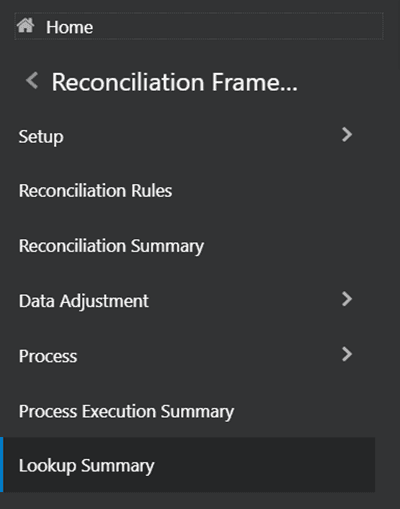
Reconciliation rules can be defined with Adjustment templates that provide the flexibility of doing lookups based on predefined lookup entities. The lookup module can be used to configure lookup entities on which lookup can be done at execution time.
Figure 50: Lookup Entity Navigation Pane
The Lookup Entities page provides a summary view of all the lookup entities that have been configured in the module.
You can Add the new lookup entity in this Lookup Entities Summary page, each entity can further be viewed, edited, copied, or deleted.
Figure 51: Lookup Entity Summary Page
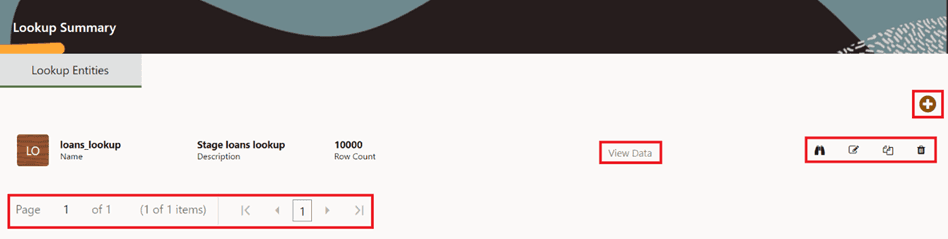
You can perform various activities on the selected lookup entity on the Lookup Entities Summary page.
· Add  : Click the Add icon to add a new lookup entity to the Lookup
Entities Summary page. The Register Lookup Entity
window is displayed.
: Click the Add icon to add a new lookup entity to the Lookup
Entities Summary page. The Register Lookup Entity
window is displayed.
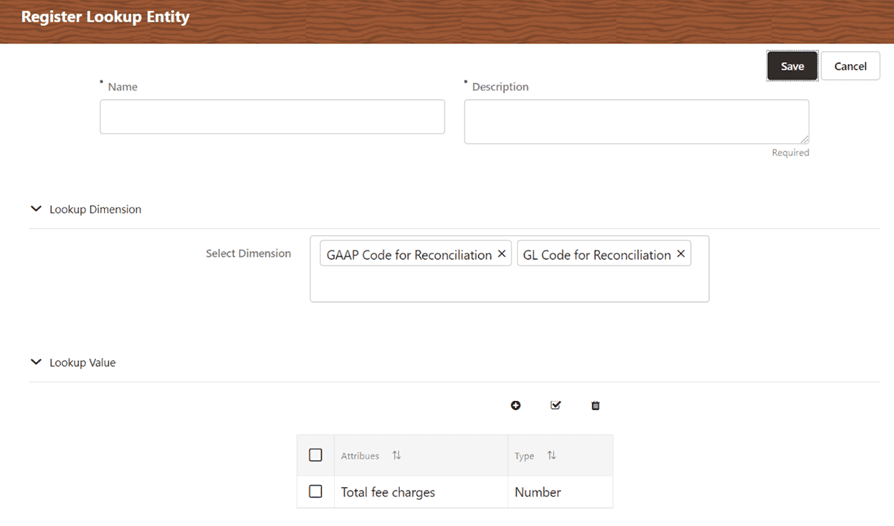
Figure 52: Register Lookup Entity Window
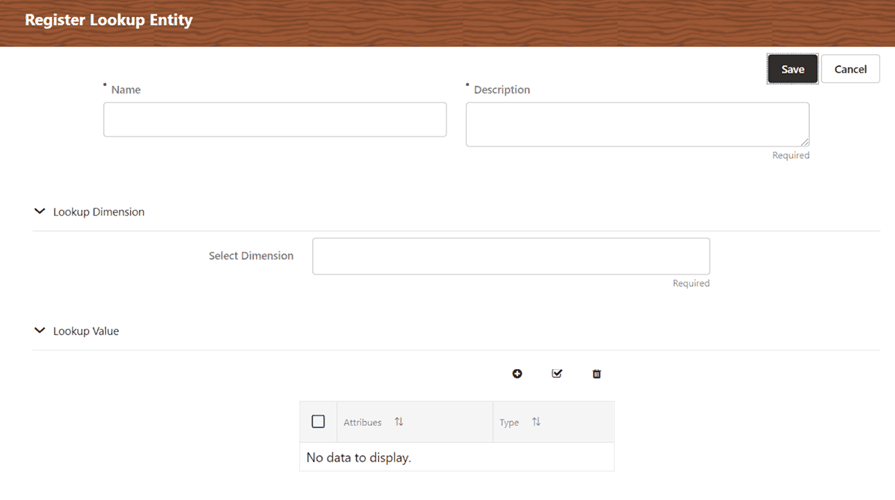
Enter the information in the following fields:
§ Name: Enter the name of the new lookup entity.
§ Description: Enter the entity description of the lookup entity that you want to define.
§ Lookup Dimension: Select the Lookup Dimension from the Select Dimension section. The dimensions that apply to the Reconciliation framework must be used to create the lookup dimension attributes. The lookup dimensions refer to individual dimension attributes that are configured as a part of hierarchies relevant for reconciliations.
§ Lookup Value: You can add multiple Lookup values in the Lookup Value section. Lookup value refers to an attribute that is looked up during the execution of the reconciliation rule (assuming lookup is configured in the adjustment template). The lookup value defined should match with the attribute name in the product processor.
Figure 53: Lookup Value Pane

This pane consists of features like add, select, and delete the lookup values.
— Add  : Click the Add icon
under the Lookup Values section to add a row in the Attributes table.
Double-click the table cell to Enter Attributes and select the type from
the Type drop-down list.
: Click the Add icon
under the Lookup Values section to add a row in the Attributes table.
Double-click the table cell to Enter Attributes and select the type from
the Type drop-down list.
— Select
All  : Click the Select
All icon to select the entier Attribute table.
: Click the Select
All icon to select the entier Attribute table.
— Delete
 : Click the Delete
icon to delete the selected or all the rows from the Attribute tables.
: Click the Delete
icon to delete the selected or all the rows from the Attribute tables.
· View  : Click the View icon to view the detailed definition of the
lookup entity in read-only mode.
: Click the View icon to view the detailed definition of the
lookup entity in read-only mode.
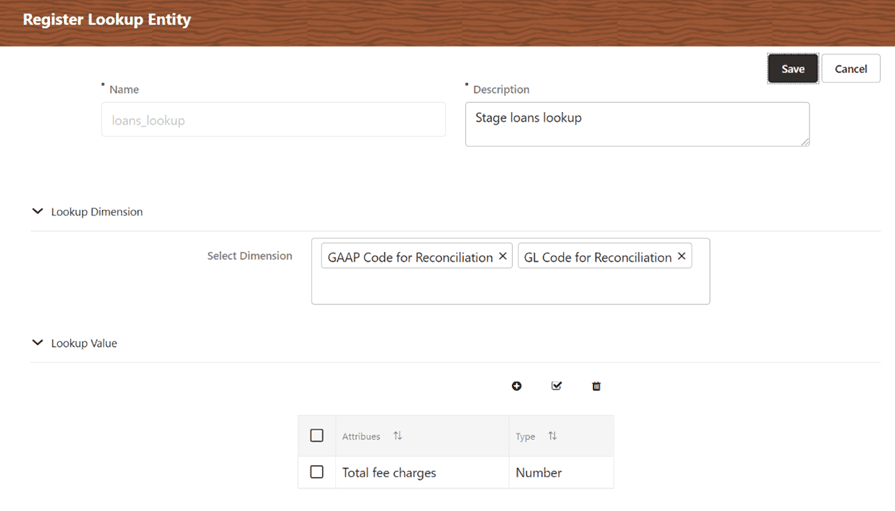
· Edit  : Click the Edit icon to modify the entity settings. The Edit
functionality is enabled for Description, Lookup Dimension,
and Lookup Value.
: Click the Edit icon to modify the entity settings. The Edit
functionality is enabled for Description, Lookup Dimension,
and Lookup Value.
Figure 54: Edit Register Lookup Entity Window
· Copy  : Click the Copy icon
to copy the Lookup Entity Lookup Dimension and Lookup Value details to
add it to the new Lookup Entity. Enter the Name and Description to the
copied Lookup Dimension and Lookup Value to register a new lookup entity
to the Lookup Summary window.
: Click the Copy icon
to copy the Lookup Entity Lookup Dimension and Lookup Value details to
add it to the new Lookup Entity. Enter the Name and Description to the
copied Lookup Dimension and Lookup Value to register a new lookup entity
to the Lookup Summary window.
Figure 55: Copy Register Lookup Entity Window
· Delete
 : Click the Delete icon to delete the selected Lookup Entity.
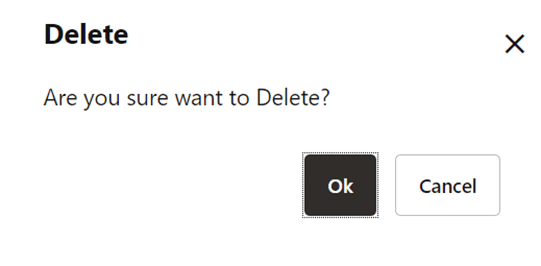
A confirmation dialog box appears before deleting the lookup entity.
: Click the Delete icon to delete the selected Lookup Entity.
A confirmation dialog box appears before deleting the lookup entity.
Figure 56: Delete Confirmation Window
· View Data: Click the View Data to see the last updated lookup data for a given entity.
Figure 57: View Data for Lookup Entity
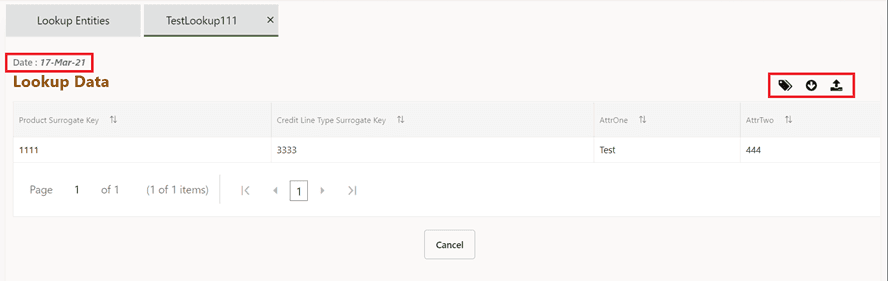
View Data window displays the fields mentioned below with options to download, edit, and import the file to the View data window.
§ Date: The date on which the last upload was done for a given lookup entity.
§ Lookup Data Grid: The grid shows the data that has been uploaded last for the lookup entity. The dimension attributes and lookup values are shown as column headers. The data which is uploaded for the lookup entity will be shown in this grid.
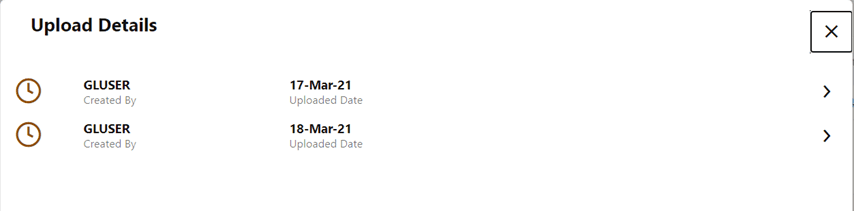
§ Information
icon: Click the  icon
to view all the dates for which data has been uploaded for the given lookup
entity. Users can click on any date and download the data on that date.
icon
to view all the dates for which data has been uploaded for the given lookup
entity. Users can click on any date and download the data on that date.
Figure 58: Upload Details for Lookup Entity
§ Download
icon: Click the  icon
to download the lookup data in the form of an excel workbook for the given
lookup entity. The initial click will download the template that the user
has to follow to upload the lookup data.
icon
to download the lookup data in the form of an excel workbook for the given
lookup entity. The initial click will download the template that the user
has to follow to upload the lookup data.
§ Import
icon: Click the  icon
to upload the downloaded excel workbook back to the View Data window.
You can edit the downloaded Excel sheet and upload it back to the View
Data window.
icon
to upload the downloaded excel workbook back to the View Data window.
You can edit the downloaded Excel sheet and upload it back to the View
Data window.
NOTE:
Format for Date field is MM/DD/YYYY.
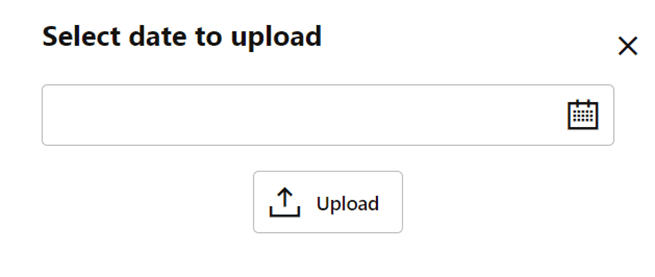
Click the Import
icon, Select date to upload dialog box appears. Select the date and files
from the directory and upload the files. This date is just a tagging for
a given lookup data upload.
Figure 59: Select date to Upload Details for Lookup Entity Window
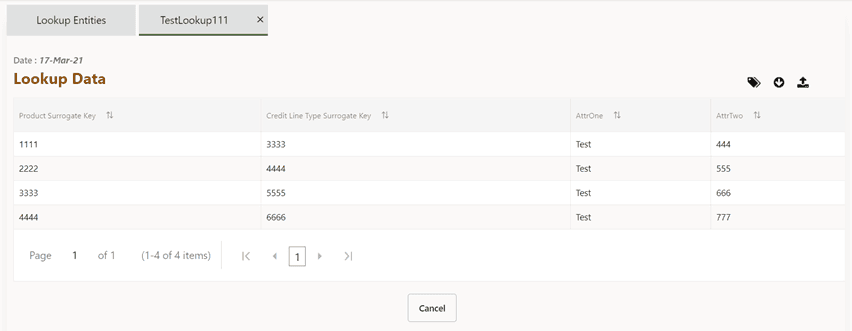
The following is an example table in reference to Figure 55 (View Data for Lookup Entity), the updated excel sheet is displayed on the View Data window after updating the downloaded excel sheet.
Figure 60: Upload Details for Lookup Entity
· Pagination: It helps in navigating from one page to another.