Enabling Query Data Masking
PeopleSoft provides ability for data protection in PS Query and ensures that only authorized users have access to sensitive data used in the query.
Understanding Query Masking
Query Masking provides a configurable option for masking sensitive fields used in the PS Queries. Only authorized users will have the access to view and/or run the PS Query using sensitive data.
When a user runs a query, the system checks:
If the Query Masking feature is enabled in the system.
If the fields used in the query are identified as Personally Identifiable Information (PII) or Sensitive in the Data Privacy Framework.
If the current user is authorized to view the PII and/or Sensitive fields.
Note: Data Privacy Framework maintains all the sensitive record fields in the product and the roles that have access to these fields. You can mark a field as sensitive using Maintain Data Privacy Settings Page and define the roles that have access to specific fields using Authorized Roles Page. For more information, see Understanding Data Privacy.
You can enable the query masking feature using System Settings Page. If the Query Masking feature is not enabled, then there is no change in the PS Query behavior.
This does not impact or change the Query Security requirements for a user to access a PS Query.
In a query, the sensitive field could be part of the query SELECT, WHERE or ORDER BY clause. For an unauthorized user:
If a sensitive field is in the SELECT statement of the PS Query, then the sensitive column output will be masked.
If a sensitive field is in the WHERE or ORDER BY clause, then PS Query will stop query execution and will NOT return any output.
|
Page Name |
Definition Name |
Usage |
|---|---|---|
|
HCSCM_AUTHROLE |
Identify PeopleSoft Roles and define access to sensitive record fields. |
|
|
EODP_QRYMSK_RUN_FL |
Synchronize data privacy mappings defined in Data Privacy Framework with the Query system and the authorized roles. |
|
|
EODP_QMSK_EXCLU_FL |
Identify fields that should be excluded from the Data Sync process. |
|
|
EODP_QRYSWITCH_FL |
Enable/disable Query Masking system setting. |
|
|
EODP_QRMSK_UTILITY |
Generate User Access reports. |
Use the Authorized Roles page (HCSCM_AUTHROLE) to identify PeopleSoft Roles and their access to sensitive record fields.
Navigation
Image: Authorized Roles Page
This example illustrates the Authorized Roles page.
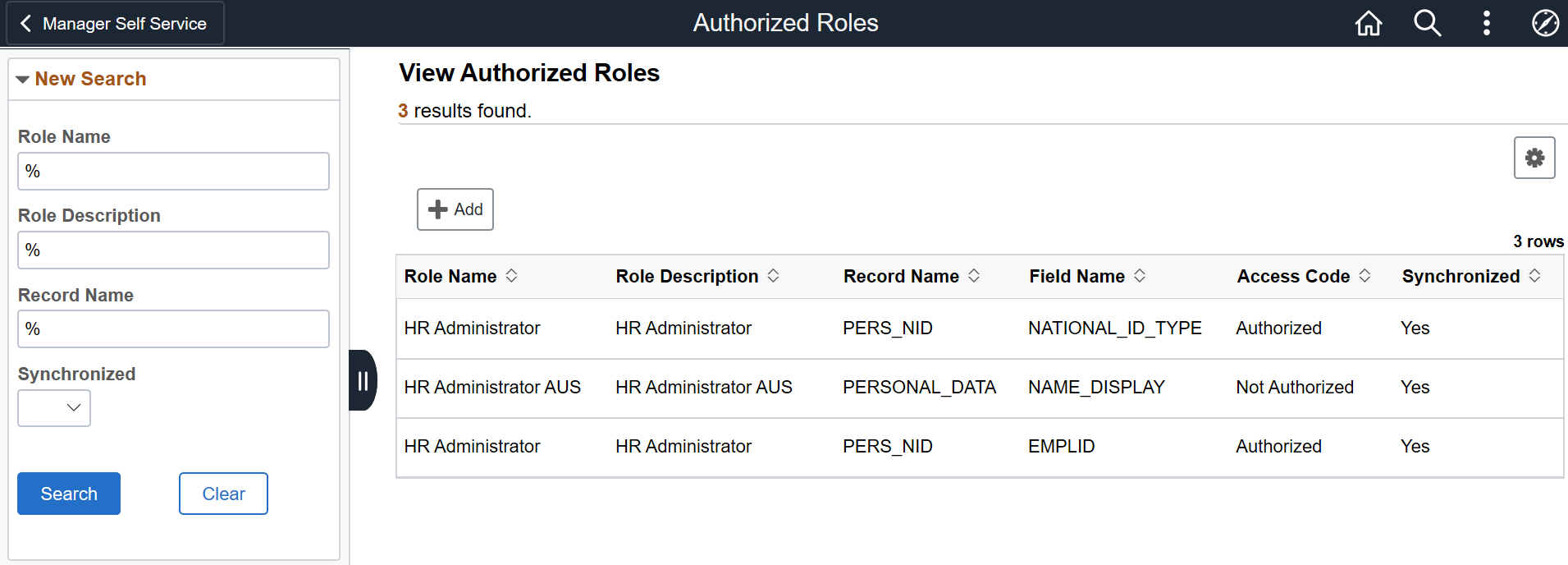
To newly configure a role, click the Add button.
Image: Authorized Roles Page – Add (1)
This example illustrates the Authorized Roles page when you click the Add button.

|
Field or Control |
Definition |
|---|---|
| Role Name |
Select the role to be authorized. |
To enter further details, select the role and click Add.
Image: Authorized Roles Page – Add (2)
This example illustrates the Authorized Roles page to enter more details.

|
Field or Control |
Definition |
|---|---|
| Record Name |
Search and select the record name of the field that displays any sensitive information. |
| Field Name |
Search and enter the field name from the lookup that displays any sensitive information. |
| Access Code |
Select to indicate if the role has access to this field.
|
Note: If a sensitive record field is not defined here for any PeopleSoft role, then none of the users will have access to view the information in PS Query.
For more information, refer Query Masking Examples that illustrate the PS Query behavior.
Use the Synchronize Data page (EODP_QRYMSK_RUN_FL) to synchronize:
Data privacy mappings in Data Privacy Framework with the Query system.
Authorized roles and their access to sensitive record fields.
Navigation
Image: Synchronize Data Page
This example illustrates the Synchronize Data page.

System Setting
|
Field or Control |
Definition |
|---|---|
| Query Masking Status |
Displays the query masking system status. For enabling or disabling the query masking functionality, see System Settings Page. |
Synchronize Data Privacy Settings
|
Field or Control |
Definition |
|---|---|
| Refresh Type |
Select refresh type to determine synchronization method. Options are:
|
| Run Type |
Select run type to set process run schedule. Options are:
|
| Run Option |
Select the run option. This field is available only if you select Run Type as ‘Schedule’. Options are:
|
| Process Recurrence ID |
Select the required Recurrence ID from the lookup. This field is available only if you select the Run Option as ‘Recurrence’. Note: Recurrences are defined in Process Scheduler. |
| Start Date and Start Time |
Specify the start date and time for the sync process. These fields are available only if you select Run Option as ‘One Time’. |
Process Run Schedule
|
Field or Control |
Definition |
|---|---|
| Last Run Date/Time |
Displays last date and time of process run. |
| Last Run by |
Displays the last user that ran the sync process. |
Queued Processes
Lists the process runs that are scheduled with date and time. A request can be cancelled.
Note: PeopleSoft recommends to schedule the sync process during low system usage hours. This is because the process updates internal tables and may sometimes result in data sync problems due to online transactions.
Use the Exclude Fields page (EODP_QMSK_EXCLU_FL) to identify the fields that should be excluded from the Data Sync process.
Note: All the record fields in the Data Privacy Mappings for the identified fields will not be part of the sync process.
Navigation
Image: Exclude Fields Page
This example illustrates the Exclude Fields page.

|
Field or Control |
Definition |
|---|---|
| Field Name |
Select the field name from the lookup. |
Use the System Settings page (EODP_QRYSWITCH_FL) to enable or disable Query Masking feature.
Navigation
Image: System Settings Page
This example illustrates the System Settings page.

|
Field or Control |
Definition |
|---|---|
| Enable Query Masking |
Use this option to enable or disable Query Masking feature in the system. |
Use the Query Masking Utility page (EODP_QRMSK_UTILITY) to identify the sensitive data access details by users and record fields.
Navigation
Image: Query Masking Utility Page
This example illustrates the Query Masking Utility page.
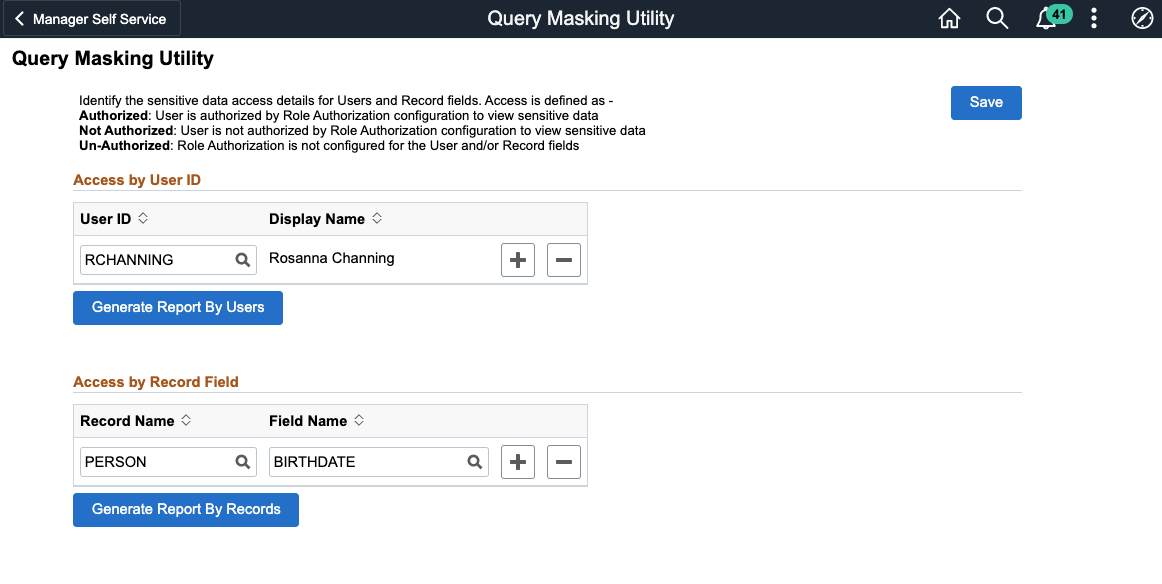
Access by User ID
|
Field or Control |
Definition |
|---|---|
| User ID |
Select the User ID(s) to generate the access details report. |
| Display Name |
Displays the name of the user based on the selected user ID. |
| Generate Report By Users |
Click the button to generate sensitive data access details for the selected user. |
Image: Sample Output Report
Report by User Access

Access by Record Field
|
Field or Control |
Definition |
|---|---|
| Record Name |
Select record name of the field that displays any sensitive information. |
| Field Name |
Select the field name from the lookup that displays any sensitive information. |
| Generate Report By Record Fields |
Click the button to generate list of authorized user and roles that have access to the selected record fields. |
Image: Sample Report Output
Report by User Record Fields

Note: In the generated report, the ‘Authorized’ column indicates the access of a user to a record-field.
Authorized: User is authorized by Role Authorization configuration to view sensitive data.
Not Authorized: User is not authorized by Role Authorization configuration to view sensitive data.
Un-Authorized: Role Authorization is not configured for the User and/or Record fields.
This section discusses a few examples to illustrate Query Masking behavior.
Example: 1
Consider three PeopleSoft users: User A, User B and User C.
The table given below lists the PeopleSoft roles assigned to each user.
|
User A |
User B |
User C |
|---|---|---|
|
HR Administrator |
HR Administrator |
Payroll Administrator |
|
Payroll Administrator |
Benefits Administrator |
Benefits Administrator |
For the HR Administrator role, the Role Authorization configuration is as given below.
Image: Role Authorization Page
Role Authorization configuration for HR Administrator
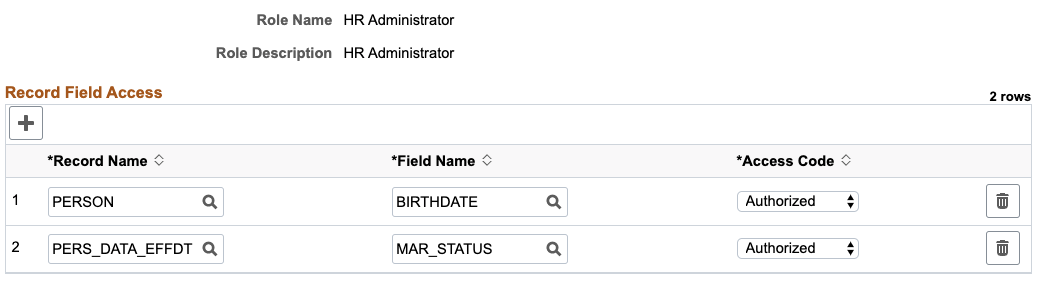
Now, when User A, User B and User C run the following query.
Image: Query
Query
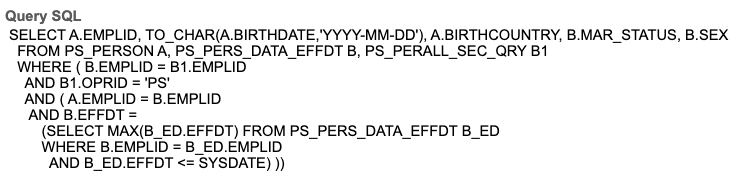
For User A and User B, the PS Query output will be as shown below.
Image: Query Output Page
Query Output for User A and User B
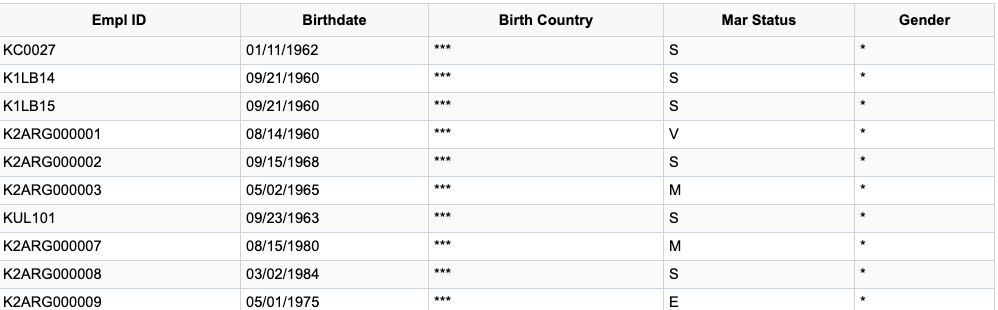
As Birthdate and Marital Status access codes are defined as “Authorized” for HR Administrator role, User A and User B can view those values in the output.
As User C does not have HR Administrator role, the Birthdate and Marital Status column values are masked.
Note: The Birth Country and Gender column values are also masked as these fields are not defined in the role authorization set up for HR administrator role.
Image: Query Output Page
Query Output for User C

Example 2
Consider that the same users run another Query.
Image: Query
Query
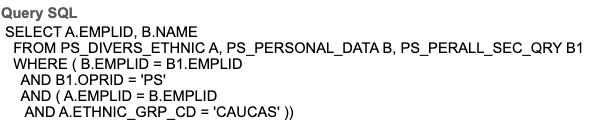
Here, the PS Query uses a Sensitive field ETHNIC_GRP_CD in the WHERE-Clause.
User A, User B and User C do not have any role that authorizes them to access the ETHNIC_GRP_CD information. Unlike the first query, PS Query stops execution and returns an error stating ‘ You have insufficient access to retrieve this data’.
This PS Query behavior protects sensitive information from access through data inference.
Example 3
Consider the same users from the previous example.
In this example, for the HR Administrator role, the Role Authorization configuration is as given below.
Image: Role Authorization Page
Role Authorization configuration for HR Administrator role.
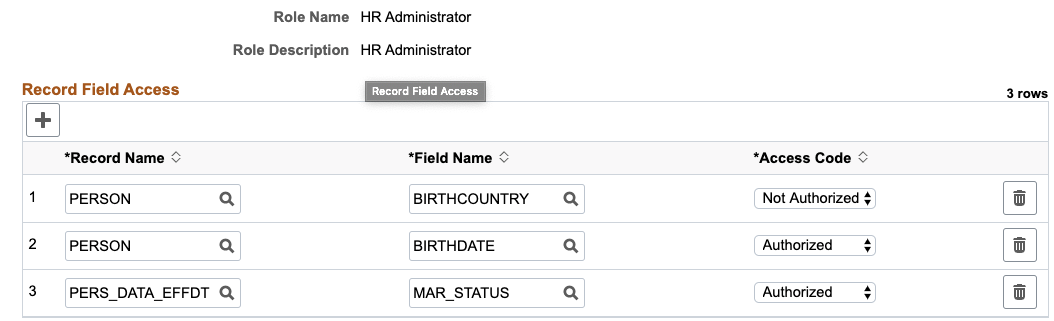
Here, the PERSON.BIRTHCOUNTRY is set to access code “Not Authorized”. This explicit specification of Not Authorized access to a record field would restrict any user with HR Administrator role from accessing the record field information.
Note: All other users in the system without the HR Administrator role will now be able to access the information.
When User A, User B and User C run the query, as per the “Not Authorized” access behavior explained previously, both User A and User B will not have access to PERSON.BIRTHCOUNTRY field.
Image: Query Output Page
Query Output for User A and User B

However, for User C who does not have the HR Administrator role, the Birth Country will be displayed.
Image: Query Output Page
Query Output for User C

Note: A detailed review of all users and the associated roles is necessary before setting a “Not Authorized” access.