Working with Self-Service Delegation
These topics discuss working with self-service delegation.
|
Page Name |
Definition Name |
Usage |
|---|---|---|
|
EODL_LANDING_FL |
View delegation activity associated with a user. |
|
|
EODL_DLGT_INSTR_FL |
View help for delegation. Users can view an instructive description of delegation functionality. |
|
|
EODL_DLGRQST_DT_FL |
Enter delegation dates by specifying the From Date and To Date, which defines the delegation authority period for a transaction. By not specifying a To Date, users specify an open-ended delegation. |
|
|
EODL_PROXY_SEL_FL |
Select a delegate/proxy. |
|
|
EODL_TRANS_SEL_FL |
Select transactions for delegation. Users can select one or more transactions to delegate. |
|
|
EODL_DLGRQST_SM_FL |
Submit a delegation request. Users can review the details of a delegation request and then submit the delegation request. |
Use the Manage Delegation page (EODL_LANDING_FL) to view delegation activity associated with a user.
Navigation
Image: Manage Delegation page
This example illustrates the fields and controls on the Manage Delegation page.

Users can view all delegation activity associated with themselves. They can create a delegation request, revoke delegation requests for which they have delegated transaction initiation or approval to a delegate/proxy, and accept or reject the delegation requests for which they are selected to serve as delegate/proxy. The system displays only the content and associated links that are applicable to the user at the time that user accesses the page. Specifically, the system displays:
The Learn More about Delegation link and associated content for learning more about delegation, which is accessible to all users at all times provided that the system is using the Delegation framework.
The Create Delegation Request link and associated content for creating delegation requests only if the user has navigation security access to transactions that are enabled for delegation through the delegation setup pages.
The Review My Proxies link and associated content for reviewing delegates/proxies only if the user has active or inactive delegation requests.
The Review My Delegated Authorities link and associated content for reviewing delegated authorities only if the user has been delegated authority to serve as a delegate/proxy.
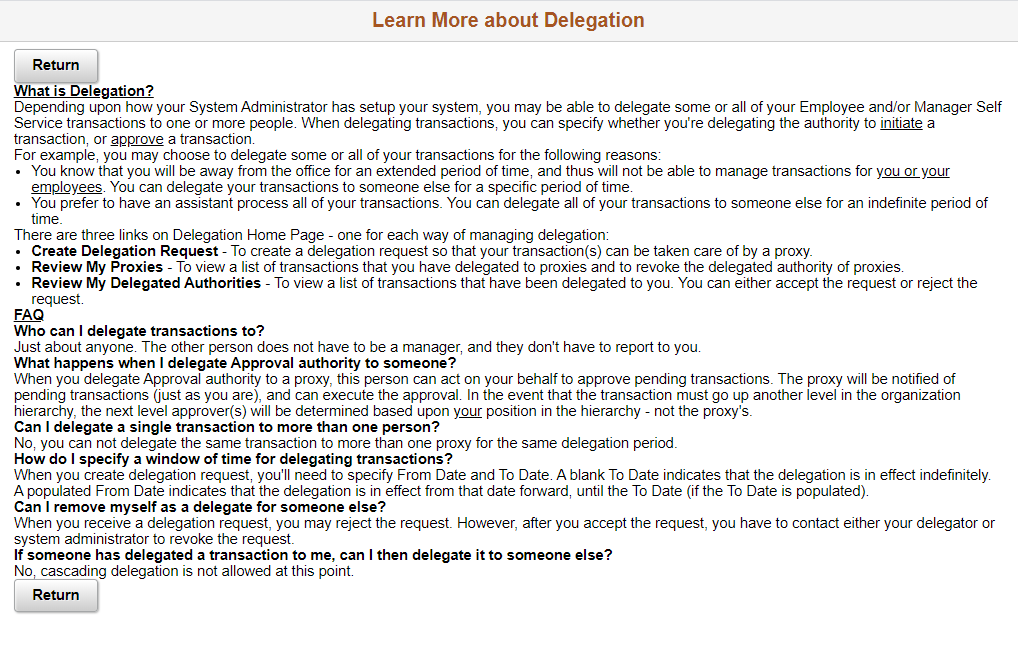
Use the Manage Delegation - Learn More about Delegation page (EODL_DLGT_INSTR_FL) to view help for delegation.
Users can view an instructive description of delegation functionality.
Navigation
Click the Learn More about Delegation link on the Manage Delegation page.
Image: Manage Delegation - Learn More about Delegation page
This example illustrates the fields and controls on the Manage Delegation - Learn More about Delegation page.
You can configure this page by accessing it through PeopleTools Application Designer.
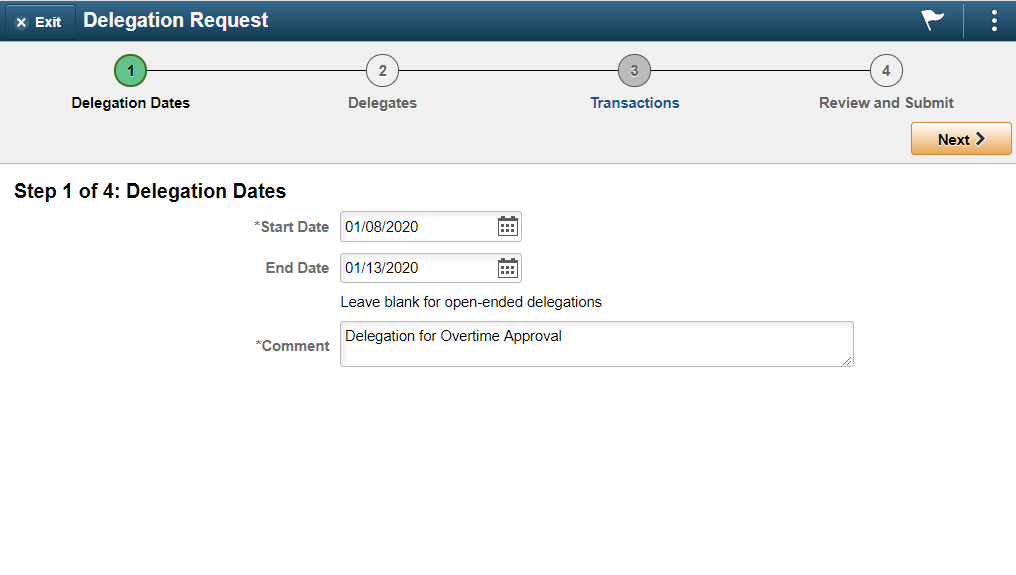
Use the Create Delegation Request - Delegation Dates page (EODL_DLGRQST_DT_FL) to enter delegation dates by specifying the From Date and To Date, which defines the delegation authority period for a transaction.
By not specifying a To Date, users specify an open-ended delegation.
Navigation
Click the Create Delegation Request link on the Manage Delegation page.
Image: Create Delegation Request - Delegation Dates page
This example illustrates the fields and controls on the Create Delegation Request - Delegation Dates page.
Use the Create Delegation Request - Select Delegates page (EODL_PROXY_SEL_FL) to select a proxy/delegate.
Navigation
Click the Next button on the Enter Dates page.
Image: Create Delegation Request - Select Delegates page
This example illustrates the fields and controls on the Create Delegation Request - Select Delegates page.

Users can select a delegate/proxy for transactions they are delegating. If the delegation administrator selects a specific hierarchy for the transaction on the Delegation Installation Settings page, the system displays valid delegates/proxies based on that selection, and users can select from this list. Valid delegates/proxies include persons who report directly or indirectly to the delegator, as well as all persons in the upward hierarchy—starting with the delegator's manager. If the delegation administrator selects the All Persons check box on the installation page, then the system displays the Search by Name link so that users can search for and select from any person in the system.
Use the Create Delegation Request - Transactions page (EODL_TRANS_SEL_FL) to select transactions for delegation.
Users can select one or more transactions to delegate.
Navigation
Click the Next button on the Delegates page.
Image: Create Delegation Request - Transactions page
This example illustrates the fields and controls on the Create Delegation Request - Transactions page.

The system displays only the transactions that are configured for delegation initiation or approval on the Configure Delegation Transactions page and for which the delegator has component access.
Users can delegate one or multiple transactions to another person in a single delegation request. When a delegate/proxy receives a delegation request for multiple transactions, he or she must accept or reject the entire request. The delegator, however, can revoke single transactions from a multiple transaction request. When a delegator revokes one or more transactions from a multiple transaction request, the system pulls the revoked transactions out of the multiple transaction request and creates individual revoked entries in the Approval Framework. The remaining transactions stay in the multiple transaction request. If only one transaction remains after revoking, the system disbands the group and displays an individual rather than multiple delegation request. This functionality preserves the accuracy of the multiple transaction status.
Use the Create Delegation Request - Review and Submit page (EODL_DLGRQST_SM_FL) to review and submit a delegation request.
Users can review the details of a delegation request and then submit the delegation request.
Navigation
Click the Next button on the Select Transactions page.
Image: Create Delegation Request - Review and Submit page
This example illustrates the fields and controls on the Create Delegation Request - Review and Submit page.
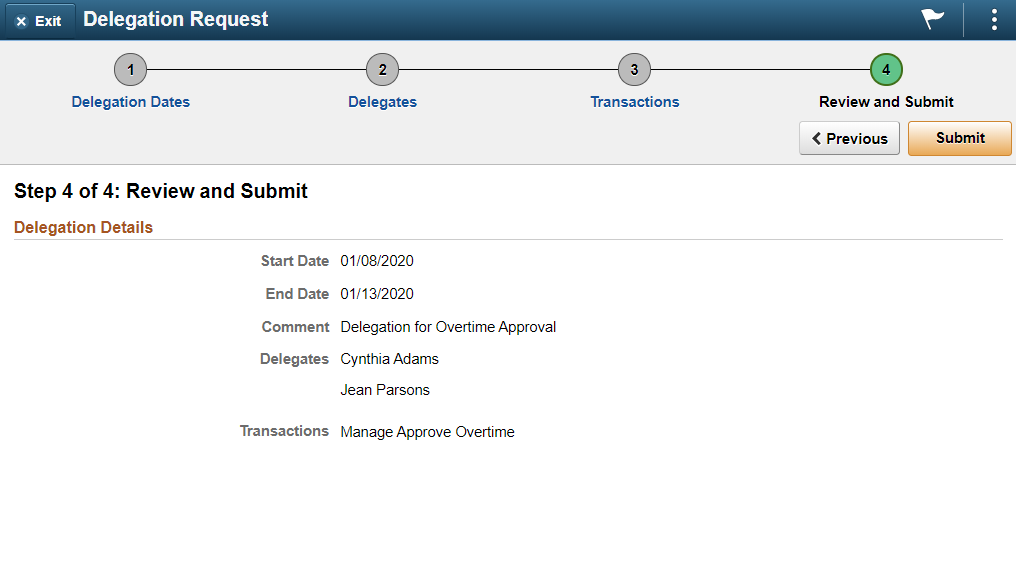
The system displays the delegation period, the selected delegate/proxy, and the selected transactions. When a transaction is set up with product specific delegation requirements on the Configure Delegation Transaction page, a link will appear after the transaction. When no information is entered in the Optional Parameters section of the Configure Delegation Transaction page, the link is not available. Select the product specific link for a transaction to have the system open the product specific component to continue the delegation request.
When users click the Submit button, the system automatically sends an email notification to the delegate/proxy to either accept or reject the delegation request if Approval Framework is set up.
To prevent situations of cascading or circular delegation chains, after the Delegation framework passes delegated authority over a transaction to a delegate/proxy, the delegate/proxy cannot delegate authority over that transaction to another user. The Delegation framework only passes authority over transactions from initial delegator to initial delegate/proxy.
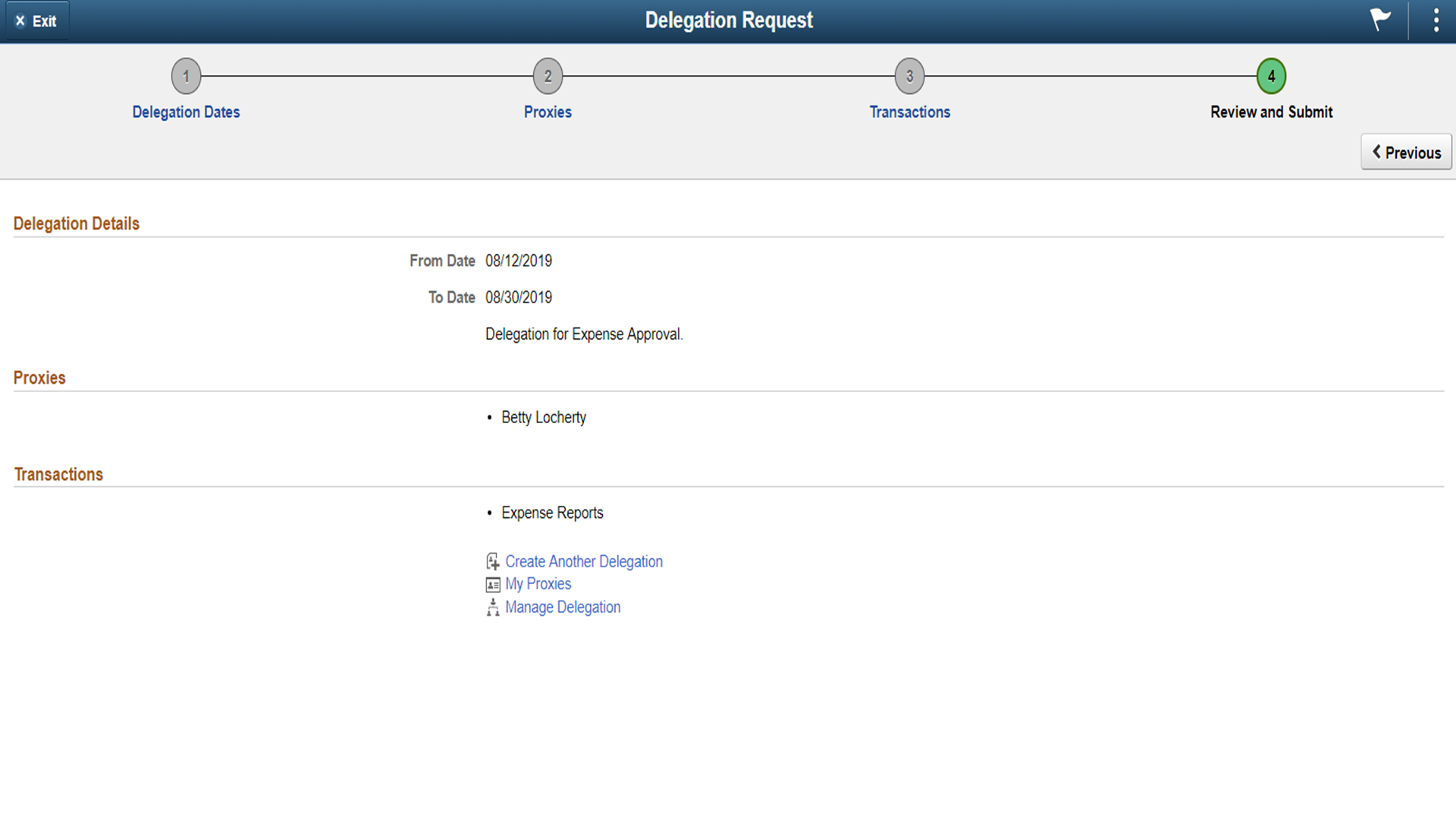
Image: Create Delegation Request — Confirmation page
This example illustrates the fields and controls on the Create Delegation Request — Confirmation page.
Note: When a user adds a delegation request, the system checks for an Alternate User ID field value on the User Profile - Workflow page. The delegation request overrides the alternate user ID for transactions in the delegation request. If an alternate user ID exists and the dates of the delegation and alternate ID overlap, the system issues a warning message.
Use the My Delegates page (EODL_MY_PROXIES_PG) to manage delegates/proxies for delegation.
Users can manage their delegates/proxies by search for and updating the status of their delegation requests.
Navigation
Click the Review My Proxies link on the Manage Delegation page.
Image: Review My Proxies — My Delegates page
This example illustrates the fields and controls on the Review My Proxies — My Delegates page.

Users can change their mind by revoking delegation requests for which they have delegated transaction initiation or approval to a delegate/proxy. To revoke the delegation request, users must select the check box for the delegation request and then click the Revoke button. The system changes the request status to Revoked and automatically sends an email notification to the delegate/proxy about the status of the delegation request.