Using the PeopleSoft Fluid User Interface to Manage Benefits Administration as an Administrator
This topic discusses how administrators use the PeopleSoft Fluid User Interface to configure, manage and view benefits-related transactions.
For general information about fluid pages in PeopleSoft HCM, see Understanding PeopleSoft Fluid User Interface Home Pages.
|
Page Name |
Definition Name |
Usage |
|---|---|---|
|
HC_BENEFITSADMIN_FL (cref for the tile) |
Access a collection of frequently used benefits-related administrative components. |
|
|
Update Dependent/Beneficiary Pages Dependent Information - Name Page |
DEPEND_BENEF1 DEPEND_BENEF_ADDR DEPEND_BENEF2 |
Enter or update information about a dependent or beneficiary. Enter or update information about a dependent or beneficiary's address. Enter or update information about a dependent or beneficiary. |
|
BN_ANNL_BENEF_BASE |
Enter and maintain multiple Annual Benefit Base Rates (ABBRs) for an employee. |
|
|
BN_CERTIF_PARTC |
Updating employee benefit certifications. |
|
|
HEALTH_BENEFITS1 |
Enroll employees and dependents in health plan types, like medical, dental and vision. |
|
|
LIFE_ADD_BENEF1 |
Enroll participants in life and AD/D plans and assign beneficiaries to those plans. |
|
|
Benefits Summary Pages |
BEN_SUMM_GRID_FL BEN_SUMM_DEDN_FL |
View benefit enrollment/deduction summaries for employees. |
|
SAVINGS_PLANS1 |
Enroll employees in savings benefit plans, assign beneficiaries, and identify investment elections. |
|
|
W3EB_APPR_SUMMARY |
Approve or deny life event documents uploaded by employees. |
|
|
BAS_STMT_LIST_FL |
Review fluid benefits statements of employees. |
|
|
RUNCTL_BAS_STMT |
Run the process to generate confirmation statements for both online viewing and printing. |
|
|
FMLA Page |
RUNCTL_FGFMLA |
Generate FMLA reports. |
|
BAS_ACTIVITY |
Add events into the BAS Activity table. You manually insert events to be processed according to event rules that map to the BAS action that you enter when you run the Benefits Administration process. You can also delete unwanted, but automatically triggered, events. |
|
|
BAS_ON_DEM_EM |
Process a single participant through all stages of the Benefits Administration process. |
|
|
PA_MESSAGE_LOG |
View warnings or errors generated during the calculation (or during periodic processing). |
|
|
BAS_PARTIC_STS |
Reprocess individual participant events. |
|
|
W3EB_LE_INSTANCE |
Delete benefits Instances (for example, Life Events and Open Enrollment activity guide instances) that are no longer needed. |
|
|
BEN_PROG_PARTICPTN |
View the benefit programs in which an employee is enrolled. |
|
|
BN_RATE_TABLE |
Enter benefit rate information. |
|
|
BAS_OE_DEFINITION |
Set up the parameters of the open enrollment. |
|
|
BEN_PROG_DEFN1 |
Define benefit program information. |
|
|
BENEFIT_PLAN_TABLE |
Enter benefit plan information. |
|
|
Event Rules Page |
RUNCTL_BAS703B |
Print event rule definitions. |
|
Eligibility Rules Page |
RUNCTL_BAS703A |
Print the eligibility rule definitions. |
|
W3EB_LE_RULES |
Set up rules that control how data and information is processed for life events such as changes in marital status, birth, or adoption. |
|
|
LIMIT_TBL1 |
Identify the rules that apply to the 401, 402, 403, 415, and 457 limits, using the:
|
|
|
BAS_SCHEDULE |
Control your processing schedule. |
|
|
BAS_STMT_OPTIONS |
Set up a report templates for benefits statements. |
|
|
BENEF_ADM_CONTACTS |
Add or update the Benefits Administrator contact details. |
|
|
BNE_CONTACT_GRP |
Assign a contact person to each of the benefits plan enrollment pages that displays the Contact Information group box. |
Administrators use the Benefits Administrator tile (HC_BENEFITSADMIN_FL) to access a collection of frequently used benefits-related administrative components.
Navigation
The Benefits Administrator tile is delivered as part of the Workforce Administrator home page, but the location can change if you change the delivered home pages or if administrators personalize their home pages.
Image: (Tablet) Benefits Administrator tile
This example illustrates the fields and controls on the (Tablet) Benefits Administrator tile.
Image: (Smartphone) Benefits Administrator tile
This example illustrates the fields and controls on the (Smartphone) Benefits Administrator tile.

Click the Benefits Administrator tile to access the Benefits Administrator application start page.
Image: (Tablet) Benefits Administrator application start page
This example illustrates the fields and controls on the (Tablet) Benefits Administrator application start page.

Image: (Smartphone) Benefits Administrator application start page
This example illustrates the fields and controls on the (Smartphone) Benefits Administrator application start page.

This application start page is a navigation collection that enables administrators to access frequently used Benefits Administration components from one location. The left panel of this page lists the components collected under five categories:
Employee/Dependent Information
Enroll in Benefits
Review Employee Benefits
Benefits Management
Benefits Configuration
The right panel displays the component selected in the left panel.
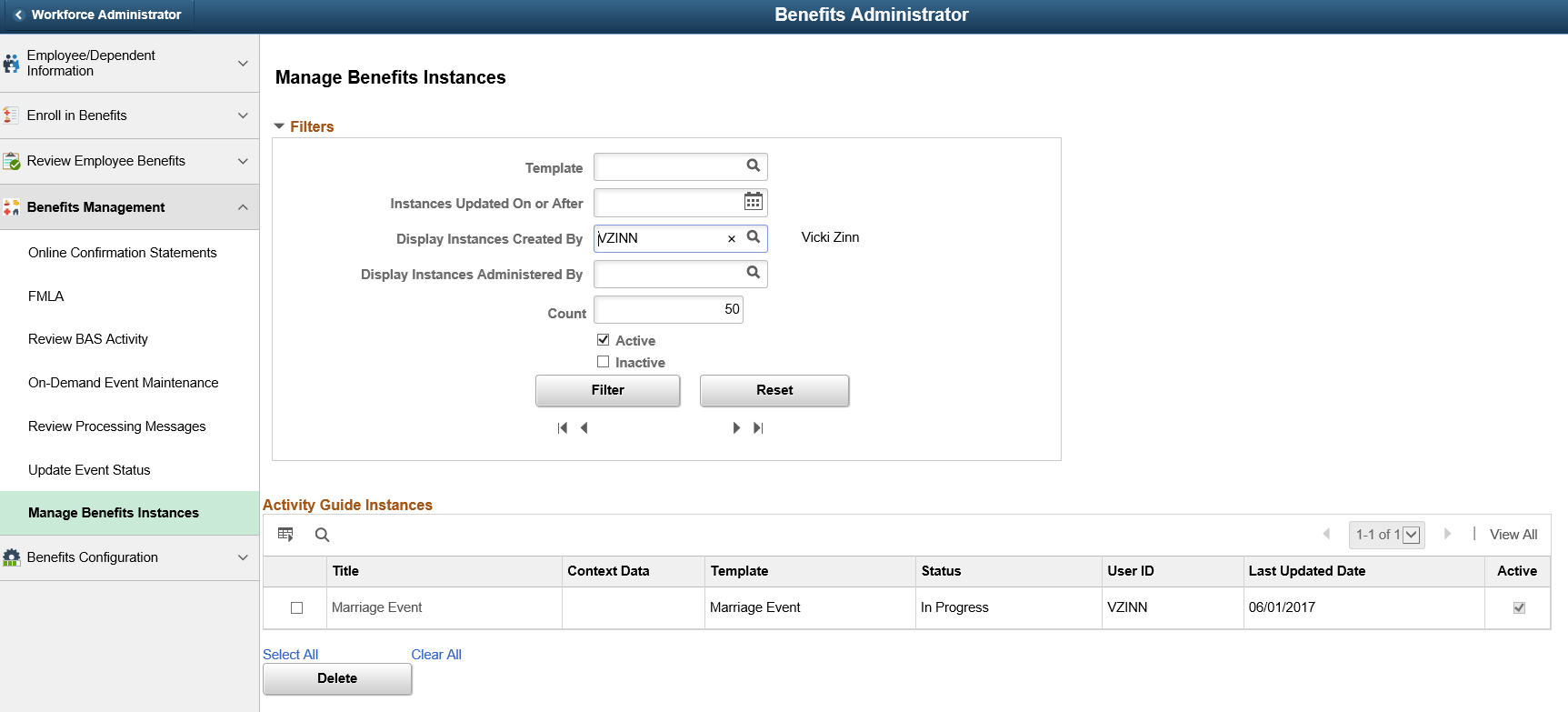
Use the Manage Benefits Instances page (W3EB_LE_INSTANCE) to delete benefits instances (for example, Life Events and Open Enrollment activity guide instances) which are no longer needed.
Navigation
In the Workforce Administrator fluid homepage, select the Benefits Administrator tile. From the Benefits Administrator navigation collection, select Benefits Management and then select Manage Benefits Instances.
Image: Manage Benefits Instances page
This page enables the Benefits Administrator to delete benefits instances, which are no longer needed.
Filters
|
Field or Control |
Definition |
|---|---|
| Template |
Select the template on which the benefits instances to be filtered are based on. |
| Display Instances with Items On or Older Than |
Enter a date to filter benefits instances with event dates on or before the specified date. |
| Display Instances Created By |
Select to filter benefits instances created by a specific employee. |
| Display Instances Administered By |
Select to filter benefits instances administered by a specific Benefits Administrator. |
| Active |
Select to include active benefits instances in the filter. |
| Inactive |
Select to include inactive benefits instances in the filter. |
| Filter |
Click to filter benefits instances based on the specified criteria. |
| Reset |
Reset the fields to create a new filter. |
Activity Guide Instances
|
Field or Control |
Definition |
|---|---|
| Title |
Title of the benefits instance. |
| Template |
Template on which the benefits instance is based. |
| Status |
Status of the benefits instance. |
| User ID |
User ID of the employee who created the benefits instance. |
| Last Updated Date |
Date on which the benefits instance was last updated. |
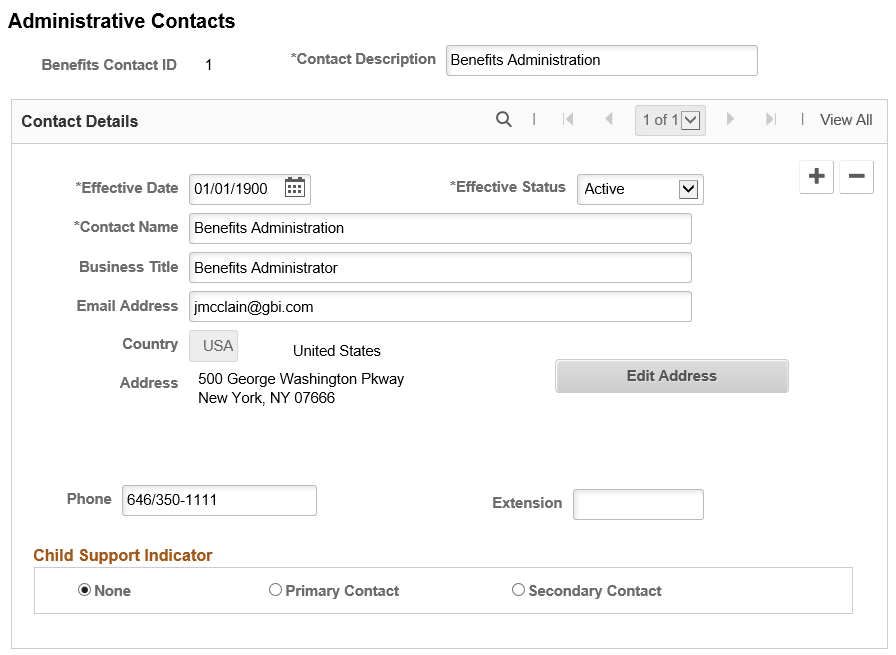
Use the Administrative Contacts page (BENEF_ADM_CONTACTS) to add or update the Benefits Administrator contact details.
Navigation
In the Workforce Administrator fluid homepage, select the Benefits Administrator tile. From the Benefits Configuration navigation collection, select Administrative Contacts.
Image: Administrative Contacts Page
This example illustrates the fields and controls on the Administrative Contacts page.
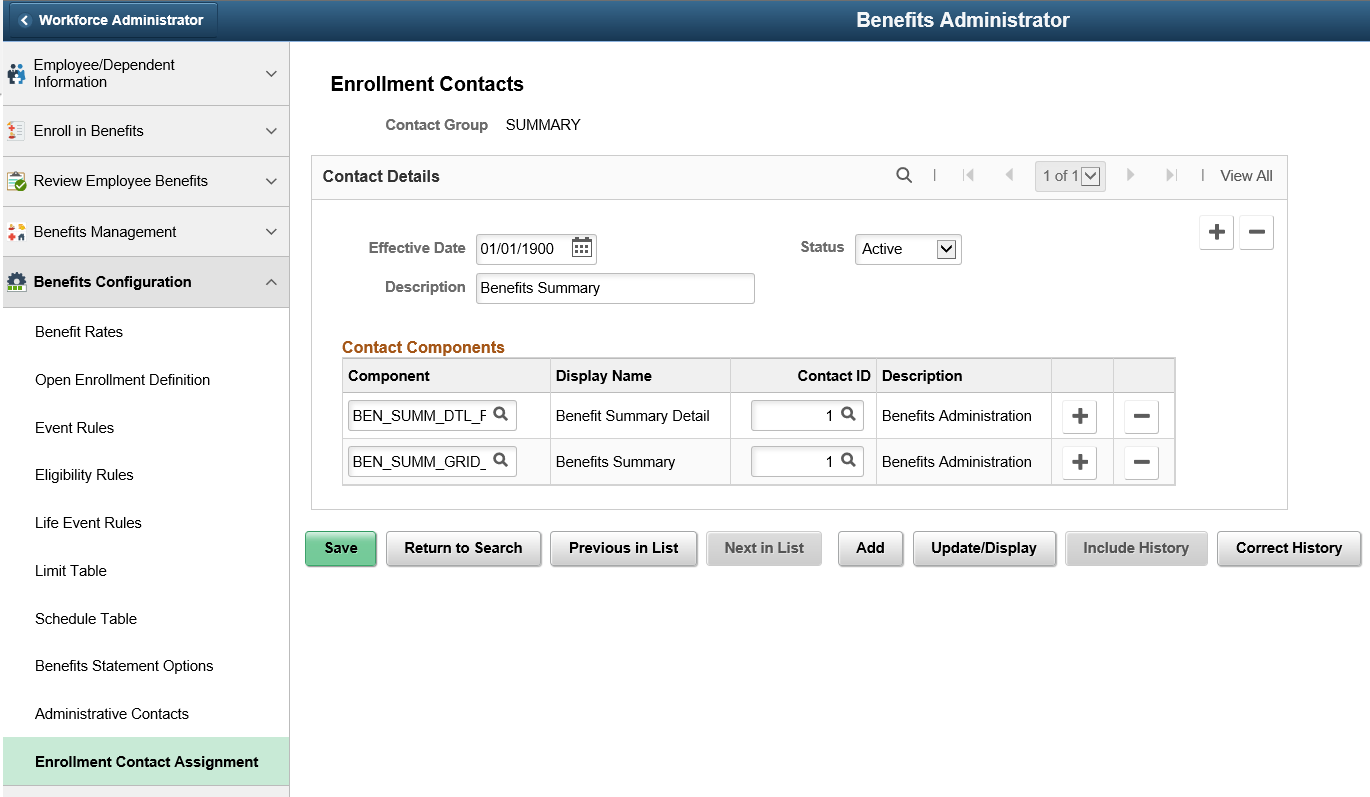
Use the Enrollment Contacts page (BNE_CONTACT_GRP) to add or update the contact information in each of the Benefit Plan pages.
Navigation
In the Workforce Administrator fluid homepage, select the Benefits Administrator tile. From the Benefits Configuration navigation collection, select Enrollment Contact Assignment.
Image: Enrollment Contacts page for the ALLEVENT group
This example illustrates the fields and controls on the Enrollment Contacts page for the ALLEVENT group.
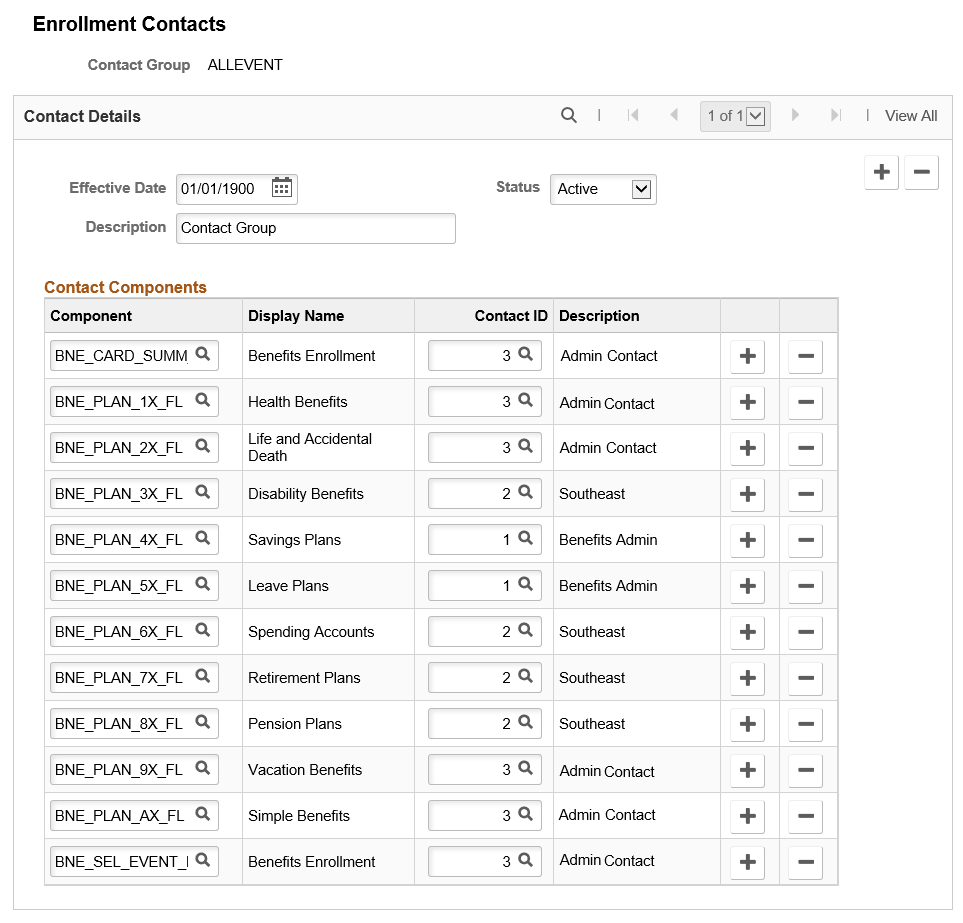
Image: Enrollment Contacts page for the SUMMARY group
This example illustrates the fields and controls on the Enrollment Contacts page for the SUMMARY group.