Viewing Fluid Benefit Statements as an Employee in Self Service
This topic discusses how employees view fluid benefits statements in Self Service.
|
Page Name |
Definition Name |
Usage |
|---|---|---|
|
BAS_STATMNTS_FL |
View a list of benefits enrollment previews, submitted enrollments and confirmation statements. |
Use the Benefits Statement page (BAS_STATMNTS_FL) to view a list of benefits enrollment previews, submitted enrollments and confirmation statements.
Navigation
In the Employee Self Service fluid homepage, select the Benefit Details tile and then from the Benefit Details tile dashboard, select the Benefit Statements tile.
Image: Benefits Statement Page
This example illustrates the fields and controls on the Benefits Statement page.

Image: Smartphone_Benefit Statements Page
This example illustrates the fields and controls on the Benefit Statements Page as seen on a smartphone.

|
Field or Control |
Definition |
|---|---|
| Statement Type drop down |
Select the type of the statement to view. The available statement types are Enrollment Preview, Submitted Enrollment and Confirmation Statement. |
| Filter icon |
Use the filter to select statements according to event date range, job title and event. |
| Event Date |
Displays the date when the enrolled benefits event start. |
| Issue Date |
Displays the date and time of when the statement data was generated and stored. |
| Job Title |
Displays the job title of the employee. |
| Enrollment Event |
Displays the event description. |
| Statement Type |
Displays the statement type. Available statement types are: Confirmation Statement, Submitted Enrollment and Enrollment Preview. |
Note: Confirmation statements are available to employees only if the benefit data has a process status of Finalized - Enrolled (FE) or Election Error (EE).
Click a row to view the benefits statement details. The Benefits Statement page displays the benefits enrollment details as collapsible sections. Expand each section to view details. Use the Print View button on the page to download the statement in a PDF format to save as a file or to print a hard copy.
Image: Benefits Statement – Enrollment Preview
This example illustrates the Benefits Statement – Enrollment Preview page.
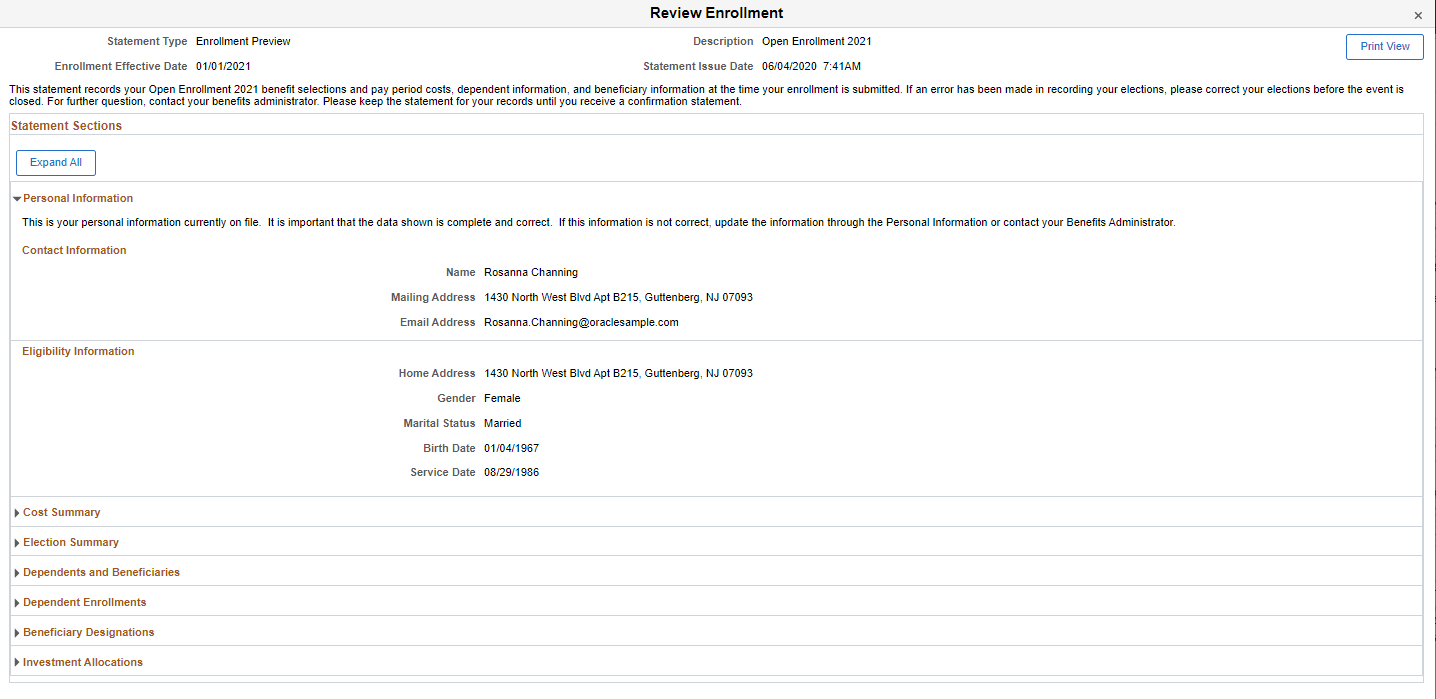
Image: Smartphone_Benefits Statement – Enrollment Preview
This example illustrates the fields and controls on the Benefits Statement – Enrollment Preview as seen on a smartphone.
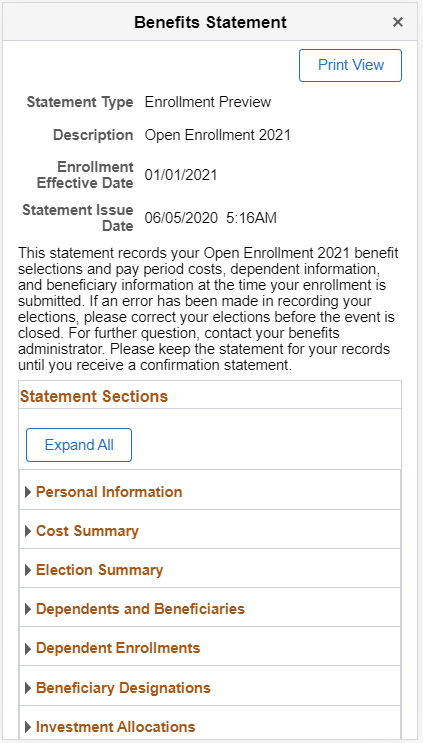
Image: Benefits Statement – Print view of the Elections Preview
This example illustrates the Benefits Statement page – Print view of the Elections Preview.
