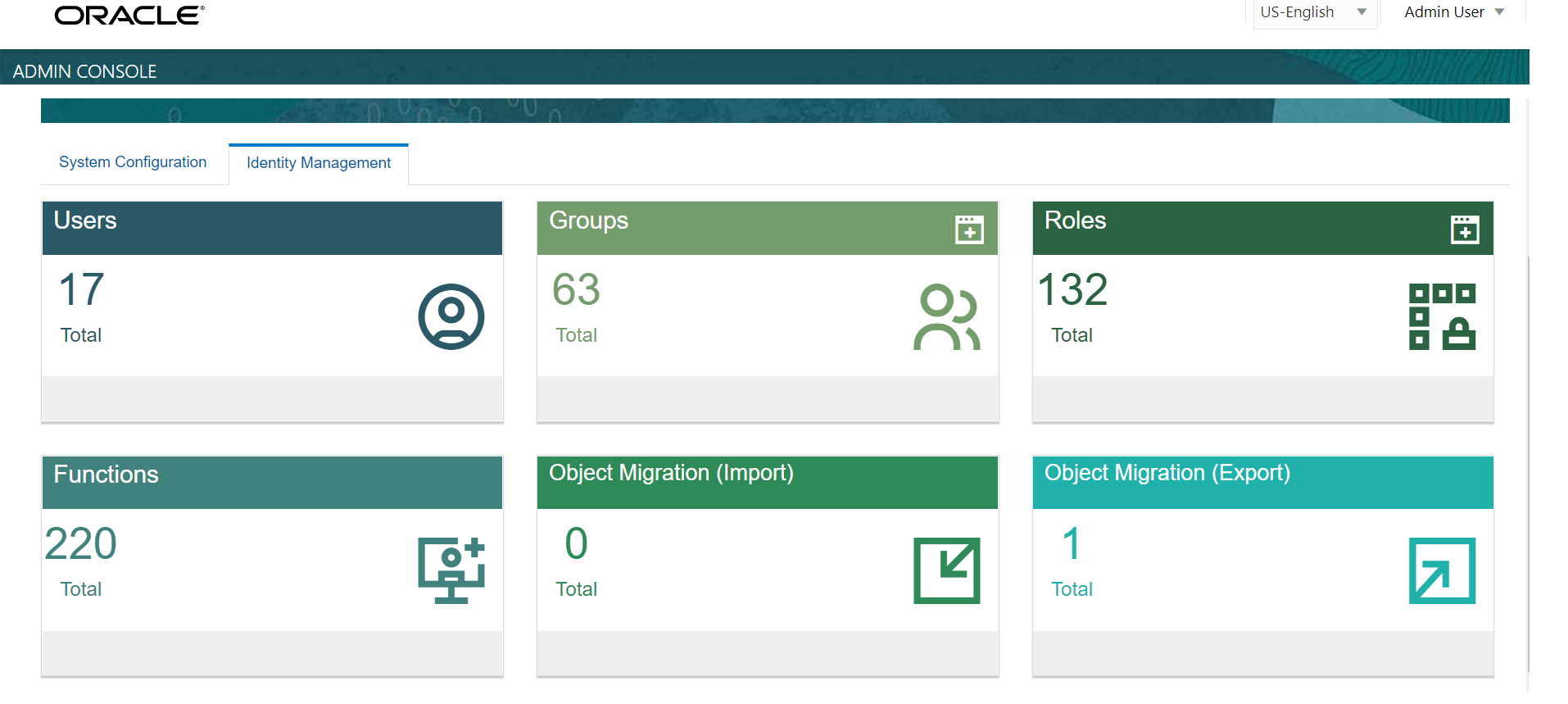
To access Object Migration (Export) Summary Page, complete the following procedure.
1. In the Admin Console, Click Identity Management Tab.
The Identity Management Tab is displayed.
2. Click the Object Migration (Export) tile to view and export the objects for migration into the application.
The Object Export Summary Page containing the records is displayed with the following details.
Figure 1: Object Export Summary Page

§ Name - The unique migration name assigned to the collection when the Migration Definition was created.
§ Object Migration Status - The migration status of the record corresponding to the specified definition name (ID). The three migration status values are
1 Success - Set to Success, when the object export is completed successfully.
2 Saved - Set to Saved, when the migration definition is ready for export and needs to imported.
3 Failed - Set to failed, when the migration definition is not exported successfully
§ Last Modified By - The ID of the Last Modified by user who has modified the record.
To search for a specific migration defintion, type the
first few letters of the user name that you want to search in the Search box and click Search
 . The search results display
the names that consist of your search string in the list of available
users.
. The search results display
the names that consist of your search string in the list of available
users.
At the bottom of the page, you can enter the number of entries that are available on a single page in the Records box. You can increase or decrease the number of entries that are displayed using the up and down arrows. To navigate between pages in the View bar, use the following buttons:
· Use the
First Page  button to view the entries in the first page.
· Use
the Previous Page  button to view the entries in the previous page.
· Use
the Next Page button to view the entries in the next page.
· Use
the Last Page  button to view the entries in the last page.
You can also navigate to the desired page. To do this, enter the page number in the View bar control and press Enter.
To create a new migration definition, click Add ( ) button
and proceed with Creating
Objects for Migration Export
) button
and proceed with Creating
Objects for Migration Export
· Create Migration Export Objects
· View Migration Export Objects
· Edit Migration Export Objects