This chapter provides information on deploying the reports based on the selected jurisdiction. It retains only the relevant report objects in the application, which are used in debugging the issues if any. This approach makes the deployment process intuitive and transparent to the banks. The product consists of the metadata and the objects of APRA, MAS and RBI jurisdictions.
NOTE:
The user must be part of the SYSTEMADMIN group to perform the regulatory reporting deployment.
This section provides the step-by-step instructions to deploy the regulatory reports based on the selected jurisdiction.
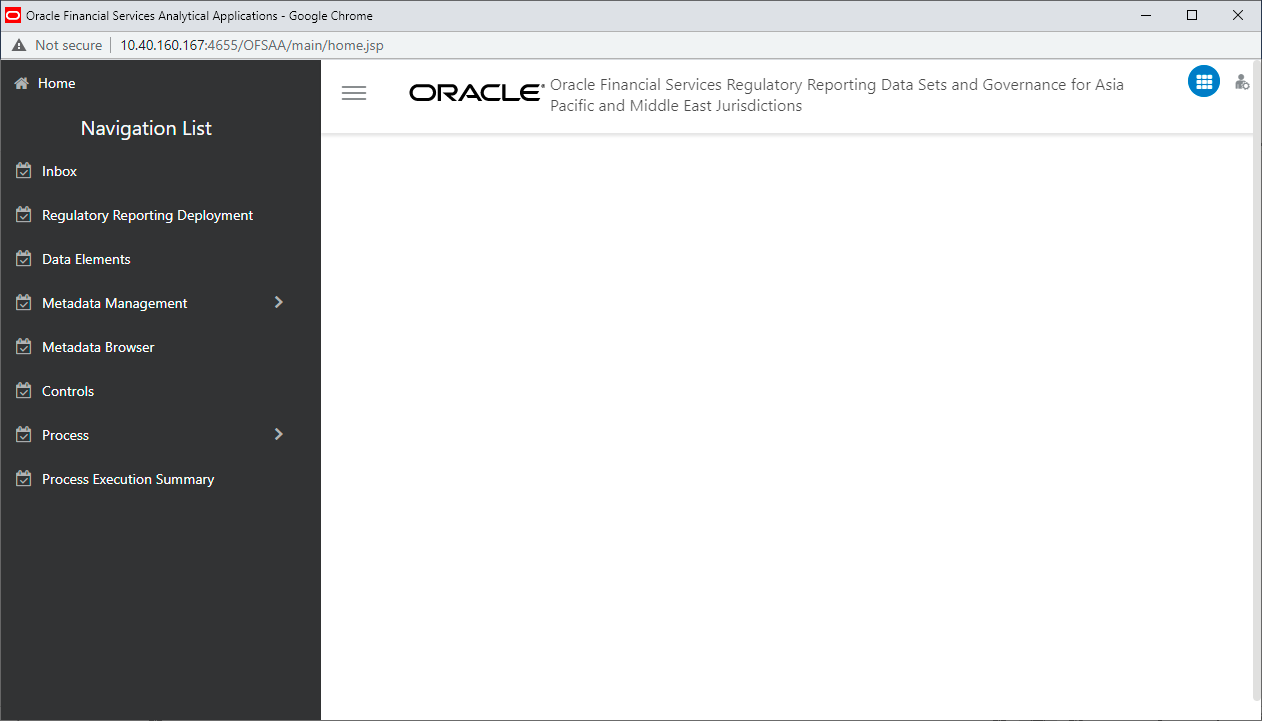
1. Login to OFSAA and select Oracle Financial Services Regulatory Reporting Data Sets and Governance for Asia Pacific and Middle East Jurisdictions.
Figure 155: Regulatory Reporting Deployment Navigation Page
2. Click on Regulatory Reporting Deployment menu.
Figure 156: Summary of Reports Page
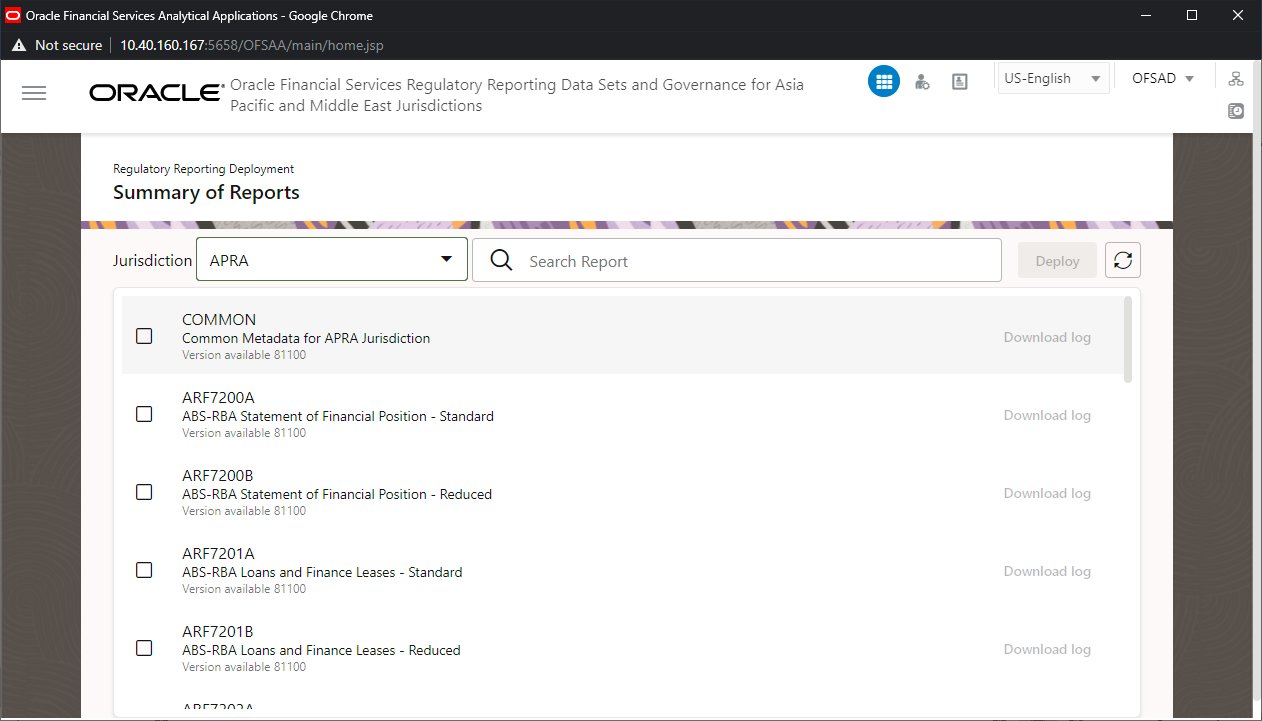
3. Select the required jurisdiction from the drop-down list.
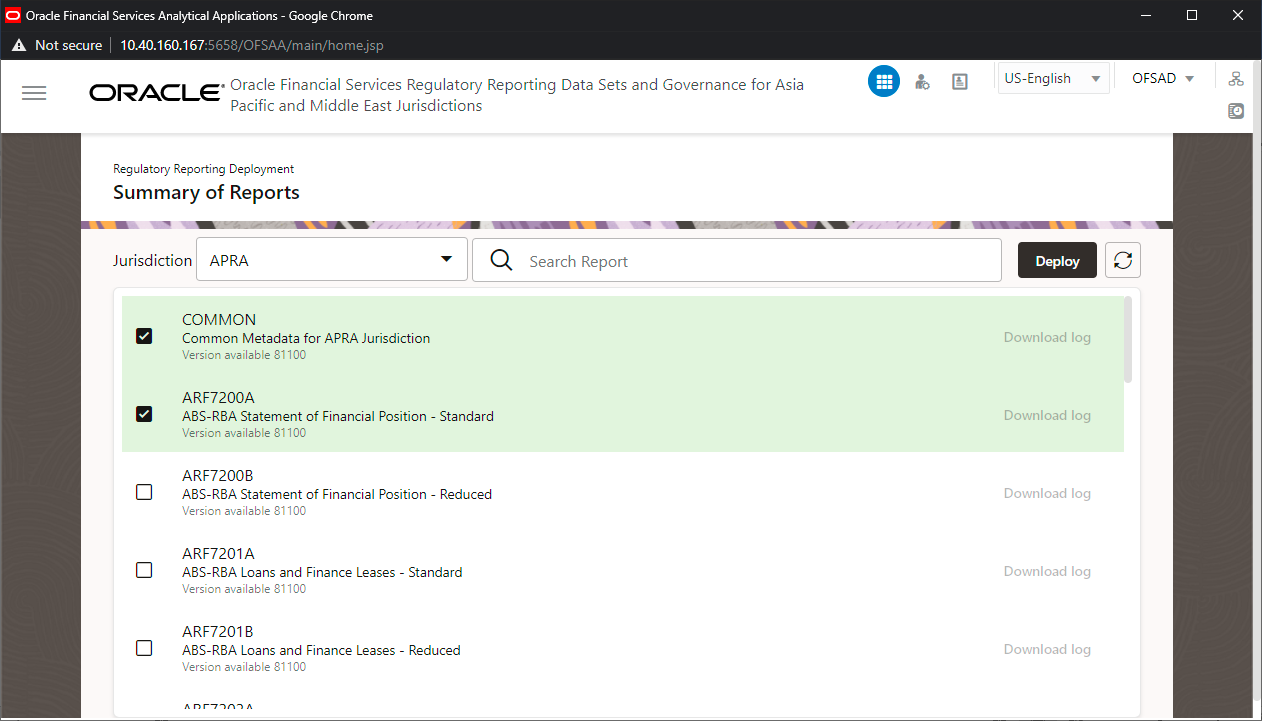
Select the required reports from the available list
or search for a specific report using the Search pane.
The report COMMON is automatically selected when a report in jurisdiction
is deployed for first time. It includes all the common metadata such as
Rules, Process, Run, Batches and so on required for the selected jurisdiction.
Figure 157: Report Selection Page
4. Click Deploy button to trigger the deployment of
reports.
The deployment of report occurs in a sequential manner. The status of the
report is Deployed on successful deployment of the report.
Figure 158: Successful Deployment of Regulatory Report Page
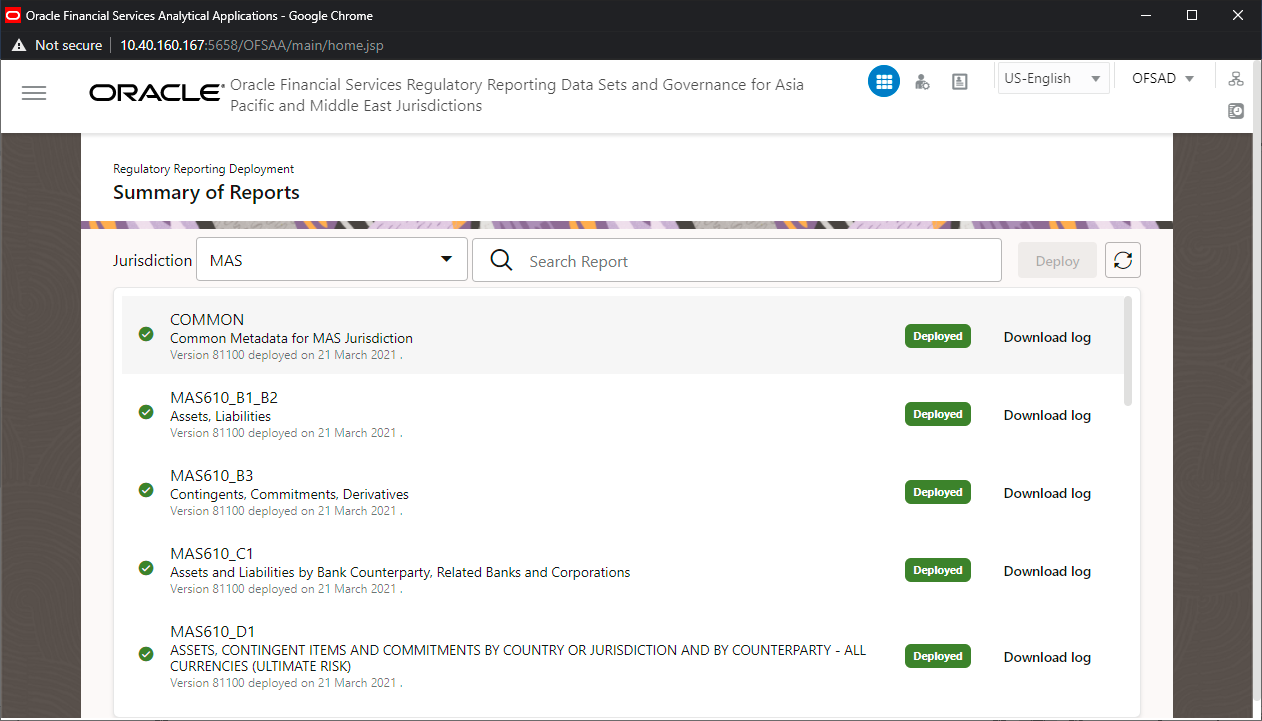
5. Click Download log button to download the log for the deployed report.
6. If the report deployment is unsuccessful, the Report Deployment unsuccessful page is displayed.
Figure 159: Report Deployment Unsuccessful Page
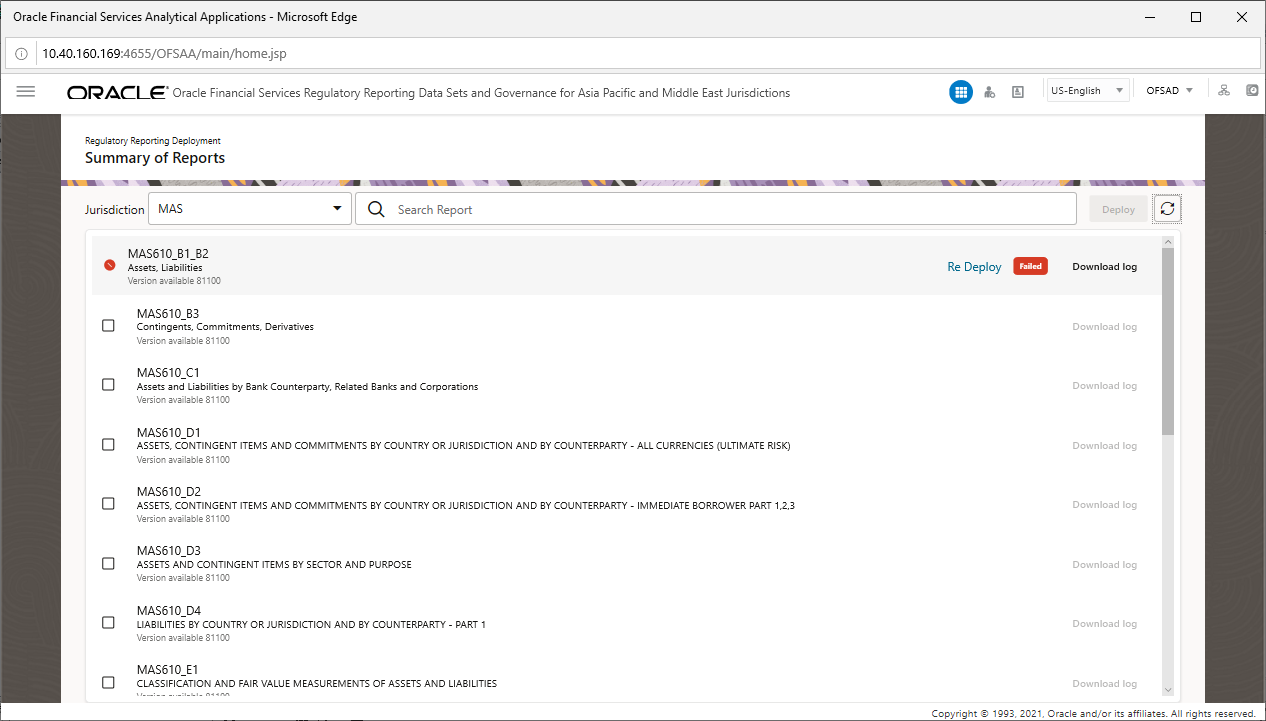
7. Click Re Deploy link to deploy the reports again.