This chapter explains the process of identifying the reporting plan.
· All the users are required to be mapped to the following user groups and user roles:
Table 37: User Group
Group Code |
Group Name |
|---|---|
DGAPPGRP |
DGS App Menu Group |
Table 38: User Role
Role Code |
Role Name |
|---|---|
PLANMONR |
Plan Monitoring Role |
Before configuring the runs and tasks, ensure that the Metadata Browser publish is performed.
As part of configurations perform the following steps to load the Process Monitoring related runs and task:
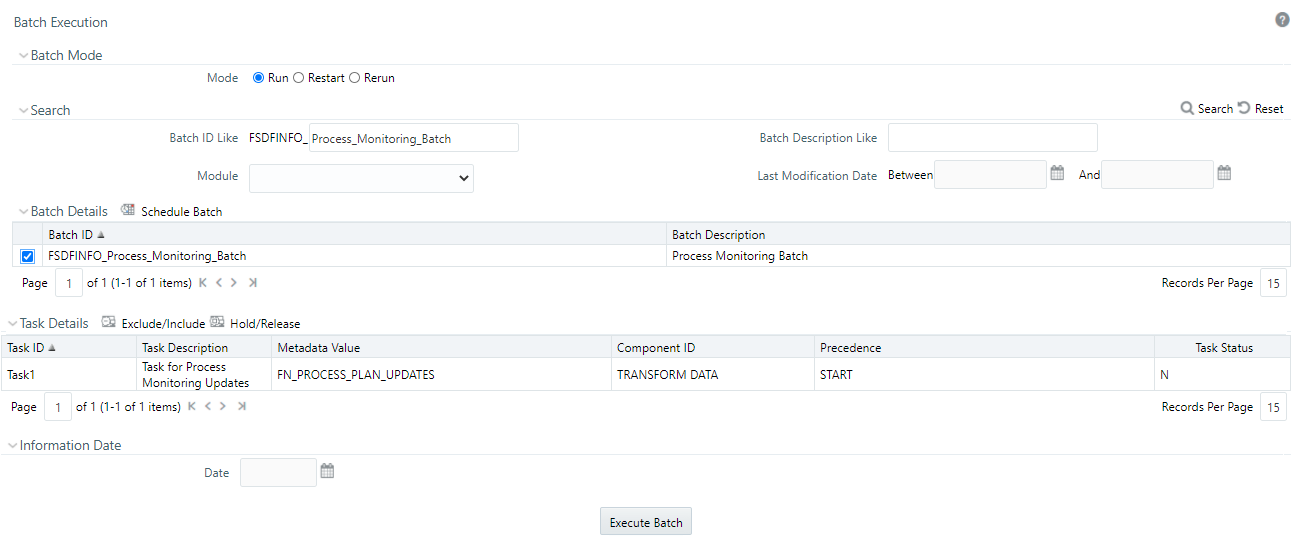
1. In the Financial Services Data Foundation page, navigate to Operations and then select Batch Execution.
2. Search for the batch ID Process_Monitoring_Batch.
Figure 157: Batch Execution Window
3. Select the MIS Date and execute the batch Process_Monitoring_Batch.
Ensure that the batch is executed successfully.
The reporting plan provides an overview of the timelines for the regulatory submission. It is activity-specific. For example, the plan for the regulatory report submission of one activity is different from another. The plan includes the scope and schedule for tracking and completion.
To create a reporting plan, define the name, purpose, owner, and additional attributes for the plan. Additionally, you need to define the OFSAA runs and the scope of the plan. You can choose any OFSAA run as the scope and derive the tasks from all the runs in the scope.
Data Governance for North America Regulatory Reporting facilitates the mapping of OFSAA Runs to the plans. For the created plan, the user can link the Runs by selecting the Runs. All the selected Runs are displayed in the Plan Monitoring screen.
The Runs available as a part of the applications can be made visible in Data Governance for North America Regulatory Reporting.
Metadata Publish is required to publish the Run related information.
Data Governance for North America Regulatory Reporting facilitates the mapping of Tasks to Runs in the Plan section. Click the Run. This allows you to select the tasks. The Task Selection window is displayed. All the tasks under the selected Run are displayed. The selected tasks can be seen in the Task List in the Plan Monitoring window.
To create a Reporting Plan, perform the following steps:
1. From the Financial Services Data Governance for North America Regulatory Reporting window navigate to Plan Monitoring.
Figure 158: Plan Monitoring
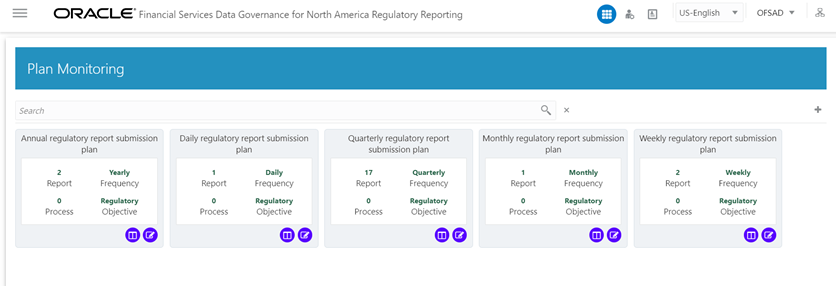
2. In the Plan Monitoring, click the  Create Plan icon.
Figure 159: Plan Monitoring
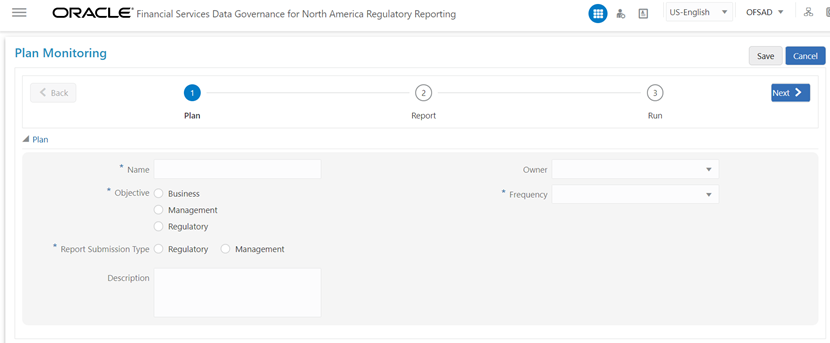
3. In the Plan Monitoring window, enter the required information in the available fields.
Table 39: Plan Monitoring
Fields=’ |
Description Fields marked in blue asterisk(*) are mandatory |
|---|---|
Name* |
Provide a short description of the plan. |
Objective* |
Select an objective from the drop-down box: · Business · Management · Regulatory |
Owner* |
Select the owner of the plan such as who is the user that is responsible for tracking the plan to closure. |
Report Submission Type* |
Select the plan type from the drop-down box: · Regulatory Report Submission · Management Report Submission |
Description |
Provide a description of the plan. |
Frequency* |
Select a frequency for the plan from the drop-down box: · Yearly · Half Yearly · Quarterly · Monthly · Custom · Daily · Fortnightly · Weekly |
4. Click Next.
5. Select a Report from the drop-down. The reports displayed in the drop-down are the reports configured in the application.
Figure 160: Plan Monitoring
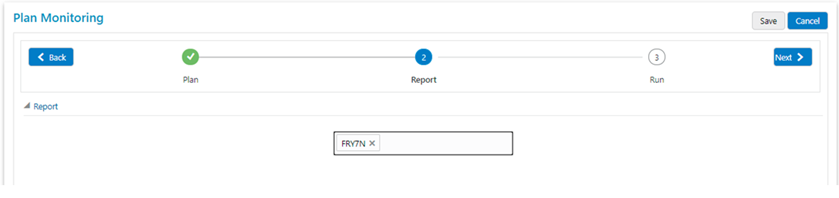
6. Click Next.
7. Select the Run from the drop-down.
The selected Run is displayed under Run Details.
Figure 161: Plan Monitoring
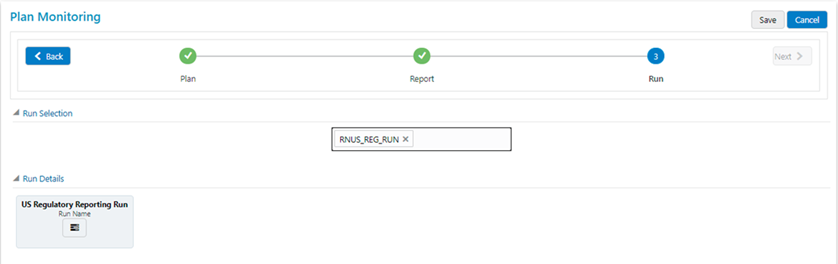
8. Click Run Name to add a task.
The Task Selection window is displayed.
Figure 162: Task Selection
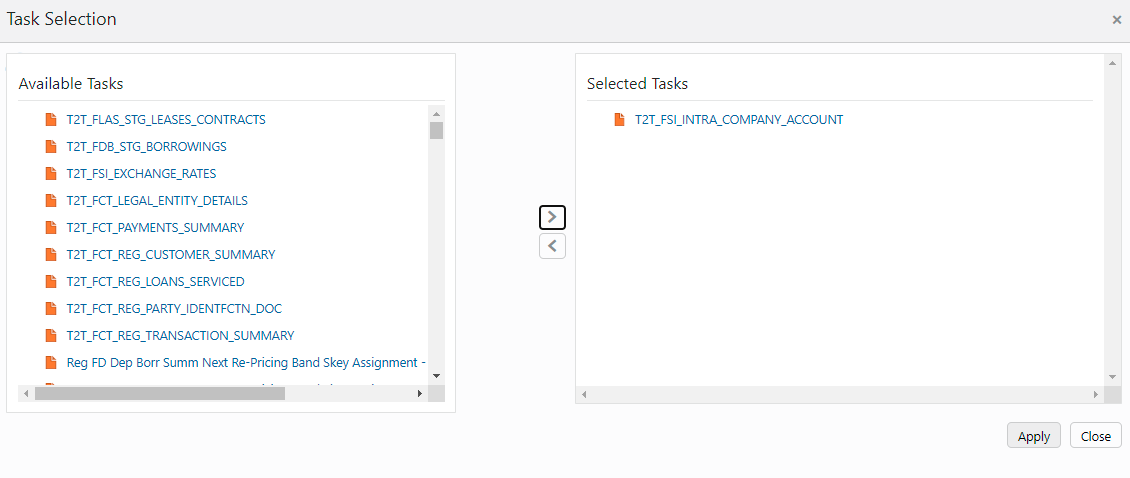
9. Select the required task and click Apply.
The selected task is displayed under the Task List.
10. For each task in the Task List, you can click to select the Dependent Tasks.
11. Click Save.
The newly created plan appears under the Plan Monitoring summary window. A confirmation message is displayed: Monitoring a Reporting Plan. After submission, the reporting plan is monitored for the completion of individual tasks.
To view or edit a Reporting Plan, perform the following steps:
1. From the Financial Services Data Governance for North America Regulatory Reporting window navigate to Plan Monitoring.
Figure 163: Plan Monitoring - View
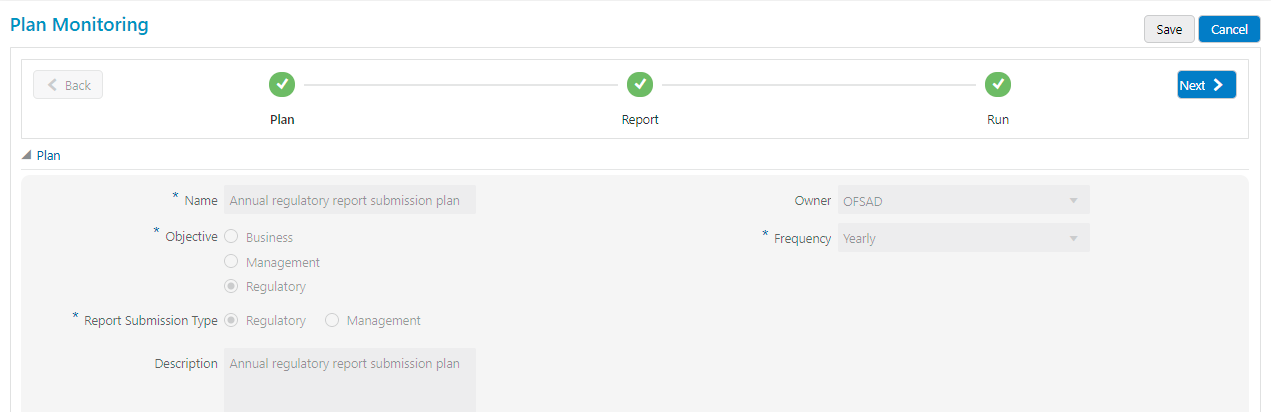
2. To view an already created Plan, in the Plan Monitoring summary window, click the  icon.
icon.
The fields are not editable.
Figure 164: Plan Monitoring - View
3. To edit an existing plan, in the Plan Monitoring summary window, click the  icon.
icon.
Figure 165: Plan Monitoring - View
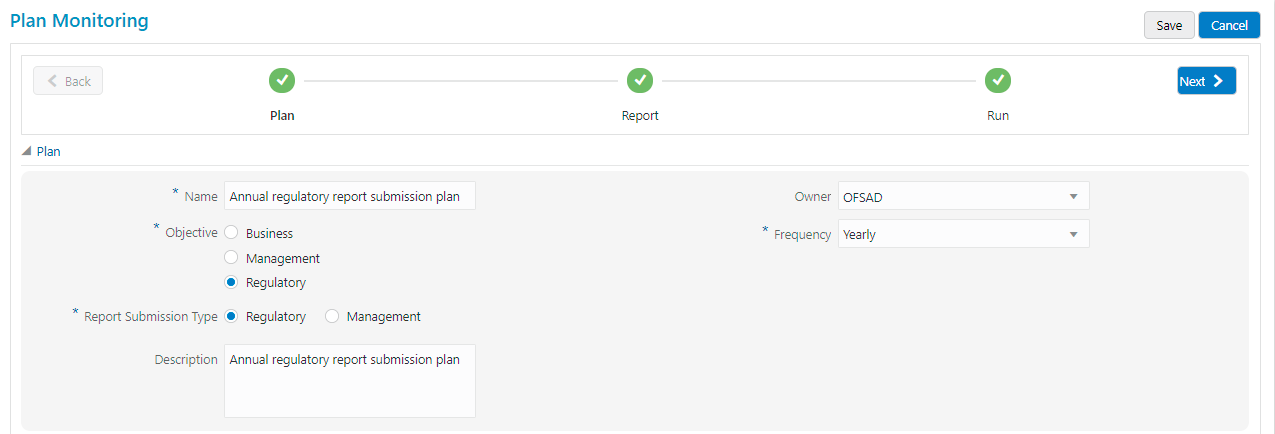
4. Edit the required fields and then click Save.