AC WebSphere Security
The AdminConsole security in version 1.0 will be a FORM authentication and authorization using container based security model. This document outlines the security model configuration for WebSphere 9.0.0.x.
WebSphere Server provides a standard security model for securing web-application deployed in WebSphere.
To enable application security with HTTP Basic Authentication on WebSphere, you have to perform the following steps:
- Enable Application Security in WebSphere Admin Console.
- Define role and protected resources in your web application’s web.xml.
- Define user and role mapping in application.xml and ibm-application-bnd.xml.
- Add application user to user repository.
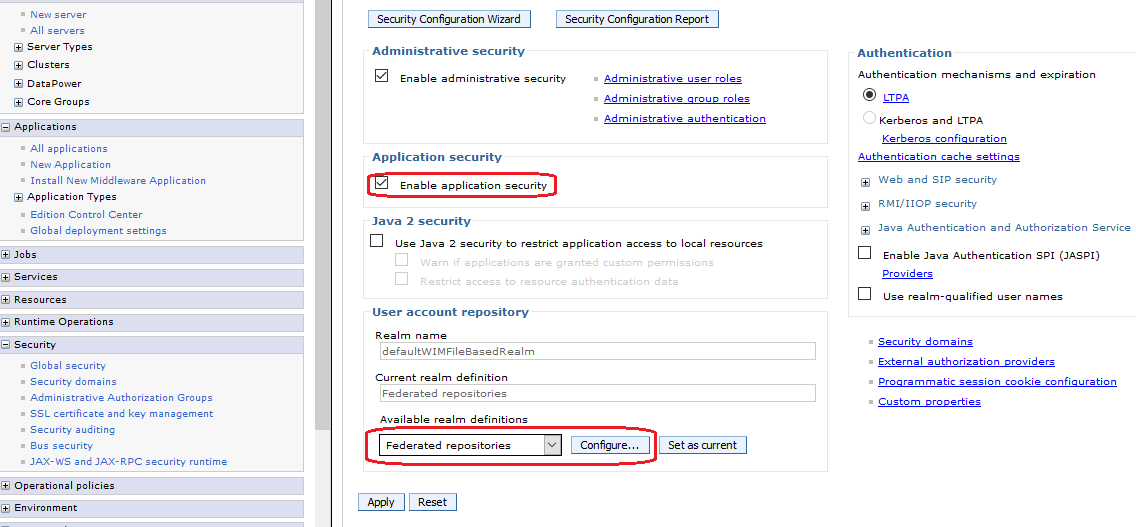
To use a file based user realm you have to configure “Federated repositories” under “User account repository”. If you create a new server profile from scratch, this should be the default setting. If you have to use an existing server profile ensure that “Federated repositories” are configured in the following way:
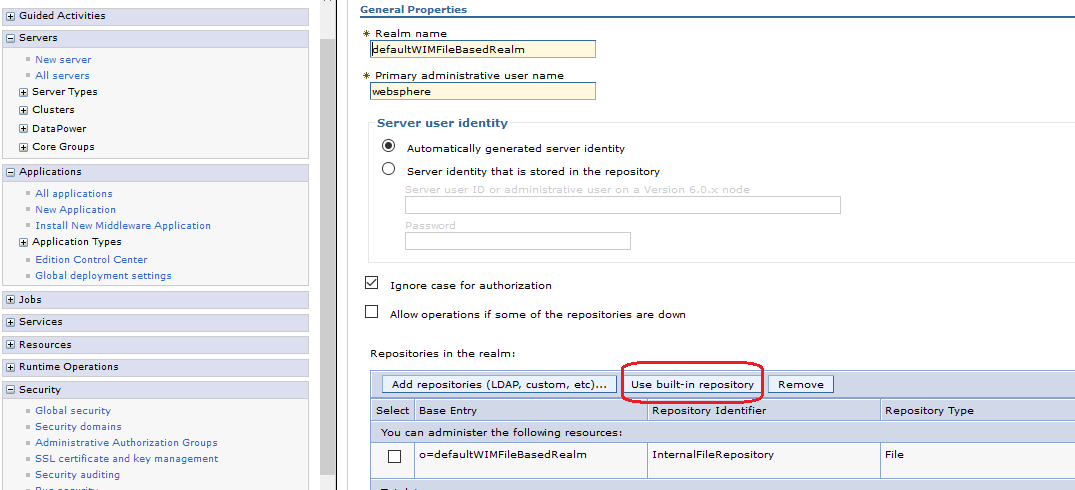
Define role and protected resources in your web application’s web.xml
You have to define protected web resources and roles which are allowed to access these resources. A web resource is a relative URL inside your application combined with the HTTP access method (GET, PUT, HEAD, TRACE, POST, DELETE).
<!-- Defined Security Roles -->
<login-config>
<auth-method>FORM</auth-method>
<realm-name>default</realm-name>
<form-login-config>
<form-login-page>/login.html</form-login-page>
<form-error-page>/login-failed.html</form-error-page>
</form-login-config>
</login-config>
<security-role>
<role-name>AC_ADMIN</role-name>
</security-role>
<security-role>
<role-name>AC_CYCLE</role-name>
</security-role>
<security-constraint>
<web-resource-collection>
<web-resource-name>Secured</web-resource-name>
<url-pattern>/index.html</url-pattern>
<url-pattern>/js/modules/viewmodels/*</url-pattern>
<url-pattern>/service/*</url-pattern>
</web-resource-collection>
<auth-constraint>
<role-name>*</role-name>
</auth-constraint>
<user-data-constraint>
<transport-guarantee>NONE</transport-guarantee>
</user-data-constraint>
</security-constraint>
Define user and role mapping
We already define a role AC_ADMIN in your web application, as this is only a logical role inside your application which we have to map to a real world role. There are two ways to achieve this:
- Define mapping in your application with application.xml and ibm-application-bnd.xml.
- Define mapping in WebSphere with Admin Console.
Here we are using the Mapping in WebSphere with admin console.
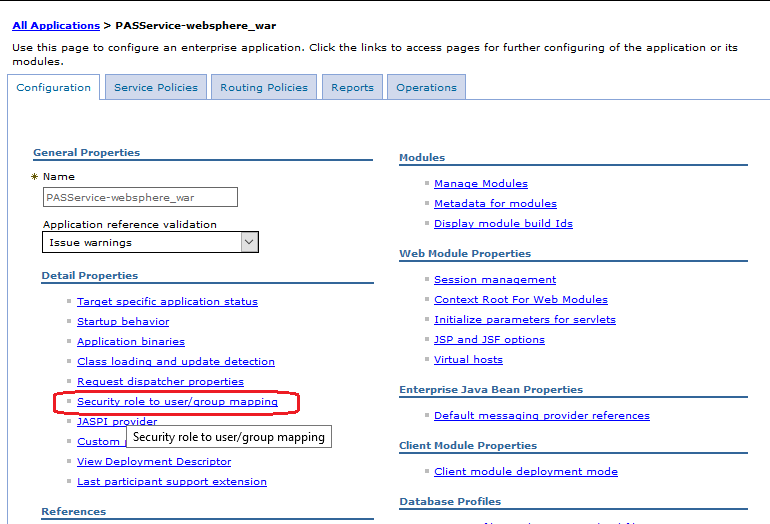
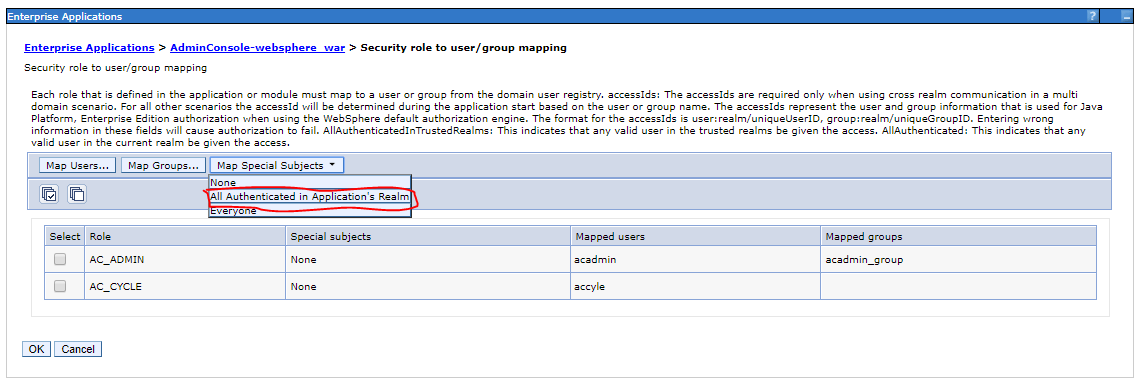
- Select Applications> Application Types > WebSphere enterprise applications
- Select the application from the table.
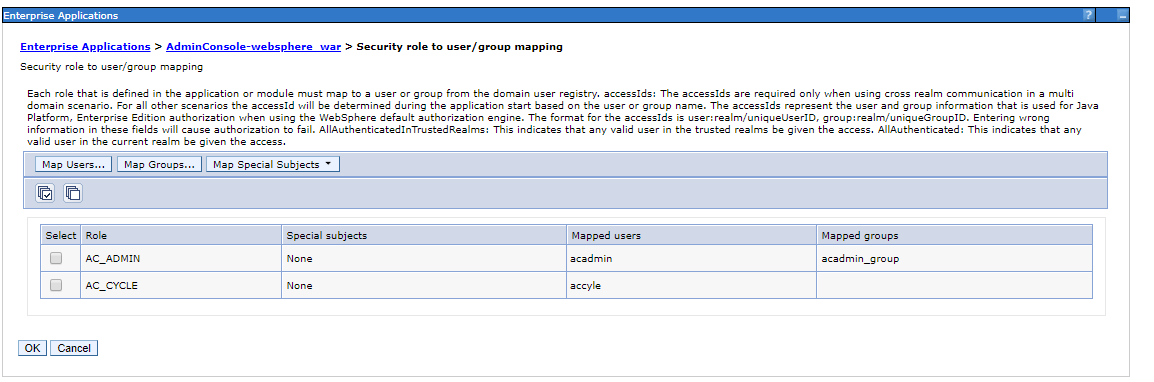
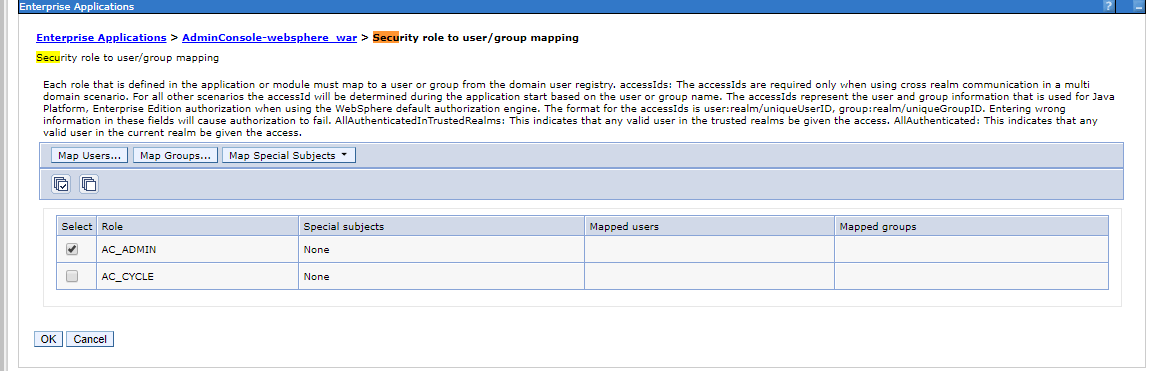
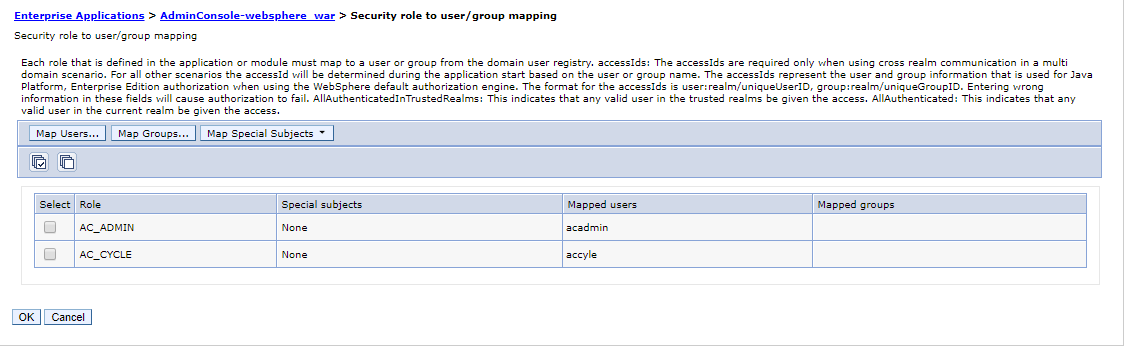
- Select Security role to user/group mapping option.
- In Security role to user/group mapping screen, the define the mapping
- Click OK to save the changes
Add application user to user repository
In the last step you should define now at least one user in your file based user repository for testing.
To add application user to user repository, do the following
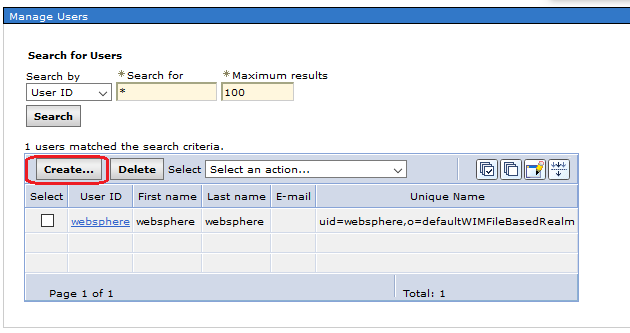
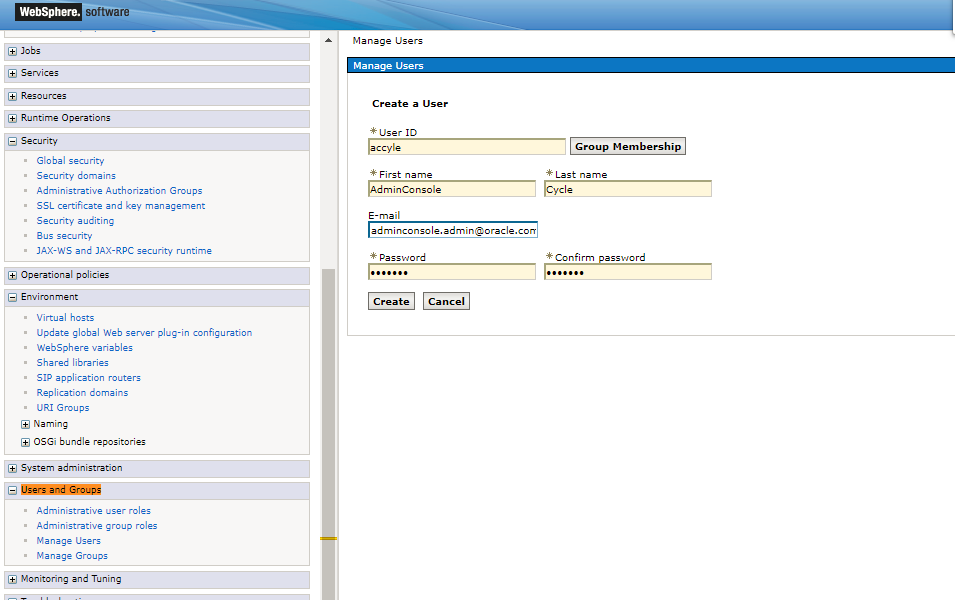
- In the Admin Console, select Users and Groups> Manager Users
-
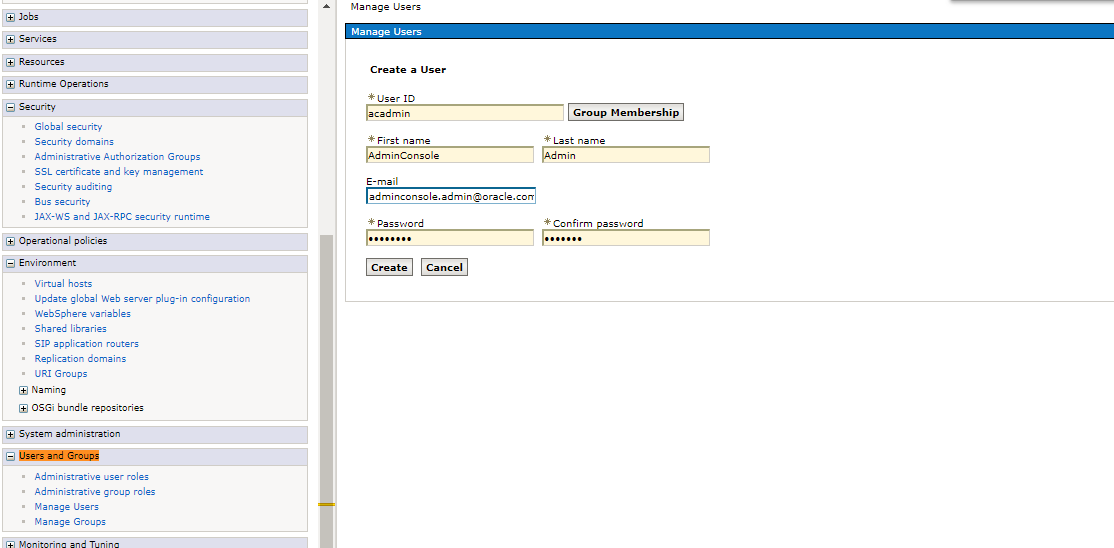
Click Create and enter a new application user for example “acadmin”
-
Similarly, create the other user "accyle" as shown below.
-
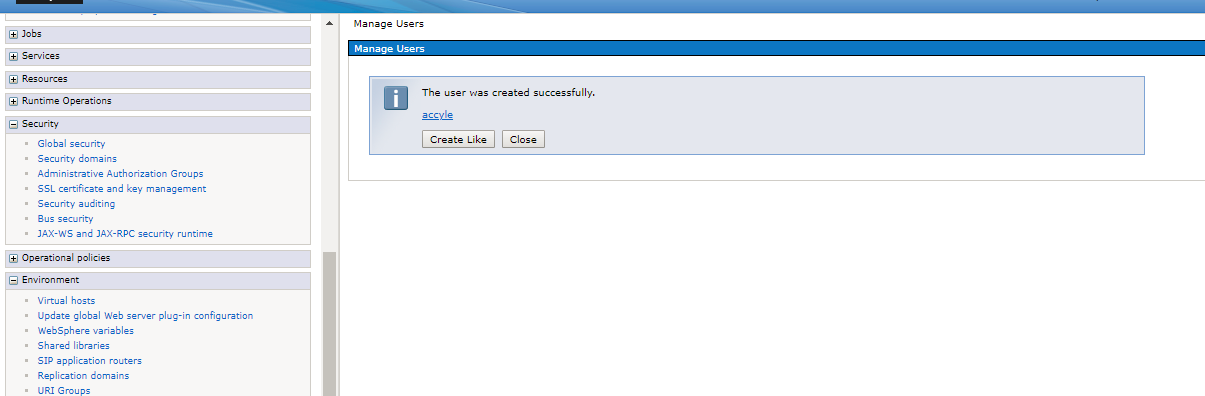
The users are created and saved.
Note: The username and password created should be same as in AsUser table in the OIPA database.
Hint: You will also be able to access your application with the admin user from the admin console.
Map user to Roles in admin console
- Go to Enterprise Applications > [your Application name] > Security role to user/group mapping.
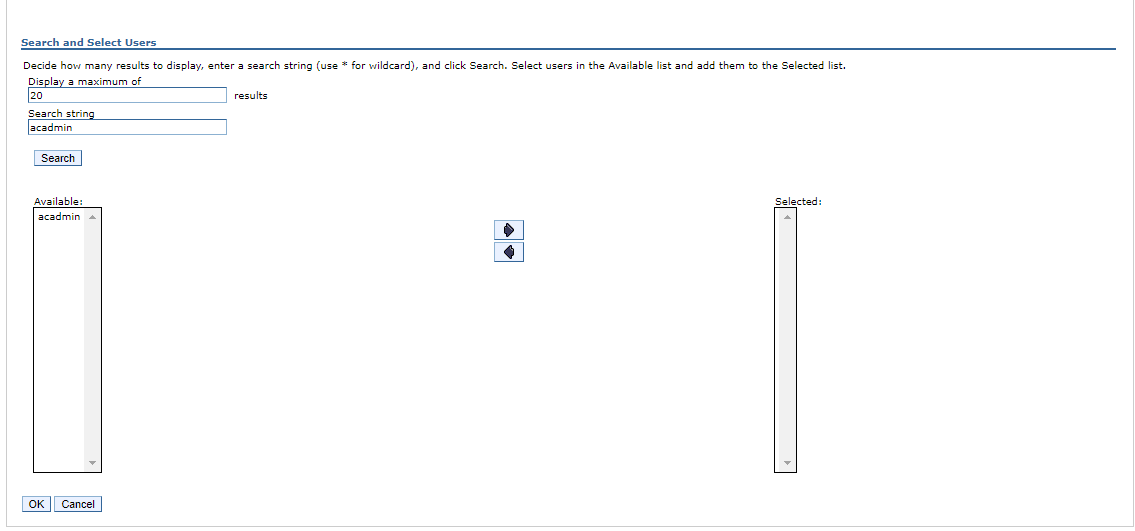
- Select the role (in your special case role monitor) and then click Map Users .
- In the search string field, type in the user name and click Search button.
- Select the user that try to access the application and click OK.
- In the Security role to user/ group mapping configuration window, check, if the user was added to the Mapped users.
- In case if we want to group the managed users, click IBM_Administration_Service.
- Click Security role to user/group mapping.
- Select all the roles. Click Map Groups button, click Search.
- Select acadmin_group from the available list and click the left-to-right arrow.
-
Click OK button and then click Save button.
Verify deployed application
Open the application (http://localhost:port/AdminConsole/login.html) in the browser, then the Admin Console should be opened.