Steps to Build and Run the Docker Image
- Download the domain binary files, Cycle Web Distribution as mentioned in the Prerequisites section of this document.
- Extract the Cycle web distribution.
-
Create a directory named externallibs to place the 3rd party application libraries, configuration and property files required.
-
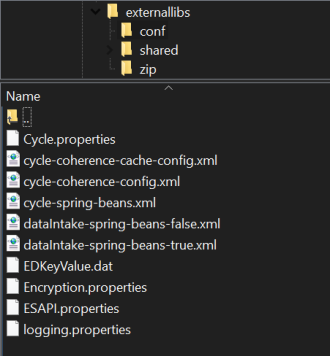
Copy the following configuration files from <Cycle distribution zip>/conf directory into the externallibs/conf directory:
-
cycle-coherence-cache-config.xml
-
cycle-coherence-config.xml
-
Cycle.properties
-
dataIntake-spring-beans-false.xml
-
dataIntake-spring-beans-true.xml
-
logging.properties
-
-
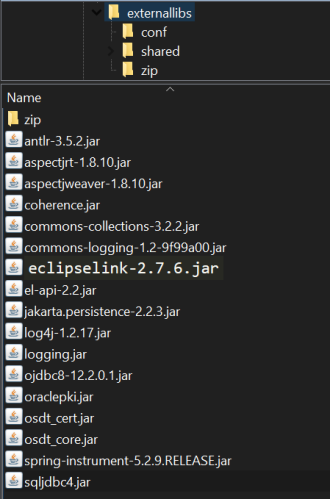
Copy the following files from the <Cycle distribution zip>/libs directory into the externallibs directory:
-
commons-logging-1.2-9f99a00.jar
-
eclipselink-2.7.6.jar
-
jakarta.persistence-2.2.3.jar
-
el-api-2.2.jar
- spring-instrument-5.2.9.RELEASE.jar
-
Download aspectj 1.8.10.jar from http://www.eclipse.org/downloads/download.php?file=/tools/aspectj/aspectj-1.8.10.jar
-
Open aspectj-1.8.10.jar with an unzipping software and retrieve aspectjrt.jar and aspectjweaver.jar from the lib folder.
-
Copy aspectjrt.jar and aspectjweaver.jar into externallibs sub-directory.
-
-
-
Copy the database drivers for your database into this directory.
-
Oracle – The necessary driver, ojdbc8-12.2.0.1.jar, is included in the externallibs directory.
-
Microsoft SQL Server – Download the sqljdbc4.jar library version 4.0.
-
IBM DB2 – The two necessary .jar files (db2jcc4 and db2jcc4_license_cu) are included with the purchase of the DB2 software. These files are not available for download. Contact your IT department if you need assistance in locating these files.
-
-
Use a text editor to open the Cycle.properties file that you just copied to the server. The Cycle.properties file contains properties for Oracle, SQL Server, and DB2 database types, with the Oracle settings active by default. The inactive settings are commented out with a '#' character at the start of each line. To change a setting, remove the '#' from the required property setting, and insert it at the beginning of the setting you want to deactivate.
-
These properties must match the type of database being used.
Note: Refer to the System Properties document in the Oracle Insurance Policy Administration Documentation Library on OHC (Oracle Help Center) for a complete list of all properties and allowed values.
-
application.databaseType
-
jpa.databasePlatform
-
-
Identify the default locale in the Cycle.properties file. The locale selected will determine the translation that is loaded in the database for OIPA when it launches.
-
application.defaultLocale
-
-
If using an Oracle or Microsoft SQL Server database, skip this step. If using a DB2 database, modify the Cycle.properties file to include configuration for case-insensitive search. Modify the Cycle.properties file to include the following line:
-
search.field.text.caseInsensitive=true
-
-
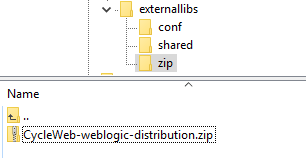
Copy the downloaded Cycle distribution zip under the externallibs/zip directory.
-
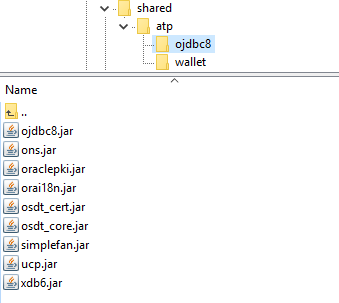
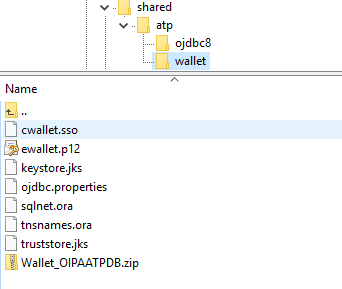
If the Cycle application is ATP compliant, then copy the required ATP (Autonomous Transaction Processing) database files under the externallibs/shared directory. The folder structure is as follows;
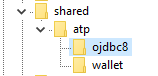
-
Under the ojdbc8 folder,
-
Under the wallet folder,
-
Note: Maintain the externallibs folder and place the required libraries and supported files as discussed in earlier steps. Check the below snippets for your reference.
The folder structure is,
Under the "conf" folder,
Note: Place the OIPA build artifacts that are downloaded from the Oracle Software Delivery Cloud in the externallibs/zip directory. Refer the following image.
From the copied location, execute the following command:
docker build format
$docker build -t <Image_Name>:<Image_Tag> --build-arg APP_DOMAIN_NAME="<Domain_Name>" --build-arg CYCLE_PKG="<Cycle Package Name>" --build-arg APP_VERSION="<Build Release Version>"
docker build example
$ docker build -t cycle_wls:11.3.1.0 --build-arg APP_DOMAIN_NAME="cycle_domain" --build-arg CYCLE_PKG="CycleWeb-weblogic-distribution.zip" --build-arg APP_VERSION="11.3.1.0"

The Cycle WebLogic image is generated.

To start the containerized Cycle Web application, run
docker run format
$ docker run -itd --privileged --mount type=bind,source=/path/to/the/externallibs,target=/u01/oracle/externallibs --env-file /path/to/the/cycle_env.dat --name <Container_Name> --hostname <Container_HostName> -p <AdminServer_External_Port>:<AdminServer_Container_Port> -p <MS_External_Port>:<MS_Container_Port> --sysctl net.ipv4.ip_local_port_range="1024 65000" <Image_Name>:<Image_Tag> createServer.sh
docker run example
$ docker run -itd --privileged --mount type=bind,source=/home/opc/oipa/cycle_wls/externallibs,target=/u01/oracle/externallibs --env-file /home/opc/oipa/cycle_wls/cycle_env.dat --name cycle_wls --hostname cyclewlsadmin -p 8020:8020 -p 8021:8021 --sysctl net.ipv4.ip_local_port_range="1024 65000" cycle_wls:11.3.1.0 createServer.sh

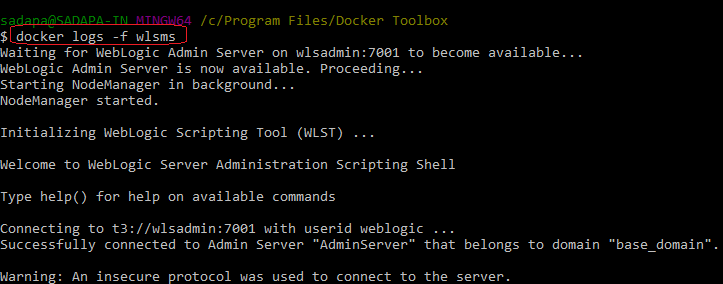
Check docker logs:
$ docker logs -f cycle_wls
Note: The "APP_DOMAIN_NAME" build argument from the "docker build ...." command and the "--hostname" flag from the "docker run ..." commands should be the same which you denoted in the cycle_env.dat file.
The following are a few snippets of the Cycle AdminConsole.
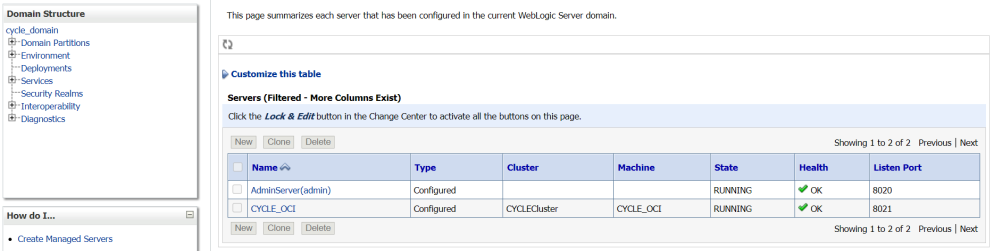
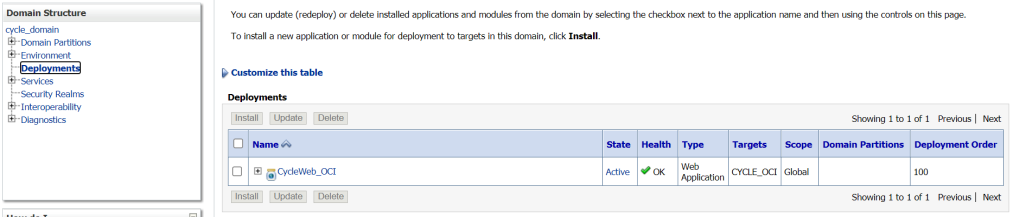
Admin Server DS for OCI

DataIntake JMS Server

DataIntake JMS Module

DI Queue

DataIntake Sub-deployment

Cycle Web Page

To check the logs, execute:
docker logs format
$ docker logs -f <container name>
Example:
$ docker logs -f cycle_wls