This topic provides the details to process a MM deal in the Treasury System.
6.2 Upload of Deal Request from the Front Office
Front office sends the deal request in the form of XML. Web Services are in place where the Treasury System receives this request and process the same.
The Following details are available during upload.
Table 6.1: Field Values
|
Field Name |
Remarks |
|---|---|
|
Sequence Numbers |
This is a Mandatory field. Unique number generated by the system. |
|
External Reference |
This is a Mandatory Field. This is Reference number generated from external system. |
|
Branch Code |
Branch code of the transaction. |
|
Action Code |
Action code for the record - Values are: •New •Amend •Cancel |
|
Module Code |
This is a Mandatory field. Value should be FX. |
|
Status |
Status of the uploaded deal. |
|
Source Code |
External source code - As maintained in the system. |
|
Pre-settlement Reference |
This is a Mandatory Field. Unique number generated by system for the contract. The same reference number is used for further operations on the same contract. This is generated once the deal moves from book queue to other queues/ or got STP-ed. |
|
Version Number |
Version number of the contract. |
|
Counter Party |
Customer of the deal. |
|
Currency |
Currency of the deal. |
|
Amount |
Principal amount of the deal booked. |
|
Interest Rate |
Interest Rate of the deal booked. |
|
Rate Code |
Rate code in case deal is booked with Floating rate. |
|
Spread |
Spread in case deal is booked with Floating spread. |
|
Local Currency Equivalent |
Local currency equivalent of the amount. |
|
Dealer |
Dealer of the contract. Should not be null. |
|
Broker |
Broker of the contract. |
|
Product Type |
Product type should be either Borrowing (D) or Placement (L). |
|
Interest Basis |
Interest basis of the deal booked. |
|
Trade Date |
Trade date of the deal. |
|
Booking Date |
Booking date of the deal. |
|
Value Date |
Value date of the deal. |
|
Maturity Date |
Maturity date of the deal. |
|
Special Handling Code |
Code for identifying the contract which requires a special handling. If the value is given as Y or HVP then the deal will be put into special handling queue. |
|
Final Maturity Date |
Final Maturity Date in case deal is Rolled Over and new maturity date is given for the rolled over deal. |
|
Remarks |
Remarks for the deal. |
|
Notice Days |
Notice days in case deal is booked with maturity type is Notice. |
|
Rollover Amount |
Outstanding amount to be rolled over. |
|
Rollover Type |
Rollover is Auto or Manual. |
|
Rollover Amount Type |
Indicate what should be Rollover over. Principal, Principal and Interest or Principal and Interest deducting the tax. |
|
Rollover Allowed |
Whether Rollover is allowed or not. |
|
Treat Special Amount as |
In case deal is rolled over with special amount how the amount should be treated. |
|
Parent Contract Reference |
Contract Reference number to be Rolled Over. |
|
Interest period Basis |
Interest Period basis to calculate the interest. |
Below conditions are checked for the mandatory validations:
•External Ref No cannot be Null
•Branch Code cannot be Null
•Counterparty cannot be Null
•Dealer cannot be Null
•Amount cannot be Null
•Interest Rate/Rate Code cannot be Null
•Value cannot be Null
•Maturity Date cannot be Null
•Booking Date cannot be Null
•Trade Date cannot be Null
•Interest Basis cannot be Null
If any of these validations fail, the system will update the status of the request as an Error.
System will put the record into hold if the below conditions are satisfied:
•Previous version of the contract is in Hold
•Previous version of the contract is in Unauthorized Status in Pre-Settlements layer
•Previous version of the contract is being sent to PP
•Contract is locked by other process
•A job is available for processing the deals from the book queue.
•Each deal is picked and the data is validated using the defined rules.
•In case of exceptions the deal is moved to the respective queues .
•It is possible that a deal can fall into multiple queues.
•Queue monitor is provided for each queue independently, using which user is able to view the exceptional deal details and repair reason.
•Summary screens is provided for each queue, using which user is able to view the deal details, which is in that particular queue.
•There is a provision to define the priority of different queues.
•The deal is visible only in the high priority queue.
|
Queue Name |
Function Id |
|---|---|
|
Money Market Exception Queue Monitor |
MWSQUEUE |
|
Money Market Amend Queue Monitor |
MWSAMNDQ |
|
Money Market Confirmation Queue Monitor |
MWSCONFQ |
|
Money Market Credit Check Queue Monitor |
MWSCRCKQ |
|
Money Market Enrich Queue Monitor |
MWSENRHQ |
|
Money Market Repair Queue Monitor |
MWSREPRQ |
|
Money Market Special Queue Monitor |
MWSSPCLQ |
|
Money Market Verification Queue Monitor |
MWSVRFYQ |
Money Market Exception Queue Monitor screen enables the user to have a consolidated view of the deals in different queues. User is expected to select the Tenor bucket as Value date or trade date. Based on which system will query the details and will populate the summary data.
User can select a specific queue as well.
The field, View will have options, Exception, Processed and All. If user selects Exception system will fetch only those deals which are in any of the exception queues. If selected as Processed, then the deals which got STP-ed on the application date will be displayed. On selection of the option, 'All' system will fetch details of the deals in exception queues and also the ones STP-ed to the product processor on the application date.
Near cut off time field will display the number of deals which are nearing the cut off. Cut off time will be fetched from the treasury branch parameter maintenance.
The Book queue is a temporary parking queue. The Book queue is having all the contracts for which contract status is Unprocessed. This is having all the new contracts, amendment of contracts and cancellation of the contract which has come from the front office system. The deals which have not yet taken for processing in the FW Pre-Settlement layer is available in this queue. Users will not be able to view the contacts in the book queue, as the contracts will remain in this queue for a very short period of time.
6.3.2.1 Operations Allowed
User will be allowed to view the contract details from BOOK queue. User will not be allowed to do any amendment to the contract when it is in this queue.
6.3.2.2 Process
The following are the details of the queue process:
•A job is configured on the BOOK queue. These will pick up the unprocessed record from the queue and process accordingly.
•Based on the message type in the record, a decision is taken whether the record is a NEW contract, Amend of an existing contract, Cancel of an existing contract.
•BOOK Queue will process each message sequentially based on the settlement number given from the front office.
•Based on type of message basic checks is done and the deal is moved to one of the queues for user intervention and verification or STP to Product processor.
•If the contract is in the verification queue or is in the state of STP to product processor BOOK queue processing will not pick up the contract. It will wait until the contract is out of the verification queue or the STP process is complete and will process the contract.
•The STP process from the Pre- Settlement manager to the product processor is asynchronous. There is Jobs that is polling on the Pre- Settlement manager data store and whenever there is a request to product processor it will pick up the record and process. Once it is in the book queue system will generate the Pre-Settlement reference number which is a unique number at the Pre- Settlement manager. This is used for any further reference.
•For new contract Pre- Settlement manager will resolve the product which is to be used for booking the contract. This is needed for the selection of SI (Settlement Instructions) and other restrictions applied to the contract.
A new summary screen is made which will show the deals which are marked as Repair.
When the Repair conditions are satisfied, contract are moved to Repair Queue, but, If the contract is not flown to the product processor the repair reason is shown in the repair queue.
Once Contract is exited from all Processing queue and STPed to PP and because of Product Processor validation contract is failed, contract will be moved back to Pre-Settlement and put in Repair queue with repair reason.
6.3.3.1 Operations allowed for user
User is allowed to change the fields which are specified in the amended section of FW contract online. For any repaired contract a new version is created with Auth status as ‘U’. All the contracts which are repaired is moved to the verification queue for authorization.
6.3.3.2 Exit Criteria
To exit out of the repair queue, a user should resolve the error on the deal which has resulted in a movement to repair queue. This are two options, either by dong an amendment from the front office or by amending the deal through contract online screen.
A new summary screen will be made to show the deals marked for special handling.The deals for which the special handling is required is enabled by the customer and moved to this queue. Also if the special handling code is specified in the request, the deal will be moved to the special handling queue based on the condition defined.
Operations Allowed
User are allowed to change the fields which are specified in the amend section of MW contract online. On saving the contract, a new version is created as un-authorized and contract is move to verification queue.
Exit Criteria
The conditions due to which the deal has been put into repair queue should be resolved through an amendment on the contract either through front office or using the online screen.
User can fetch the record from special queue and double clicking of which will open the contract screen. User can unlock the same. The check box, 'Exit Special Queue' in Queue tab should be selected before saving the deal.
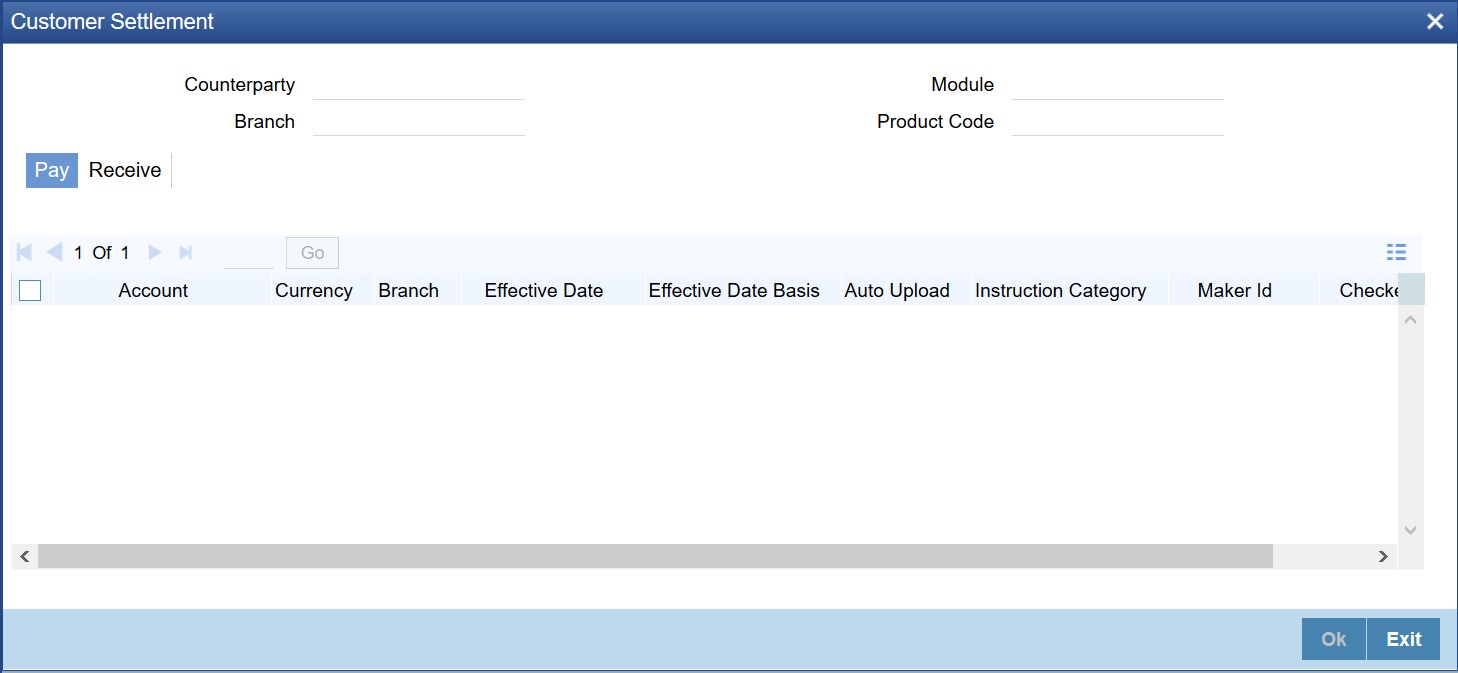
Users are allowed to search for any contracts and enrich it. On Double clicking the Contract in the enrichment Queue, the contract online screen is opened. Users are allowed to enter the settlement instructions in the settlement call form. Settlement details call form will show the settlement details of the contract. The sub screen, Customer settlement will fetch all the settlement instructions maintained for that customer. Pay and receive settlement details will be shown in separate tabs. Once user selects the settlement details, the details will get updated in the settlement details call form. User should select the settlement status as 'Completed'. On save, the deal will be moved out of the enrich queue.
6.3.5.1 Operations Allowed
User is allowed to amend the contract to enrich the settlement instructions:
1)For the counterparty, if the usual SI exists then the user is given the option to upload the settlement instruction.
2)For the counterparty, if there is standard SI maintained then the option is given to upload the settlement instruction.
3)Users is allowed to change the settlement instruction manually.
6.3.5.2 Exit Criteria
To exit from the enrich queue user should select the enrich status as Completed in the settlement screen for both pay and receive a leg.
All the contracts which are lying in the amend queue is having the Auth stat as ‘U’. These are normally the amendment which comes from the front end system. There is a possibility there is multiple amendments that have happened and not yet authorized. For highlighting the changes the system will check the latest version with the last approved version of the contract. Users is allowed to go through all the versions but is allowed to authorize the latest version. The versions of the contract which is in between the last approved version and the latest version is marked as amend not approved.
Operations allowed
To make the contract come out of the Amend queue, the user has to unlock the contract and click on Save. After the Save, the contract is moved to the Verification queue. Other actions like Enrich, Confirm, etc can also be completed after unlocking the contract in Amend queue.
Once the user authorizes the contract it is STP to the FX product processor. Deals can be left in the amend queue overnight.
A new summary screen is provided to show all the contracts which are not confirmed. On double-clicking the contract in the confirmation Queue, the contract screen is shown. Users can confirm the contract using the confirmation action in the menu or using the manual confirmation screen.
The deal is sent to the confirmation queue based on the confirmation preference for the customer.
Confirmation message is sent for the deal once it is ready for the STP.
Users is allowed to Confirm, Un-confirm, Affirm, UN-affirm the contracts from this Queue. Both manual confirmation and auto-confirmation is possible on the deal. Once the user has done the confirmation or affirmation related changes and saves the contract, the deal will come out of the confirmation queue Confirmation related changes for the Pre-Settlement layer is explained in the confirmation enhancement related document.
This queue will show the contracts which are marked for the credit check process. The deal is sent to this queue if credit check required parameter is checked for the customer.
6.4 Process deal using MW Contract Online Screen.
Prerequisite:
Specify User Id and Password, and login to Homescreen.
1.From Homescreen, specify MWDTRONL in the text box, and click next arrow.
Step Result: Money Market Pre-Settlement Contract Online screen is displayed.
Figure 6.1: Money Market Pre-Settlement Contract Online
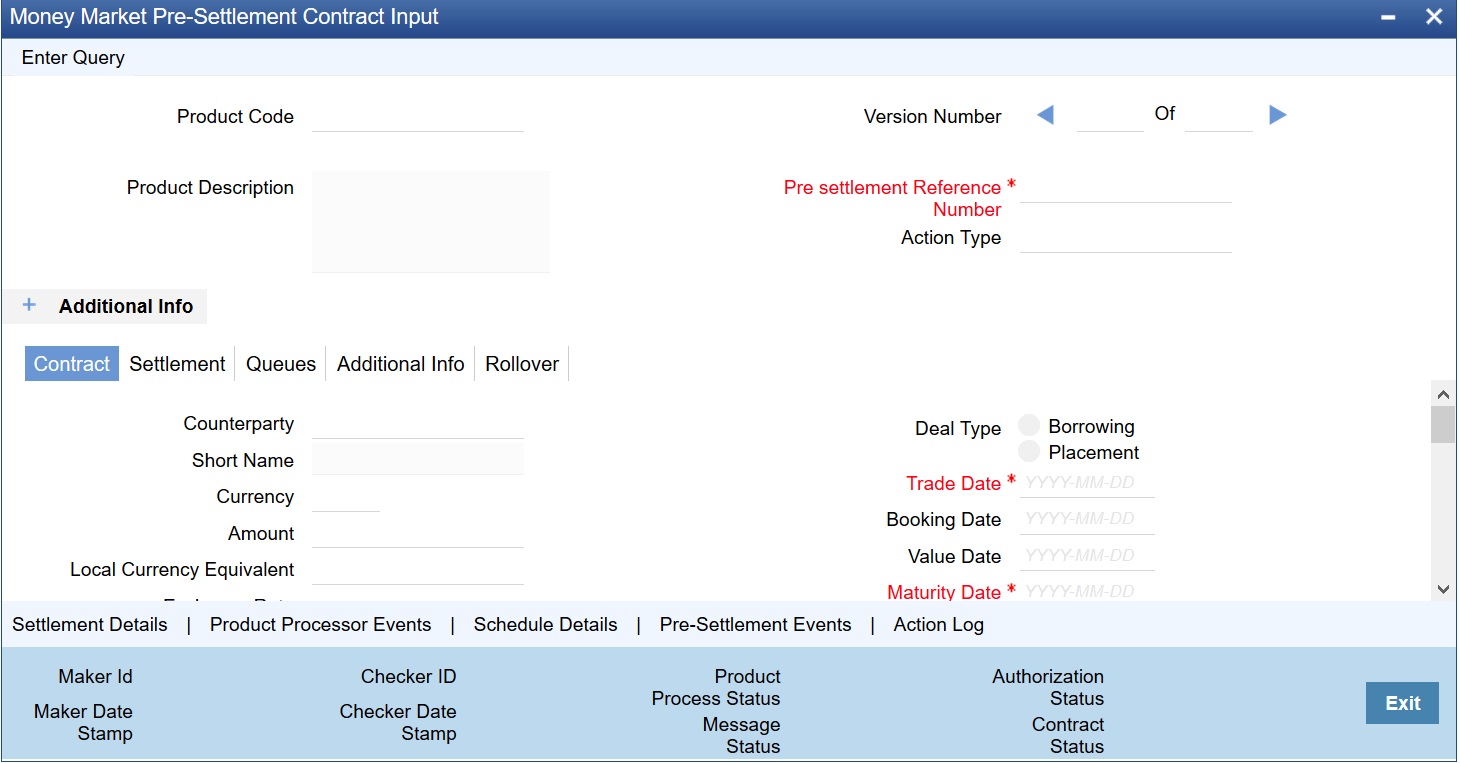
2.On Money Market Pre-Settlement Contract Online screen, specify the fields.
Following operations are allowed in this Contract Online
1)Amendment of the Contract
a)Financial Amendment
b)Non-Financial Amendment
2)Cancellation of the Deal
3)Authorization of the Contract
Table 6.2: Money Market Pre- Settlement Contract Online - Field Description
|
Field |
Description |
|---|---|
|
Product Code |
Indicates the product code of the deal |
|
Product Description |
Indicates the product description of the selected product |
|
Pre-settlement Reference |
Indicates the Unique reference number for the deal at the Pre-Settlement layer |
|
Action Type |
Indicates the Action type of the latest version. The various actions can be New, Modify or Cancel |
|
Contract reference |
Indicates the Contract reference of the deal created in product processor |
|
Deal Source |
Indicates source system from which the deal is originated |
|
Related Reference |
Indicates related reference of the contract |
|
Conversation ID |
Indicates the Conversation ID from. |
|
External Reference |
Indicates the Reference sent from front office. This remains unique for every deal. |
|
Front Office Book Time |
Indicates Booking time of the contract in the front office |
|
Main Following are the Main tab details |
|
|
Counterparty |
Indicates the Counterparty of the deal |
|
Short Name |
Indicates the Short Name of the counter party |
|
Trade Date |
Indicates the Trade Date of the Deal |
|
Book Date |
Indicates the Booking date of the deal. |
|
Exchange Rate |
Indicates the Exchange rate of the contract |
|
Deal Type |
Indicates the Type of deal, whether Buy of Sell deal |
|
Trade Date |
Trade date of the deal |
|
Book Date |
Booking date of the deal |
|
Value Date |
Value date of the deal |
|
Maturity Date |
Maturity date of the deal |
|
Special Handling Code |
Special handling code of the deal. If the value is given as 'HVP' or Y, the deal will be put into special handling queue |
|
Conversation ID |
Indicates the Conversation ID of the deal |
|
Product Processor Status |
Indicates the status of the contract in product processor |
|
Message Status |
Indicates the status of the message generation |
|
Settlement Details Pay |
|
|
Instruction Category |
Instruction category as defaulted from the settlement instruction maintenance. |
|
Instruction Type |
Instruction type as defaulted from settlement instruction maintenance. |
|
Account Branch |
Indicates branch of the settlement account. |
|
Account |
Indicates Settlement Account |
|
Settlement Details Receive |
|
|
Instruction Category |
Instruction category as defaulted from the settlement instruction maintenance |
|
Account Branch |
Branch of the settlement account |
|
Account |
Settlement Account |
|
Remarks |
Indicates Remarks of the Deal |
|
Settlement Details Receive |
|
|
Instruction Category |
Instruction category as defaulted from the settlement instruction maintenance. |
|
Account Branch |
Branch of the settlement account |
|
Account |
Settlement Account |
|
Interest Rates/Amounts Details |
|
|
Interest Period Basis |
Interest basis of the deal booked |
|
Interest Rate |
Interest Rate of the deal booked |
|
Rate Code |
Rate code in case deal is booked with Floating rate |
|
Spread |
Spread in case deal is booked with Floating rate |
|
Credit Check Details |
|
|
Credit Approval Required |
Indicates the credit check is required for the deal or not |
|
Credit Approval Remarks |
Indicates Remarks on Credit Approval. |
|
Remarks |
|
|
Internal Remarks |
Internal Remarks for the deal |
|
Reject Reason |
Reason for reject of the contract |
|
Narrative Dealer |
Narrative from dealer from front office |
3.On Money Market Pre - Settlement Contract Online screen, click Settlements
Step Result: Settlement screen is displayed.
Figure 6.2: Settlement
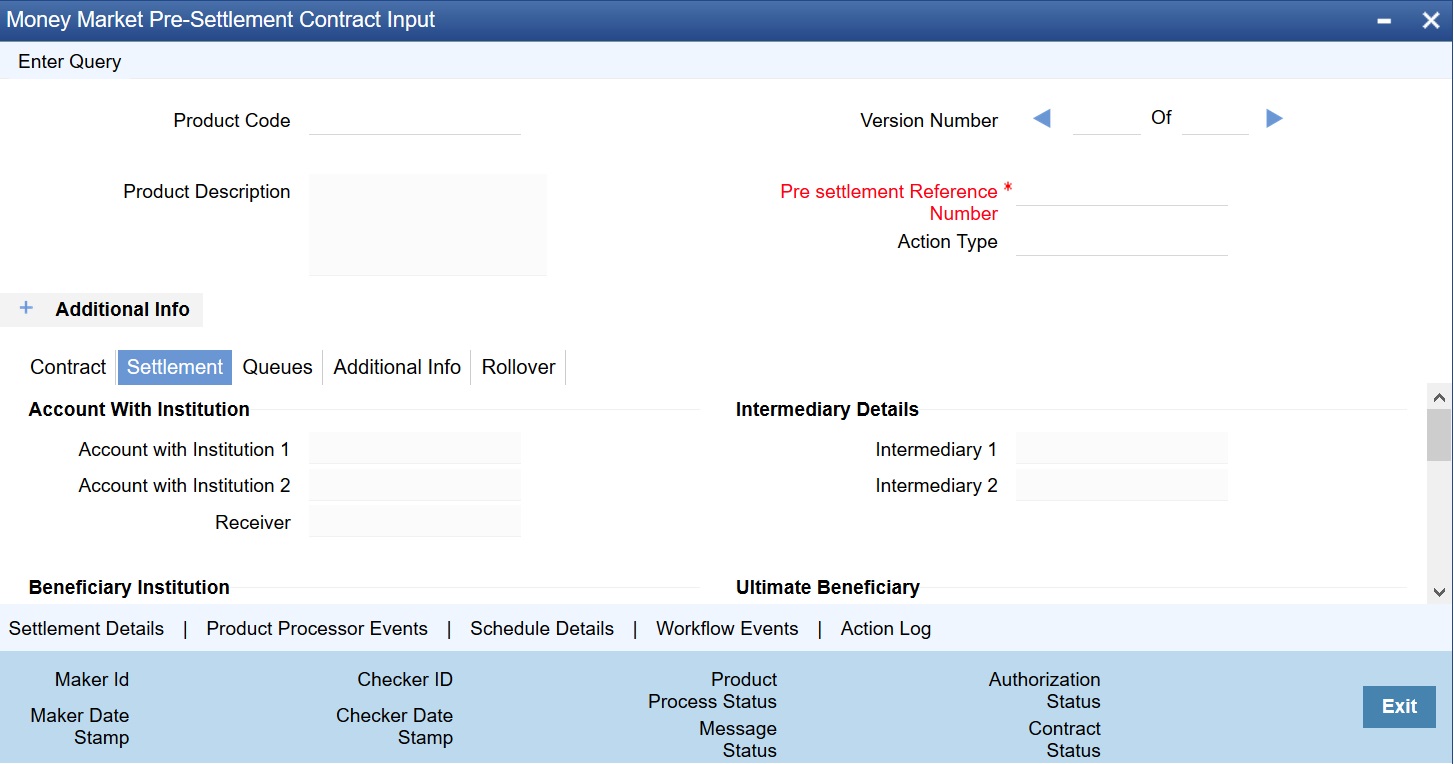
4.On settlement screen, specify the fields.
For more information on fields, refer to Table 6.3: Settlements - Field Description
Table 6.3: Settlements - Field Description
|
Field |
Description |
|---|---|
|
Our Receive Account |
Indicates Our Receive account |
|
Receive Party |
Indicates Receive Party |
|
Intermediary Party |
Indicates Intermediary Party |
|
Their Receive Account |
Indicates their Receive Party |
|
Beneficiary Account |
Indicates Beneficiary Account |
|
Receive Party Code |
Indicates Receiver Party Code |
|
Intermediary Party Code |
Indicates Intermediary Party Code |
|
Beneficiary Details |
Indicates beneficiary Code |
|
Beneficiary Name 1 |
Indicates Beneficiary Name 1 |
|
Beneficiary Name 2 |
Indicates Beneficiary Name 2 |
|
Ultimate Beneficiary |
Indicates Ultimate Beneficiary |
|
Sender To Receiver Information |
Indicates Sender to Receiver information |
|
Payment Details |
Indicate Payment Details |
|
Receive Differential |
Indicates Receive Differential |
|
Clearing Network |
Indicates Clearing network |
|
Transfer Type |
Indicates Transfer Type |
|
Pay Funding Reference |
Indicates Pay Funding Reference |
|
Receive Funding Reference |
Indicates Receive Funding reference |
5.On Foreign Exchange Pre-Settlement Contract Screen, click Queue.
Step Result: Queue screen is displayed.
Figure 6.3: Queue
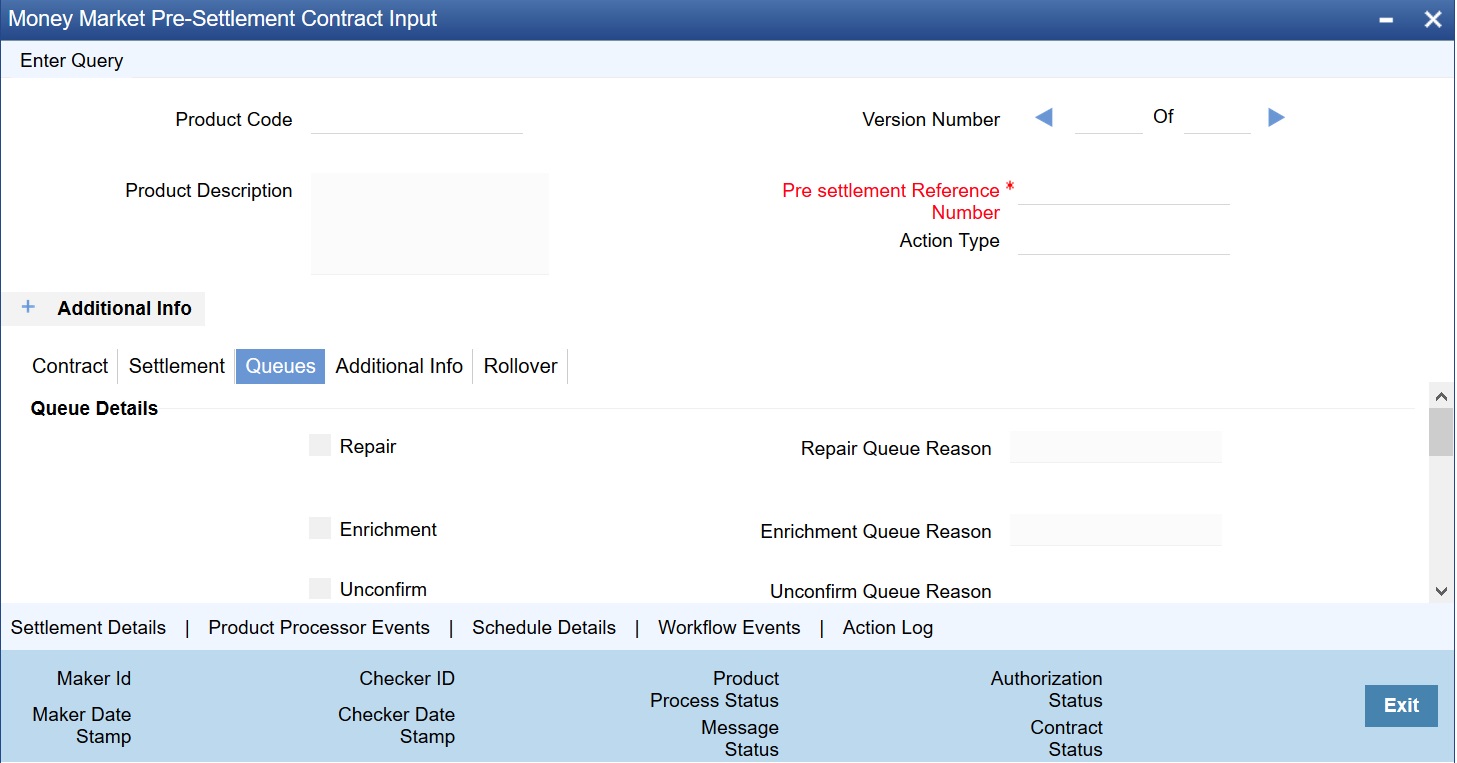
6.On Queue screen, specify the fields.
For more information on fields, refer to: Table 6.4: Queue - Field Description
Table 6.4: Queue - Field Description
|
Field |
Description |
|---|---|
|
Repair |
Indicates whether the deal is in repair queue |
|
Enrichment |
Indicates whether the deal is in enrichment queue |
|
Un confirm |
Indicates whether the deal is in unconfirmed queue |
|
Verification |
Indicates whether the deal is in verification queue |
|
Amend |
Indicates whether the deal is in amend queue |
|
Special |
Indicates whether the deal is in special queue |
|
Credit Check |
Indicates whether the deal is in credit check queue |
|
Repair Queue Reason |
Reason for the deal for falling into repair queue |
|
Enrichment Queue Reason |
Reason for the deal for falling into enrich queue |
|
Unconfirm Queue Reason |
Reason for the deal for falling into unconfirmed queue |
|
Verify Queue Reason |
Reason for the deal for falling into verify queue |
|
Amend Queue Reason |
Reason for the deal for falling into amend queue |
|
Special Queue Reason |
Reason for the deal for falling into special handling queue |
|
Credit Queue Reason |
Reason for the deal for falling into credit check queue |
|
Exit Queues |
Indicates Exit Queues |
|
Exit Repair Queue |
To indicate whether to exit from the repair queue |
|
Exit Amend Queue |
To indicate whether to exit from the amend queue |
|
Exit Special Queue |
To indicate whether to exit from the Special queue |
|
Exit Credit Check Queue |
Indicates to exit credit check queue. |
7.On Money Market Pre-Settlement Contract Screen, click Additional Info tab.
Additional screen is displayed.
Figure 6.4: Additional
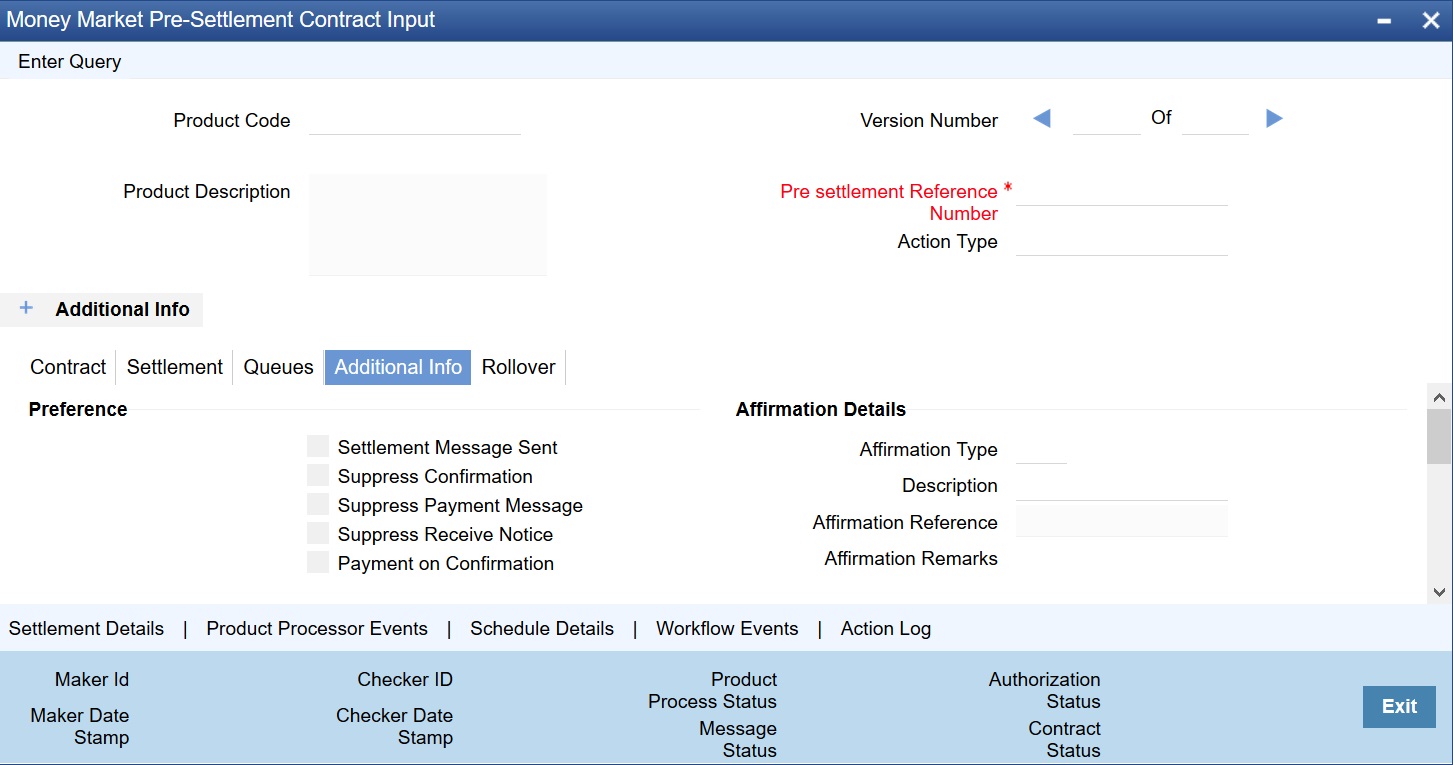
8.On Additional tab, specify the fields.
Table 6.5: Additional - Field Description
|
Field |
Description |
|---|---|
|
Suppress Confirmation |
Indicator to suppress the confirmation message |
|
Suppress Receive Notice |
Indicator to suppress the receive notice |
|
Settlement message Sent |
Indicate Whether settlement message is sent. |
|
Suppress Payment Message |
Indicator to suppress the payment message |
|
CLS Eligible |
Indicate whether the contract is CLS eligible |
|
Affirmation Details |
Indicate about affirmation details |
|
Affirmation Type |
Indicates type of affirmation |
|
Affirmation Reference number |
Indicates any reference for the affirmation. |
|
Affirmation Remarks |
Indicates remarks on Affirmation. |
|
Confirmation Details |
Indicates Confirmation details. |
|
Confirmation Method |
Indicates method of confirmation. |
|
Confirmation Status |
Indicates status of the confirmation |
|
Cutoff details |
Indicates the cutoff details. |
|
Pay Cutoff |
Indicates Pay cut off time calculated for the deal. This is derived by taking the cut off details maintained for the currency |
|
Receive Cutoff |
Receive cut off time calculated for the deal. This is derived by taking the cut off details maintained for the currency |
|
NDF Currency |
The NDF currency is one among the Bought and Sold currency of the NDF Forward contract |
|
NDF Fixing Date |
Indicate the date on which the difference between the existing market exchange rate and the agreed upon exchange rate is calculated. This date is the settlement days (which are maintained for the settlement currency) before the maturity date of NDF Forward Contract. This field is applicable only for the NDF Forward Contract. |
|
NDF Fixing Source |
Source system for NDF fixing |
Users are allowed to amend the contract at any point in time. Amendment can be done by clicking the unlock button in the toolbar. On every amendment, a new version is created for the contract. Amendment of the contract will come in from the front office system also. On amendment of the contract, the Pre-Settlement manager will decide if it is a financial or non-financial amendment based upon the set of fields getting changed. If Flex cube determines it’s a financial amendment, it will go as a reversal and new contract to the product processor else as an amendment to the existing contract. If the following fields are changed then the contract is canceled and re booked in the FX product processor. In the case of non-financial amendments, external reference number will remain the same.
•Counterparty
•Bought Currency
•Bought Amount
•Sold Currency
•Sold Amount
•Exchange Rate
•Bought/Sold Value date
•Bought/Sold Booking Date
•Bought/Sold Trade Date
•Deal Type
•Broker Code
•Buy/sell Indicator
•NDF Currency
•NDF Fixing Date
•Cover Rate
Amendment confirmation is sent as a CANC/NEWT or as an AMND itself, depending upon if it is a financial or non-financial amendment.
From the verification queue, the user is able to authorize the deal. There are four options available for authorization.
1)Authorize the contract – Selecting this option will enable the user to authorize the deal
2)Send to repair queue – This will take the deal to repair queue
3)Send to the previous queue – This will put the deal back to the previous queue.
Auto authorization is also possible based on certain condition
Context:
The settlement screen can be launched by clicking on the Settlement button on the contract online. This will show the settlement details defaulted for the deal. Users are allowed to change the same. The option is given to upload the settlement instructions. Users can click on the Settlement button in the settlement screen which will show all the instructions maintained for the customer and the user is allowed to select the instruction which he needs to upload. In the case of enriching the deal during upload, the settlement instruction is based on the effective date of the instruction maintained. Instruction which is to be applied for the contract should have Value Date/trade date > effective date.
Prerequisite:
Specify User Id and Password, and login to Homescreen.
On Homescreen, type MWDTRONL in the text box and click the next arrow.
1.On Money Market Pre-Settlement Contract Input screen, click Settlement
Step Result: Settlement screen is displayed
Figure 6.5: Settlement
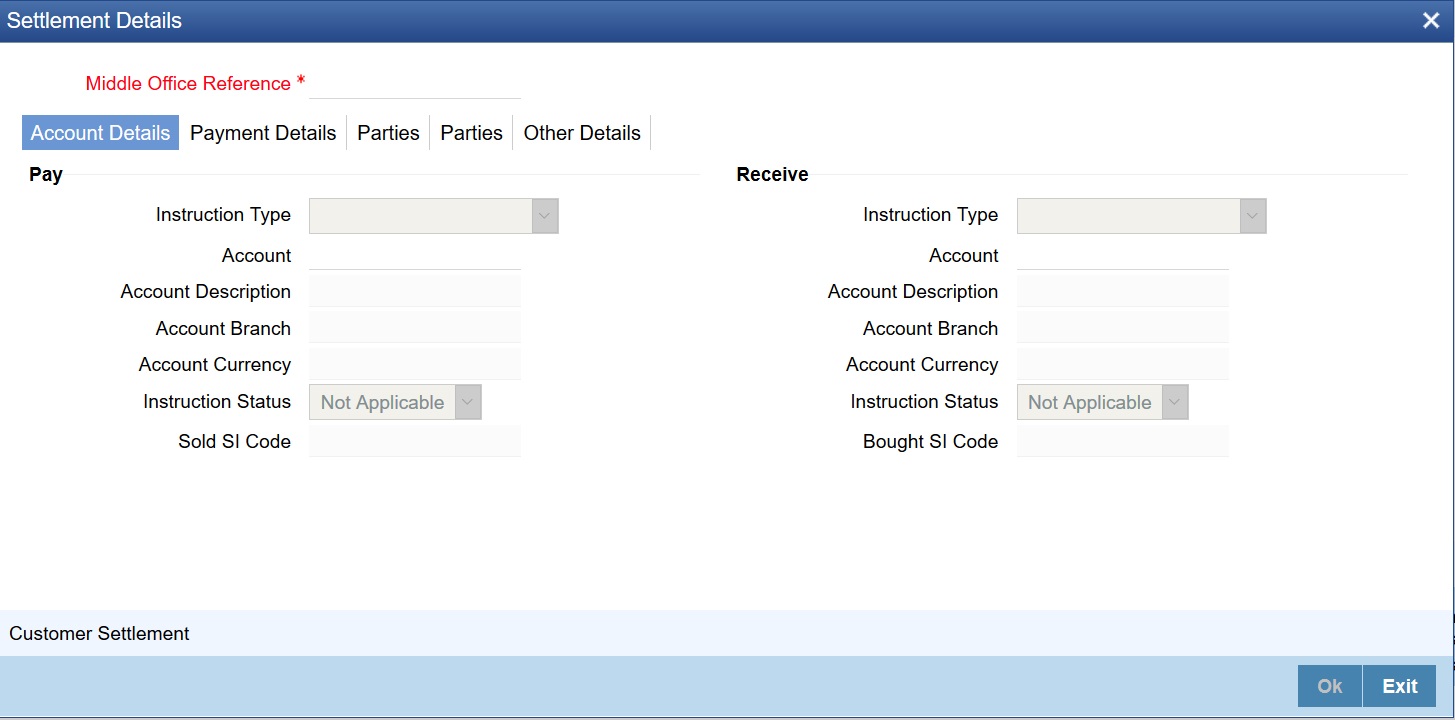
2.On Settlement screen, specify the fields.
3.On Settlement Details screen, click Customer Settlement.
Step Result: Customer Settlement screen is displayed.
Figure 6.6: Customer Settlement
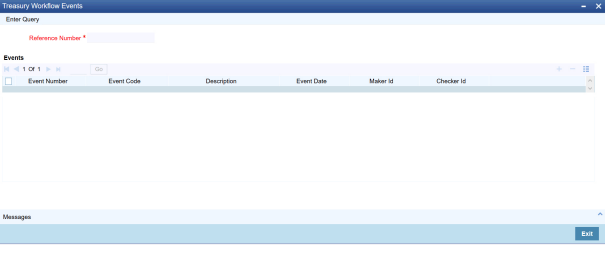
The workflow events subsystem will display the events fired for the deal. Also, it is possible to view the confirmation message that got generated as part of the event The possible events that can be fired for a deal at the Pre-Settlement layer is as follows
•WAFM Affirmation of a deal
•WAMD Amendment of Contract in Workflow
•WCAN Cancellation of Contract in Workflow
•WCNW Confirmation Waiver
•WUAF Un-affirm a deal
•WUCN Un-marking of confirmation waiver
•WUNC Un-confirmation of Contract
•WBOK Booking of contract in Workflow
•WCNF Confirmation
On Contract Online screen, Treasury Events displays the events fired for the contract created at the product processor.
Figure 6.7: Treasury Workflow Events
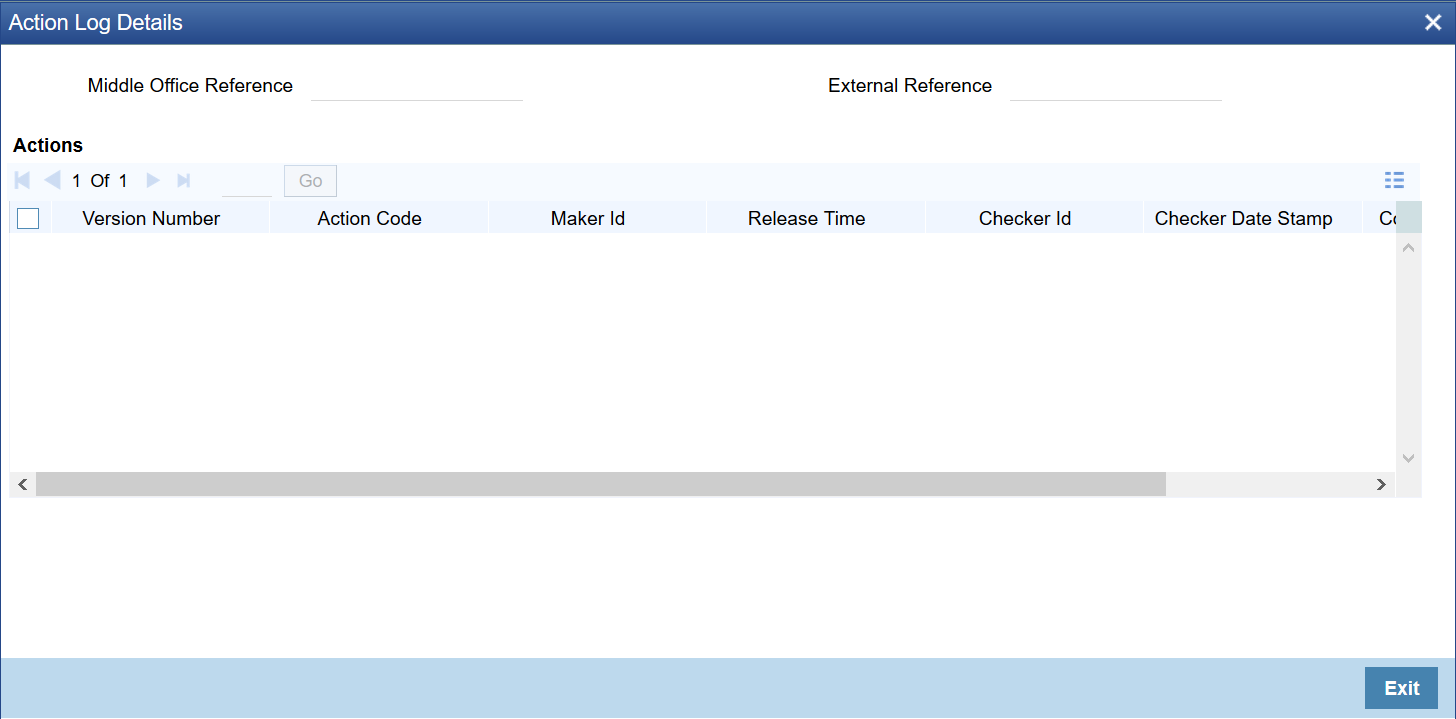
This will display different actions trigger on the deal and the audit details of the same
Figure 6.8: Action Log Details
6.11 Deal movement from Pre-Settlement manager to the product processor
This topic provides the movement of the deal from Pre-Settlement manager to the product processor.
•Once all the exceptions are resolved in the Pre-Settlement manager, the deal is moved to STP-ed data store.
•Job is configured to monitor the data from STP data store. System will take the records once by one.
•Will do validation on the data
•System will send the deal to the product processor by calling the upload routine
•If there is any error, the same is updated back to the data store.
Below jobs should be used for the queue processing and STP processing and they should be started using the job browser screen TRSJOBBR
•MW_QUEUE_PROCESSING - <For queue processing>
• MW_STP_PROCESSING - <For STP processing>
note: The below users will be used for the job processing. Hence user should maintain these users manually who has access similar to SYSTEM user.
• MWQUEUEUSER