User Interface
Release 23.4
New Action Buttons in Business Processes
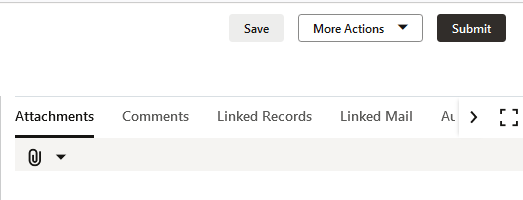
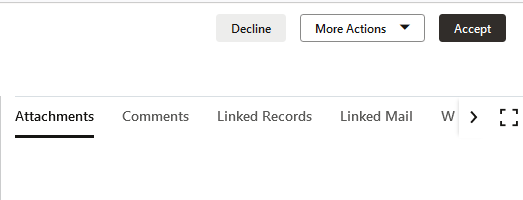
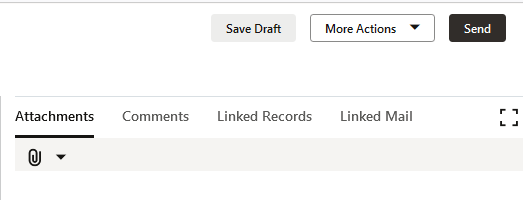
The buttons to Save, Submit, and Send business processes have been redesigned for improved clarity and consistent user experience.
For both workflow and non-workflow BPs, the text and drop-down icon for Save, Submit, Send, and Action menu have been replaced with buttons.
Non-Workflow BPs: A newly created record will have a button for Save, a drop-down button for More Actions, and a button to Submit the record. As before, both Save and Submit buttons will cause a permanent record to be created in the PB log. After the record is submitted – but before it has reached a terminal status – available buttons will be More Actions and Edit. When the status is terminal (or terminated), only the More Actions button will be visible.
Workflow BPs: When opening a workflow record between creation and an end step, the buttons will be labeled Decline, the More Actions drop-down, and Accept. A record being edited will now have a button to Save Draft, a More actions down-down button, and a button to Send the record to the next step in the workflow. At the end step of a workflow record, the only available buttons will be the More Actions down-down and Save.
Bidder Records: When a bidder has accepted a bid request, the Submission Status is clearly signaled at upper right. Three buttons are provided for Save, the More Actions drop-down, and Submit Proposal. After submitting a bid, the bidder will see a confirmation of Submitted status, the More Actions drop-down, and a Withdraw button.
Last Published Tuesday, November 21, 2023