Unifier Essentials 23.4
Business Process
Use New Permit BP to Manage Applications
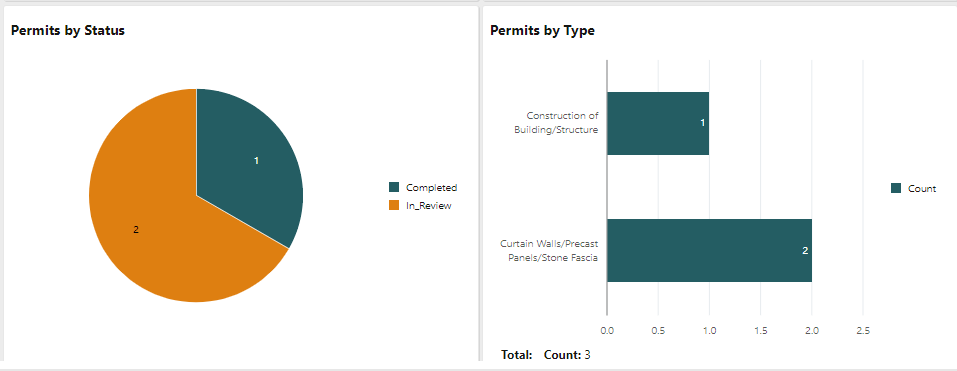
The Permit business process is added to the Project Management node, allowing you to manage owner permit applications. It tracks key information about the permit application and result awarded permit. Permit-related inspections are tracked in line items.
This update requires manual actions on your part. For more information, see Implementing Configuration Package Updates. 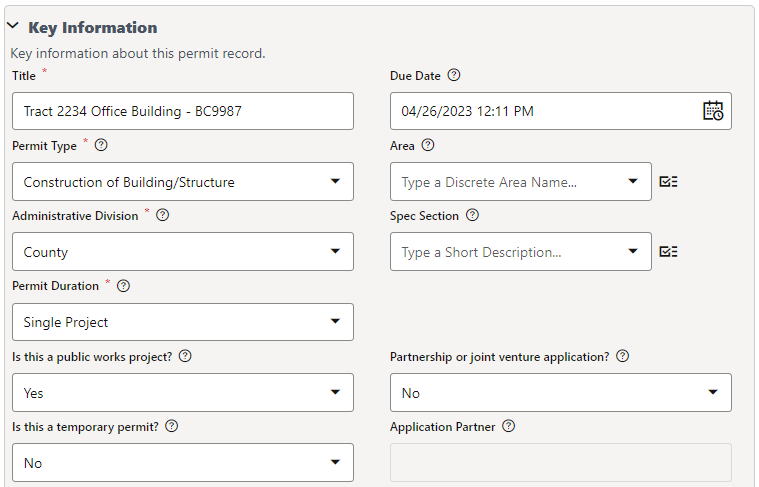
Use New Site Photo BP to Add Photos, Audio, Video
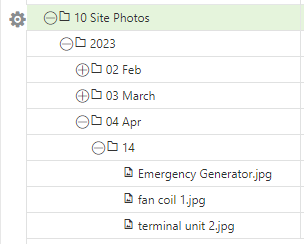
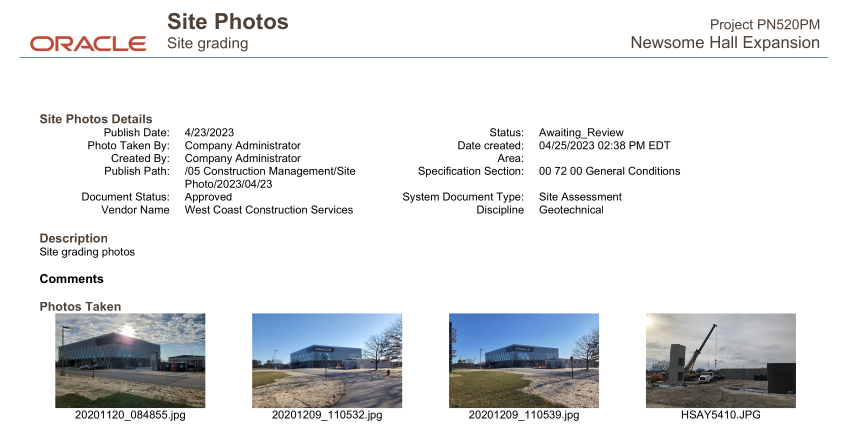
The Site Photo business process enables you to add photos, videos, or audio files to a project-level Document Manager. It is accessed from the Field Management node in the Unifier Mobile Application.
This update requires manual actions on your part. For more information, see Implementing Configuration Package Updates.
Reports
Text Search Custom Report
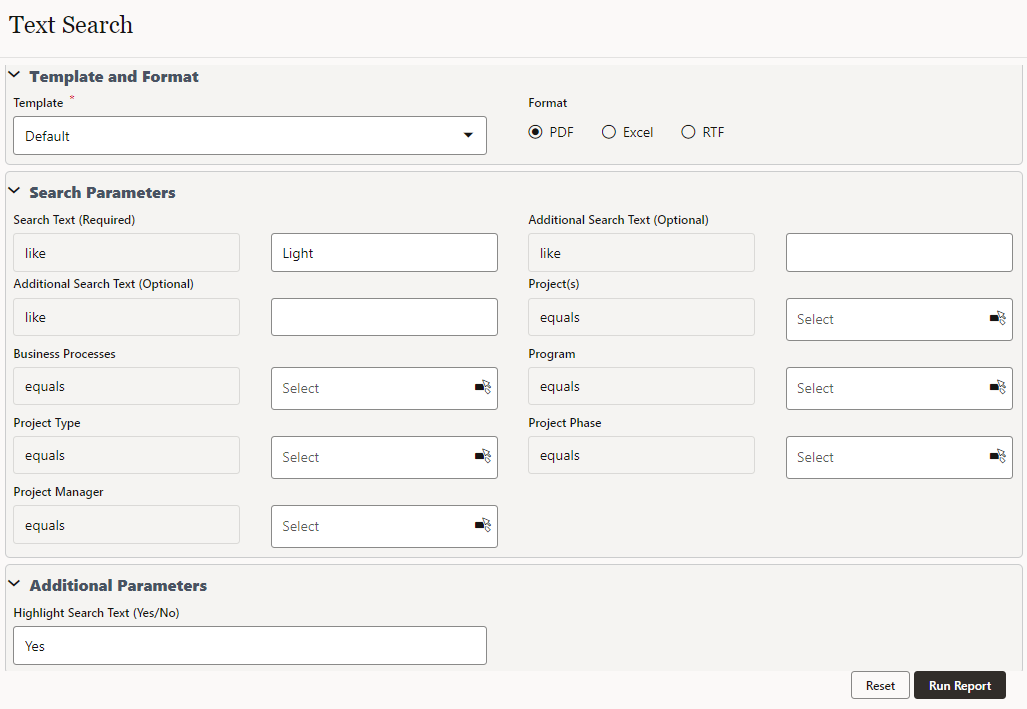
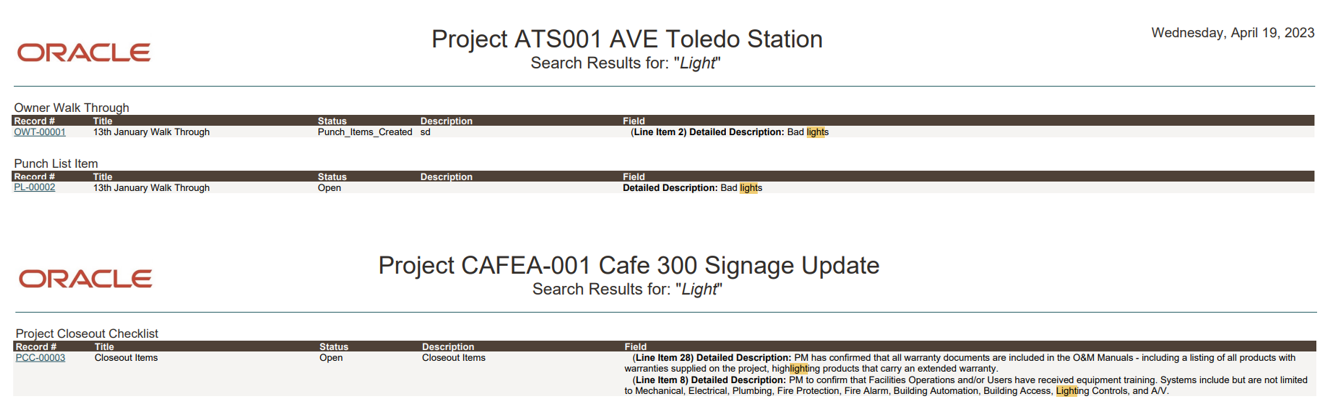
The Text Search Custom Report searches for as many as three text strings across key text fields in all business processes and across shells in the hierarchy. The search can also extend into document attributes, with an option to highlight found text. The report is available at both the project and organization levels.
This update requires manual actions on your part. For more information, see Implementing Configuration Package Updates.
User Interface
New Action Buttons in Business Processes
The buttons to Save, Submit, and Send business processes have been redesigned for improved clarity and consistent user experience.
For both workflow and non-workflow BPs, the text and drop-down icon for Save, Submit, Send, and Action menu have been replaced with buttons.
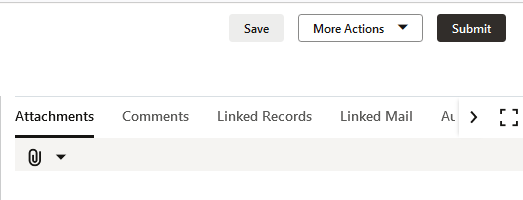
Non-Workflow BPs: A newly created record will have a button for Save, a drop-down button for More Actions, and a button to Submit the record. As before, both Save and Submit buttons will cause a permanent record to be created in the PB log. After the record is submitted – but before it has reached a terminal status – available buttons will be More Actions and Edit. When the status is terminal (or terminated), only the More Actions button will be visible.
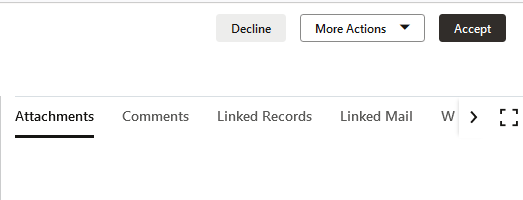
Workflow BPs: When opening a workflow record between creation and an end step, the buttons will be labeled Decline, the More Actions drop-down, and Accept. A record being edited will now have a button to Save Draft, a More actions down-down button, and a button to Send the record to the next step in the workflow. At the end step of a workflow record, the only available buttons will be the More Actions down-down and Save.
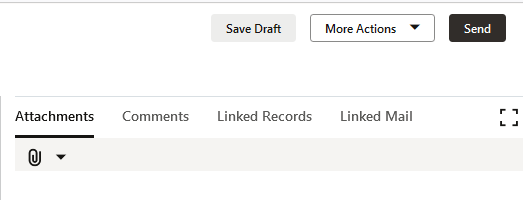
Bidder Records: When a bidder has accepted a bid request, the Submission Status is clearly signaled at upper right. Three buttons are provided for Save, the More Actions drop-down, and Submit Proposal. After submitting a bid, the bidder will see a confirmation of Submitted status, the More Actions drop-down, and a Withdraw button.
Business Process Logs
Non-Workflow Logs to Show Edit Status
In a non-workflow BP log, a new column indicates whether a record is in edit mode.
When creating and filtering views, you can include or exclude edit records by setting the Show Edit Records flag to Yes or No.


Filters
Enhanced Features for Filters in Planning, Portfolio Sheets
Filters in Planning Sheet and Portfolio Sheet views have two upgrades.
- Use AND or OR operators to match all conditions or any conditions. This allows you to, for example, create a filter to show all rows with date ABC or Short Description XYZ.
- A data element can now be used more than once within a filter, allowing you to specify, "show all rows with date ABC OR date XYZ."
Cash Flow
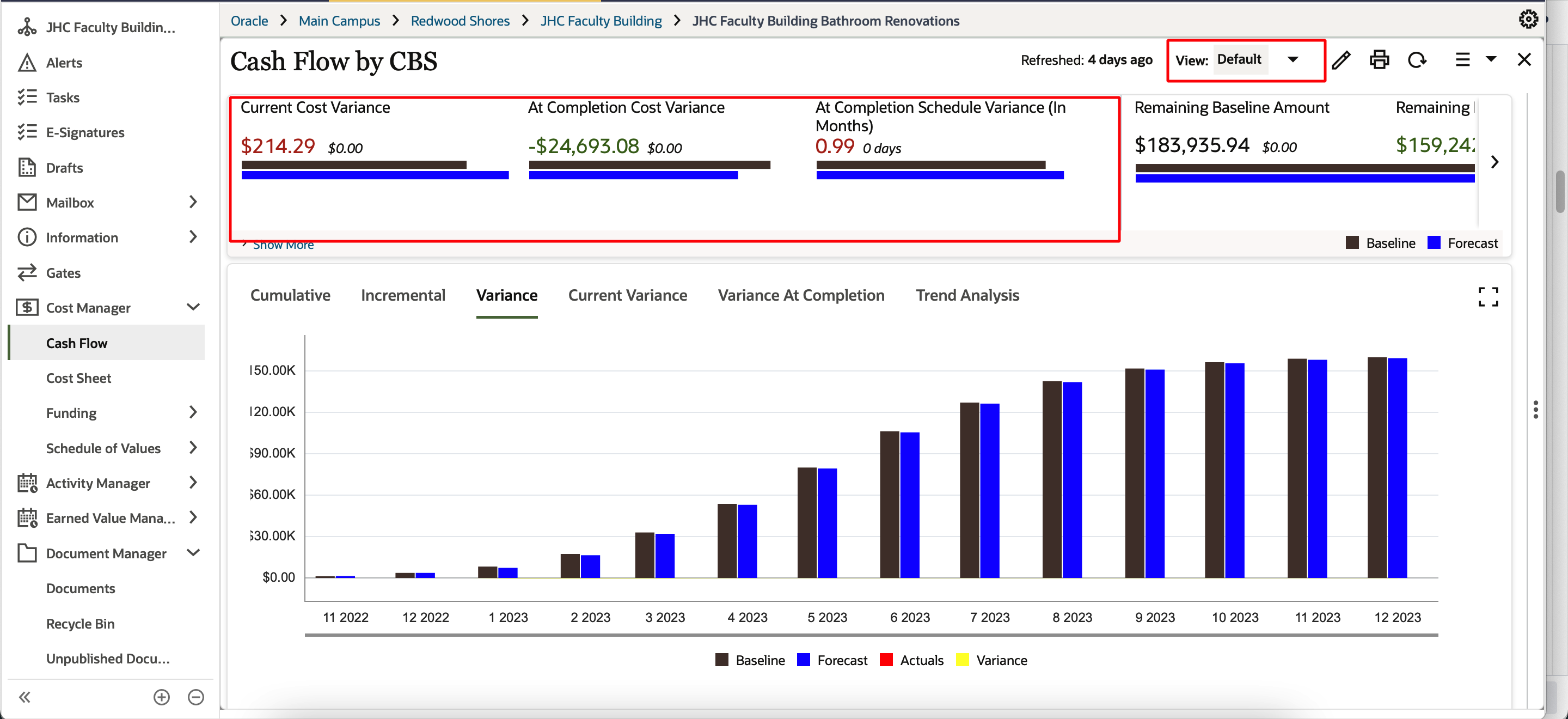
Default Filter in Cash Flow
You can now view the following information in the default Cash Flow view:
- All inflow and outflow curves
- All variance data such as Cost Variance and Schedule Variance
- The variance data in the graph
FBS Pickers
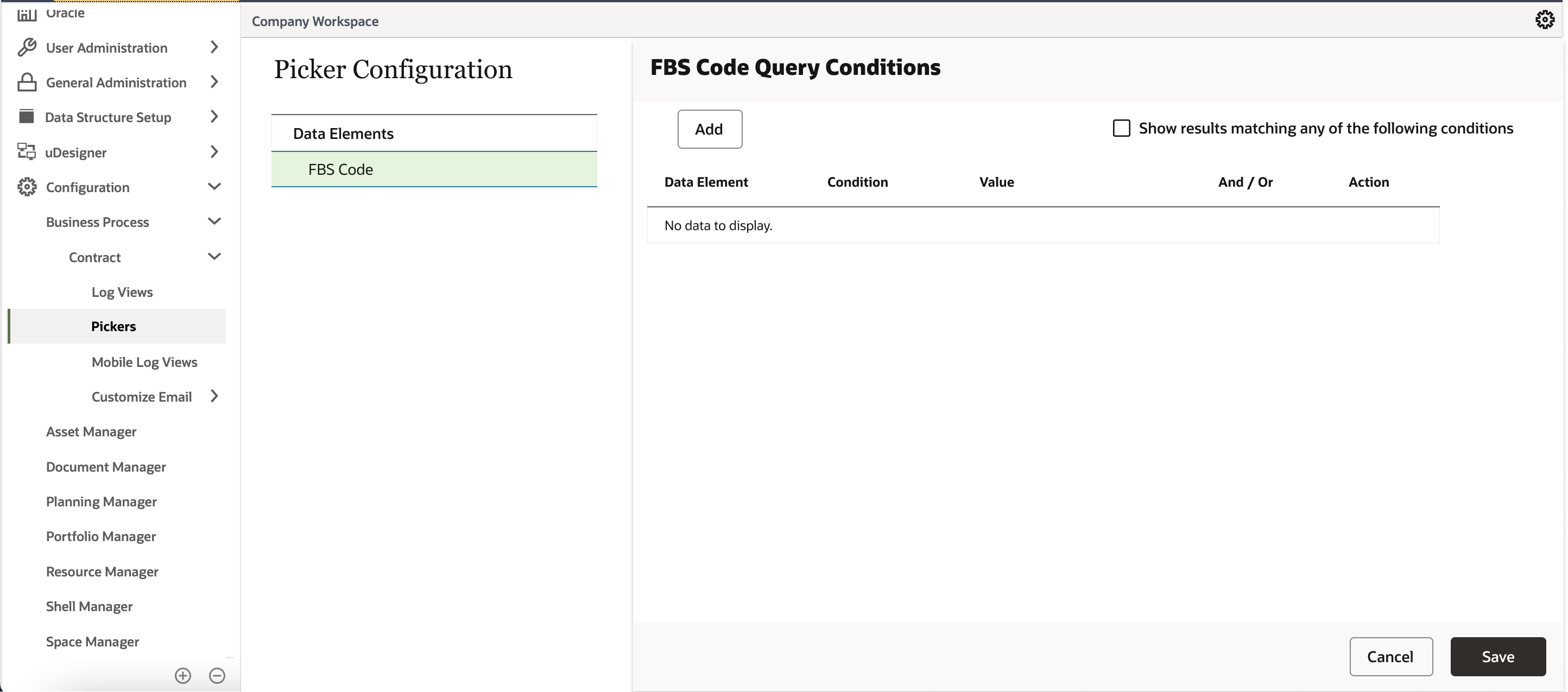
Support for Filtering in FBS Pickers
An administrator can define query conditions to filter the list of available codes and categories in pickers. In practice, this allows an administrator to conceal an internal-use fund code from a contractor. It also prevents a user from inadvertently associating a cost with the wrong category.
Additional Enhancements - Automatic
New User Defined Reports: Two new UDRs are included at the Report Template and Organization levels:
- UE Warranty and Equipment Asset Summary (Full Access)
- UE Warranty and Equipment Asset Summary (Permission Access)
Updated Data View News Feed: Excel imports from the Project Feed log are excluded.
Duration Type Attribute Added to Manual Activity Sheets: This will facilitate in calculating planned units and remaining units in assignments.
Last Published Tuesday, November 21, 2023