Unifier Essentials 23.6
Dashboards
New Project Summary Dashboards
New dashboards are added in three categories: Vendor Management, Change Management, and Contingency.
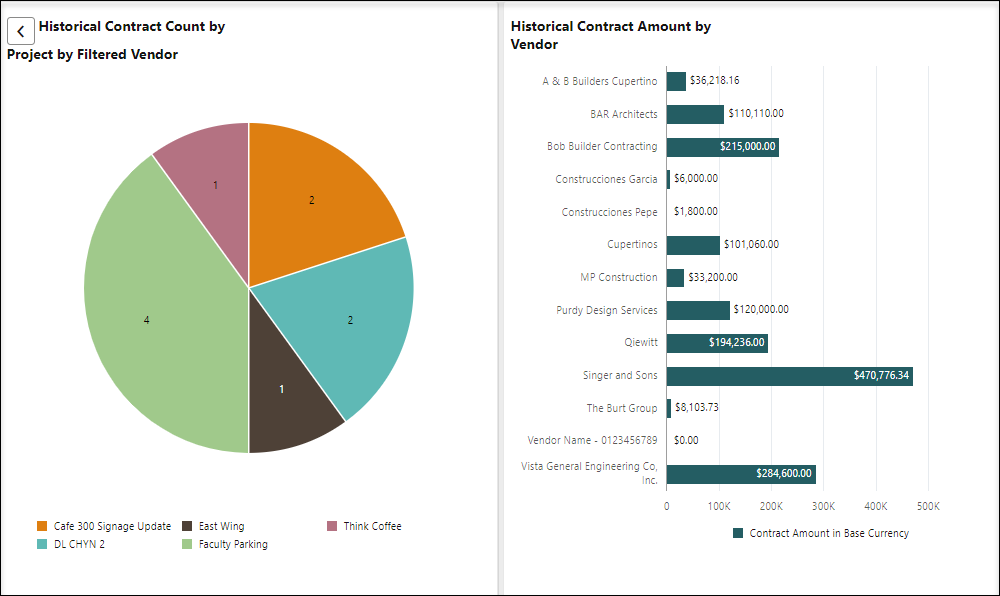
- Vendor Management
- Historical Contract Count by Vendor
- Historical Contract Amount by Vendor
- Active Contract Count by Vendor
- Active Contract Amount by Vendor
- Historical Change Order Count by Vendor
- Historical Change Order Amount by Vendor
- Active Contract Change Order Count by Vendor
- Active Contract Change Order Amount by Vendor
- Historical Average RFI Turnaround Time by Vendor
- Historical RFI Count by Vendor
- Change Management
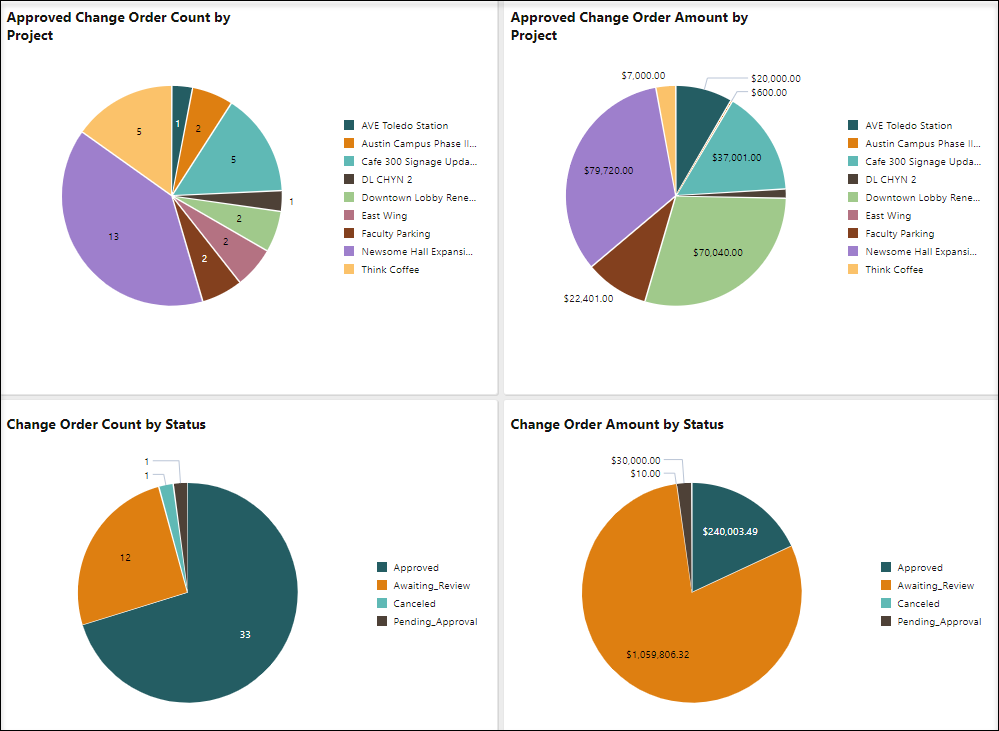
- Approved Change Order Count by Project
- Approved Change Order Amount by Project
- Change Order Count by Status
- Change Order Amount by Status
- Change Order Count by Reason
- Change Order Amount by Reason
- Pending and Approved Change Request Line Item Amounts not added to Change Orders
- Commitment Changes as a Percentage of Committed Cost by Project
- Contingency
- Contingency Budget Amount Used by Project
- Contingency Budget Amount Available By Project
- Contingency Budget Amount Used by Reason
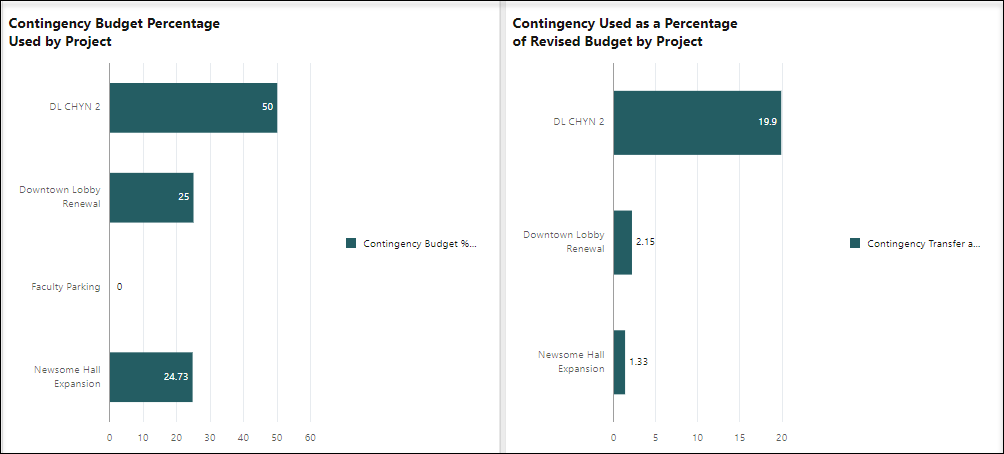
- Contingency Budget Percentage Used by Project
- Contingency Used as a Percentage of Revised Budget by Project
User-Defined Reports
New User-Defined Reports
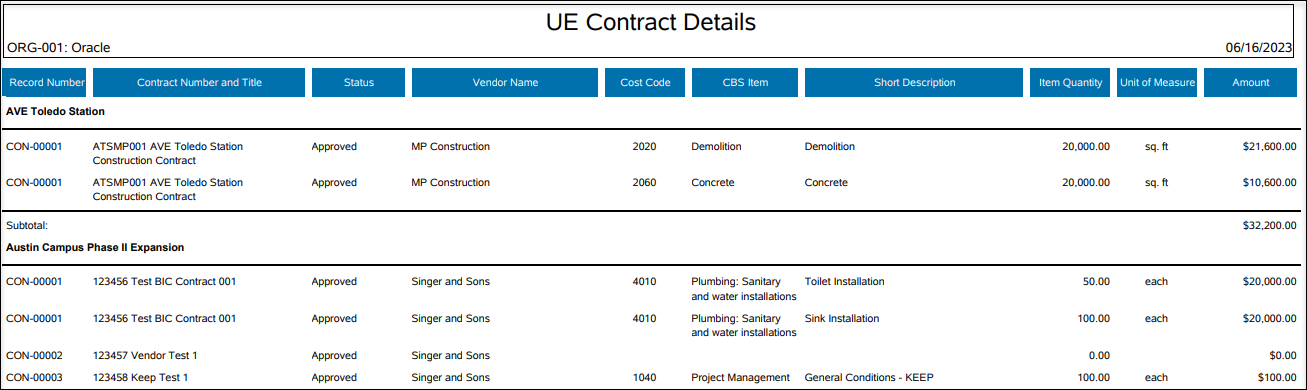
New user-defined reports are added to the Organization level and Report Templates.
- Contract History Details (Full Access and Permission Access)
- Invoice Payment History (Full Access and Permission Access)
- Permit Details (Project-level UDR in the Oracle Project Template)
Admin: Users and Groups
New "Integration/Report Writer" Group
The pre-defined Integration/Report Writer group is added at the company and organization levels. This group has access to all User-Defined Reports, Data Views, the Data Structure Setup, and other functions related to integration.
The Integration/Report Writer group permissions must be updated manually for existing UE customers.
Mobile - Workflow Business Processes
Ability to View Workflow Progress
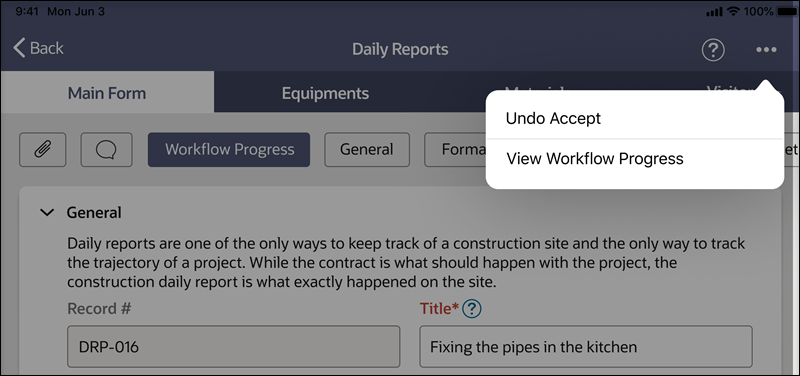
View workflow progress by clicking the ellipsis (three buttons) at the upper right corner of a business process.
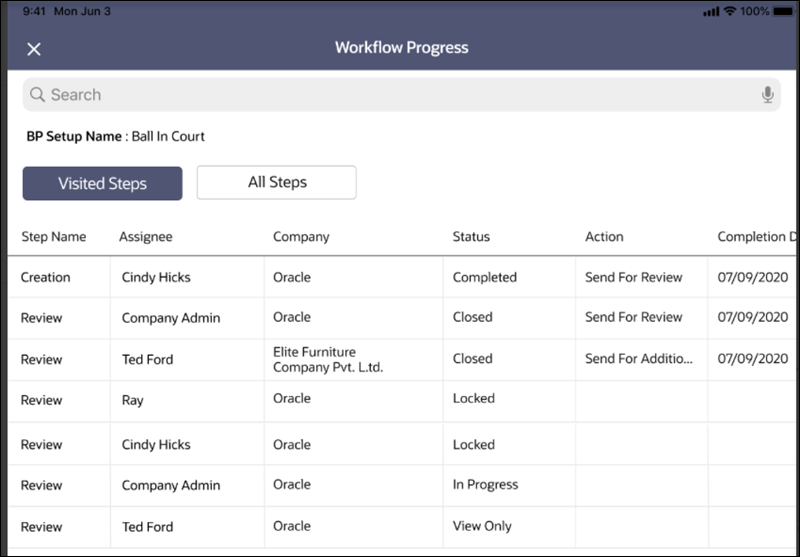
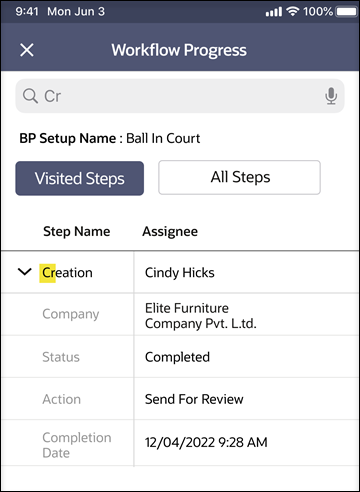
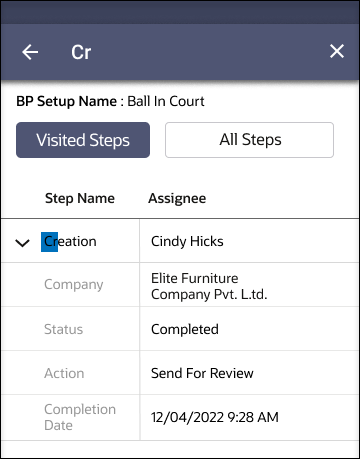
Use buttons to select Visited Steps or All Steps. On mobile phone, use the up/down arrows to expand details of each step name. You can also search within a workflow progress log using a dedicated search bar on iOS or by tapping the search icon on the top menu bar (Android).
These features are available on both phones and tablets, using both iOS and Android.
The visibility of workflow progress depends on BP design, setup, and user permissions set in uDesigner, BP Setup, and User Administration. This feature is not available in offline mode.
Last Published Tuesday, November 21, 2023