Mobile
Release 23.11
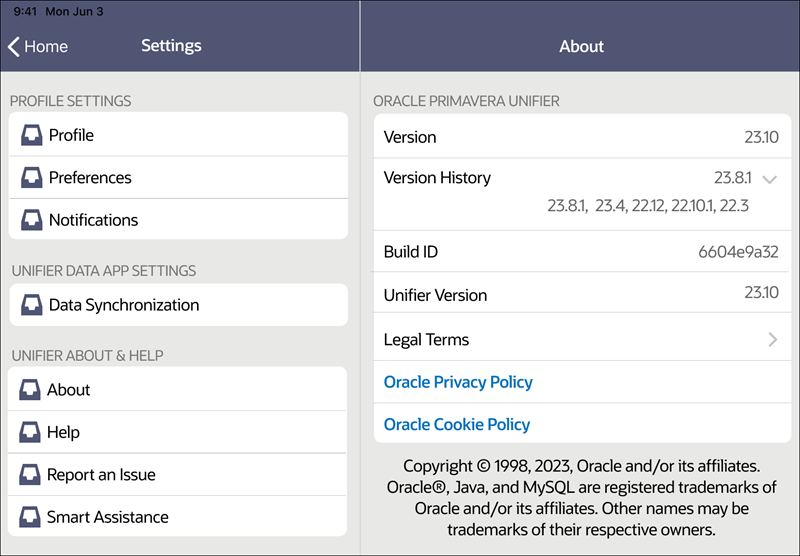
View App Version History
When the Unifier app is upgraded, a new field called Version History is displayed in Settings > About. It displays the previous version and, when expanded, earlier versions. This upgrade applies to iOS and Android apps.
Release 23.10
Delete Comments and Update the Hidden Comment Checkbox
Administrators can now grant designated users or groups the ability to remove or hide comments, on workflow and non-workflow business proceses.
Password Change Terminates Active Sessions
When a user password is changed – whether by an administrator or a user – all that user's sessions will be terminated across all interfaces for configurations that are not using single sign on.
This termination of all sessions will also occur when an administrator forces a logout
Permission to Delete General Comments
An administrator can now define permission for both workflow and non-workflow business processes, allowing a user or group the ability to delete comments on a business process record or to update the Hidden Comment checkbox.
This permits the removal of comments that were added in error or should not be visible to all users.
Download All Business Process Records
Download all the records of a given business process at once, providing offline access. On the business process picker will be able to access these records, and with only minimal data required for referencing.
Release 23.7
Auto Login Enhancement
When Auto Login is initiated within the app, only the Login screen is visible; the app itself will remain on the same screen where you were before Auto Login was triggered. This behavior applies only to non-SSO logins.
Release 23.6
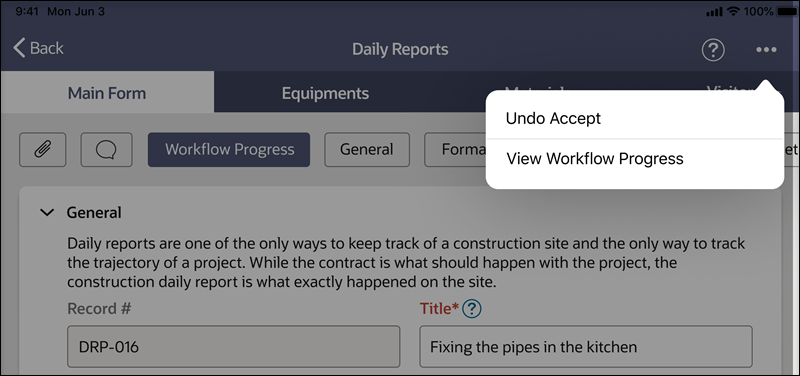
Workflow Business Processes - Ability to View Workflow Progress
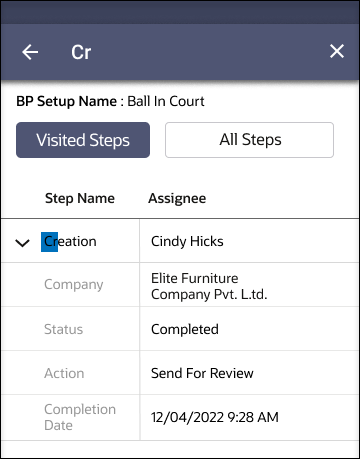
View worfklow progress by clicking the ellipsis (three buttons) at the upper right corner of a business process.
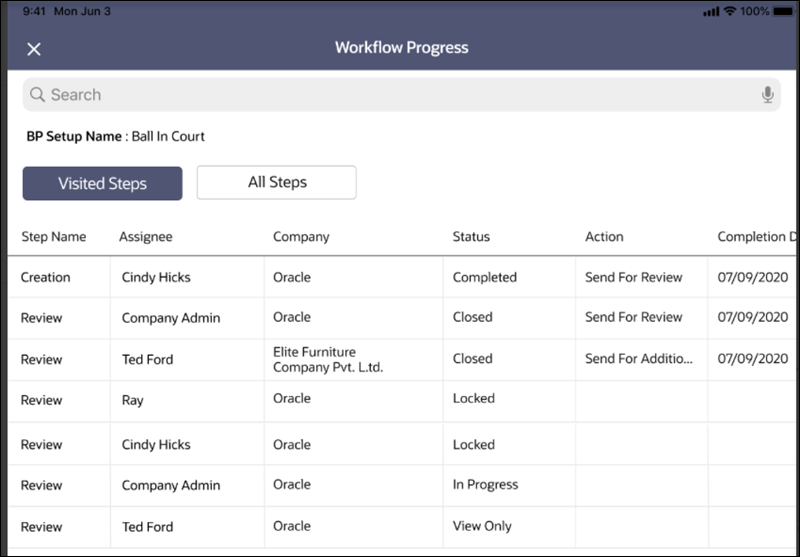
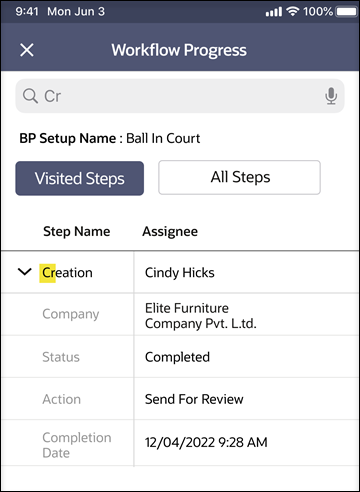
Use buttons to select Visited Steps or All Steps. On mobile phone, use the up/down arrows to expand details of each step name. You can also search within a workflow progress log using a dedicated search bar on iOS or by tapping the search icon on the top menu bar (Android).
These features are available on both phones and tablets, using both iOS and Android.
The visibility of workflow progress depends on BP design, setup, and user permissions set in uDesigner, BP Setup, and User Administration. This feature is not available in offline mode.
Last Published Tuesday, November 21, 2023