Administration
Release 23.10
Standard UI Now Used for Shell Creation
Company and project administrators will now use the standard user interface when creating new shells and shell templates. When copying a shell template to create a new shell, the copy modules window is enhanced to allow selection of all modules using a single checkbox.
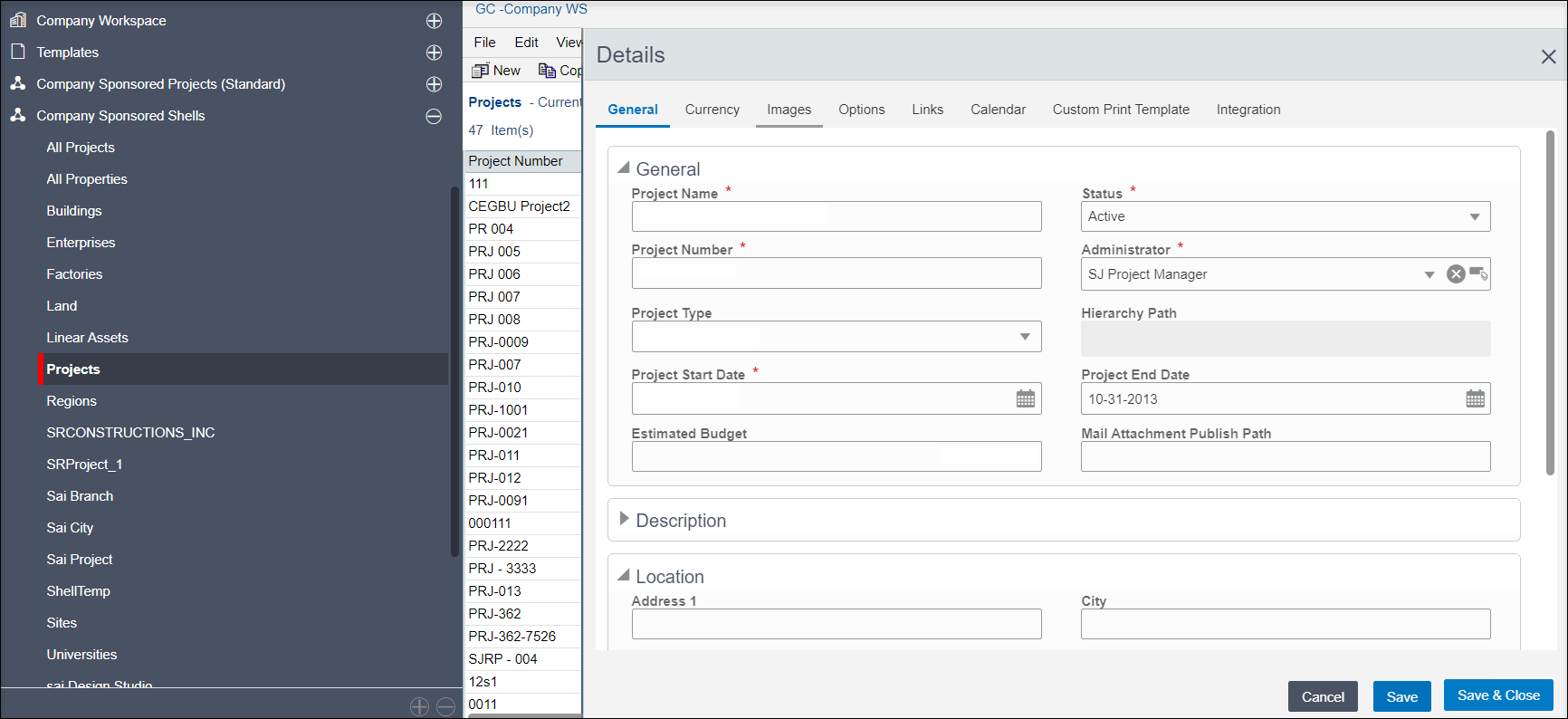
Toggle Between Manual and Auto-Numbering of Shells
An administrator can now toggle between automatic and manual numbering and numbering format within shell manager configuration. Subsequent records will be created using the chosen scheme.
An audit log is also added to track changes.
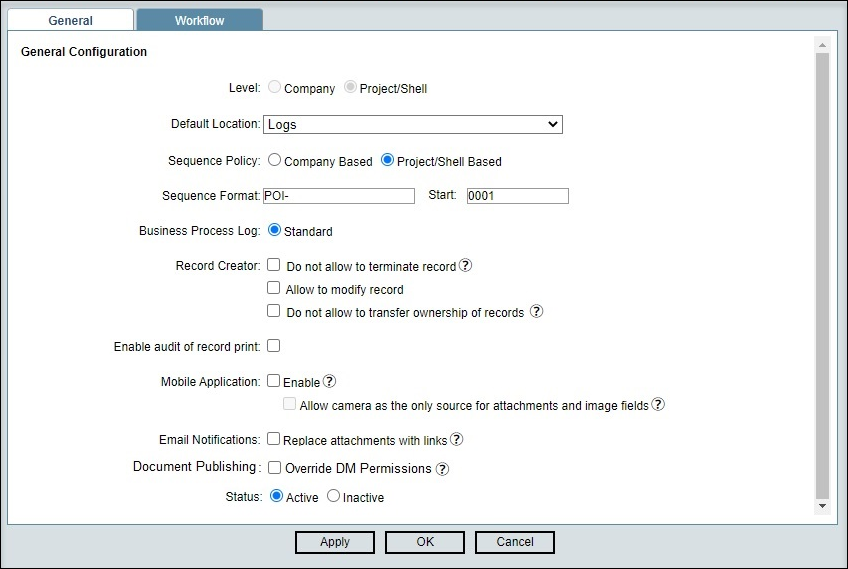
Set Auto-Publish from Business Processes to Override DM Permissions
In all business processes except text-type BPs, specify that records will be published to the document manager irrespective of whether a particular user has permission to access the destination folder.
View and Manage Cash Flow Jobs
A Unifier administrator with appropriate permissions can now view all cash flow jobs across projects in a single log.
Cash flow jobs from inactive projects can now be disabled; cash flow jobs or auto snapshots from multiple projects can be managed with a single click.
Release 23.7
Implementing and Configuring Cash Flow Curves
- Navigate to Company Workspace Admin Mode > Templates > Shells > Projects > Oracle Project Template > Cost Manager > Cash Flow.
- Select Project Level Cash Flow
- Select Properties from the Gear wheel
- Click on the Baseline curve and set the properties as follows:
- Cost = Approved Initial Budget
- Schedule = Use dates from Activity Sheet
- Select: Master Schedule
- Project Type = Baseline
- From Date = Planned Start
- To Date = Planned Finish
- Distribution = S Curve
- Variance = Inflow
- Click Update
- Click on the Forecast Curve and set the properties as follows:
- Cost = Forecast
- Schedule = Use dates from Activity Sheet
- Select: Master Schedule
- Project Type = Current
- From Date = Start
- To Date = Finish
- Distribution = S Curve
- Variance = Outflow
- Click Update
- Click on the Actuals Curve and confirm the properties as follows:
- Cost = Total Costs Incurred
- Variance = Outflow
- Click Update
- Save and Close to save the Cash Flow Properties
- Click on the Baseline curve and set the properties as follows:
- Select the Project Level Cash Flow in the log and Update Shell Templates to push the setup into your Project shell template.
- From your project shell template, update shells (existing projects) as desired.
- New projects created using your template will include these cash flow properties.
Setting Estimate Cash Flow Properties
- Navigate to Company Workspace Admin Mode > Templates > Shells > Projects > Oracle Project Template > Cost Manager > Cash Flow.
- Select Estimate Cash Flow
- Select Properties from the Gear wheel
- Click on the Estimate curve and set the properties as follows:
- Cost = Approved Estimates
- Schedule = Use dates from Activity Sheet
- Select: Master Schedule
- Project Type = Baseline
- From Date = Planned Start
- To Date = Planned Finish
- Distribution = S Curve
- Variance = Inflow
- Click Update
- Save and Close to save the Cash Flow Properties
- Click on the Estimate curve and set the properties as follows:
- Select the Estimate Cash Flow in the log and Update Shell Templates to push the setup into your Project shell template.
- From your project shell template, update shells (existing projects) as desired.
- New projects created using your template will include these cash flow properties.
Last Published Tuesday, November 21, 2023