Oracle Cloud is the industry's broadest and most integrated cloud provider, with deployment options ranging from the public cloud to your data center. Oracle Cloud offers best-in-class services across Software as a Service (SaaS), Platform as a Service (PaaS), and Infrastructure as a Service (IaaS).
Oracle Cloud is one of the few cloud providers that can offer a complete set of cloud services to meet all your enterprise computing needs.
Use Oracle Infrastructure as a Service (IaaS) offering to quickly set up the virtual machines, storage, and networking capabilities you need to run just about any kind of workload. Your infrastructure is managed, hosted, and supported by Oracle.
Use Oracle Platform as a Service offerings to provision ready-to-use environments for your enterprise IT and development teams, so they can build and deploy applications, based on proven Oracle databases and application servers.
Use Oracle Software as a Service (SaaS) offerings to run your business from the Cloud. Oracle offers cloud-based solutions for Human Capital Management, Enterprise Resource Planning, Supply Chain Management, and many other applications, all managed, hosted, and supported by Oracle.
Oracle Financial Services Cloud Services support the latest version of the following major browsers:
· Google Chrome
· Microsoft Edge
· Mozilla Firefox
For more details, see Oracle Software Web Browser Support Policy.
When sharing a link to a document or folder, users of Microsoft Edge need to use the Show Link button and copy the link shown in the dialog.
You can order Oracle Cloud Applications (Software as a Service) offerings by contacting Oracle Sales. After your order is processed, you can then activate your services.
To order a subscription to Oracle Cloud Applications:
1. Go to the Oracle Financial Services Risk and Finance solutions page.
2. Scroll down and select Profitability Analytics.
3. Review the features and capabilities of the service and read the Datasheet.
4. When you are ready to order, scroll up and click Request a Demo.
5. You can either write an email or click Request Now to receive a call from Sales.
6. Enter your Business email, select the confirmation check box, and click Continue.
7. Provide a description of your need and click Request Now.
Later, after you have worked with Oracle Sales to order the Oracle Cloud Application best suited to your requirements, you will receive an email, which contains a link you can use to activate the service you have ordered.
To know how to activate, see Create and Activate New Cloud Account.
To get started, you must activate the Profitability Analytics Cloud Service (PACS). After activating the Cloud Service, you can onboard Application Users to use the subscribed Cloud Services.
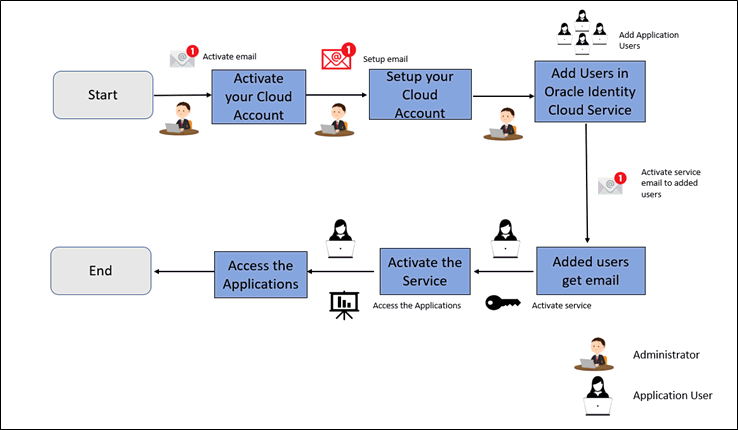
Illustration of the Cloud Subscription Workflow
This topic describes the set of actions that can be performed by:
· An Administrator to activate the Cloud Account and onboard Applications Users for the subscribed Cloud Services.
§ Create and Activate New Cloud Account
§ Access the Oracle Identity Cloud Service Console
· The Application Users to activate and use the Cloud Services that are provisioned by the Administrator.
§ Activate your Account as Application Users
If you are a new Oracle Cloud Applications User, you will receive a Welcome to Oracle Cloud email that asks you to activate your Cloud Account. Follow the instructions in the email to create and activate your new Cloud Account.
You will then receive a follow-up email with the information you need to sign in and start using your Cloud Applications.
As an Administrator, to create and activate your new Cloud Account, perform the following steps:
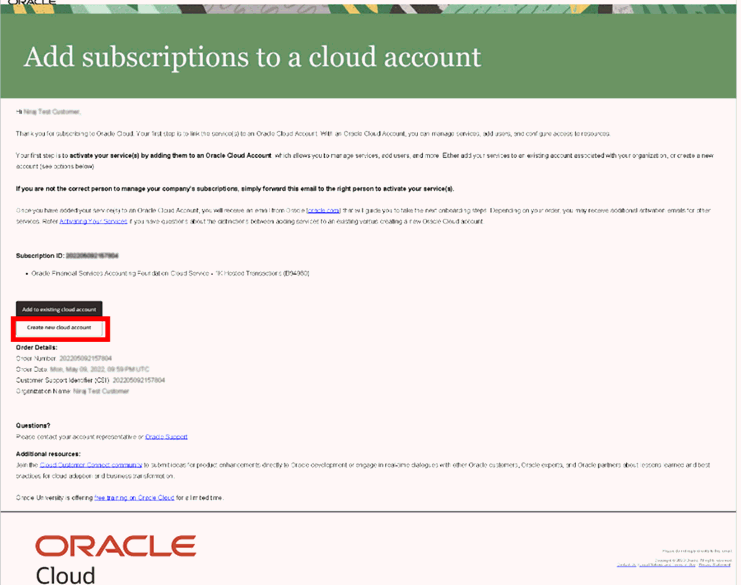
1. Click Create New Cloud Account in the email.
Illustration of Welcome to Oracle Cloud - Setup your Account email
2. Complete the New Cloud Account Information Form to sign up.
New Cloud Account Information Page
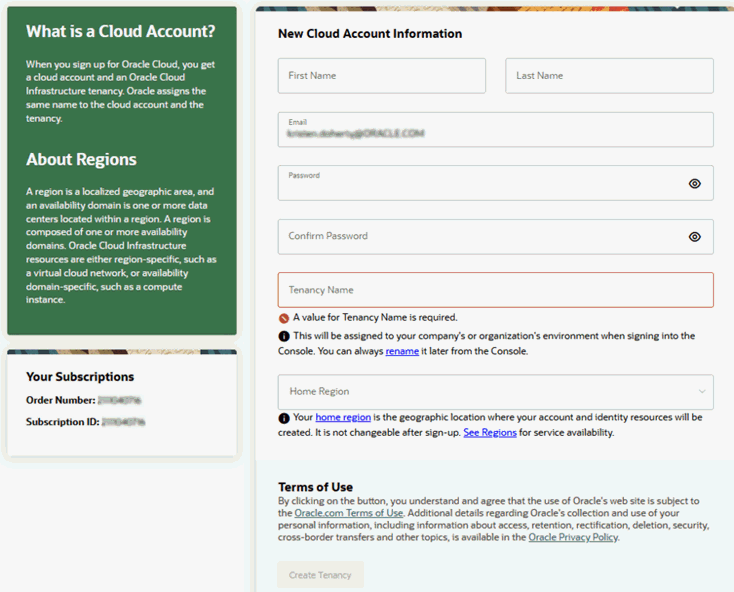
3. Enter the following details:
§ First Name and the Last Name.
§ Email: Provide the same email address which you had given to receive the Welcome email.
Instructions to log into your new Oracle Cloud Account will be sent to this email address.
§ Password to access the New Cloud Account.
§ Re-enter the Password for confirmation.
Make a note of the credentials. The same is required to log in after receiving the Activation email.
§ Tenancy Name: New Tenancy name to be associated with the Cloud Account.
§ Home Region: Select your Home Region, where the Identity Resources and Account are located. Check the service availability before selecting the Home Region.
4. Click Create Tenancy.
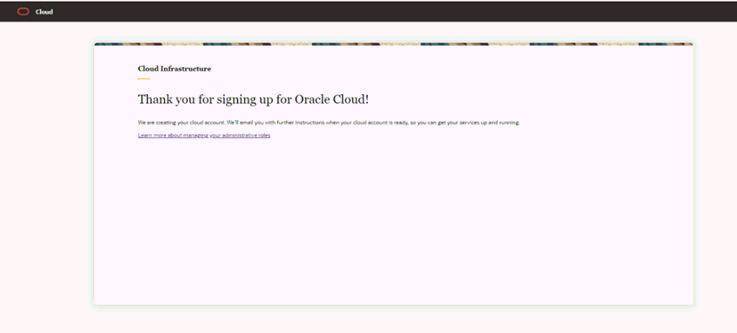
The New Cloud Creation Confirmation screen is displayed.
New Cloud Creation Confirmation Screen
After successful activation, you’ll receive a Setup Complete email.
As an Administrator, if you already own a Cloud Account and need to use the Profitability Analytics Cloud Service (PACS), perform the following steps:
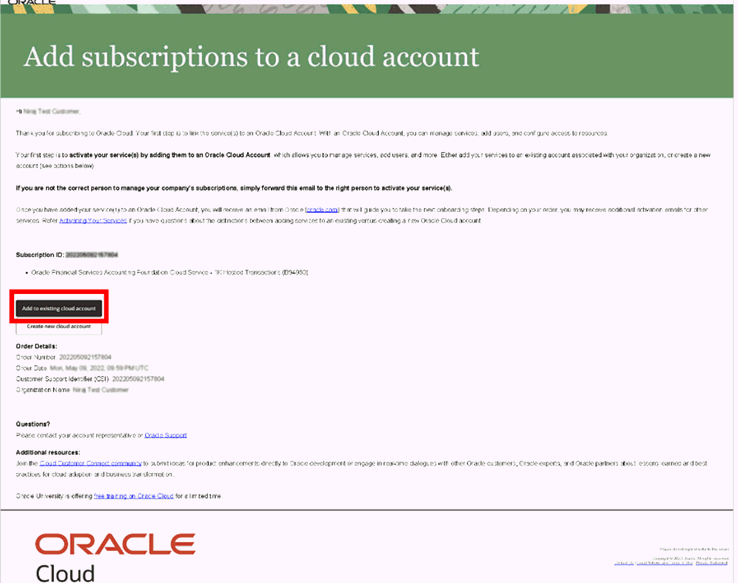
1. In the Welcome email, click Add to existing cloud account option.
Add subscriptions to a cloud account
2. Preform the steps as mentioned in the Access the Oracle Identity Cloud Service Console section.
As an Administrator, to access the Cloud Account:
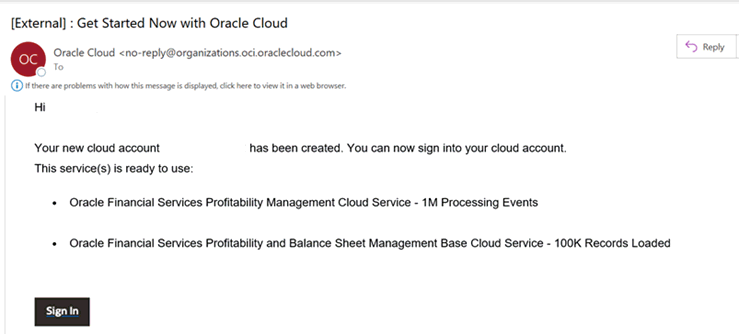
1. In the Setup Complete email, click Sign In.
Get Started Now with Oracle Cloud
2. Enter the Username and Password to access the Oracle Cloud Console URL.
Use the same Username and Password that you provided during activation setup.
3. Reset the Password.
4. Re log in to Oracle Cloud Infrastructure Classic Console using the new Password.
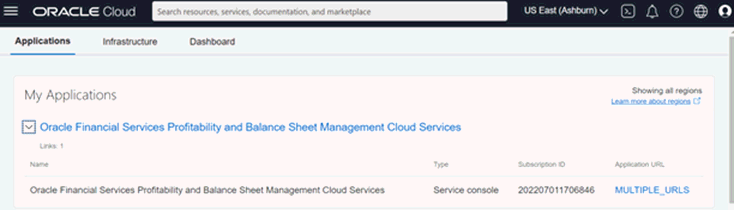
5. Navigate to the Oracle Cloud Infrastructure Classic Console, the Application URLs are displayed.
Oracle Cloud
The Oracle Identity Cloud Service integrates directly with existing directories and Identity Management Systems and makes it easy for users to get access to applications. It provides the Security Platform for Oracle Cloud, which allows users to securely and easily access, develop, and deploy business applications such as Oracle Human Capital Management (HCM) and Oracle Sales Cloud, and Platform Services such as Oracle Java Cloud Service, Oracle Business Intelligence (BI) Cloud Service, and others.
Administrators and Application Users can use Oracle Identity Cloud Service to help them effectively and securely create, manage, and use a Cloud-based Identity Management Environment without worrying about setting up any infrastructure or platform details.
To access the IDCS Console, perform the following steps:
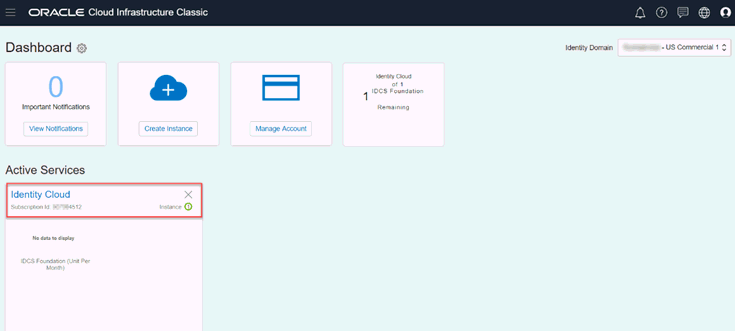
1. In the Oracle Cloud Infrastructure Console Window, under the Active Services, click Identity Cloud.
Oracle Cloud Infrastructure Console
2. Click the Service Instance URL from the Service Instances pane to access your IDCS Console.
Service Instance Pane
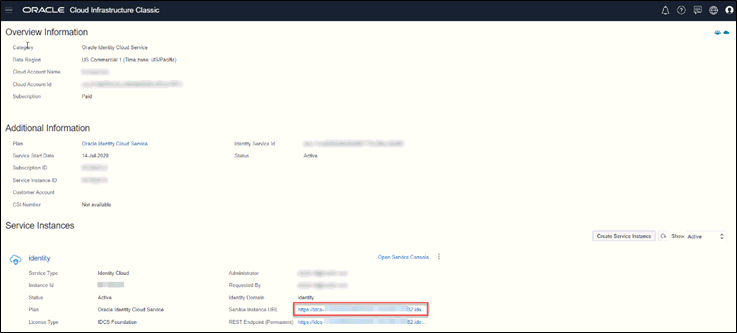
The IDCS console is displayed. In the IDCS Console, you can create Application Users and map the Users to Groups.
To know more about creating users, see Create Application Users.
Oracle Identity Cloud Service Console
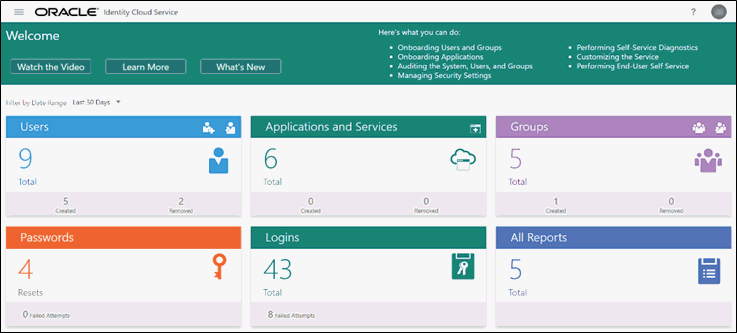
As an Administrator, you can create users to have different access rights to the Cloud Service.
For example, the IDCS Administrator has Super User Privileges for an Oracle Identity Cloud Service Identity Domain, and can create users, groups, group memberships, and so on.
After an Application User has been provisioned by their Administrator, they will receive an Account Activation email.
As an Application User, perform the following steps to login and activate your account:
1. Open the email you received from Oracle Cloud.
Email to Activate Your Account
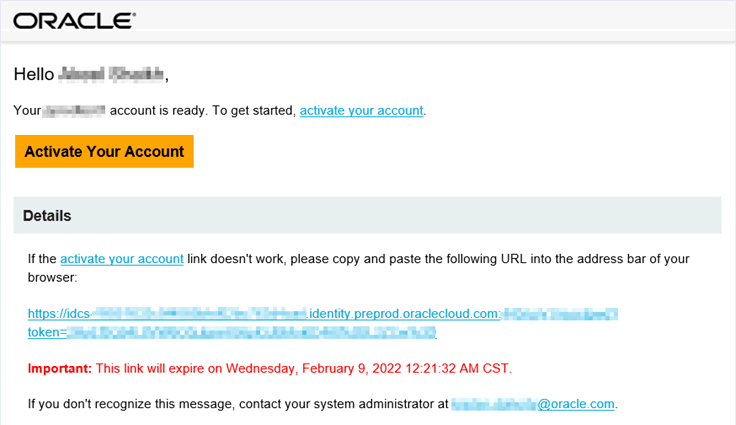
2. Review the information about your service in the email.
3. Click Activate Your Account.
You will be prompted to change your Password on the initial login.
4. Specify your new credentials in the Reset Password window to activate your account.
After the Password is successfully reset, the Congratulations window is displayed.
5. Access the Application URL that your Application Administrator shared with you.
6. Specify your credentials to sign into your account.
The Welcome page is displayed.