User Defined Repricing Patterns provide a mechanism to capture Instrument Repricing Patterns that are too complex to be accommodated through the use of the Standard Account Table Fields. You can utilize a Repricing Pattern to generating Cash Flows by entering the Adjustable Type Code as “Repricing Pattern” along with actual Repricing Pattern Code for the relevant Instrument Records.
The procedure for working with and managing Repricing Patterns is, similar to that of other Oracle Business Rules.
Topics
· Repricing Pattern Summary Page
· View and Edit Repricing Patterns
Select Cash Flow Engine Cloud Service menu, select the Maintenance, and then select Repricing Pattern.
This page is the gateway to all Repricing Patterns and related functionality. You can navigate to other pages relating to Repricing Patterns from this point.
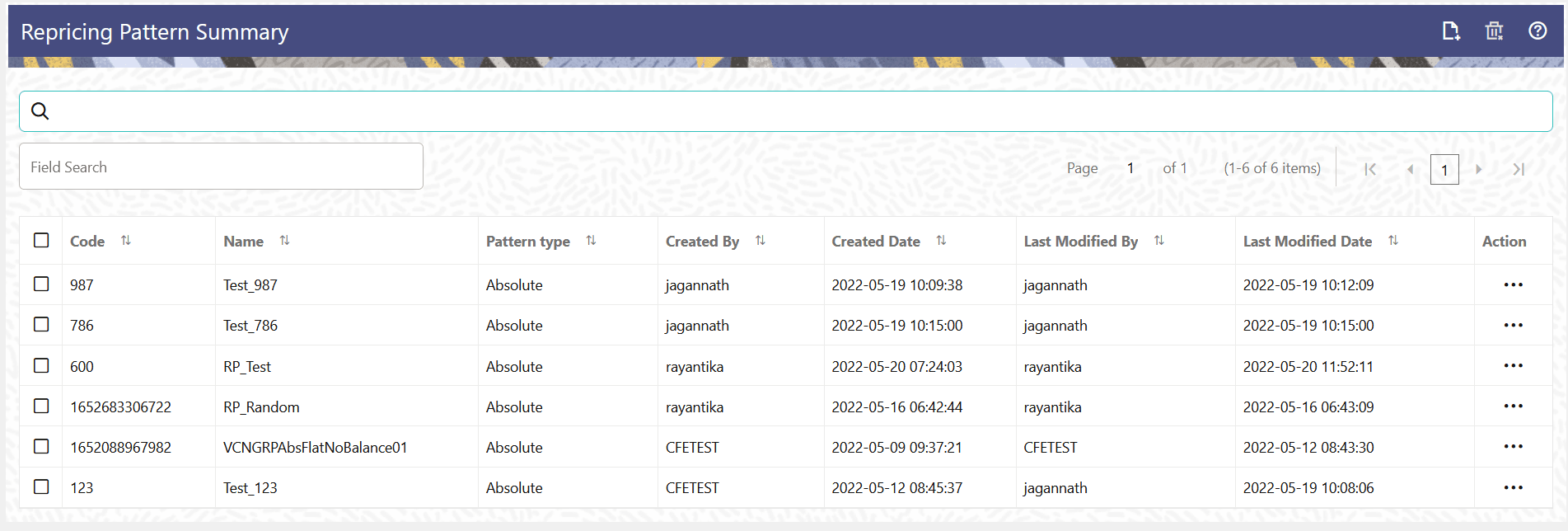
The Cash Flow Repricing Summary Page displays the following columns.
Table 1: Repricing Pattern Rule – Fields and Descriptions
Column |
Description |
|---|---|
Code |
Displays the code of Repricing Pattern Rule. |
Name |
Displays the Repricing Pattern Rule's Short Name. |
Pattern Type |
Displays the Repricing Pattern Type, such as Absolute or Relative. |
Created By |
Displays the Name of the user who created the Repricing Pattern. |
Created Date |
Displays the Date and Time at which a Repricing Pattern was created. |
Last Modified By |
Displays the Name of the user who last modified the Repricing Pattern Rule. |
Last Modified Date |
Displays the Date and Time when Repricing Pattern was modified last. |
Action |
Displays the list of actions that can be performed on the Repricing Pattern Rule. For more information, see Repricing Pattern – Icons and Descriptions. |
Figure 1: Repricing Summary Page
The Action column on the Repricing Pattern Summary Page offers several actions that allow you to perform different functions. The following actions are available for the Repricing Pattern Rule.
Table 2: Repricing Pattern Rule – Icons and Descriptions
Fields |
Description |
|---|---|
Add
|
Click Add icon to build a new Repricing Pattern Rule. |
Multiple Delete |
Select one or more rules in the table and then click the (-) icon at the top right of the Summary Page to delete more than one rule at the same time. |
View/Edit |
Click
|
Save As |
Click
|
Delete |
Click
|
Dependency Check |
Click
|
Search for a Repricing Pattern to perform any of the following tasks:
· View
· Edit
· Copy
· Delete
Prerequisites
Predefined Repricing Patterns
Procedure
To search the repricing patterns, follow these steps:
1. Navigate to the Repricing Pattern Summary Page.
2. Enter the code or name of the pattern in Search Criteria.
3. Click the
Search  .
.
Only patterns that match the search criteria are displayed.
You create Repricing patterns to capture the Repricing Behavior of instruments whose rates change according to complex schedules.
To create the Repricing Pattern, follow these steps:
1. Navigate to Repricing Pattern Summary Page.
2. Click Add icon.
The Add Repricing Pattern Page is displayed.
3. Enter a Numeric Code Value for the new Repricing Pattern. You can also click Generate Code Option in Code field to generate the code automatically.
4. Enter the name of the pattern.
5. Type a brief description for the pattern.
6. Select the Repricing Pattern Type: Absolute or Relative.
The selection of the Repricing Pattern type determines the fields that are displayed in the Repricing Events Table and the information you must provide to successfully define that pattern type. See:
§ Defining Absolute Repricing Patterns
§ Defining Relative Repricing Patterns
7. Click Save.
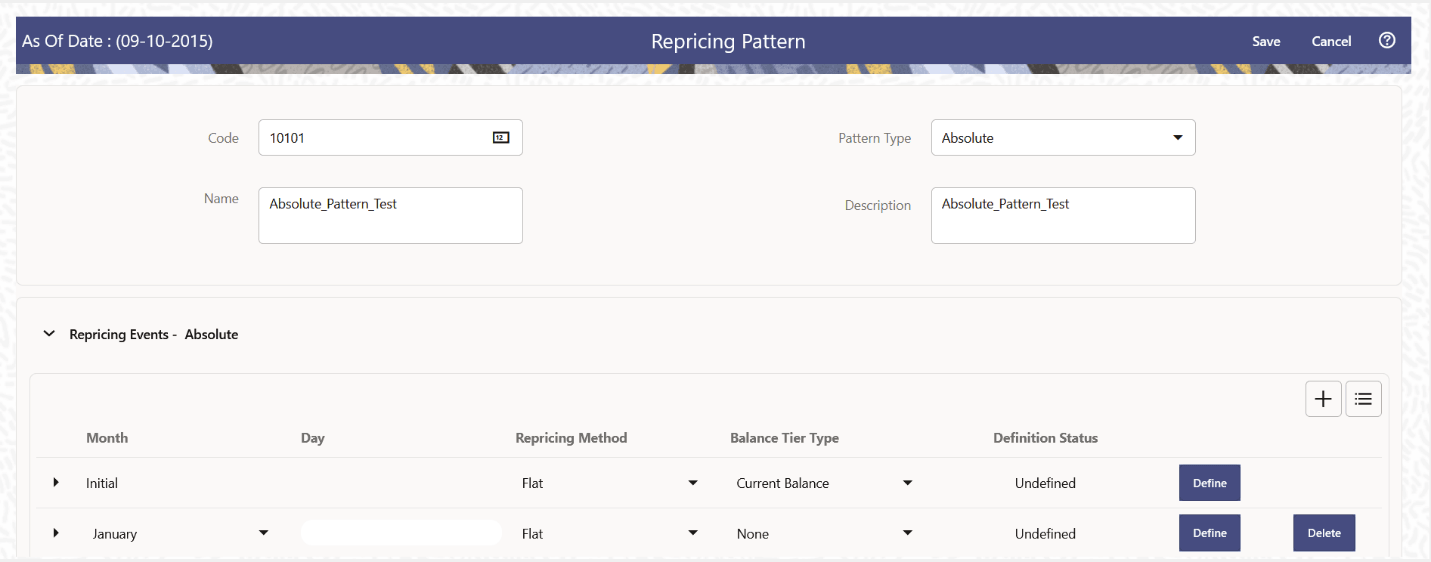
The Absolute Repricing Pattern is used for instruments that are date dependent. Each specific date is a separate event. You need to enter the month and day for each event, except for the initial event.
Figure 2: Define Absolute Repricing Pattern
Prerequisites
Selecting Absolute as the pattern type.
Procedure
This table describes key terms used for this procedure.
Table 3: Key Terms used in Absolute Repricing Pattern
Key Terms |
Description |
|---|---|
Add
Row |
Allows you to add one or more Repricing Events. |
Add
Multiple Rows |
Allows you to add more Repricing Events. |
Define |
Add detail for each Repricing Event. |
Delete |
Allows you to delete specific rows in the Repricing Events Table. |
Month |
In conjunction with the Day field, this drop-down menu, allows you to specify a unique month-day combination for a Repricing Event. |
Day |
In conjunction with the Month drop-down menu, this field allows you to specify a unique month-day combination for a Repricing Event. |
To define Absolute Repricing Pattern, perform the following:
1. Select Pattern Type as Absolute.
2. Specify the required month-day combination for the event. You cannot specify a month-day combination for the first event as this row is reserved for the initial period.
3. Select the Repricing Type: Flat or Indexed.
The default is flat. If you select Indexed, the system automatically changes the fields available for entry.
Note: You can change your selection of the Repricing Type at any point in this process. Sometimes it may cause a loss of data.
For more information on Flat Repricing Type, see Repricing Event is Flat Repricing.
For more information on Index Repricing Type, see Repricing Event is Index Repricing.
4. Select Balance Tier option:
§ None: If selected, the Balance Tiered Pricing is not applied.
§ Current Balance: Users can define balance tiers and associate different rates with the corresponding balance tier level.
5. Click Define.
Flat Rate: A Flat Rate is a specific rate—it is directly input.
To define a Flat Rate Event, follow these steps:
1. Select the Flat option from Repricing Method drop-down list for the event you are going to define. Notice the bottom half of the screen refreshes, displaying the required inputs. Complete the following steps on the Add Repricing Events Page:
2. Enter the Net Rate.
3. Enter the Gross Rate.
4. Enter the Transfer Rate.
NOTE:
The Transfer Rate functionality will be released in future.
You must enter a valid value for at least one of these rate fields.
5. Click Apply.
The Event Summary Page is displayed. At this point, you have the option of defining additional events or saving. To add an additional event, repeat Click Add Row. You can edit the details of Defined Event.
An Indexed Rate is a set of parameters used to calculate a rate.
To define an Indexed Rate Event, follow these steps:
1. Select the Indexed option from Repricing Method drop-down list for the event you are going to define. Notice the bottom half of the screen refreshes, displaying the required inputs. Complete the following steps on the Add Repricing Events Page:
2. Select the Interest Rate Curve.
3. Select the Transfer Price Curve.
NOTE:
The Transfer Price Curve functionality will be released in the future.
4. Enter the Yield Curve Term and select the appropriate Multiplier.
5. Enter the Net Margin.
6. Enter the Gross Margin.
7. Enter the Transfer Price Margin.
8. Enter the Rate Cap Life.
9. Enter the Rate Floor Life.
10. Enter the Rate Set Lag and select the appropriate Multiplier.
11. Click Apply. The Event Summary Page is displayed.
12. At this point, you have the option of defining additional events or saving. To add an additional event, repeat Click Add Row.
13. Click Save.
The Repricing Pattern is saved and the Repricing Pattern Summary Page is displayed.
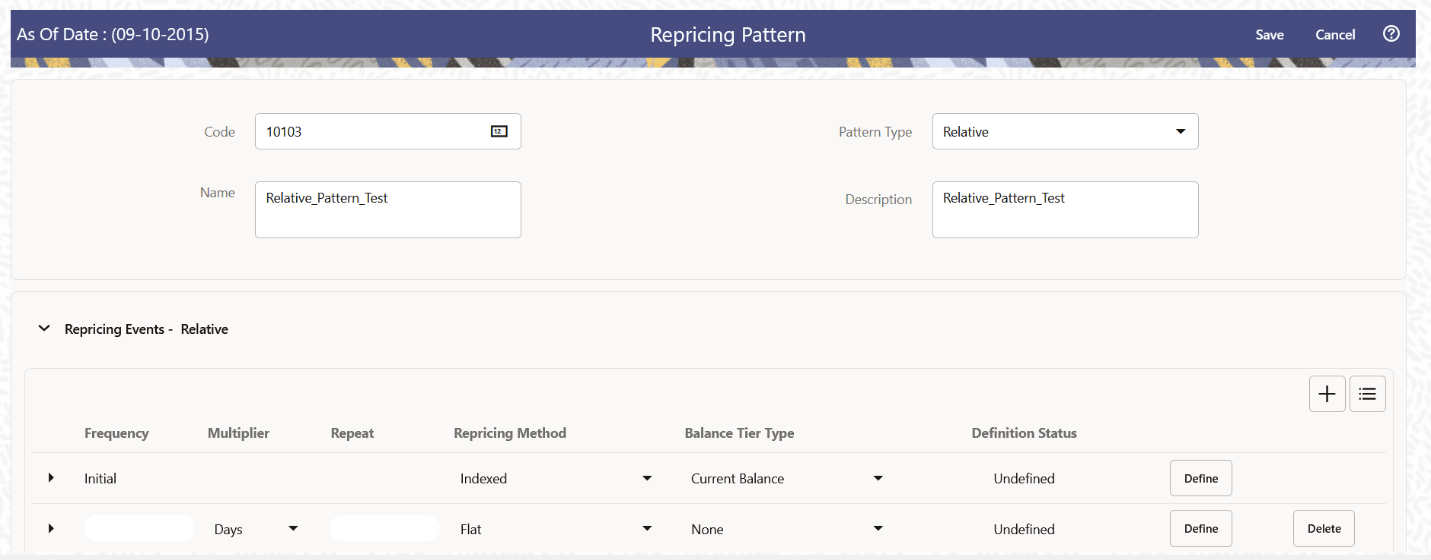
The Relative Repricing Pattern is used for instruments where the repricing is determined by the elapsed time since origination. Defining a Relative Repricing Pattern involves the definition of a series of repricing events applicable to a specific Repricing Pattern Code. You need to specify the length of each Repricing Period and the number of times that event should occur before calculating the next event in the pattern.
Figure 3: Define Relative Repricing Pattern
Prerequisites
Selecting Relative as the pattern type.
Procedure:
This table describes key terms used for this procedure.
Table 4: Key Terms used in Relative Repricing Pattern
Key Terms |
Description |
|---|---|
Add
Row |
This allows you to Add one or more Repricing Events. |
Add
Multiple Rows |
Allows you to add more Repricing Events. |
Delete |
This allows you to delete specific rows in the Repricing Events Table. You need to specify the following parameters in the Repricing Events Table for a Relative Repricing Pattern: |
Frequency |
In conjunction with the Multiplier drop-down menu, this field allows you to specify how often Repricing occurs. |
Multiplier |
The unit of time applied to the frequency. The choices are: Days Months Years |
Repeat |
This allows you to specify the number of times a repricing event should be repeated. |
Repricing Method |
A drop-down list, it displays the Repricing Type, Flat Rate or Indexed Rate, associated with a particular event. |
The steps to create relative Repricing Patterns are similar to creating Absolute Repricing Patterns.
The only difference is that the fields in the Repricing Events Table are different.
Select Pattern Type as Relative and follow the steps mentioned in Creating Absolute Repricing Patterns Section.
You can view existing Repricing Pattern, and you can edit existing patterns, provided you have Read/Write privileges.
To view and edit a Repricing Pattern, follow these steps:
1. Navigate to the Repricing Pattern Summary Page.
2. Search for a Rule. For further information, see the Searching for Rules Section.
3. Click  in
the Action column and select View/Edit to open
the rule you want to update.
in
the Action column and select View/Edit to open
the rule you want to update.
4. Update the Rule details.
5. Click Apply or Save, depending on the Rule type.
You can copy patterns to avoid having to enter data multiple times. This saves time and effort and also reduces mistakes.
To copy a Repricing Pattern, follow these steps:
1. Navigate to the Repricing Pattern Summary Page.
2. Search for
a Rule.
For more information, see the Searching
for Rules Section.
3. Click in
the Action column and select Save
As to duplicate the rule.
4. Select a folder where you want to save the Rule Copy.
5. Enter a unique name for the new Rule.
6. (Optional) Enter a brief description of the Rule.
7. Select the access type.
8. Click Save.
You can delete patterns that are no longer required.
NOTE:
A pattern cannot be retrieved after deletion.
Restrictions on deleting patterns are:
· You cannot delete patterns if you have only Read privileges. Only users with Read/Write privileges and pattern owners can delete patterns.
· You cannot delete a pattern that has a dependency.
To delete a Repricing Pattern, follow these steps:
1. Navigate to the Repricing Pattern Summary Page.
2. Search for a Rule. For more information, see the Searching for Rules Section.
3. Click in
the Action column and select Delete.
You can check dependencies for rules to know where a particular Repricing Pattern Rule has been used. This also prevents accidental deletion of rules having dependencies.
To check the dependency of a rule, follow these steps:
1. Navigate to the Repricing Pattern Summary Page.
2. Search for a Rule. For further information, see the Searching for Rules Section.
3. Click in
the Action Column and select Dependency
Check to the Rule that you want to check for.
NOTE:
This is functionality will be released in future.

