Section - 1 : Installing Oracle Documaker Mobile
Follow these steps to install the Oracle Documaker Mobile on a computer running Windows. Oracle Documaker Standard or Enterprise Edition is a pre-requisite for the installation, so make sure to download and install a compatible version of Oracle Documaker Mobile to match your installation of Oracle Documaker Standard or Enterprise Edition.
Re-installation of Oracle Documaker Mobile to the same location will update the mobile components in the installed directory. Therefore, if you want to retain a prior version for comparison, take a back up of the mobile files.
To re-install Oracle Documaker Mobile, make sure that you uninstall the existing Oracle Documaker Mobile Installation.
Before you begin
Make sure you have full directory access permissions (read/write/execute) to the directory into which you will be installing Documaker Mobile.
Installation
Follow these steps to install the Oracle Documaker Mobile:
- Unzip the file you downloaded from the Oracle Software Delivery Cloud website. The file includes an installer and a readme file. The name of the installer is as follows:
ODM12.6.00#####W32.exe
Where 12.6 is the version number, 00 is the patch number, ##### is the build number.Note: The default installation location for Oracle Documaker Mobile is the default installation location for Oracle Documaker Enterprise Edition. If you have changed your Oracle Documaker Enterprise Edition location or you are installing to use with Oracle Documaker Standard Edition, you will want to update the installation directory for Oracle Documaker Mobile or install to another location and then move the resulting files to Oracle Documaker Standard or Enterprise Edition install location.
- Double-click the ODM installer. The installation wizard starts.
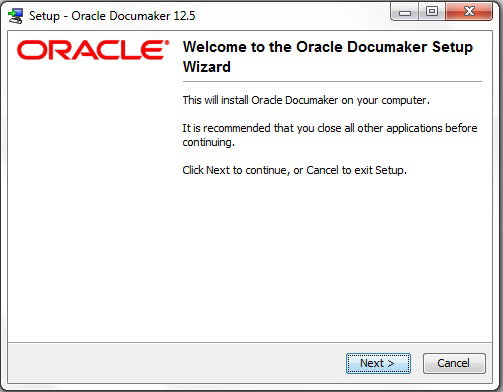
Figure 1.1.1 - Setup wizard - Follow the instructions that appear on your screen to install the software.
- Click Finish to complete the installation.
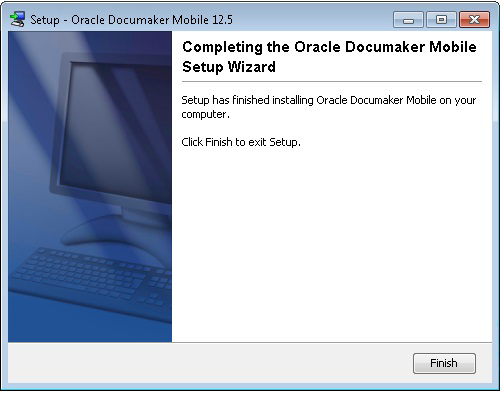
Figure 1.1.2 - Finishing wizard
Validating Your System Installation
The Oracle Documaker Mobile Installation provides the mobile components to process documents into mobile output.
If you have installed into the Oracle Documaker Enterprise Edition installation directory, you will need to:
- Locate the xml snippet files in the mstrres/mobile directory and the json snippet files in the mstrres/mobile/json_snippets directory. Copy them to the mstrres/dmres/mrolib directory that contains the supporting master resource library for mobile processing. If you plan to use another directory to store the mobile resources for mobile processing, copy the files to the location defined by the <MasterResources> mrolib configuration option in your ODEE environment.
If you did not install to the Oracle Documaker Enterprise Edition installation directory, you will need to:
- Complete the step above where the snippet files can be found in the installed directory: Oracle/odee_1/mobile_install/mstrres/mobile (json snippet files can be found in the mobile_install/mstrres/mobile/json_snippets directory)
- Verify if the MROW32.DLL file is present from the installed location to the documaker \bin directory on the Oracle Documaker Document Factory application tier.
If you installed into the Oracle Documaker Standard Edition, you will need to:
- Locate the xml snippet files in the oracle/odee_1/mobile_install/mstrres/mobile directory and the json snippet files in the mobile_install/mstrres/mobile/json_snippets directory. Copy them to the FAP/mstrres/dms1/mrolib directory that contains the supporting master resource library for mobile processing. If you plan to use another directory to store the mobile resources for mobile processing, copy the files to the location defined by the <MasterResources> mrolib configuration option in your ODSE environment.
- Verify if the MROW32.DLL file is present from the installed location to the Documaker FAP/DLL directory.
To enable mobile output in ODEE, use the Documaker Administrator web application to configure the output type, destination, and handling as per the Oracle Documaker Mobile User Guide.
To enable mobile output in ODSE, follow the instructions given in Oracle Documaker Mobile User Guide.