Service Task is an automatic task that gets triggered in the Process flow. It is used to execute the Business Logic that is defined through an Application Rule of Execution Rule Type.
Service Tasks are used to invoke External Model Service through Stored Procedures and Functions.
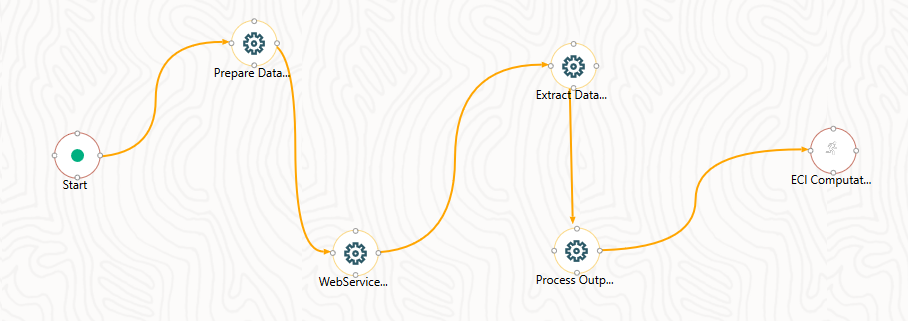
Figure: An Example: Service Tasks Flow
Topics:
1. In the Process Flow Canvas, Select the  Service Task icon from Activity
in the Toolbar. Drag and drop on the Canvas where you want to place it.
Service Task icon from Activity
in the Toolbar. Drag and drop on the Canvas where you want to place it.
2. Double-click the Service Task Icon on the Canvas to display the Activity Window.
1. Activity ID is auto-populated and you can mouse-over the i icon to view it.
2. Enter Activity Name and Activity Description. By default, the Activity ID is populated in Activity Name.
3. Select Status and Outcomes as required.
4. Click  Accept to save.
1. Click  .
The Implementation Window is displayed.
.
The Implementation Window is displayed.
2. Select the information domain where the Execution Rule you want to execute is available, from the Infodom drop-down list. The list displays all the Infodoms mapped to the applications configured in your AFCS Service.
3. Select the Execution Rule that needs to be executed for this activity.
For more information on how to define an Application Rule, see the Application Rules Section.
§ Click  The
Participant Details Window is displayed with
all Application Rules of Execution Rule Types available in your Process.
The
Participant Details Window is displayed with
all Application Rules of Execution Rule Types available in your Process.
§ Click the Name link of the Application Rule to view the details.
§ Select the required Rule and click Ok.
4. Add Parameters you want to pass to the Execution Rule using Data Fields. You can pass Static Values or Dynamic Values. In the case of Dynamic, the value needs to be entered during the execution of the workflow.
§ Click  Add
under Parameters. The Participant
Details window is displayed.
Add
under Parameters. The Participant
Details window is displayed.
§ Select the Data Field to which you want to pass the value. The list displays all Data Fields for the current Process or Package.
§ Select the Parameter Type as Static to pass a Static Value to the selected Data Field in the Value Field or as Dynamic to pass the value during execution of the workflow.
NOTE:
The added parameters are displayed under the Parameters Section in the Implementation Window.
1. Select the Parameter and click it to edit it.
2. Click  to delete it.
5. Select an Application Rule that you want to execute before executing the Execution Rule.
§ Click the
icon
corresponding to Pre Rule and select the required
Application Rule.
6. Select an Application Rule that you want to execute after executing the Execution Rule.
§ Click the
icon
corresponding to Post Rule and select the required
Application Rule.