Importing an MS Excel File in to a Table Variable
When importing Microsoft Excel files, there are a few options, depending on permissions. In this example, a table variable with ten selection criteria will be imported by a user with table job permissions.
- Navigate to the Edit Variable tab for the table variable from where you want to import a table. Make sure you have any linked variables and selection criteria already entered. Save your entry prior to importing.
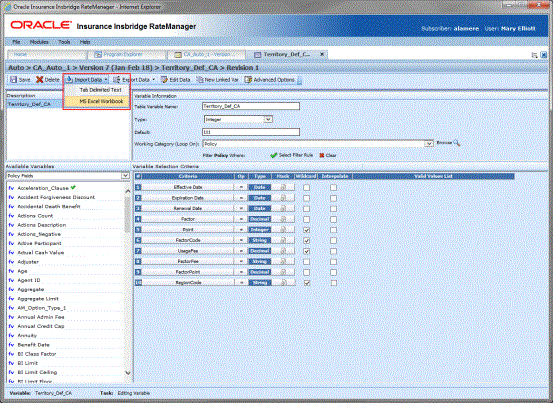
- Click Import Data on the navigation bar and select MS Excel Workbook.

- The import data file defaults to the name of the table variable. To select a new file, click File.
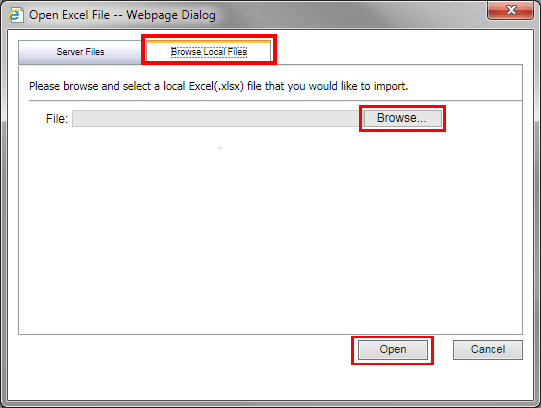
Selecting a File for Import
- You can select file on the Server Files tab or browse for a local file. Click the Browse Local Files tab.
- Select the data file you want to import from your local machine or network. Once the file has been selected, click Open to begin the import process. The location path of the file is entered in the selection field. For more on Import Data File Options, see Importing MS Excel File Import Data File Options.
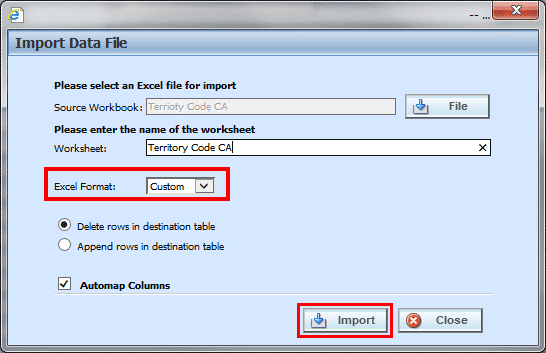
Import Table Data
- The workbook name is in the Source Workbook Field. This field can only be changed by selecting another file.
- The Worksheet name defaults to the name of the table. Make sure the name is the same as the sheet in the Excel file.
Note: If the worksheet name does not match or the worksheet in the Excel file is not named, the import will fail
- For a new file, the Excel format must be Custom. If Insbridge is selected, the import rows will begin at row 10.
Note: If your imported data begins at row 10, skipping rows 1-9, the Insbridge format has been used. If this is incorrect, you must change the format to Custom and re-import
- The Delete rows in destination table or Append rows in destination table options do not apply for a new file. If this is a re-import and you want to add to or deleted previous data, select the appropriate option.
- The automap feature is checked by default. If you do not want the fields to automatically map, uncheck the option. Auto mapped fields can be changed.
- Click Import to upload the file.

- Clicking Yes matches the column headings to the variable(s) and variable criteria automatically and displays the import file data. This allows you to verify the matches are correct.
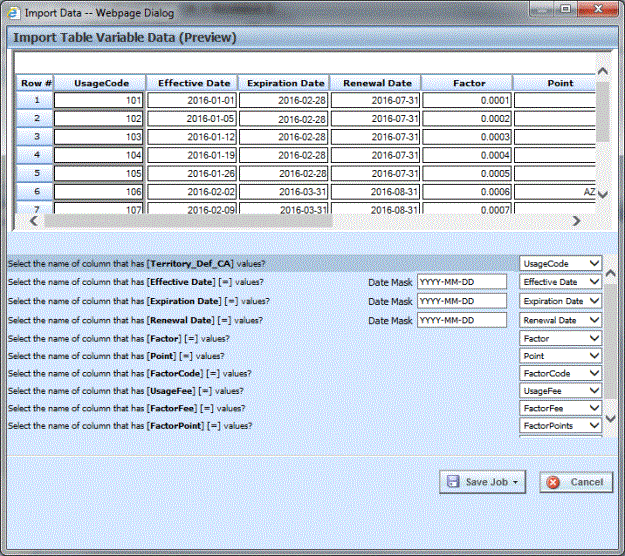
Previewing Data File with Automatically Matched Columns
The import window is split into two parts. The top portion displays the import file data as you created it. The bottom half lists the criteria and variable(s) you created within RateManager. If the column headers, the criteria and table variables names match exactly, the columns will be matched automatically. If there is a difference in the name or position, you will have to match up each element with the correct column in the import file manually.
Note: For best results when auto mapping, column header names, criteria and table variable names must match exactly, including capitalization.
If the table contains multiple rows, you can use Next 50 and Previous 50 to navigate through the table. You also can go directly to a row by entering the row number in the Go To box and clicking anywhere outside the box. If you want to verify the column matches, you can click the dropdown to check the header list.
Note: Asterisks“*” in the import file are stripped out during the import process in RateManager, so you will not see them in the edit data box. Likewise, if you manually enter your data into the edit data box, there is no need to put an “*” in the wildcard field. Simply leave the field blank.
- Clicking No automatically matches the column headings to the variable(s) and variable criteria without viewing the import file. This saves time when trying to import a large table
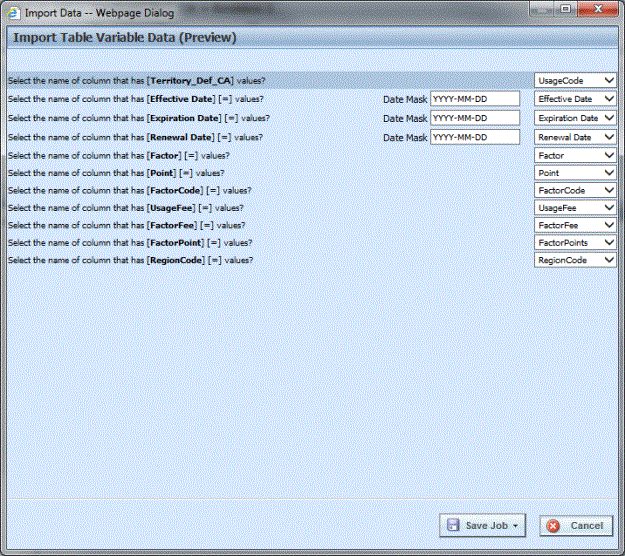
Previewing Data File with Manual Matching Required
- To manually match columns to variable(s) and variable criteria, select the drop down next to a variable or criteria and choose the column from the import file that contains data for that item.
If you do not have a match for a column you need, click Close to close the import process without bringing in any data.
If you want to add or remove a column, you will need to re-import the data.
- When you are finished matching columns, select Save Job.
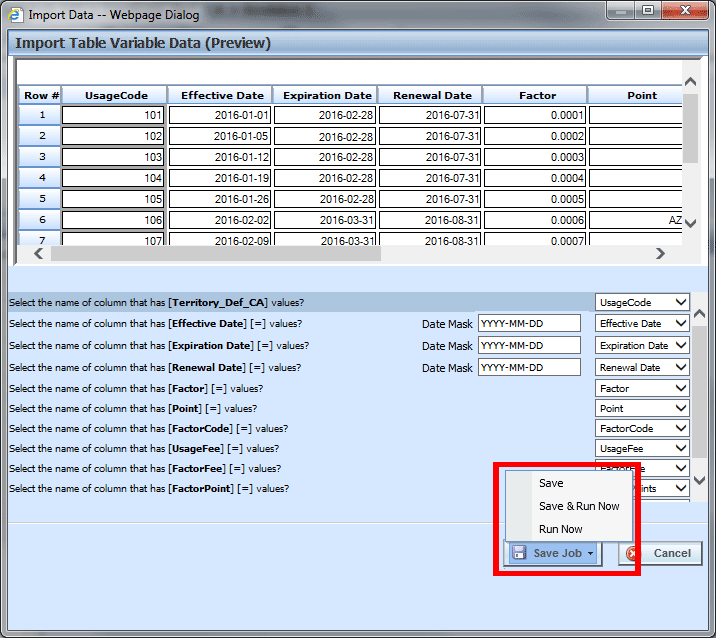
Import File Job Options
Options for Importing Data
If this is the data you want to import, click Save Job and select the option you want. The options presented depend on the permissions you have.
Save – saves the import to a job listed on the Job Management tab. If no jobs have been created, the import cannot be saved. You can still run the job with Run Now.
Save and Run – saves the import to a job listed on the Job Management tab and then runs the job. If no jobs have been created, the import cannot be saved. If you do not have Job Management permissions, this option is not displayed.
Run Now – runs the import job immediately.
Once the job has been successful, an email is sent to the users on the table job.
- If you opt to Save, you can select the job where you want to save the export to. A success or fail message is displayed.
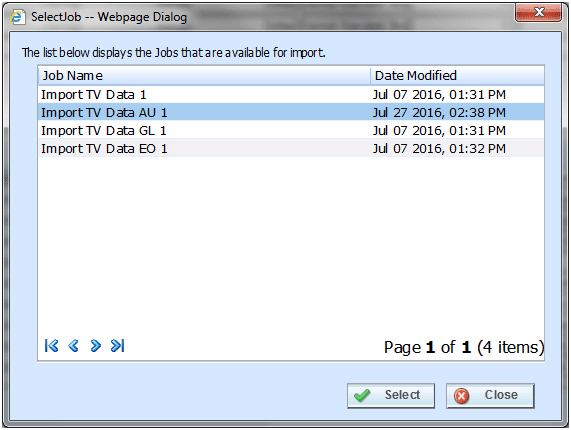
Selecting a Job for Import
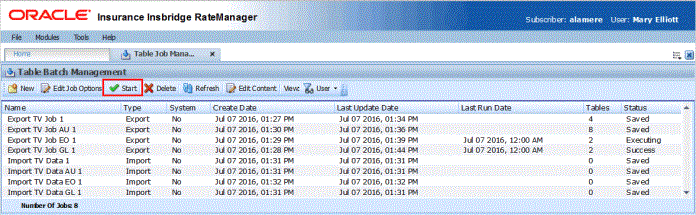
- After the imports have been saved, users with permissions can view, edit and start the job on the Table Job Management screen.