This chapter elaborates upon the operations which can be performed using the function present as part of the Instruments Inventory Tracking (IV) module of Oracle FLEXCUBE. These operations have been elaborated upon in the sections given below.
This chapter contains the following sections:
l Section 4.1, "Request Stocks"
l Section 4.2, "Bulk Request Stocks"
l Section 4.4, "Receive Stocks"
l Section 4.6, "Adjust Inventory Balance"
l Section 4.7, "Confirm Receipts"
l Section 4.8, "Balance On Hand Inquiry"
l Section 4.9, "Stock Transactions Inquiry"
l Section 4.10, "Usage Pattern Analysis"
l Section 4.11, "EOD Processing"
This section contains the following topics:
l Section 4.1.1, "Requesting Stocks"
l Section 4.1.2, "Request Stocks Summary Screen"
The ‘Request Stocks’ function allows requests to be placed by various departments to the Inventory branch for ordering of stocks. This request is logged and monitored at the inventory branch and an actual order is placed later.
The Request Stocks function records the request for replenishment of stock at the branches. After the inputs are accepted and validated, an indent request reference number is generated for future tracking of this request. The requests are logged and status updated as ‘Open’.
To invoke this screen, enter ‘IVDTXNIR’ in the field at the top right corner of the Application Toolbar and then click the adjoining arrow button.
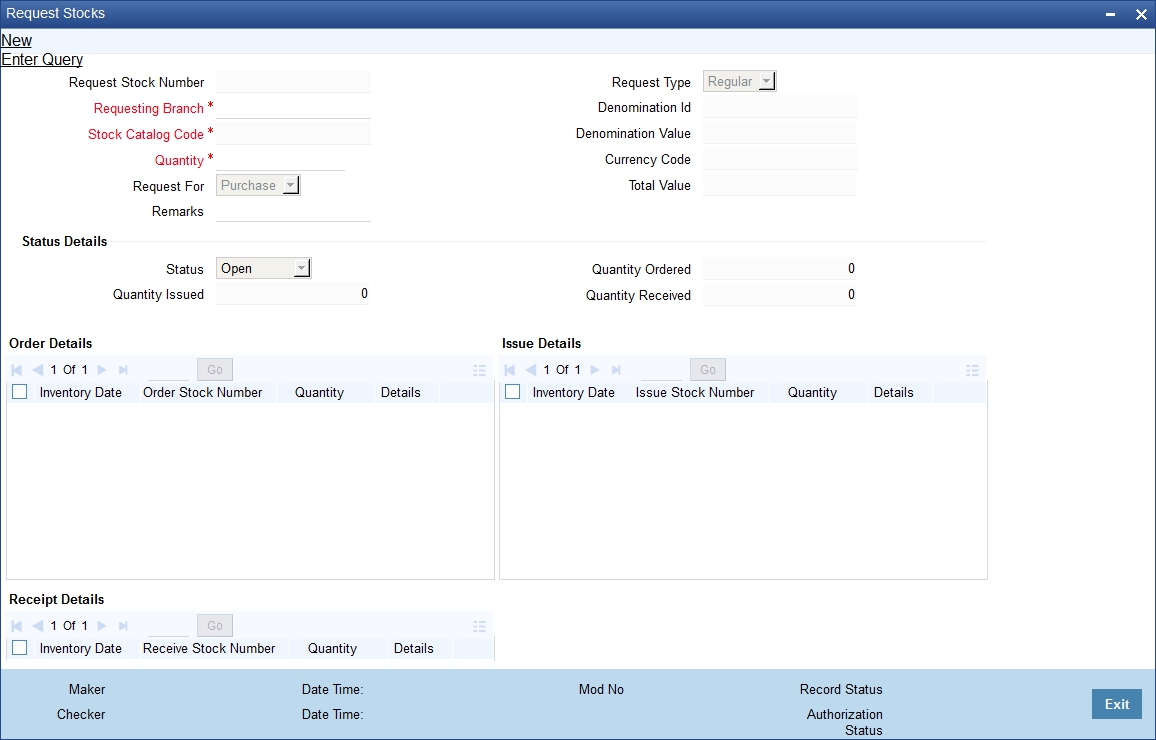
The details you need to specify in the above screen are given below.
Request Stock Number
Request stock number is generated by the system, upon Save, and is displayed for further tracking of the request status.
Requesting Branch
Select, from the adjoining list of options, the branch code of the branch for which this request is being made.
Note
If the Requesting Branch is different from the logged-in branch then the logged-in branch should be the inventory branch for request operation.
Stock Catalog Code
Select, from the adjoining list of options, the stock catalog code of the instrument being requested. Once you specify the stock catalog code, the following details are displayed:
l Denomination ID
l Denomination Value
l Currency Code
Quantity
Specify here the quantity being requested.
Request Type
Can be a regular request ‘R’ or an ad-hoc request ‘A’.
Total Value
For stocks that are tracked by denominations, total value is calculated by multiplying quantity with the denomination value.
For stocks that are not tracked by denomination (denomination value as ‘zero’), the total value will be same as quantity.
Remarks
This is a free-text field where you can either justify the need for an ad-hoc request for inventory or provide general remarks. This field is mandatory for Ad Hoc requests and optional for regular requests.
Request For
Use this field to indicate if this indent request is for ‘Purchase’ or ‘Issue’. No system processing logic is associated with this field.
Status
The system specifies one the following statuses for stock requests:
l Open
l In-progress
l Completed
Quantity Issued/Ordered/Received
Displays the quantity ordered, received and issued against this instrument request.
Order/ Receive/Issue Details
These sections display the order/receive/issue logs, respectively, for the indent request. Each record under the sections display the following details:
l Inventory Date
l Stock Number
l Quantity
Click ‘Detail’ button to view the detailed screen for order, issue and receive stocks.
For request closure operation, the request should not be part of any order/ issue transaction. If stock is ordered for this request, then the order transaction has to be closed before closing the request stock transaction. If an issue is made against the request then the request stock transaction cannot be closed.
Note
For request stock transaction, re-open operation is not supported.
4.1.2 Request Stocks Summary Screen
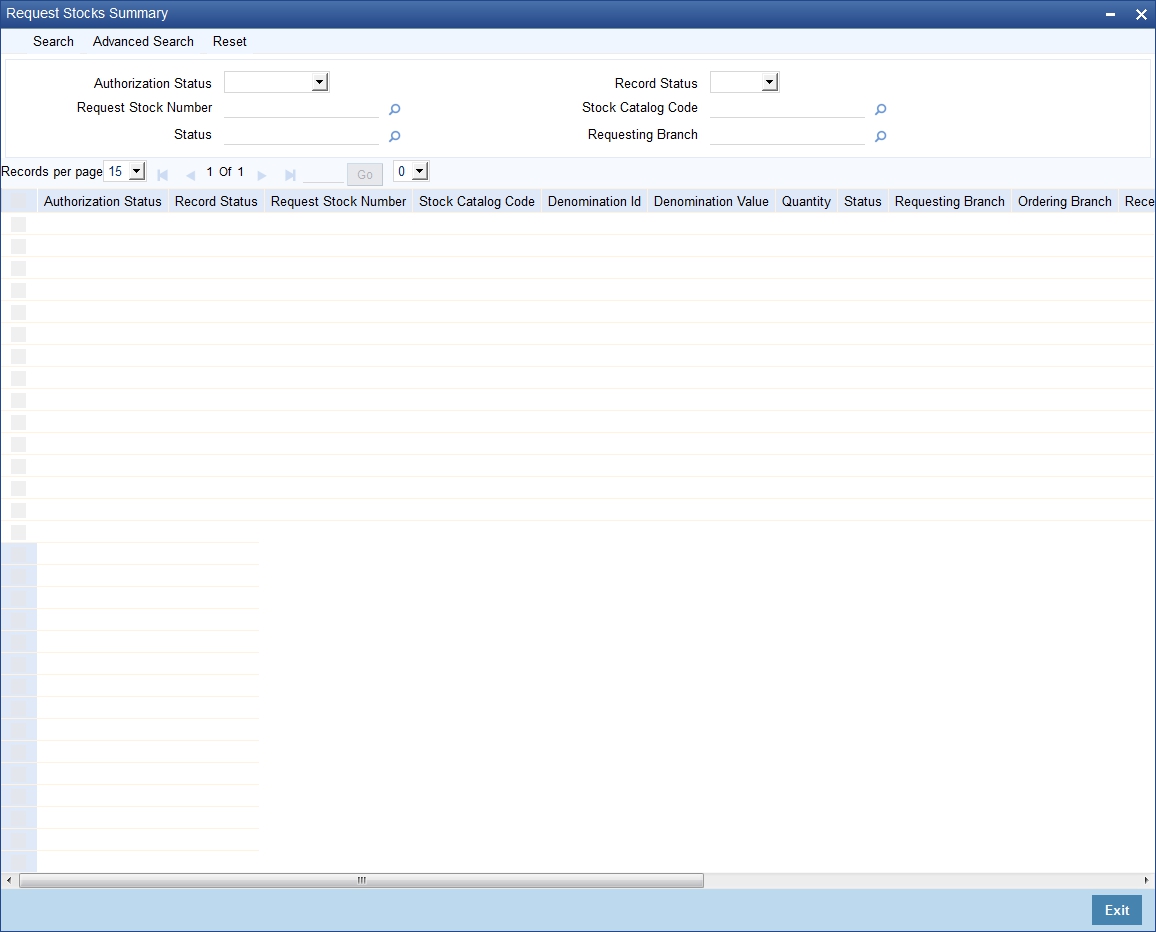
You can use the ‘Request Stocks Summary’ summary screen to query for Request Stocks records by specifying the following parameters:
l Authorization Status
l Request Stock Number
l Status
l Record Status
l Stock Catalog Code
l Requesting Branch
The summary screen displays only the requests logged in the current branch.
To invoke the ‘Request Stocks Summary’ screen, enter ‘IVSTXNIR’ in the field at the top right corner of the Application Toolbar and then click the adjoining arrow button.
This section contains the following topics:
l Section 4.2.1, "Bulk Request for Stocks"
l Section 4.2.2, "Bulk Request for Stocks Summary screen"
You can use the ‘Bulk Request Stocks’ screen for recording multiple requests at the same time. These requests can be for different stocks, denomination and requesting branch.
The ‘Bulk Request for Stocks’ function records the multiple requests for replenishment of stock at the branches. After the inputs are accepted and validated, the system generates a bulk request stock number and an individual request stock number for all future tracking of this request.
To invoke the ‘Bulk Request Stocks’ screen, enter ‘IVDTXNBR’ in the field at the top right corner of the Application Toolbar and then click the adjoining arrow button.
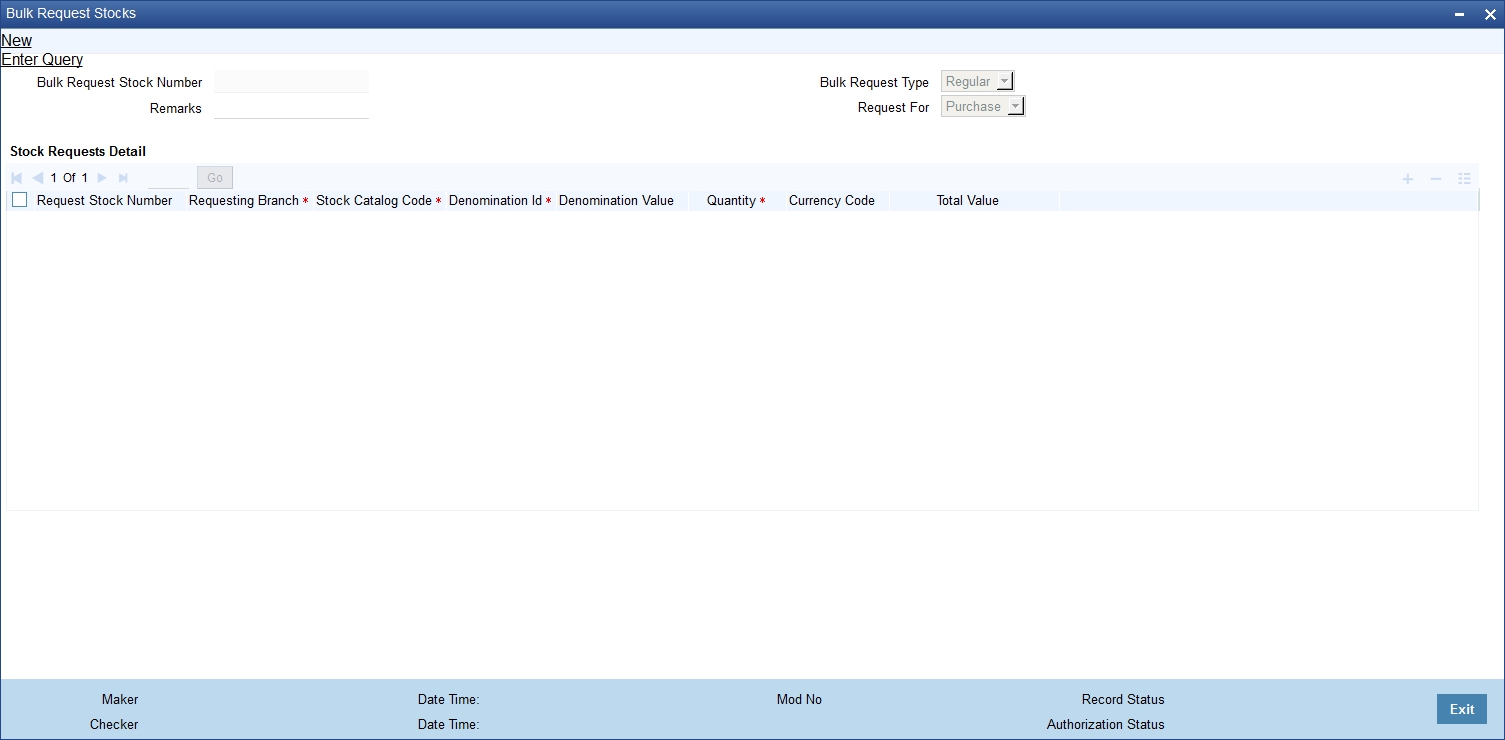
The Bulk Request Stock Number and the Request Stock Number for individual records will be generated by the system and displayed for further tracking of the request status. Bulk request number gets generated upon Save of the transaction. Upon authorization of bulk requests, system generates an auto-authorized individual request stock transaction.
You need to specify the following details in the above screen.
Bulk Request Type
Specify whether the request is a Regular or an Ad-hoc request.
Remarks
Here you may provide general remarks or remark the need for an ad-hoc request for inventory. This field is mandatory for Ad Hoc requests.
Request For
Indicate if this request is for ‘Purchase’ or ‘Issue’. No business logic is associated with this field.
Requesting Branch
Select, from the adjoining list of options, the branch code of the branch for which this request is being made. Requesting branch should be a valid branch code. If the requesting branch is different from the logged-in branch then the logged-in branch should be the inventory branch for request operation.
Stock Catalog Code
Select, from the adjoining list of options, the stock catalog code of the instrument being requested. Once you specify the stock catalog code, the following details are displayed:
l Denomination ID
l Denomination Value
l Currency Code
Quantity
Specify here the quantity being requested.
Total Value
For stocks that are tracked by denominations, total value is calculated by multiplying quantity with the denomination value.
For stocks that are not tracked by denomination (denomination value as ‘zero’), the total value will be same as quantity.
The system will not allow modification of an authorized record. Once the bulk request is authorized, further tracking can be done only from individual Request Stock screens. Unauthorized bulk requests can be tracked/modified only from the Bulk Request screen.
In Bulk Request Mode, closure operation is not supported. Only individual request has to be closed using request stock screen provided order operation is not done for that particular request.
Note
For bulk request stock transaction, re-open operation is not supported. System will not allow modification of an authorized record. Once the bulk request is authorized, further tracking will be facilitated only from the individual request stock screen. Unauthorized bulk request can be tracked/modified only from the bulk request screen.
4.2.2 Bulk Request for Stocks Summary screen
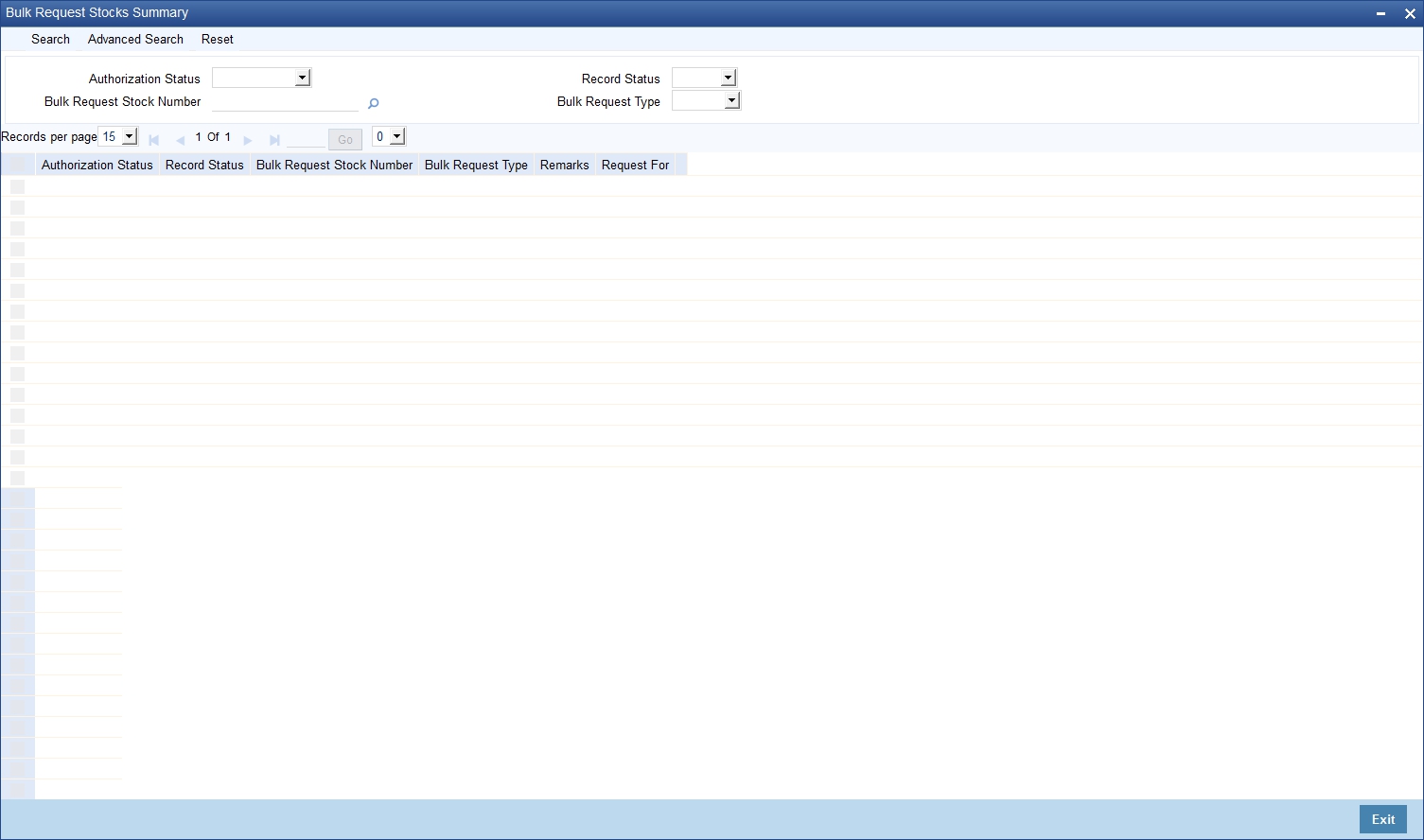
You can use the ‘Bulk Request for Stocks - Summary’ screen to query for Bulk Request records, by specifying the following parameters:
l Authorization Status
l Bulk Request Stock Number
l Record Status
l Bulk Request Type
The system will display only the bulk requests logged in the current branch.
To invoke the ‘Bulk Request Stocks - Summary’ screen, enter ‘IVSTXNBR’ in the field at the top right corner of the Application Toolbar and then click the adjoining arrow button.
This section contains the following topics:
l Section 4.3.1, "Ordering Stocks"
l Section 4.3.2, "Order Stocks Summary Screen"
You can use the ‘Order Stocks’ screen, to place purchase orders to suppliers, by considering the current stock levels in the inventory branch and the requests received from various branches.
The details of the purchase order are captured and tracked for receipt.
To invoke this screen, enter ‘IVDTXNOR’ in the field at the top right corner of the Application Toolbar and then click the adjoining arrow button.
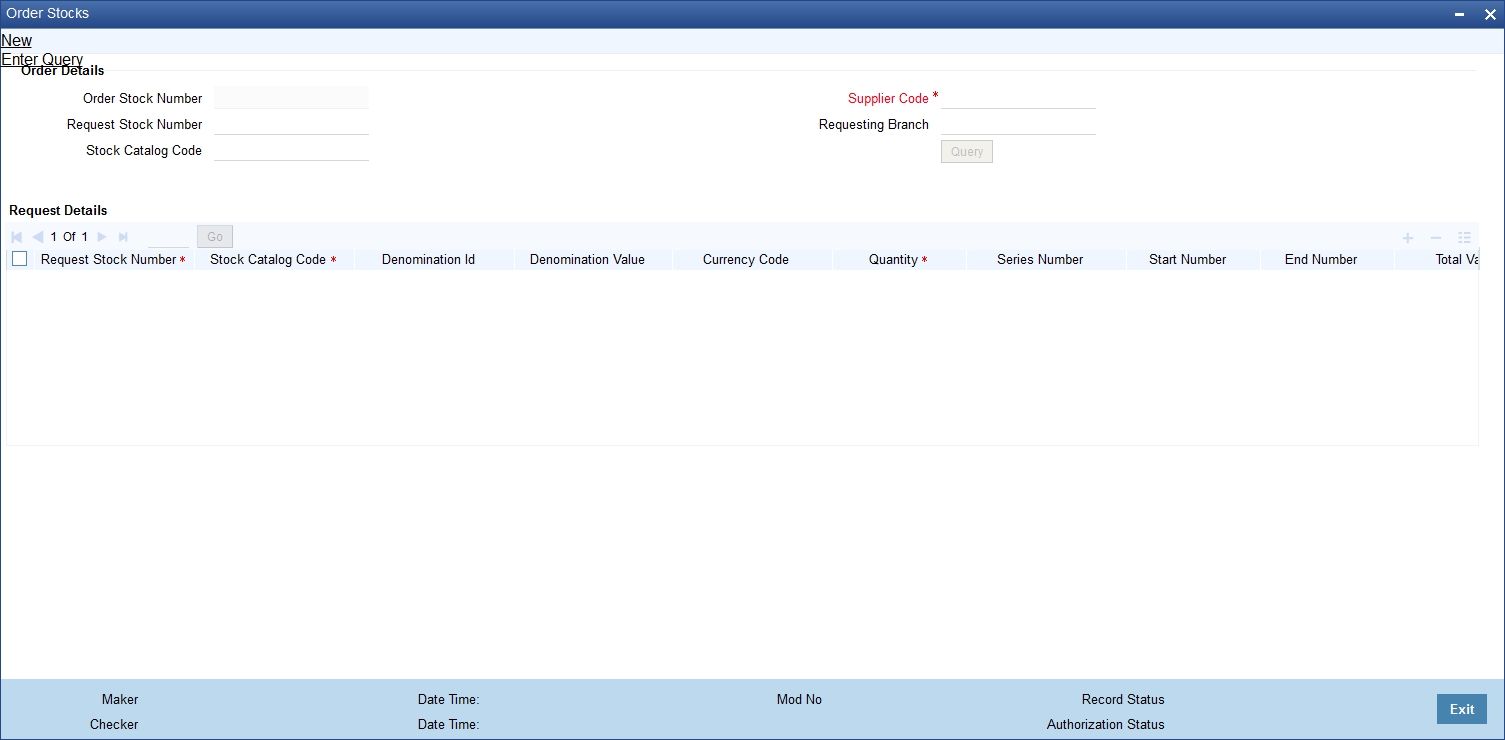
The details you need to specify in the above screen are explained below.
Order Stock Number
The Order Stock Number is generated, upon Save, for all future tracking of the status of the purchase order.
Request Stock Number
All purchase orders are placed against indent requests received from branches. So, for each purchase order, the indent request reference is accepted as input and the details are automatically displayed. Multiple indent requests can be combined in a single purchase order.
The Request Stock Number should be valid and should not be in ‘Completed’ status. All indent requests in an order stock transaction should have the same inventory branch for receiving stocks.
Use the adjoining list to specify the Request Stock Number.
Supplier Code
Select, from the adjoining list of options, the supplier code.
Requesting Branch
This field displays the list of branches for which the logged-in/current branch is the inventory branch for Order Stock operations.
Stock Catalog Code
Select, from the adjoining list of options, the stock catalog code.
You can now query, by clicking ‘Query’ button, the list of unfulfilled indent requests based on the Request Stock Number/ Stock Catalog Code/ Supplier Code / Requesting Branch specified.
When queried based on the Supplier Code, all indent requests which can be serviced by the selected supplier and ordered by the current branch will be displayed.
Series Number
You may specify here a separate series that is normally pre-printed on an entire book or pad of stationery. Series number will be accepted only for Traveller’s Cheques.
Start Number and End Number
Record the start/end number of the ordered stocks here. If auto-serial number is set for the stock code then the system will auto-generate the start and end numbers. Otherwise, the system allows to input start number only and end number gets defaulted based on the value provided for the quantity.
Quantity
You can modify the quantity of stocks ordered. It should be positive-non-zero value and should be less than or equal to the unfulfilled quantity of the request.
Total Value
This value is computed based on denomination value, quantity and denomination tracking indicator.
Upon confirmation of order details status of the indent requests that form part of the purchase order is updated to ‘In Progress’.
For order closure operation, the order should not be part of any Receive Stock transaction.
For order stock transaction, re-open operation is not supported. System will not allow modification of an authorized record, it can only be closed.
4.3.2 Order Stocks Summary Screen
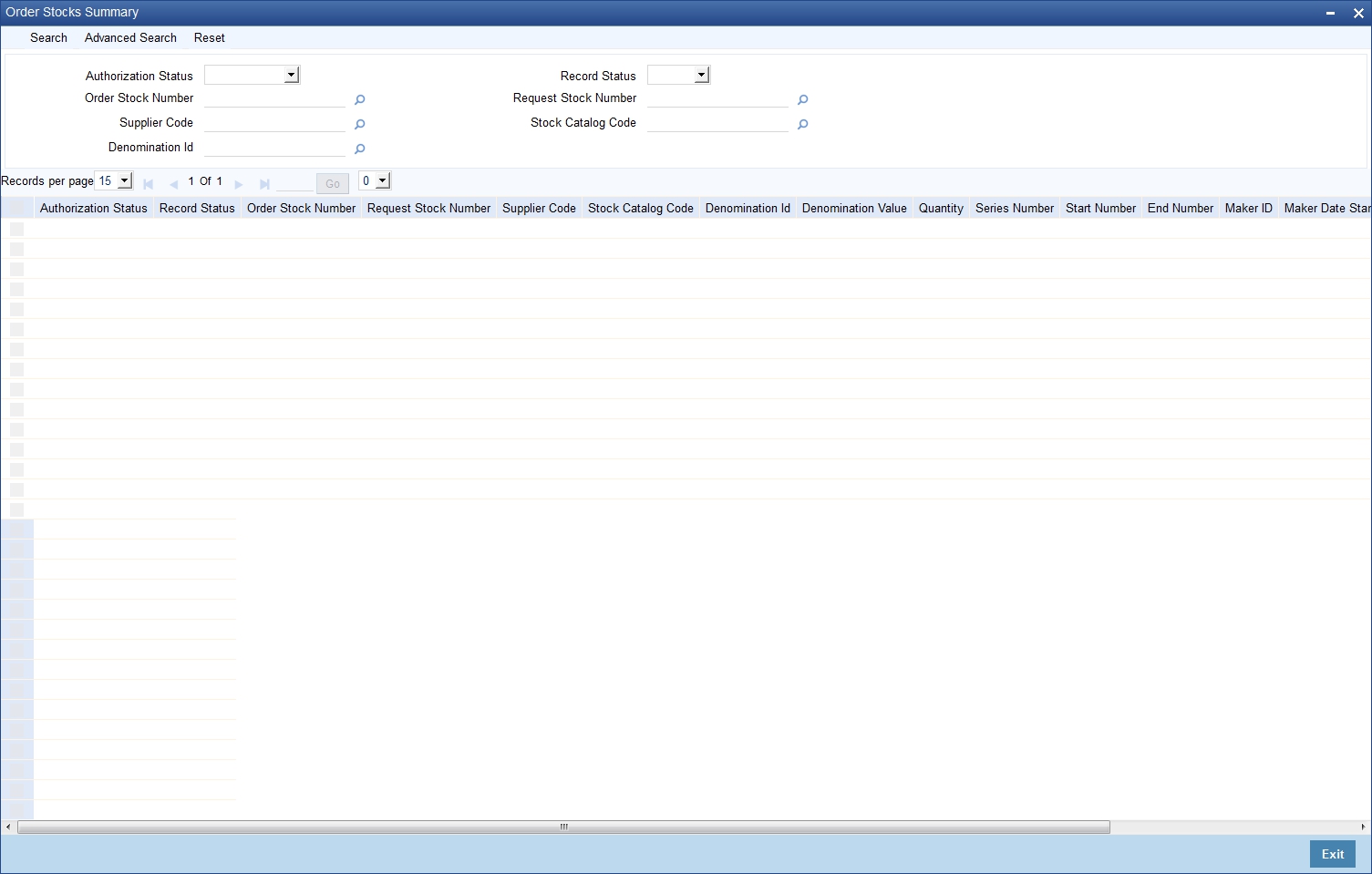
You can use the ‘Order Stocks Summary’ screen to query for Order Stocks records, by specifying the following parameters:
l Authorization Status
l Record Status
l Order Stock Number
l Request Stock Number
l Supplier Code
l Stock Catalog Code
l Denomination ID
To invoke the ‘Order Stocks Summary’ screen, enter ‘IVSTXNOR’ in the field at the top right corner of the Application Toolbar and then click the adjoining arrow button.
This section contains the following topics:
l Section 4.4.1, "Receiving Stocks"
l Section 4.4.2, "Receive Stocks Summary Screen"
You can use the ‘Receive Stocks’ screen for recording of inventory added to your existing stock. The receipt of stocks would be against a purchase order reference, which in turn would be based on an indent request from branch. This reference number can be used to quickly update the receipt of stocks.
To invoke the ‘Receive Stocks’ screen, enter ‘IVDTXNRO’ in the field at the top right corner of the Application Toolbar and then click the adjoining arrow button.
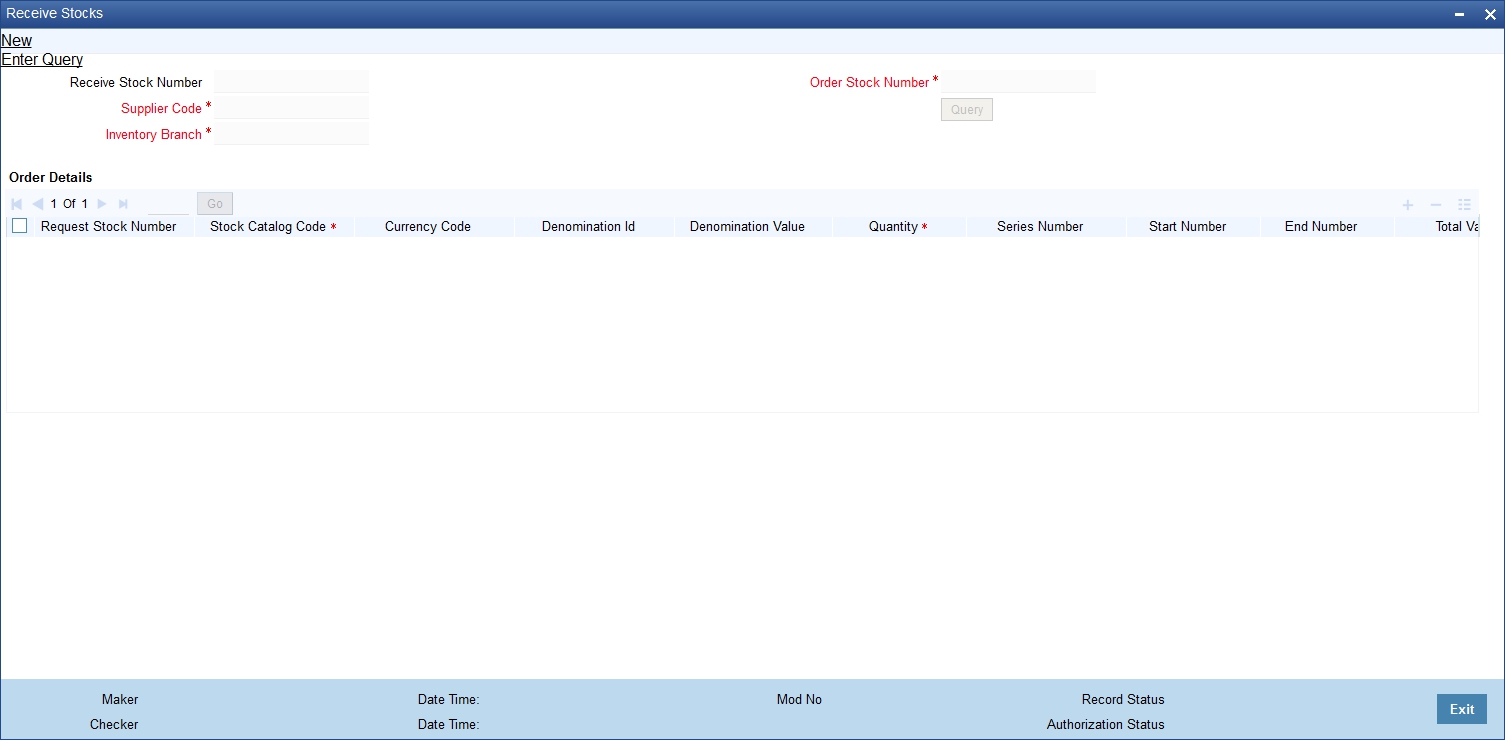
This function updates the balance in hand for the stocks that are received. It also updates the status of the purchase order. Received stocks can be issued against a request or can be transferred to another branch and then issued.
You need to specify the following details in the above screen.
Order Stock Number
Since stocks are received against purchase orders, this screen accepts the order stock number as input.
All un-fulfilled purchase orders, which can be processed by the logged-in branch, are available in the adjoining list of values for selection. When the purchase order reference is selected, all the relevant details of the order are displayed. You can then proceed to modify quantities and accept receipt.
Supplier Code and Inventory Branch
Supplier Code And Inventory Branch will be defaulted based on the order stock number. By default, all new inventory received is logged under the inventory branch which ordered the stocks. After that when transfer happens, the location of the inventory automatically changes.
Quantity
For the first stock receipt against the specified order number, the ordered quantity will be defaulted here.
For subsequent receipts the system will not default the quantity. You will need to manually specify it. The Quantity specified cannot be more than what was ordered in the purchase order.
Series Number, Start Number and End Number
The series number cannot be modified. You can modify the start number, but the same should be within the range specified during the order. The End Number will be defaulted based on the quantity received.
Total Value
This is computed based on denomination value, quantity and denomination tracking indicator. For stocks that are tracked by denominations, Total Value is calculated by multiplying the received quantity with the denomination amount
Note
– The Quantity Received and Start Number are the only fields that can be modified.
– For receive stock transaction, close and re-open operations are not supported. System will not allow modification of an authorized record.
4.4.2 Receive Stocks Summary Screen
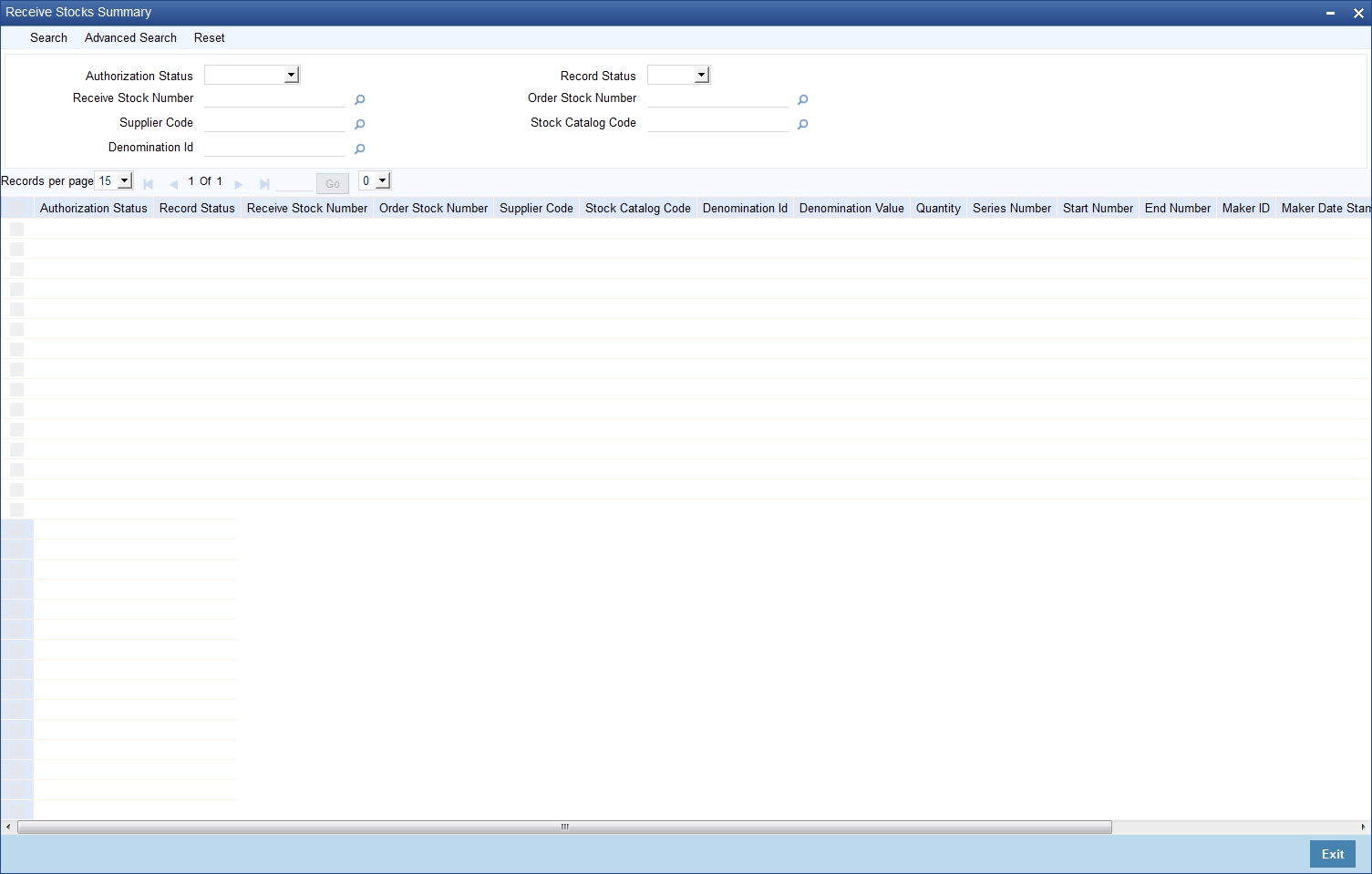
The ‘Receive Stocks Summary’ screen can be used to query for Receive Stocks records, be specifying the following parameters:
l Authorization Status
l Record Status
l Receive Stock Number
l Order Stock Number
l Supplier Code
l Stock Catalog Code
l Denomination ID
To invoke the ‘Receive Stocks Summary’ screen, enter ‘IVSTXNRO’ in the field at the top right corner of the Application Toolbar and then click the adjoining arrow button.
This section contains the following topics:
l Section 4.5.1, "Issuing Stocks"
l Section 4.5.2, "Issue Stocks Summary screen"
You can use the ‘Issue Stocks’ screen for the distribution of existing inventory to the various departments within the bank. Stocks are issued against indent requests from branch. This reduces the stock in inventory branch and the stock quantity is tracked against the specified re-order level.
To invoke the ‘Issue Stocks’ screen, enter ‘IVDTXNRI’ in the field at the top right corner of the Application Toolbar and then click the adjoining arrow button.
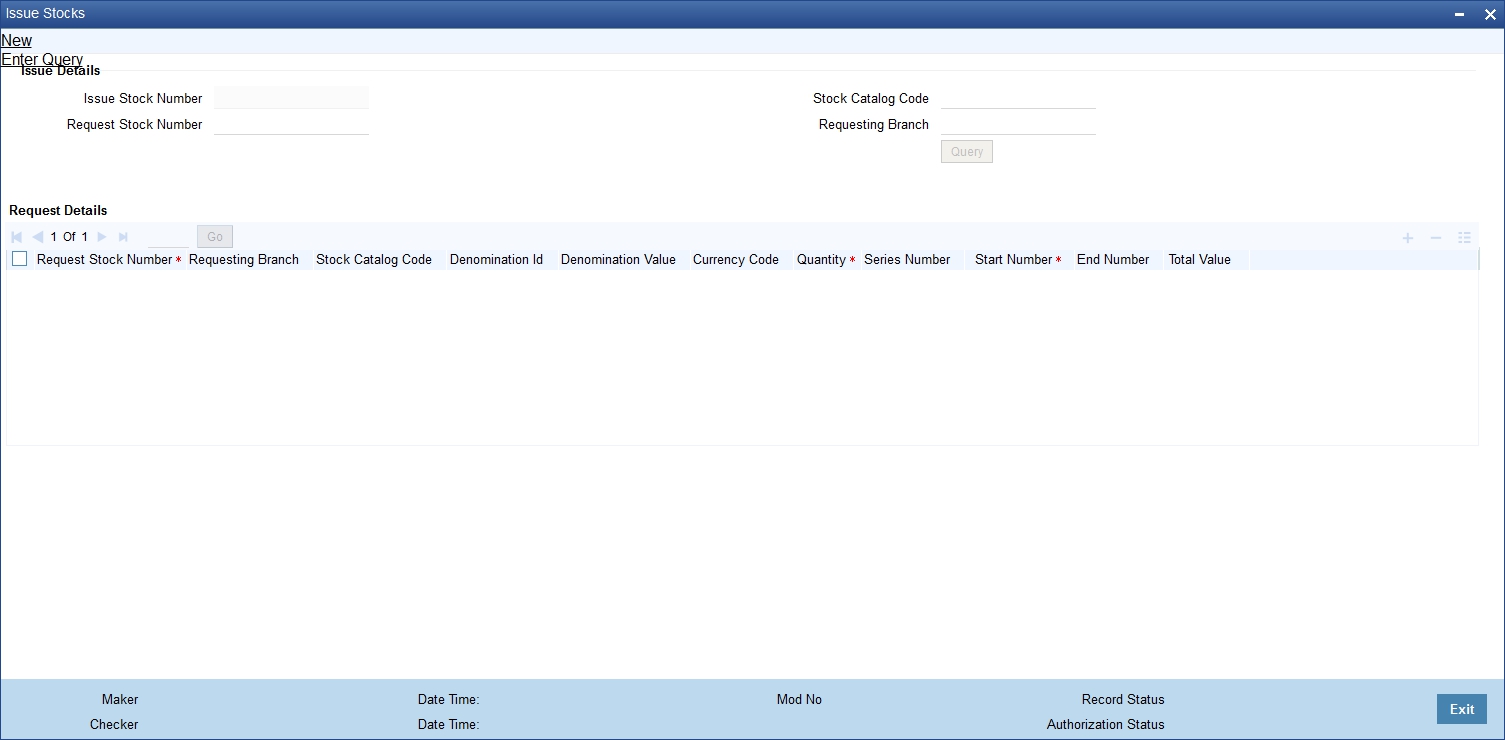
The ‘Issue Stocks’ function acts like a transfer transaction of stocks between Inventory branch and requested branches. It increases the balance in hand at branches for the stocks that are issued and decreases the same simultaneously at the Inventory location. It also updates the status of the indent request.
The above screen is detailed below.
Request Stock Number
Since stocks are issued against indent requests, this screen accepts the Indent Request reference number as input. All un-fulfilled indent requests are available in a pick list for selection.
Stock Catalog Code and Requesting Branch
You can also perform the query by specifying the Stock Catalog Code and Requesting Branch.
You can then modify the quantities, record the respective instrument numbers and issue the stocks.
Quantity
The quantity that was requested is defaulted. You may modify the quantity issued for the denomination, if needed. However the quantity cannot be more than what was requested in the indent request.
Series number, Start number and End number
The series number cannot be modified. You can modify the start number, but the same should be within the range as per the balance availability. The end number will be defaulted based on the quantity received.
Total Value
This value is calculated based on issued quantity, denomination value and denomination tracking indicator.
Note
The Quantity Issued and Start Number are the only fields that can be modified.
When a request indent is queried, all the items in the request indent are displayed and system allows modification of certain fields as mentioned above. All new issues are automatically logged under the branch location that requested for it.
An indent request may be serviced by existing stocks or against new purchase orders. For stocks that are tracked by denominations, total value is calculated by multiplying received quantity by the denomination amount.
Note
For issue stock transaction, close and re-open operation are not supported. System will not allow modification of an authorized record.
4.5.2 Issue Stocks Summary screen
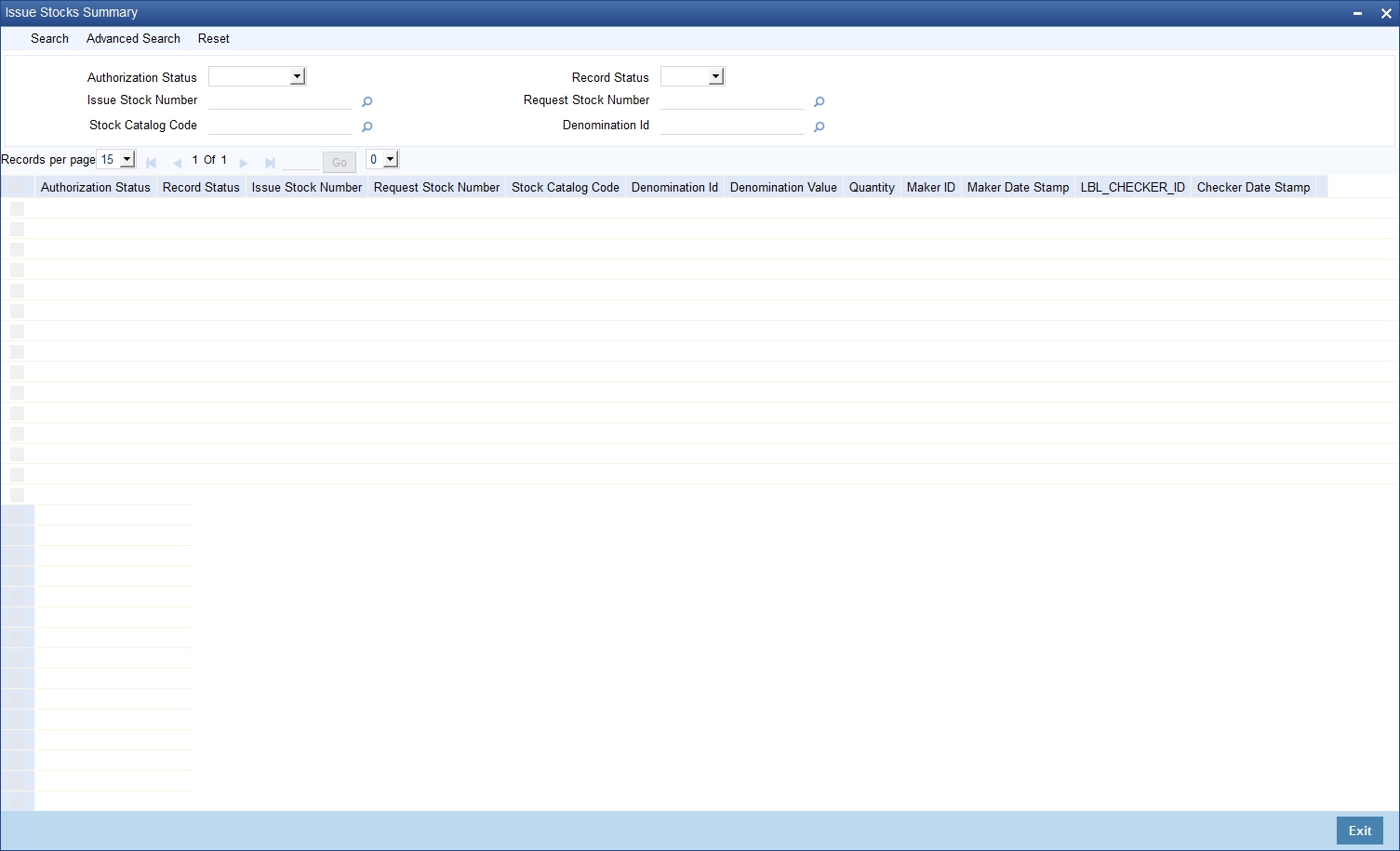
You can use the ‘Issue Stocks Summary’ screen to query of Issue Stocks records, by specifying the following parameters:
l Authorization Status
l Record Status
l Issue Stock Number
l Request Stock Number
l Stock Catalog Code
l Denomination ID
To invoke the ‘Issue Stocks Summary’ screen, enter ‘IVSTXNRI’ in the field at the top right corner of the Application Toolbar and then click the adjoining arrow button.
This section contains the following topics:
l Section 4.6.1, "Adjusting Inventory Balance"
l Section 4.6.2, "Adjust Inventory Balance Summary screen"
4.6.1 Adjusting Inventory Balance
You can use the ‘Adjust Inventory Balance’ screen for any adjustments to be made after an issue or receipt of inventory. These adjustments may be needed when returning certain items from the vendor or when the bank’s departments return them to the main inventory control.
To invoke the ‘Adjust Inventory Balance’ screen, enter ‘IVDTXNAS’ in the field at the top right corner of the Application Toolbar and then click the adjoining arrow button.
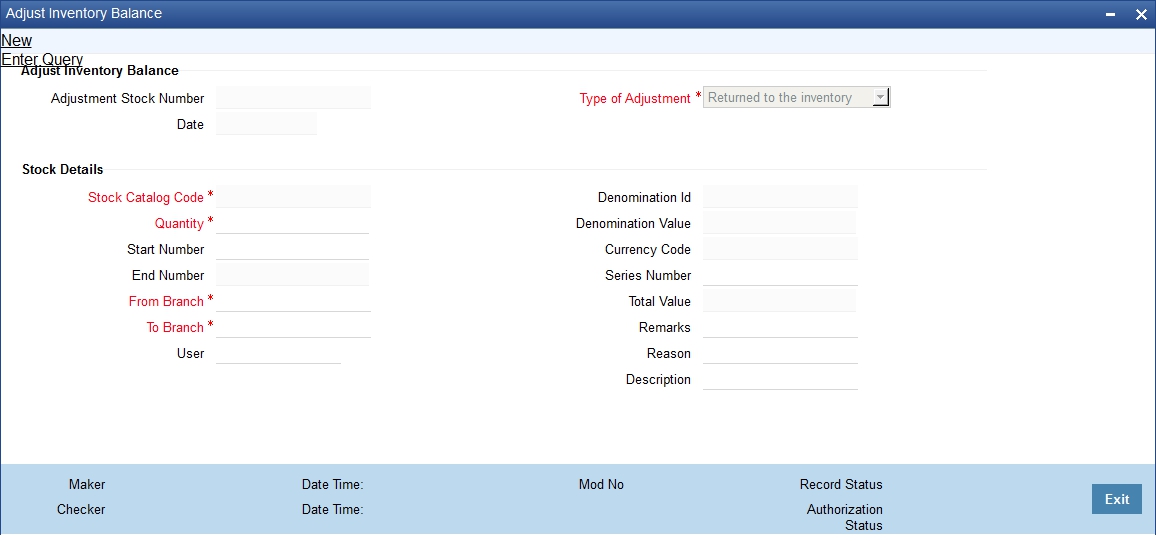
The above function changes the current location and status of the instruments. The Adjustment Stock Number is automatically generated by the system. Specify the following details in the above screen.
Type of Adjustment
Select the Adjustment Type from the adjoining drop-down list. Adjustment Type can be one of the following:
l Returned to the inventory – Here the inventory will be re-usable. This type is chosen due to one of the following reasons:
– Due to excess stock
– Rejection due to mismatch between requested and received stock
– Stock transfer between branches or other reasons
l Cancelled – Choose this when instrument is cancelled/ torn/mutilated/misprinted/stopped. The instrument in this case cannot be reused.
l Lost or misplaced inventory – Choose this when instruments are lost or misplaced in transit within the bank. The instrument can be re-sued after changing the status.
l Found – Choose this to change from the instrument status from lost to usable status.
l MC - User to Branch
l MC - Branch to User
The system performs the following validations based on adjustment type entered:
l Returned to the inventory – Instruments have to be in unused status
l Cancelled – Instruments have to be in unused status
l Lost or misplaced inventory – Instruments have to be in unused status
l Found – Instruments have to be in lost status
Date
The system displays the current system date maintained in the system.
Stock Catalog Code
Specifying the Stock Catalog Code here by selecting it from the adjoining list. You can then modify quantities, record respective serial numbers and change the start numbers if needed.
Once you have specified the Stock Catalog Code, the following details are displayed:
l Denomination ID
l Denomination Value
l Currency Code
l Total Value
Quantity
The quantity issued is defaulted. You may modify the quantity issued for the denomination, if needed. However the quantity cannot be more than what was issued.
Series number, Start number and End number
You may specify the Series Number here. You can also modify the start number, but the same should be within the range as per the balance availability. The end number will be defaulted based on the quantity.
Total Value
This value is calculated and displayed based on quantity and denomination value and denomination tracking indicator. For stocks that are tracked by denominations, total value is calculated by multiplying received quantity by the denomination amount.
Remarks
You can enter free text here to describe the need for adjustment.
From Branch and To Branch
Specify the From Branch and To Branch for stock adjustment. Note that:
l For Cancelled and Lost adjustment types, the From and To branch will be same.
l For adjustment type ‘Found’, the ‘From Branch’ would be branch which had lost the specified stock and the ‘To Branch’ would be the current logged-in branch.
l The From and To branch is same for ‘MC - Branch to User’ and ‘MC – User to Branch’ adjustment types.
Instruments should be available in the branch mentioned in ‘From Branch’.
All instruments must have valid series, start and end numbers along with the above validations.
For stock adjustment transaction, close and re-open operation are not supported. System will not allow modification of an authorized record.
For Millionaire Instruments transfer, adjustment types ‘MC - Branch to User’ and ‘MC – User to Branch’ are used for stock codes with instrument type as ‘Millionaire Certificate’.
Maintain Home branch of the customer as ‘From Branch’ and ‘To Branch’.
User
Specify a valid application user maintained in the system to perform the transfer of instrument who has a Till attached for the respective Branch.
For adjustment types ‘MC - Branch to User’ and ‘MC – User to Branch’, User Id is mandatory.
If the adjustment type is 'MC - Branch to User', then you have to maintain an adjustment inventory balance record before issuing the term deposit certificates.
Note
For status change of a denominated deposit certificate before issuance of a denominated deposit, you need to use the ‘Adjust Inventory Balance’ screen only if the ‘Allow Inventory Tracking’ check-box in the ‘Bank Parameters Maintenance’ screen (STDBANKP) is checked.Once the denominated deposit certificates are issued, there will be no further status update in Inventory module for the certificates. The status tracking and changes will be done using the STDCUSTD screen.
Reason
Specify the reason for performing inventory balance adjustment. Alternatively, you can select the reason from the option list. The list displays all valid reason codes maintained in the system.
4.6.2 Adjust Inventory Balance Summary screen
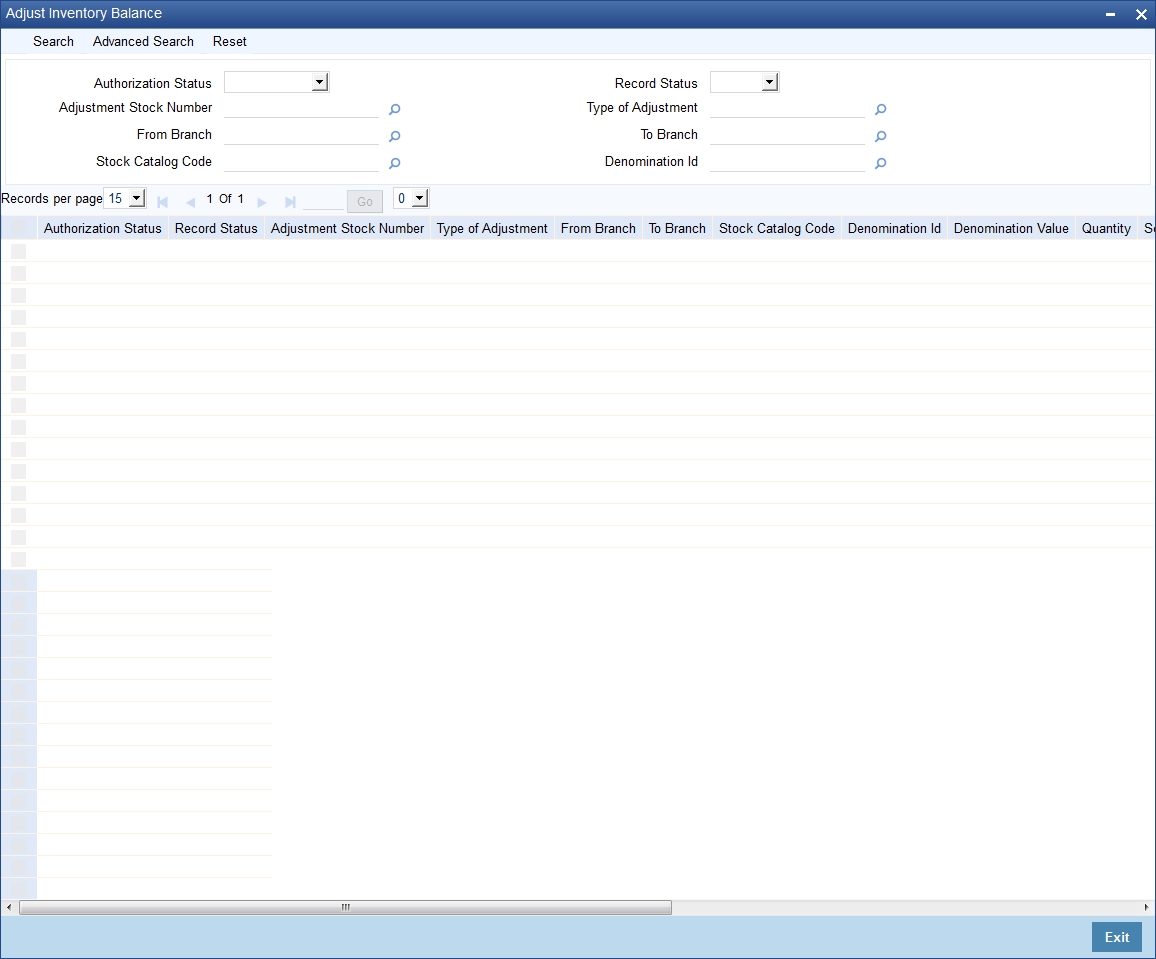
You can use the ‘Adjust Inventory Balance Summary’ screen (IVSTXNAS) to query for Adjustment Stock records, by specifying the following parameters:
l Authorization Status
l Record Status
l Adjustment Stock Number
l Type of Adjustment
l From Branch
l To Branch
l Stock Catalog Code
l Denomination ID
To invoke the ‘Adjust Inventory Balance Summary’ screen, enter ‘IVSTXNAS’ in the field at the top right corner of the Application Toolbar and then click the adjoining arrow button.
You can use the ‘Confirm Receipts’ function to acknowledge the physical receipt of stock which is issued or transferred (Stock adjustment – returned to the inventory) to the current branch. Instrument receipt confirmation marks the instrument as available for issue to customers.
To invoke the ‘Confirm Receipts’ screen, enter ‘IVDCONFR’ in the field at the top right corner of the Application Toolbar and then click the adjoining arrow button.
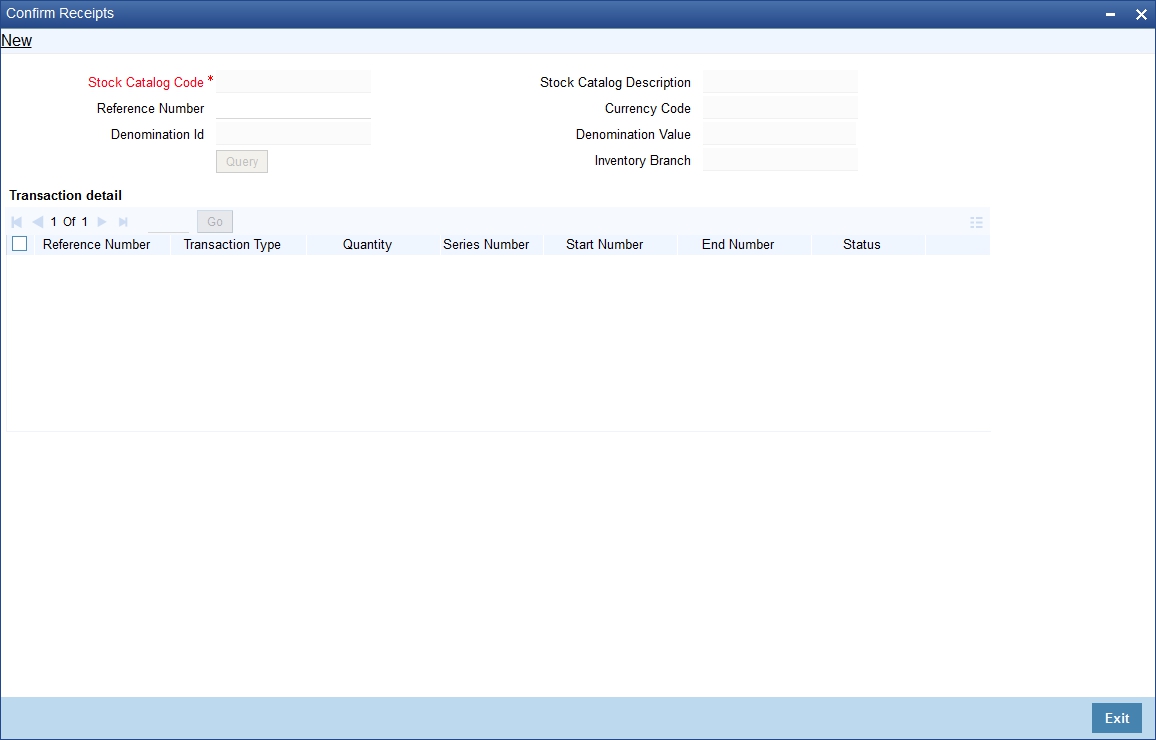
You can query for and retrieve the stocks to be confirmed / rejected based on the Stock Catalog Code, Denomination ID and Reference Number.
Stock Catalog Code
You can perform a query based on the Stock Catalog Code.
Reference Number
Specify the issue/transfer stock transaction number. Only stock transactions which are issued or transferred to the current branch will be displayed. Reference number should be a valid issue stock transaction number or adjustment stock transaction number with type of adjustment as ‘Returned to the inventory’.
Upon specify the Stock Catalog Code, the following details are displayed:
l Denomination ID
l Stock Catalog Description
l Currency Code
l Denomination Value
Inventory Branch displays the current branch.
Once you have specified the Stock Catalog Code, and if needed the Reference Number, click ‘Query’ button. Upon querying, the system displays only the stock details which are yet to be accepted by the current branch. System will not display the stock details which are already accepted or rejected. This function does not log the transaction details in the Audit Trail. System will log the confirm receipt transaction details (with user-id and transaction date timestamp) separately.
Transaction Details - Status
Specify the status here. You can either accept or reject the instrument. Upon accepting the instruments, it will be made available for issue to customer. If user rejects the stocks then the status of the instrument will be marked as ‘Lost’.
The Instrument Receipt Confirmation marks the instrument as available for issue to customers.
No authorization is required for Confirm Receipts transactions. Upon Save, the balance gets updated for that particular stock code.
You can use the ‘Balance on Hand Inquiry’ screen to view the current balance stock in a denominations and serial numbers wise break down. The query results are based on the requesting Branch.
To invoke the ‘Balance on Hand Inquiry’ screen, enter ‘IVDBALIN’ in the field at the top right corner of the Application Toolbar and then click the adjoining arrow button.
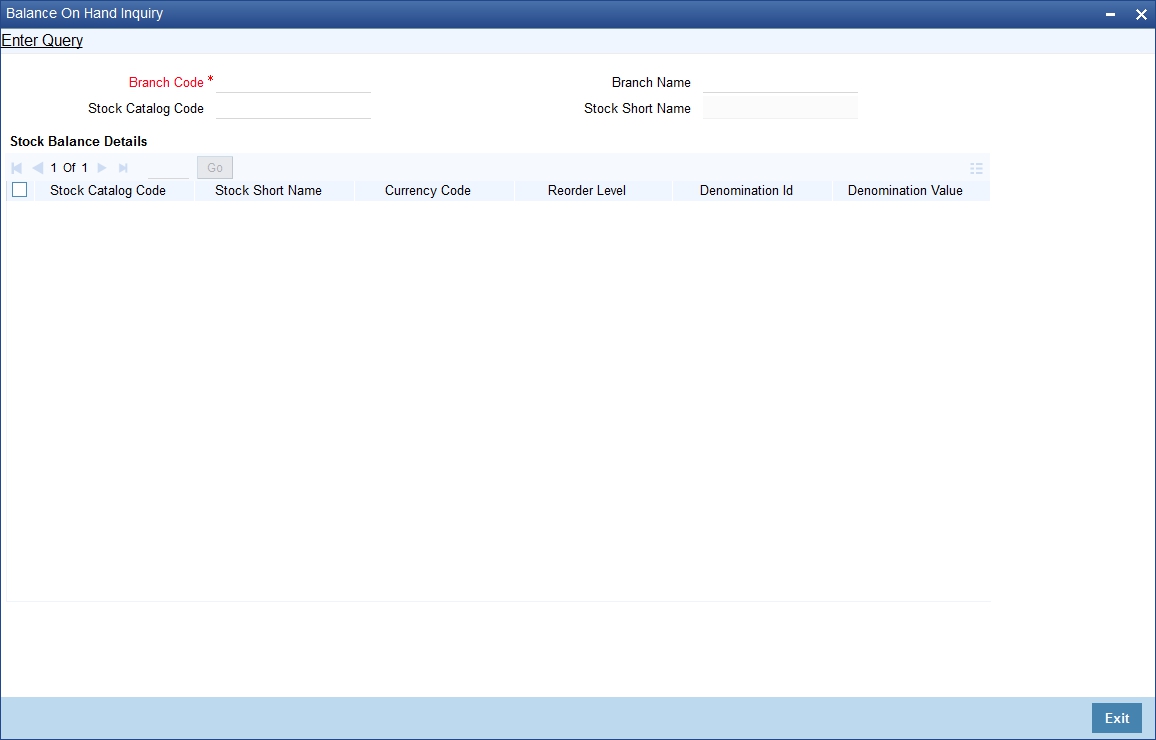
Branch code
Specifies the branch for which the query is requested.
Stock code
Specifies the stock code for which the balance is requested.
The query results will be for the requesting branch code. This function allows inquiry operation only. The respective branch’s current balance for each type of stock catalog will be displayed with the breakdown of denominations and value for each denomination.
When the user clicks on the ‘Details’ button for a stock catalog code, the denomination-wise balance units will be displayed for each series, along with the total value in each series and stock status.
Valid values of stock status are:
l Received Stocks – represents the stocks that are received by the inventory branch from supplier/vendor. Received stocks can be transferred (Stock adjustment with ‘Returned to inventory’ type) or issued to other branches. Transfer of these stocks would not change the status. Received stocks should finally undergo stock issuance and confirmation to become valid usable stocks.
l Issued Stocks – represents the stocks that are issued by the inventory branch to the current branch. Upon confirming the receipt of these stocks, the stocks would become valid usable stocks.
l Confirmed Stocks – Valid usable stocks held in the current branch.
Stock Balance Details
The following fields are displayed in multiple rows:
l Stock Catalog Code and Stock Short Name - Shows the stock code and stock short name for which the balance is displayed.
l Currency Code - This is the currency code defined for this stock in the stock catalog master.
l Re-order value - This is the re-order value defined for this stock in the stock catalog master. This is in number of units.
l Denomination ID
l Denomination Value
l Quantity - Denomination-wise balance is displayed. E.g. If the stock is passbook, then the balance will be in number of passbooks If the stock is TC, then the balance will be the number of TC leaves per denomination.
l Total value - Displays the total value of the denomination.
l Details (button) - Displays the series-wise details
l Denomination ID and value
l Series number
l Start number
l End number
l Quantity
l Total value
For every Stock Balance Details records, click the ‘Details’ button alongside to view the Denomination Details.
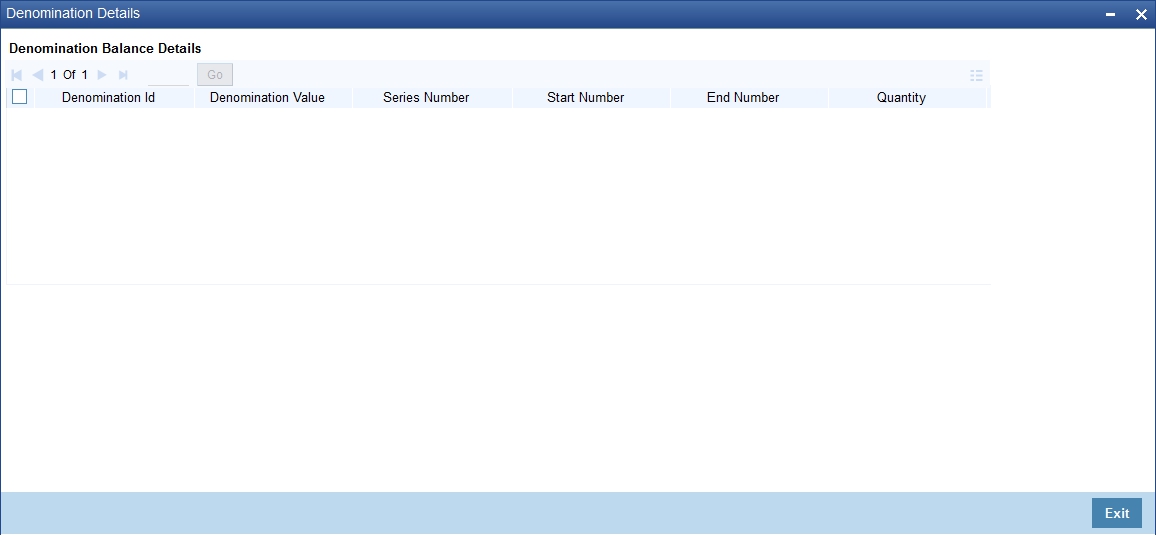
The Denomination Details screen displays the following information as part of Balance Details for a particular Denomination:
l Denomination ID
l Denomination Value
l Series Number
l Start Number
l End Number
l Quantity
l Total Value
l Stock Status
4.9 Stock Transactions Inquiry
You can use the ‘Stock Transactions Inquiry’ screen to query on the transactions that have happened on a stock code during a period.
This function allows Inquiry operation only. It displays all the transactions that have happened in the branch for the specified stock within the specified date range.
To invoke the ‘Stock Transactions Inquiry’ screen, enter ‘IVDSTKIN’ in the field at the top right corner of the Application Toolbar and then click the adjoining arrow button.
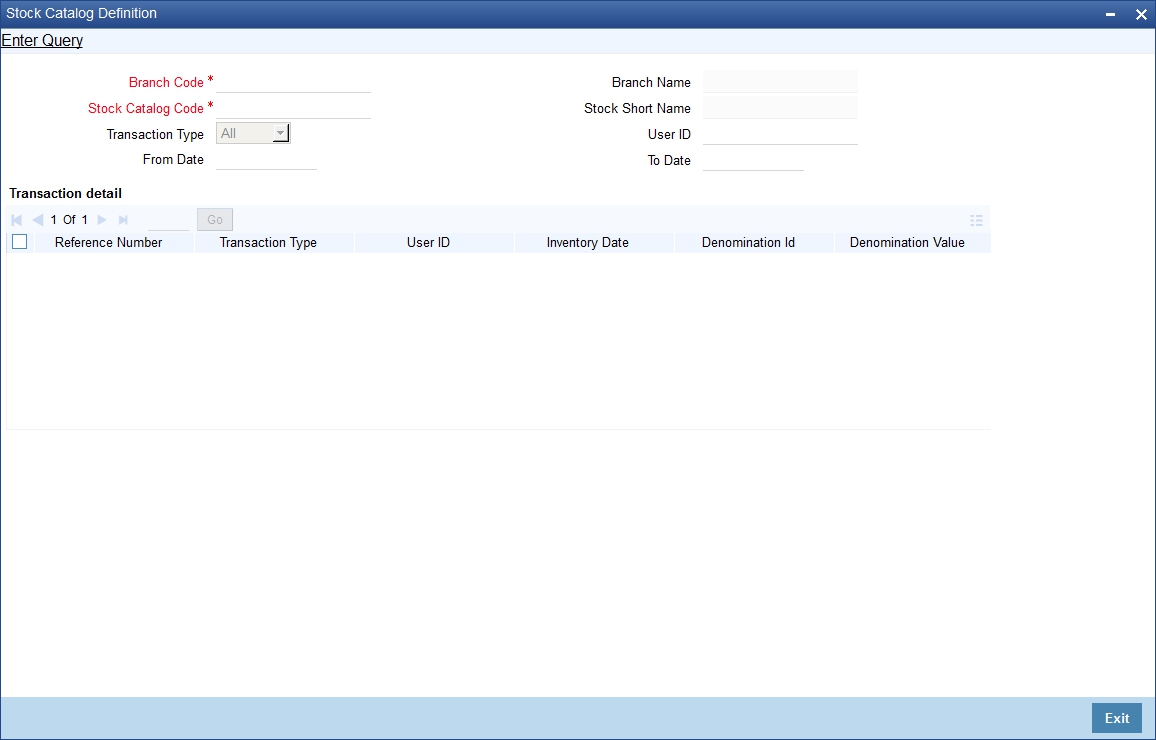
Branch code
Specify a valid branch code here.
User ID
Identify the user (maker-id) for which the query is requested. If the User Id is left blank it will show the transactions for all users within that branch.
User id will be validated against the user profile for existence.
Stock catalog code
Specify the stock code for which the query is requested. Stock catalog code should be a valid stock code in stock catalog master.
From Date
Specify the starting date of the period for which the query is done.
To Date
Specify the ending date of the period for which the query is done.
The ‘To Date’ should be greater than or equal to ‘From Date’. Both dates cannot be greater than the application date.
Transaction Type
This input can be used to further narrow down the query results or display all transaction types. It can be chosen to display all receipts, all issues or the full transaction set.
l ‘All receipts’ includes stocks received by the branch, stocks issued to the branch, stocks returned to the branch (Adjustment stock transaction with type as ‘Returned to inventory’ and/or ‘Found’).
l ‘All issues’ includes stocks issued from the branch, stocks returned from the branch (Adjustment stock transaction with type as ‘Returned to inventory’ and/or ‘Lost’).
l Full transaction set will include ‘All receipts’ and ‘All issues’.
Type of transaction should be ‘R’ – receipts, ‘I’ – issues and ‘A’ – all.
After the query input fields are validated, the following fields are displayed in the input frame.
l Reference Number - Displays the receive stock number/ issue stock number/ stock adjustment number as applicable.
l Transaction Type - Displays the type of stock transaction.
l User Id - Displays the maker-id of the stock transaction.
l Inventory date - Displays the maker-date of the stock transaction.
l Denomination ID
l Denomination Value
l Quantity
l Series number
l Start number
l End number
l Total value - Displays the denomination details for the stock transaction.
Note
For denominated deposit certificates, the Stock Transaction Inquiry screen (IVDSTKIN) provides the transaction details only till the issuance of the certificates to a deposit account. Once the certificate is issued, there will be no further update on the status of the certificate available from this screen.
You can use the ‘Usage Pattern Analysis’ screen to query and display the details of stock usage across periods.
To invoke this screen, enter ‘IVDUSPIN’ in the field at the top right corner of the Application Toolbar and then click the adjoining arrow button.
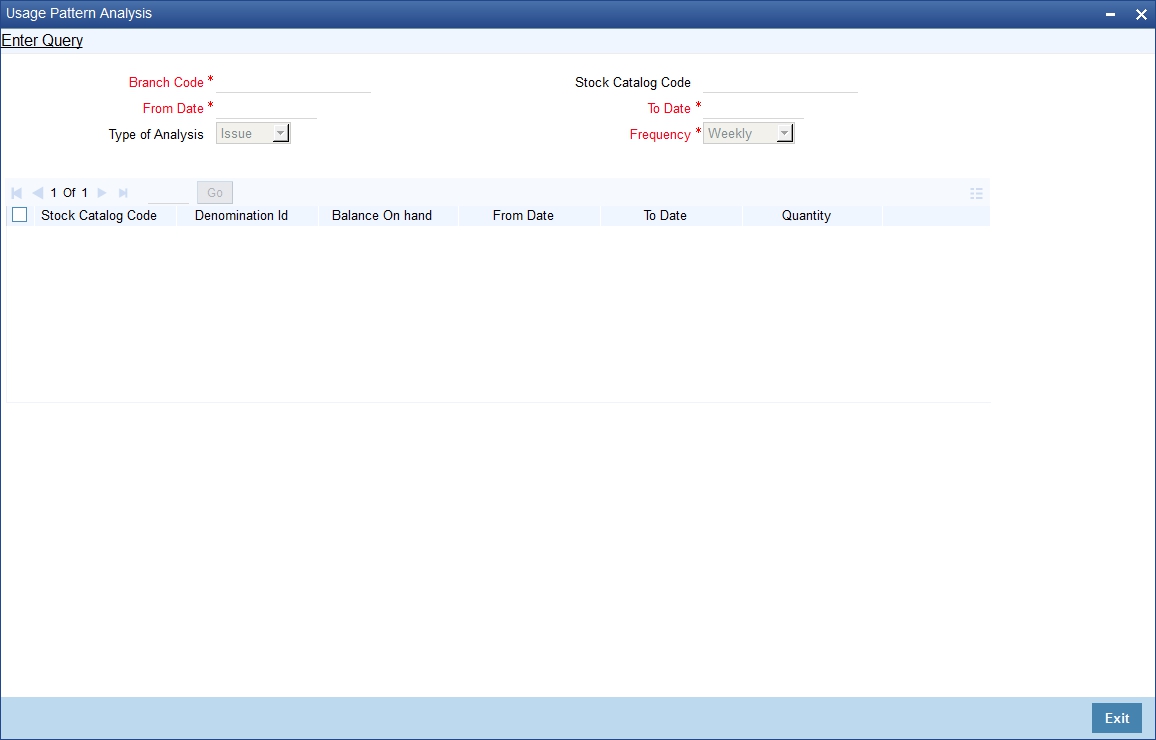
This function allows Inquiry operation only. This function displays the denomination-wise balance on hand and the quantity utilized for the specified date range with the frequency-wise break down. If frequency is monthly then it’s advisable to give the start of the month as ‘From Date’ otherwise system derived ‘From Date’ and ‘To Date’ may not be synchronized.
Type of analysis
Type of analysis can be Issue or Receive. Specify one from the following:
l Issue – includes stocks issued from the branch, stocks returned from the branch (Adjustment stock transaction with type as ‘Returned to inventory’ and/or ‘Lost’).
l Receive – includes stocks received by the branch, stocks issued to the branch, stocks returned to the branch (Adjustment stock transaction with type as ‘Returned to inventory’ and/or ‘Found’).
From date and To date
Specify here the date range for the inquiry.
Frequency
For usage pattern analysis, stock usage within the specified date range will be grouped based on pre-defined frequencies (viz. Weekly, Fortnightly, Monthly, Quarterly, Half-yearly and yearly).
Balance On Hand
Balance on hand displays the current balance of the stock and denomination.
Quantity
Quantity displays the usage level per frequency.
The above inquiry is based on the requesting branch, stock code, date range and type of analysis. All the stock issues/receipts made by requesting branch, during the date range, will be grouped under a pre-defined frequency and displayed.
The following EOD activities will be present in the End of Financial Input group.
This section contains the following topics:
l Section 4.11.1, "Re-order Level Alerts"
l Section 4.11.2, "Excess Level Alerts"
EOD processing will fetch the re-order level and the re-order quantity from the Stockflow Definition (if available) or Stock Catalog Master Definition. For an inventory branch, levels maintained at Stockflow Definition will supersede the levels specified in stock catalog master definition. For a non-inventory branch, system will apply the levels specified in Stock Catalog Master Definition.
System will calculate the balance on hand for each stock code and denomination. System will compute the projected quantity to be received from inventory branch (unfulfilled request quantity).
If the sum of balance on hand and projected quantity is less than or equal to the re-order level then system will generate an auto-authorized Request Stock transaction for the specified re-order quantity with Transaction Date as next working date.
Re-order Alert will be logged in the system, and can be viewed using BI reports.
EOD processing will fetch the excess level from the Stockflow Definition (if available) or Stock Catalog Master Definition. For an inventory branch, levels maintained at Stockflow Definition will supersede the levels specified in Stock Catalog Master Definition. For a non-inventory branch, system would apply the levels specified in Stock Catalog Master Definition.
System will calculate the balance on hand for each stock code and denomination. If balance on hand is greater than the excess level then the system will log an excess level alert. BI reports can be used to view the logged alerts.